
вступ
Thank you for choosing the ProtoArc KM310 Wireless Mechanical Keyboard and Mouse. This combo offers a responsive typing experience with low-profile linear red switches and versatile multi-device connectivity. The ergonomic mouse is designed for comfort and precision. This manual provides detailed instructions for setup, operation, maintenance, and troubleshooting to ensure optimal performance.
Що в коробці

Image: Contents of the ProtoArc KM310 package, including the keyboard, mouse, charging cable, and user manual.
- Бездротова механічна клавіатура ProtoArc KM310
- Бездротова миша ProtoArc
- Зарядний кабель USB-C
- Посібник користувача
Продукт закінченийview
Функції клавіатури

Зображення: Крупний план view of the ProtoArc KM310 keyboard, highlighting its low-profile keys and linear red switches.
- Low-Profile Механічні ключі: Equipped with linear red switches for a smooth, quiet, and responsive typing experience.
- Aluminum Top Case: Provides durability and a sleek, modern aesthetic.
- Регульовані по нахилу ніжки: Ergonomically designed with 2-stage foot mats offering 6° and 9° tilt options for comfortable typing.
- Повнорозмірний макет: A 108-key layout suitable for office and business use.
Особливості миші

Image: The ProtoArc KM310 mouse being held, showcasing its ergonomic design for a natural grip.
- 63G Ultra-Lightweight: Reduces hand fatigue during extended use and enhances portability.
- Ергономічний дизайн: Contoured shape for a comfortable and natural grip.
- Регульований DPI: Three DPI levels (1000/1600/2400) for tailored control and precision.
- Тихе клацання: Розроблено для безшумної роботи.
- Кнопки «Вперед/Назад»: Integrated for seamless browsing.
Підключення та живлення
- Підключення кількох пристроїв: Connects up to 3 devices via 2.4G USB receiver or Dual Bluetooth (BT1, BT2).
- Перезаряджається: Both keyboard and mouse feature Type-C charging. The mouse's USB receiver is stored on its bottom.
- Тривалий термін служби батареї: Up to 150-200 days standby time; 2-3 hours for a full charge.
Інструкції з налаштування
1. Заряджання пристроїв

Image: The keyboard and mouse are shown connected to power sources via USB-C cables for charging.
- Підключіть наданий зарядний кабель USB-C до зарядного порту на клавіатурі (розташованому на верхньому краю) та миші (розташованому на передньому краю).
- Підключіть інший кінець кабелю до джерела живлення USB (наприклад, USB-порту комп'ютера, настінного USB-адаптера).
- The indicator lights will show charging status. Allow 2-3 hours for a full charge.
2. Підключення до пристроїв

Image: A desk setup showing the ProtoArc KM310 keyboard and mouse connected to a laptop, monitor, and tablet, illustrating multi-device capability.
The KM310 combo supports three connection modes: 2.4G wireless via USB receiver, Bluetooth 1 (BT1), and Bluetooth 2 (BT2).
2.1. Бездротове підключення 2.4G
- Знайдіть USB-приймач, що знаходиться у відсіку на нижній частині миші.
- Підключіть USB-приймач у вільний USB-порт на комп’ютері.
- Увімкніть клавіатуру та мишу за допомогою відповідних перемикачів живлення.
- Пристрої повинні підключитися автоматично.
2.2. З’єднання Bluetooth (BT1 / BT2)
- Увімкніть клавіатуру та мишку.
- На клавіатурі натисніть BT1 or BT2 key (usually located on the number pad, indicated by orange keycaps) to select the desired Bluetooth channel. The indicator light will flash.
- On your device (computer, tablet, etc.), go to Bluetooth settings and search for "ProtoArc KM310 Keyboard" and "ProtoArc KM310 Mouse".
- Select the devices to pair. The indicator light will stop flashing once connected.
- Repeat for a second Bluetooth device using the other BT channel.
2.3. Перемикання між пристроями
To switch between connected devices, simply press the corresponding connection key on the keyboard (2.4G, BT1, or BT2) and the channel switch button on the bottom of the mouse.
Інструкція з експлуатації
Використання клавіатури
- Введення: Низькопрофільнийfile linear red switches provide a responsive and quiet typing experience.
- Сумісність з операційною системою: The keyboard is compatible with Windows and Mac OS. Keys like 'Win' and 'Alt' also show 'Option' and 'Cmd' for Mac users.
- Регулювання нахилу: Use the adjustable tilt legs on the underside of the keyboard to set your preferred typing angle (6° or 9°).
Використання миші
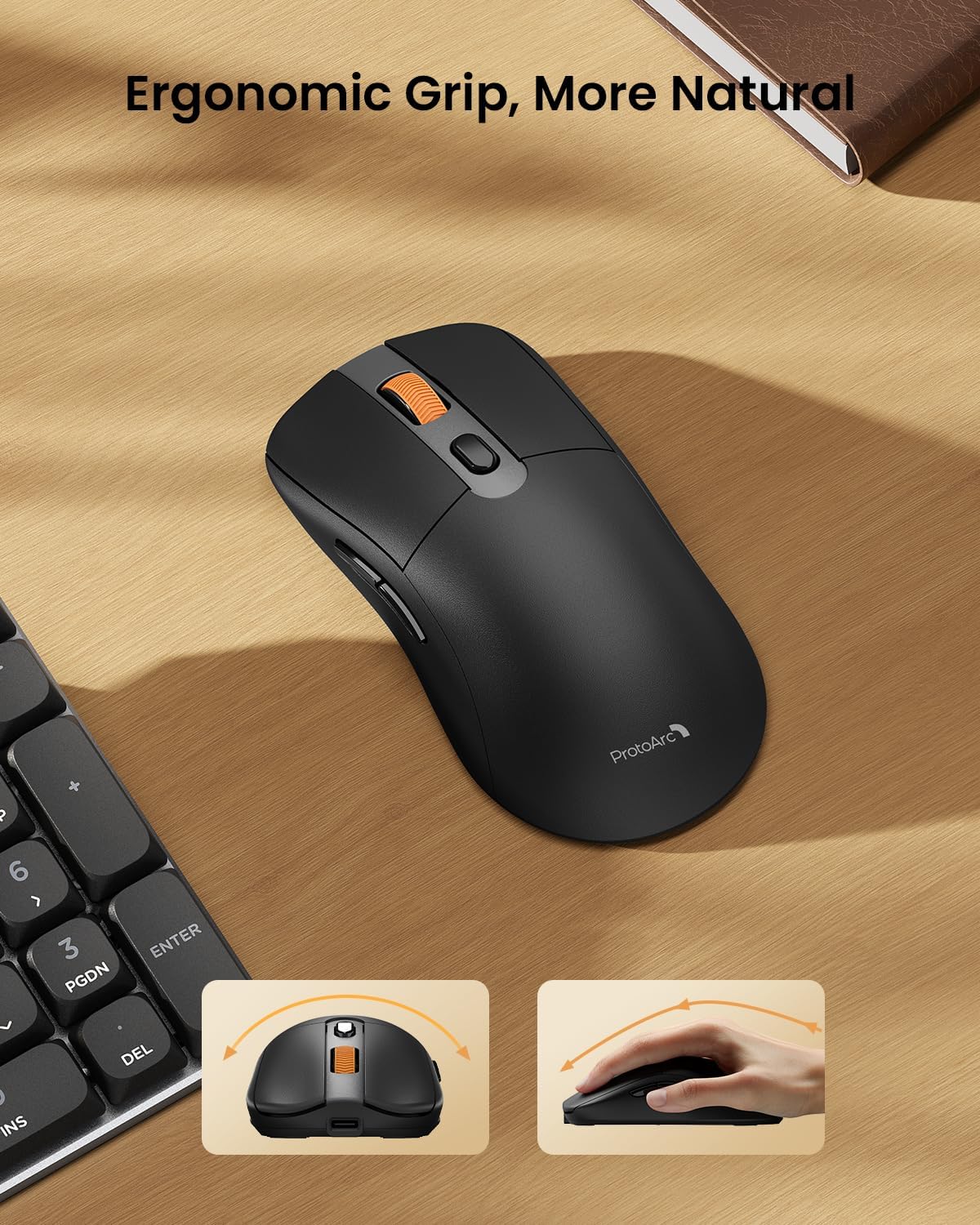
Image: A close-up of the ProtoArc KM310 mouse, illustrating the three adjustable DPI settings (1000, 1600, 2400).
- Регулювання DPI: Press the DPI switch button (usually located near the scroll wheel) to cycle through the 3 DPI levels (1000/1600/2400) to match your preference for cursor speed and precision.
- Кнопки навігації: Use the forward and backward buttons on the side of the mouse for quick navigation in web браузери або file дослідники.
- Тихі кліки: The mouse features silent click buttons for a quiet working environment.
Технічне обслуговування
- Прибирання: Use a soft, dry cloth to wipe down the keyboard and mouse. For stubborn dirt, a slightly damp можна використовувати тканину з м’яким милом, переконавшись, що рідина не потрапила всередину пристрою.
- Догляд за акумулятором: Recharge the devices when the battery indicator is low. Avoid prolonged exposure to extreme temperatures.
- Зберігання: When not in use for extended periods, turn off the devices to conserve battery life. Store the USB receiver inside the mouse to prevent loss.
Усунення несправностей
Keyboard/Mouse Not Turning On or Stopping Working
- Перевірте батарею: Ensure both the keyboard and mouse are sufficiently charged. Connect them to a power source using the USB-C cable.
- Відновлення пари пристроїв:
- For 2.4G connection, ensure the USB receiver is securely plugged in and the devices are set to 2.4G mode.
- For Bluetooth connection, ensure the devices are set to the correct BT channel (BT1 or BT2) and re-pair them through your device's Bluetooth settings.
- Спробуйте інший кабель: If charging issues persist, try using a different USB-C cable to rule out a faulty cable.
- Перешкоди: Move the devices closer to your computer or away from other wireless devices that might cause interference.
- Звернутися в службу підтримки: If the issue persists, please contact ProtoArc customer support for further assistance.
Технічні характеристики
| Номер моделі | KM310 |
| Бренд | ProtoArc |
| Колір | Космічний сірий |
| Технологія підключення | Bluetooth, USB (бездротовий зв'язок 2.4G) |
| Особливості | Низький рівень професіоналівfile Keys, Linear Red Switches, Ergonomic Design, Ultra-Light Mouse, Ergonomic Mouse |
| Сумісні пристрої | Laptop, Personal Computer, Tablet (Windows 7/8/10, Mac OS X 10.12, Android 4.3 or higher) |
| Вага товару | 2.31 фунта |
| Розміри упаковки | 17.68 x 8.07 x 2.05 дюймів |
Гарантія та підтримка
The ProtoArc KM310 Mechanical Keyboard and Mouse combo comes with a Гарантія 2 рік.
For any questions, technical support, or warranty claims, please contact ProtoArc customer service:
- Електронна пошта: support@protoarc.com
- телефон: +1 866-287-8188
Офіційне відео продукту
Відео: Офіційне відеопрезентація продуктуasing the features and design of the ProtoArc KM310 Aluminum Mechanical Keyboard and Mouse.