
вступ
This manual provides essential information for setting up, operating, and maintaining your Roku 32-Inch Select Series 1080p Full HD Smart TV. Designed for a delightful streaming experience, this TV offers excellent picture quality, clear sound, and automatic updates. Please read this manual thoroughly before using your television.
Що в коробці
Перевірте наявність усіх компонентів в упаковці:
- Roku 32-Inch Select Series 1080p Full HD Smart TV
- Пульт дистанційного керування
- Підставка (2 шт.)
- Гвинти стійки (4 шт.)
- Кабель живлення
- Посібник користувача (цей документ)

Image: Contents of the Roku TV box, showing the television, remote control, two stand pieces, and four screws.
Інструкції з налаштування
1. Кріплення підставки для телевізора
- Carefully place your TV face-down on a soft, clean surface to prevent damage to the screen.
- Вирівняйте деталі підставки з отворами для гвинтів у нижній частині телевізора.
- Secure each stand piece with two screws using a Phillips head screwdriver. Do not overtighten.
2. Підключення живлення та пристроїв
- Підключіть кабель живлення до входу живлення телевізора, а потім до розетки.
- Connect your external devices (e.g., cable box, gaming console, Blu-ray player) to the available HDMI ports on the back of the TV. This model features 3 HDMI ports.
- For older devices, use the AV input ports (yellow, white, red).
- An optical audio output is available for connecting to soundbars or home theater systems.
- A USB port is provided for media playback.

Зображення: Задня частина view of the Roku TV displaying HDMI, AV, Antenna, USB, Optical, and Headphone ports.
3. Початкове увімкнення та підключення до мережі
- Натисніть кнопку живлення на пульті дистанційного керування або на телевізорі.
- Follow the on-screen instructions to select your language and connect to your Wi-Fi network.
- Activate your Roku account or create a new one. This is required to access streaming channels and features.
Інструкція з експлуатації
1. Roku OS Interface
The Roku OS provides a simple and intuitive home screen for accessing all your entertainment. Easily navigate between streaming apps, live TV, and connected devices.

Image: The Roku TV home screen with a menu on the left and app icons on the right, including Netflix, Disney+, Apple TV, and Roku Channel.
2. Voice Remote
Your Roku TV comes with a voice remote for convenient control. Use your voice to search for content, launch apps, and control playback.
- Голосовий пошук: Press the voice button and speak your command (e.g., "Find comedies," "Open Netflix").
- Ярлики програм: Dedicated buttons provide quick access to popular streaming services.
- Регулювання гучності: Регулюйте гучність за допомогою бічних кнопок.
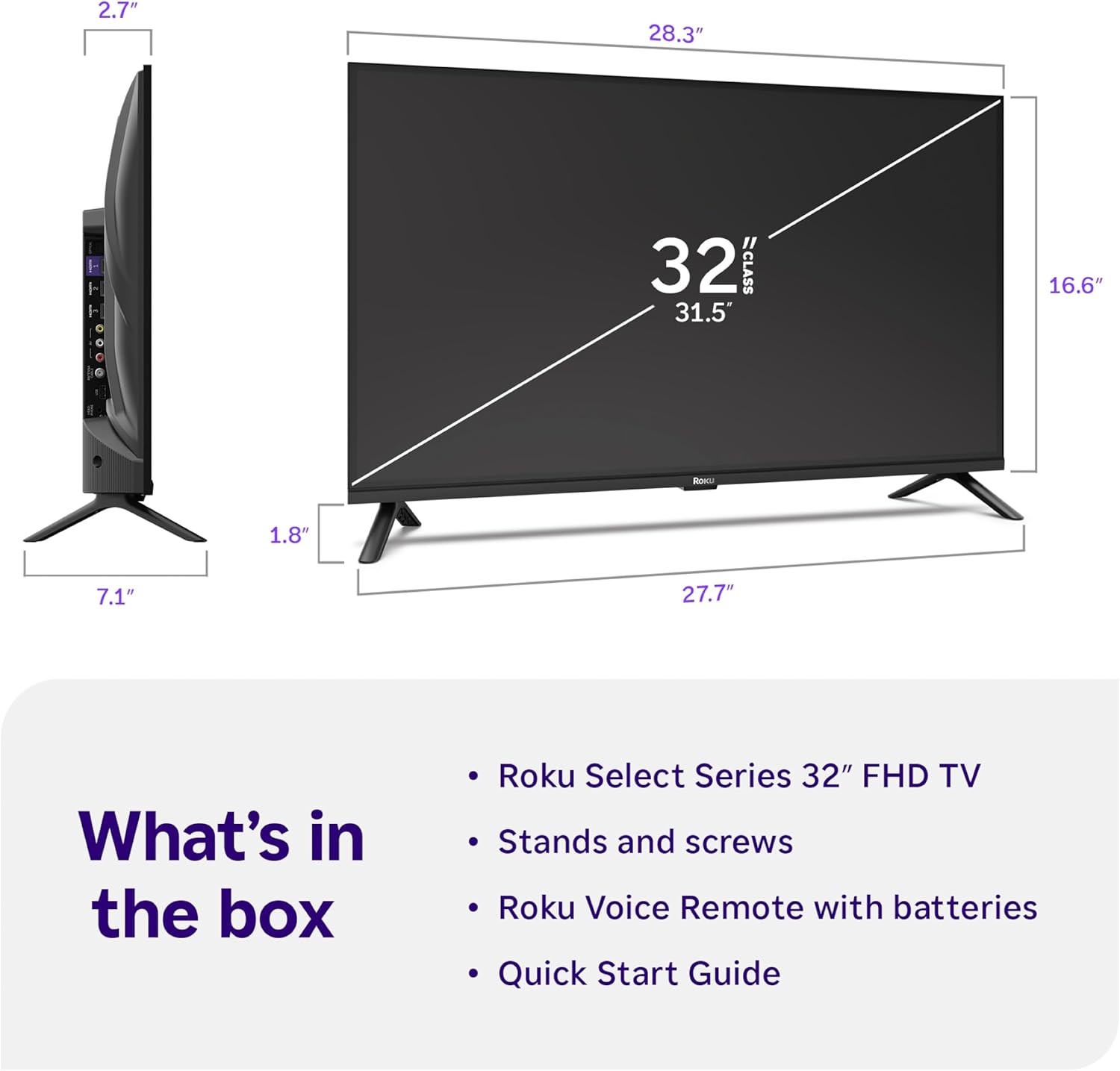
Image: Close-up of the Roku Voice Remote, highlighting buttons for TV power, volume, mute, voice search, instant replay, options, and dedicated app shortcuts.
3. Streaming Apps and Live TV
Access thousands of streaming channels, including Netflix, Disney+, Hulu, Prime Video, and Apple TV+. The Roku Channel also offers free live TV and on-demand content.

Image: A vibrant Roku TV home screen displaying a selection of popular streaming applications and recommended shows.
4. Налаштування зображення
Оптимізуйте свій viewing experience with various picture settings:
- Roku Smart Picture: Automatically adjusts picture mode for optimal viewінж.
- Режими зображення: Choose from presets like Movie, Sports, Vivid, Standard, or Low Power.
- Налаштування: Adjust brightness, contrast, sharpness, color, and tint for a personalized picture.
5. Налаштування звуку
Покращте свої враження від прослуховування:
- Dolby Audio: Enjoy clear speech and louder sound.
- Режими звуку: Select from Standard, Dialogue, Movie, Music, or Night mode.
- Режим Bluetooth-навушників: Connect your wireless headphones to listen without disturbing others.

Image: A child wearing wireless headphones while watching the Roku TV, demonstrating the Bluetooth Headphone Mode.
6. Інтеграція «Розумний дім».
Your Roku TV is compatible with various smart home ecosystems:
- Голосове керування: Use Roku Voice, Siri, Alexa, or Google Assistant for hands-free control.
- Apple AirPlay: Effortlessly share videos, photos, and music from your Apple devices.
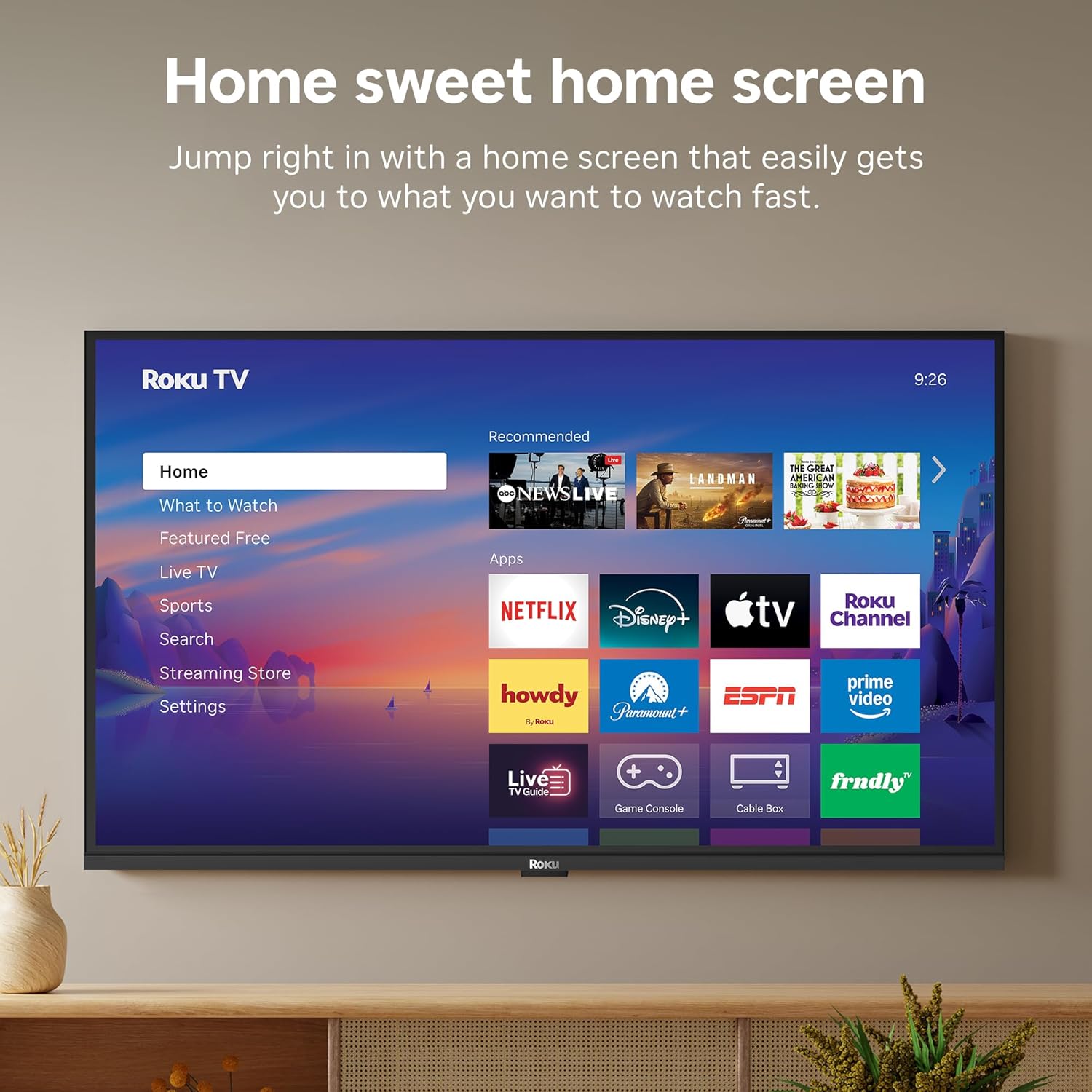
Image: The Roku TV screen displaying smart home compatibility logos for Roku Smart Home, Apple AirPlay, Apple Home, Alexa, and Google Home, with a smart speaker nearby.
7. Батьківський контроль
Manage content access with built-in parental controls, including V-Chip technology, to ensure a safe viewсередовище для дітей.
Офіційне відео продукту
Відео: Оверview of the Roku TV OS, demonstrating its user-friendly interface, app selection, and smart features. This video is provided by Roku, Inc.
Технічні характеристики
- Розмір екрана:
- 32 дюймів
- роздільна здатність:
- 1080p Full HD
- Технологія дисплея:
- LED
- Частота оновлення:
- 60 Гц
- Особливості:
- Bluetooth Headphone Mode, Dolby Audio, Voice Remote, Roku Smart Picture
- Технологія підключення:
- Bluetooth, WiFi
- Апаратний інтерфейс:
- 3 HDMI Ports, 1 USB Port, S/PDIF (Optical Audio Out)
- Операційна система:
- Roku OS
- Розміри виробу (Г x Ш x В):
- 7.1" Г x 28.3" Ш x 18.4" В
- Вага товару:
- 7.7 Pounds (with stand)
- Стандарт кріплення VESA:
- 200 х 200 мм
- Номер моделі:
- 32R3E5
- UPC:
- 829610009469
Усунення несправностей
If you encounter issues with your Roku TV, please refer to the following common solutions:
- Немає живлення: Переконайтеся, що кабель живлення надійно підключено як до телевізора, так і до справної електричної розетки. Спробуйте іншу розетку.
- Немає зображення/звуку: Verify that the correct input source is selected on your TV. Check all cable connections (HDMI, AV, etc.) for looseness.
- Пульт не відповідає: Replace the batteries in your remote control. Ensure there are no obstructions between the remote and the TV.
- Проблеми з мережевим підключенням: Restart your Wi-Fi router and modem. Go to the TV's Settings > Network > Check connection to diagnose and reconnect.
- App Not Loading: Restart the app. If the issue persists, try removing and reinstalling the app from the Roku Channel Store.
Для отримання детальнішої інформації про усунення несправностей відвідайте офіційну службу підтримки Roku. webсайт.
Технічне обслуговування
To ensure the longevity and optimal performance of your Roku TV, follow these maintenance guidelines:
- Очищення екрану: Обережно протріть екран м’якою сухою тканиною з мікрофібри. Для стійких плям злегка протрітьampПромийте тканину водою або розчином для очищення екранів, спеціально призначеним для електроніки. Не розпилюйте рідину безпосередньо на екран.
- Очищення корпусу телевізора: Use a soft, dry cloth to wipe the exterior of the TV. Avoid abrasive cleaners or solvents.
- Вентиляція: Переконайтеся, що вентиляційні отвори телевізора не заблоковані, щоб запобігти перегріву. Забезпечте достатній простір навколо телевізора для циркуляції повітря.
- Оновлення програмного забезпечення: Your Roku TV automatically receives software updates. Ensure your TV is connected to the internet to receive the latest features and performance improvements.
- Управління живленням: Від’єднуйте телевізор від розетки під час грози або якщо він залишатиметься без нагляду протягом тривалого часу.
Гарантія та підтримка
Інформація про гарантію
Roku warrants the hardware of this device against defects in materials and workmanship under normal use for a period of one (1) year from the date of purchase ("Warranty Period"). If Roku determines that the device’s hardware is defective during the Warranty Period, Roku’s sole obligation, and your exclusive remedy, will be to either repair or replace the unit with either a new or rebuilt device, at its option. This warranty applies if the device is used in accordance with the provided documentation.
Important information about warranty returns and replacements is available on the Roku support site. You may also return a device for any reason, subject to the terms of the applicable return policy: 1) Within thirty (30) days from the date of purchase from Roku; or 2) within the applicable return period if purchased from an authorized reseller or distributor. Additional details regarding product returns can be found on the Roku support site.
Підтримка клієнтів
For further assistance, technical support, or to access the full range of support resources, please visit the official Roku support webсайт. Там ви можете знайти поширені запитання, посібники з усунення несправностей та контактну інформацію служби підтримки клієнтів.