
1. Вступ і даліview
This manual provides essential information for setting up, operating, maintaining, and troubleshooting your HP 17-inch Business Laptop. This device is designed for productivity and features a 13th Generation Intel Core i5 processor, a 17.3-inch HD+ anti-glare display, a backlit keyboard with a numeric keypad, and a fingerprint reader for enhanced security. It comes pre-installed with Windows 11 Home.
Ключові особливості:
- Процесор: 13th Gen Intel Core i5-1334U 10-core processor for efficient multitasking.
- Операційна система: Windows 11 Home for a modern and secure computing experience.
- Дисплей: 17.3-inch HD+ (1366x768) anti-glare screen with micro-edge design.
- Пам'ять і зберігання: Up to 64GB DDR4 RAM and up to 2TB NVMe M.2 SSD for fast performance and ampле сховище.
- Підключення: USB 3.2 Gen 1 Type-C, USB 3.2 Gen 1 Type-A, HDMI 1.4, and a headphone/microphone combo jack.
- Безпека: Integrated fingerprint reader.
- Зручність: Full-size backlit keyboard with numeric keypad and HP Fast Charge battery technology.
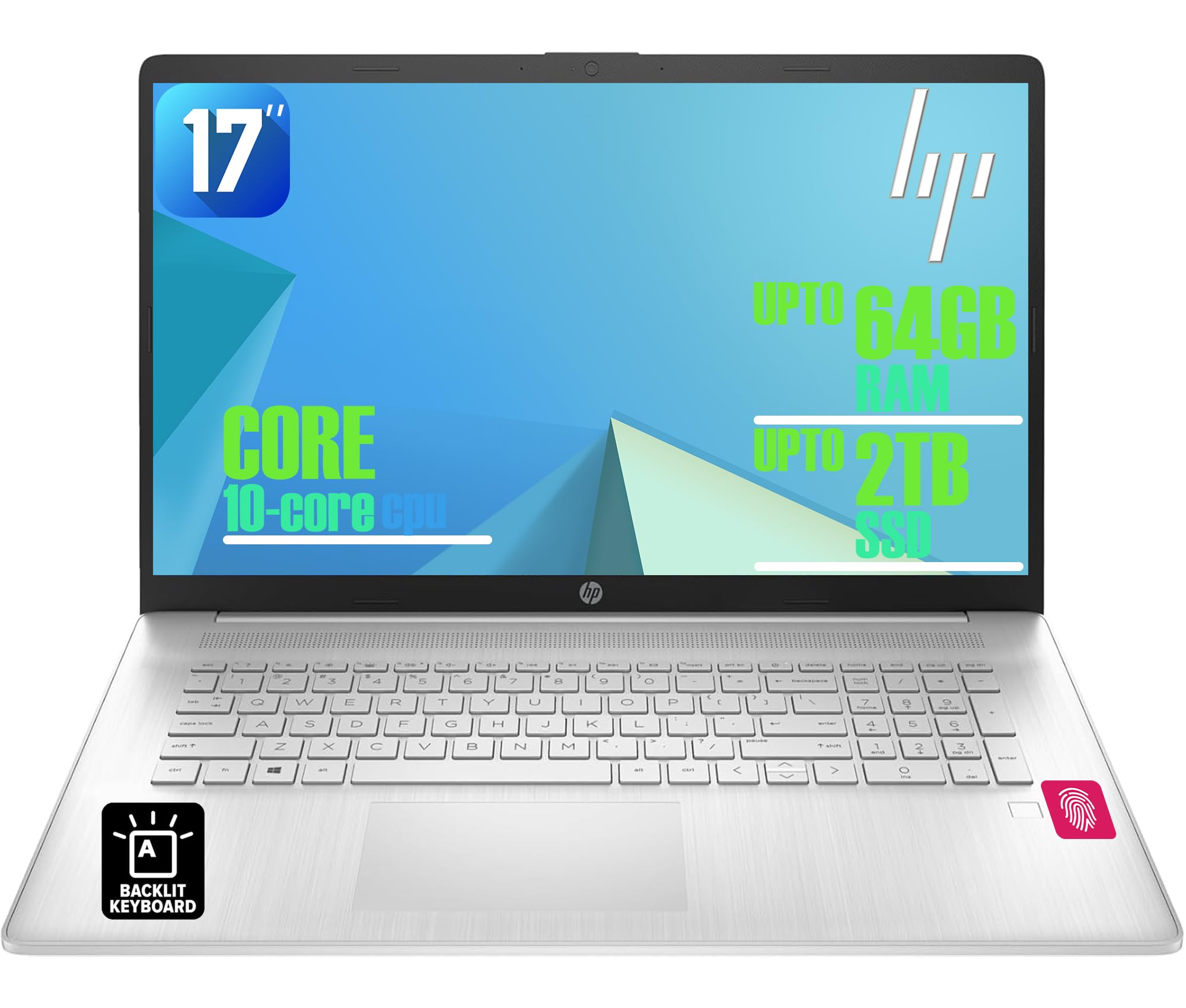
Figure 1: HP 17-inch Business Laptop (Silver)
2. Налаштування
2.1 Розпакування та початковий огляд
Carefully remove the laptop and all accessories from the packaging. Check for any visible damage. The package should include the HP 17-inch laptop, a power adapter, and documentation.
2.2 Підключення до живлення
- Підключіть адаптер живлення до порту AC Smart Pin на бічній панелі ноутбука.
- Підключіть адаптер живлення до настінної розетки.
- Перед першим використанням дайте ноутбуку зарядитися щонайменше 30 хвилин або доки індикатор заряду батареї не покаже достатній рівень заряду.
2.3 Початкове завантаження та налаштування Windows
- Відкрийте кришку ноутбука та натисніть кнопку живлення, яка зазвичай розташована у верхньому правому куті клавіатури.
- Дотримуйтесь інструкцій на екрані, щоб завершити процес налаштування Windows 11 Home. Це включає вибір регіону, мови, підключення до мережі Wi-Fi та створення облікового запису користувача.
2.4 Підключення периферійних пристроїв
Ваш ноутбук HP пропонує різні порти для підключення зовнішніх пристроїв:
- Порти USB: Use the USB 3.2 Gen 1 Type-C port or the two USB 3.2 Gen 1 Type-A ports for connecting external drives, mice, keyboards, or other USB accessories.
- HDMI: Підключіть зовнішній монітор або проектор за допомогою порту HDMI 1.4.
- Аудіо: Plug headphones or an external microphone into the 3.5mm headphone/microphone combo jack.

Малюнок 2: Сторона view illustrating available ports (USB Type-C, USB Type-A, HDMI, Headphone/microphone combo, AC smart pin)
3. Керування ноутбуком
3.1 Керування живленням
- Увімкнення: Натисніть кнопку живлення.
- Режим сну: Закрийте кришку або виберіть «Сплячий режим» у меню «Пуск».
- Вимкнути: Виберіть «Вимкнути систему» в меню «Пуск».
- Перезапуск: Виберіть «Перезавантажити» в меню «Пуск».
3.2 Клавіатура та сенсорна панель
The laptop features a full-size backlit keyboard with a numeric keypad. Use the function keys (Fn) in combination with other keys for specific actions like adjusting screen brightness, volume, or toggling the keyboard backlight.
The integrated touchpad supports multi-touch gestures for navigation. Refer to Windows settings for customizing touchpad behavior.

Figure 3: Backlit keyboard with numeric keypad and integrated fingerprint reader
3.3 Зчитувач відбитків пальців
The integrated fingerprint reader allows for secure and quick login using Windows Hello. To set up, navigate to Налаштування > Облікові записи > Параметри входу and follow the instructions to register your fingerprint.
3.4 Бездротове підключення
- Wi-Fi: The laptop supports Realtek Wi-Fi 6 (2x2). To connect to a wireless network, click the Wi-Fi icon in the taskbar, select your desired network, and enter the password if required.
- Bluetooth: Bluetooth 5.3 is integrated for connecting wireless accessories like headphones or mice. Enable Bluetooth from Налаштування > Bluetooth та пристрої та з’єднайте свої пристрої.
3.5 Дисплей та Webкулачок
The 17.3-inch HD+ anti-glare display provides a clear viewing experience. The HP True Vision 720p HD webcam with dual microphones is suitable for video calls and online meetings.
3.6 к.с. Швидке падіння
HP QuickDrop allows for wireless file transfer between your laptop and mobile devices without needing cables. Install the HP QuickDrop app on both your laptop and mobile device and follow the in-app instructions to pair and transfer files.

Figure 4: HP QuickDrop for wireless file transfer between laptop and phone
4. Технічне обслуговування
4.1 Очищення ноутбука
- екран: Злегка протріть м’якою тканиною без ворсу dampводою або засобом для чищення екранів. Не розпилюйте рідину безпосередньо на екран.
- Клавіатура та корпус: Використовуйте м’яку, суху тканину. Для стійкого бруду злегкаamp cloth can be used, ensuring no liquid enters the device. Compressed air can help remove debris from between keys.
4.2 Догляд за акумулятором
The laptop is equipped with a 41Wh Lithium-Ion Battery. To maximize battery lifespan:
- Уникайте екстремальних температур.
- Не розряджайте акумулятор повністю регулярно.
- Utilize HP Fast Charge, which can charge the battery from 0 to 50% in approximately 45 minutes.

Figure 5: Battery life indicator (Up to 8 hours wireless streaming)
4.3 Оновлення програмного забезпечення
Регулярно перевіряйте наявність оновлень Windows та встановлюйте їх, щоб переконатися, що ваша система має найновіші оновлення безпеки та покращення продуктивності. Перейдіть до Налаштування > Оновлення Windows для керування оновленнями.
5. Вирішення проблем
У цьому розділі розглядаються поширені проблеми, з якими ви можете зіткнутися під час використання ноутбука HP.
5.1 Проблеми з живленням
- Ноутбук не вмикається: Ensure the power adapter is securely connected to both the laptop and a working power outlet. Check if the power adapter's indicator light is on. Try a different outlet.
- Акумулятор не заряджається: Verify the power adapter connection. Check battery health in Windows settings.
5.2 Проблеми з дисплеєм
- Немає зображення на екрані: Ensure the laptop is powered on. If an external monitor is connected, try disconnecting it or pressing Fn + F4 (or the corresponding display toggle key) to switch display output.
- Затемнення екрана: Adjust brightness using the function keys (e.g., Fn + F2/F3) or through Windows settings.
5.3 Проблеми з підключенням
- Wi-Fi не підключається: Переконайтеся, що Wi-Fi увімкнено в налаштуваннях Windows. Перезавантажте маршрутизатор і ноутбук. Перевірте наявність оновлених мережевих драйверів.
- Пристрій Bluetooth не підключається: Ensure Bluetooth is enabled on both the laptop and the device. Make sure the device is in pairing mode.
5.4 Загальні проблеми з продуктивністю
- Повільна продуктивність: Закрийте непотрібні програми. Перевірте наявність шкідливого програмного забезпечення. Переконайтеся, що на SSD достатньо вільного місця.
- Зависання системи: Прес Ctrl + Alt + Del to open Task Manager and end unresponsive tasks. If unresponsive, perform a hard shutdown by holding the power button for several seconds.
6. Технічні характеристики
The following table outlines the key technical specifications for the HP 17-inch Business Laptop (Model: HP laptop).
| Особливість | Специфікація |
|---|---|
| Бренд | HP |
| Назва моделі | ноутбук HP |
| Процесор | 13th Gen Intel Core i5-1334U (10 Cores, up to 4.6 GHz) |
| Операційна система | Windows 11 Домашня |
| Дисплей | 17.3-inch HD+ (1366x768) Anti-glare, 250 nits |
| Графіка | Графіка Intel Iris Xe (інтегрована) |
| Пам'ять RAM | До 64 ГБ DDR4 SDRAM 3200 МГц |
| Зберігання | Up to 2TB NVMe M.2 SSD |
| Бездротове підключення | Realtek Wi-Fi 6 (2x2), Bluetooth 5.3 |
| Порти | 1x USB 3.2 Gen 1 Type-C, 2x USB 3.2 Gen 1 Type-A, 1x HDMI 1.4, 1x Headphone/microphone combo jack |
| Клавіатура | Повнорозмірна клавіатура з підсвічуванням та цифровою клавіатурою |
| Безпека | Зчитувач відбитків пальців |
| Камера | 720p HD камера із шторкою конфіденційності |
| Акумулятор | 41Wh Lithium-Ion (HP Fast Charge) |
| Розміри (Д x Ш x В) | 15.78 дюйма x 10.15 дюйма x 0.81 дюйма (приблизно) |
| вага | 4.6 фунта (прибл.) |
| Колір | Натуральне срібло |

Figure 6: Laptop dimensions (15.78" W x 10.15" D x 0.78" H) and weight (4.60 lbs)
7. Гарантія та підтримка
7.1 Гарантія виробника
Your HP laptop is covered by a manufacturer's warranty. Please refer to the warranty documentation included with your product for specific terms, conditions, and duration. Keep your proof of purchase for warranty claims.
7.2 Технічна підтримка
Щоб отримати технічну допомогу, завантаження драйверів або додаткову підтримку, відвідайте офіційний сайт підтримки HP. website. You will typically need your product's serial number or model number to access specific support resources.
Інтернет-підтримка: https://support.hp.com