вступ
This manual provides detailed instructions for the Redragon S156 Wireless Gaming Keyboard and Mouse combo. This product offers versatile connectivity, customizable features, and ergonomic design for an enhanced computing experience. Please read this manual thoroughly before use to ensure proper operation and to maximize the product's capabilities.
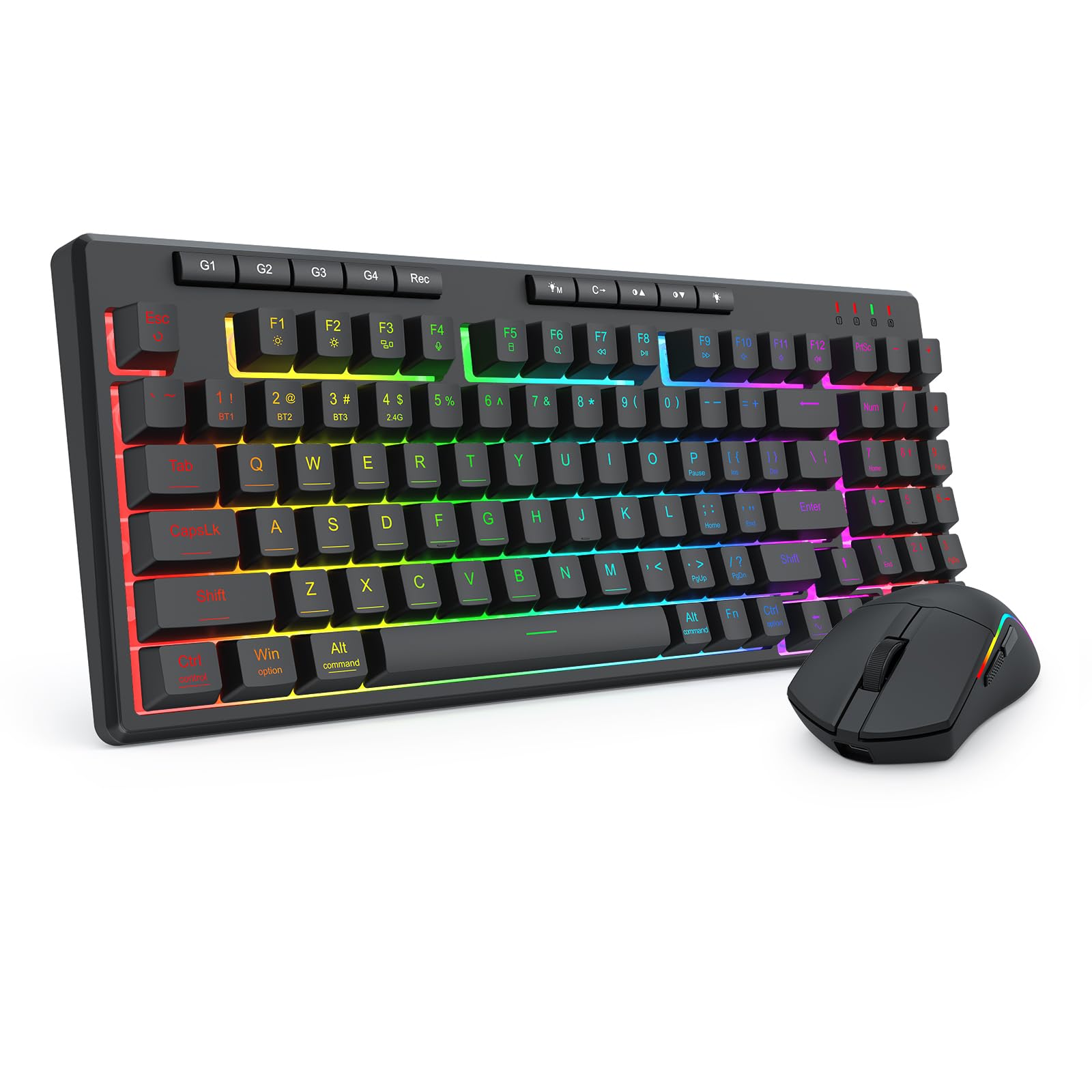
Figure 1: Redragon S156 Keyboard and Mouse in a typical gaming setup.
Вміст упаковки
Before proceeding with setup, please verify that all items are present in your package:
- Бездротова ігрова клавіатура Redragon S156
- Бездротова ігрова миша Redragon S156
- 2.4-ГГц USB-приймач
- Зарядний кабель USB-C
- Посібник користувача (цей документ)

Figure 2: Contents included with the Redragon S156 product.
Налаштування
Заряджання пристроїв
Ensure both the keyboard and mouse are fully charged before initial use. Connect the provided USB-C cable to the charging port on each device and to a powered USB port on your computer or a USB wall adapter. The charging indicator will show status (refer to device for specific light behavior).
Connectivity Options (Tri-Mode)
The Redragon S156 supports three connection modes: 2.4GHz Wireless, Bluetooth (BT1/BT2/BT3), and Wired (USB-C).

Figure 3: Tri-mode connectivity options for multiple devices.
Бездротове підключення 2.4 ГГц
- Locate the 2.4GHz USB receiver.
- Підключіть приймач до вільного порту USB на комп’ютері.
- Turn on the keyboard and mouse. They should automatically connect to the receiver.
З'єднання Bluetooth
The keyboard and mouse can connect to up to three different Bluetooth devices (BT1, BT2, BT3).
- Turn on the keyboard/mouse and switch to a desired Bluetooth channel (e.g., BT1).
- Activate Bluetooth on your device (PC, Mac, smartphone, tablet).
- шукати new Bluetooth devices and select "Redragon S156 Keyboard" or "Redragon S156 Mouse" from the list.
- Дотримуйтеся будь-яких підказок на екрані, щоб завершити створення пари.
Дротове підключення USB-C
Connect the USB-C cable directly from the keyboard/mouse to your computer's USB port. The devices will function in wired mode and charge simultaneously.

Figure 4: Mouse connectivity options.

Figure 5: Mouse connected via USB-C for wired operation and charging.
Інструкція з експлуатації
Функції клавіатури
Підсвічування RGB
The keyboard features multiple built-in RGB lighting modes and effects. Use the dedicated keys (often Fn + specific keys) to cycle through modes, adjust brightness, and change colors. Refer to the keyboard's function key legends for specific controls.

Figure 6: Keyboard lighting customization options.

Figure 7: Keyboard software interface for backlight customization (Windows only).
Макроклавіші (G1-G4)
The keyboard includes dedicated macro keys (G1-G4) for instant command execution. These can be programmed directly on the keyboard without software.
- Натисніть [Запис] кнопку, щоб розпочати запис макросу.
- Натисніть один із [G1-G4] ключі для вибору професіоналаfile для запису.
- Введіть послідовність клавіш, яку ви хочете записати.
- After finishing the macro key recording, press [Запис] ще раз, щоб зберегти макрос.

Figure 8: On-the-fly macro recording instructions.
Функції миші
Налаштування DPI
The mouse features adjustable DPI settings up to 10000 DPI for precision control. Use the dedicated DPI button on the mouse to cycle through preset DPI levels.
Programmable Buttons and RGB Customization
The mouse buttons and RGB lighting can be customized using the Redragon software. This software allows for adjusting DPI, polling rate, assigning macros, and customizing RGB effects.

Figure 9: Customizable gaming mouse buttons.

Figure 10: Mouse software for customization (Windows only; not supported in Bluetooth mode).
Технічне обслуговування
прибирання
To maintain optimal performance, regularly clean your keyboard and mouse. Use a soft, dry cloth to wipe surfaces. For stubborn dirt, a slightly damp Можна використовувати тканину, змочену м’яким милом, слідкуючи за тим, щоб рідина не потрапила всередину пристрою. Уникайте агресивних хімікатів або абразивних матеріалів.
Термін служби батареї та зарядка
The keyboard features a 4000mAh battery, offering extended use. The mouse provides up to 200 hours of battery life on a full charge. For best battery longevity, avoid fully discharging the devices frequently. Recharge when the low battery indicator appears.

Figure 11: Keyboard battery capacity and estimated usage time.

Figure 12: Mouse ultra-long battery life indication.
Усунення несправностей
Проблеми з підключенням
- Пристрій не підключається: Ensure the device is powered on and in the correct connection mode (2.4GHz, BT1/2/3). For 2.4GHz, ensure the USB receiver is securely plugged in. For Bluetooth, ensure your host device's Bluetooth is enabled and the pairing process is completed.
- Періодичне з'єднання: Move the devices closer to the receiver/host device. Avoid sources of interference such as other wireless devices or large metal objects. Ensure devices are charged.
Клавіатура/миша не реагує
- Перевірте рівень заряду батареї та зарядіть її, якщо необхідно.
- Try switching to wired mode using the USB-C cable to rule out wireless issues.
- Перезавантажте комп'ютер.
- For the keyboard, ensure it is not in a locked mode (e.g., Num Lock, Caps Lock, Scroll Lock indicators).
RGB-освітлення не працює
- Ensure the backlight is turned on and brightness is adjusted.
- Cycle through different lighting modes to see if any work.
- If using software, ensure it is running and settings are applied correctly.
Технічні характеристики
| Особливість | Деталь |
|---|---|
| Бренд | Редрагон |
| Модель | S156 |
| Технологія підключення | 2.4G Wireless, Bluetooth (BT1/BT2/BT3), USB-C Wired |
| Тип клавіатури | Mechanical Feel Membrane Keyboard |
| Клавіші клавіатури | 94-key layout, 4 Macro Keys (G1-G4) |
| Підсвічування клавіатури | RGB Backlit (multiple modes) |
| Акумулятор клавіатури | 4000 мАг |
| DPI миші | До 10000 XNUMX DPI (регульовано) |
| Вага миші | 61 г (надлегкий) |
| Термін служби батареї миші | До 200 годин |
| Сумісні пристрої | Ноутбук, ПК, смартфон, планшет |
| Сумісність операційної системи | Windows, Mac |
| матеріал | пластик |
| Вага товару | 2.16 фунта (разом) |
| Розміри упаковки | 15.12 x 8.86 x 2.01 дюймів |

Рисунок 13: Розміри клавіатури.

Figure 14: Keyboard height.
Гарантія та підтримка
Інформація про гарантію
Redragon products are covered by a limited warranty against defects in materials and workmanship. The specific warranty period may vary by region and product. Please retain your proof of purchase for warranty claims.
Підтримка клієнтів
For technical assistance, troubleshooting, or warranty inquiries, please visit the official Redragon website or contact their customer support team. Contact information can typically be found on the Redragon webсайті або на упаковці продукту.