
1. Вступ
This manual provides detailed instructions for the installation, operation, and maintenance of your UNITOPSCI Android 15 Car Stereo. Please read this manual thoroughly before using the product to ensure proper functionality and safety. This unit is specifically designed for Lexus ES models from 2001 to 2005 (ES250, ES300, ES330).

Image 1.1: UNITOPSCI Android 15 Car Stereo with main accessories.
2. Вміст упаковки
Перевірте, чи всі перелічені нижче предмети входять до вашої упаковки:
- 1 х Автомобільний радіоприймач
- 1 х кабель живлення
- 1 x задній автомобіль View Камера
- 1 х Набір інструментів для встановлення
- 1 x GPS антена
- 1 x кабель входу задньої камери
- 1 x RCA кабель
- 2 кабелі USB
- 1 х посібник користувача
- 1 х мікрофон

Image 2.1: Visual representation of the package contents and unit dimensions.
3. Сумісність та важливі примітки
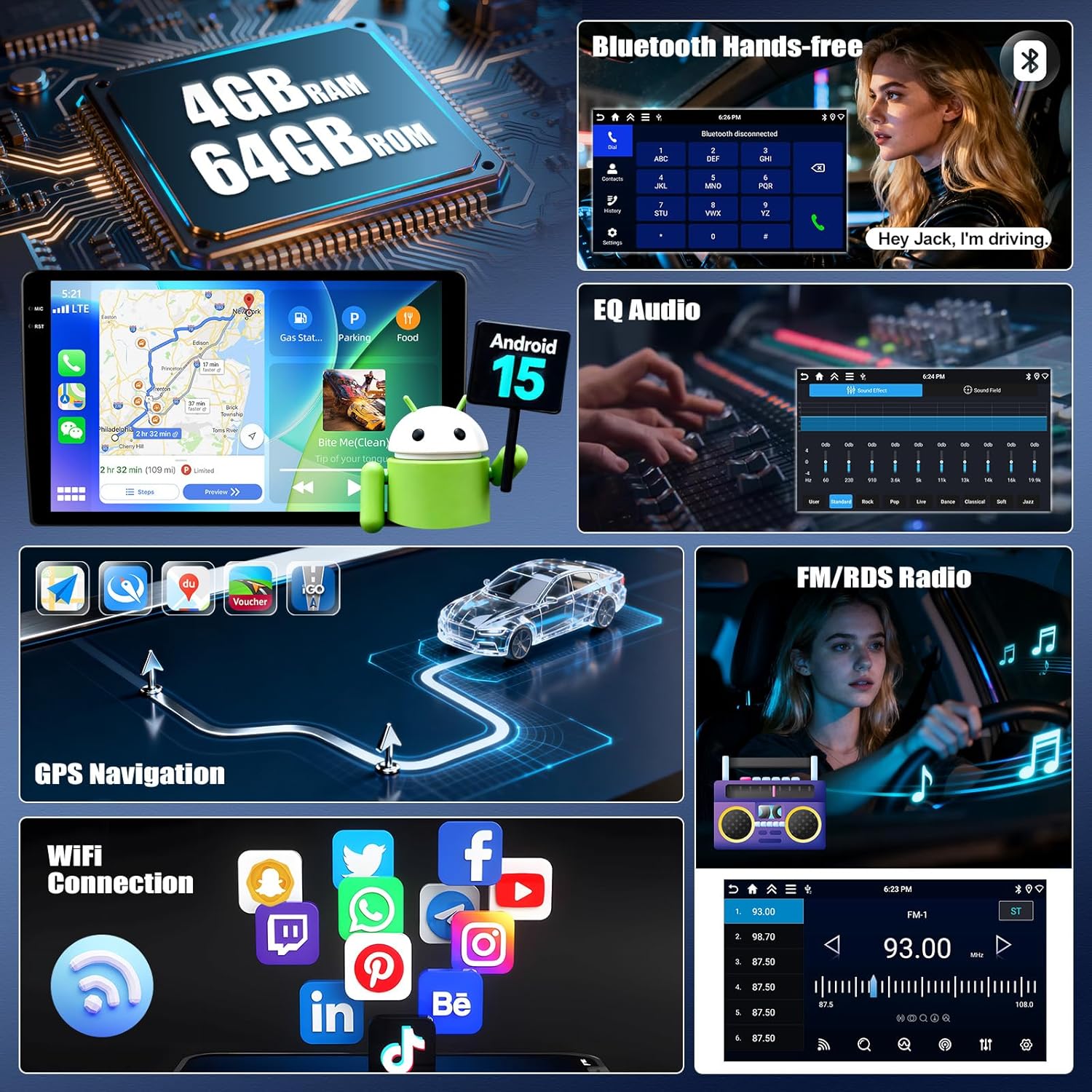
This car stereo is designed for Lexus ES 2001-2005 ES250/300/330 models. It features a 9-inch IPS touchscreen with 1280*720P resolution and runs on Android 15 with 4GB RAM and 64GB ROM.
3.1 Wiring Harness and CANBUS
Важливо: If your vehicle's original CD player has an incompatible back interface (as shown in Image 3.1, types B, C, or D), you may need to purchase an additional wiring harness and CANBUS decoder separately. The standard wiring harness included is for basic configurations (Type A). Please consult customer support if you are unsure about your vehicle's specific configuration.
Зображення 3.1: Наприкладamples of compatible (A) and incompatible (B, C, D) CD player back interfaces.
4. Налаштування та встановлення
Installation of this car stereo requires technical knowledge. It is recommended to seek professional installation to avoid damage to the unit or your vehicle. Ensure the vehicle's battery is disconnected before beginning installation.
4.1 General Installation Steps (Consult a professional or vehicle-specific guide for detailed steps):
- Remove the original car stereo unit from the dashboard.
- Connect the provided power cable, RCA cables, USB cables, GPS antenna, and rear camera input cable to the new head unit.
- If required, connect the additional wiring harness and CANBUS decoder.
- Carefully route all cables to their respective locations in the vehicle.
- Mount the new car stereo into the dashboard opening.
- Знову підключіть акумулятор автомобіля та перевірте всі функції.
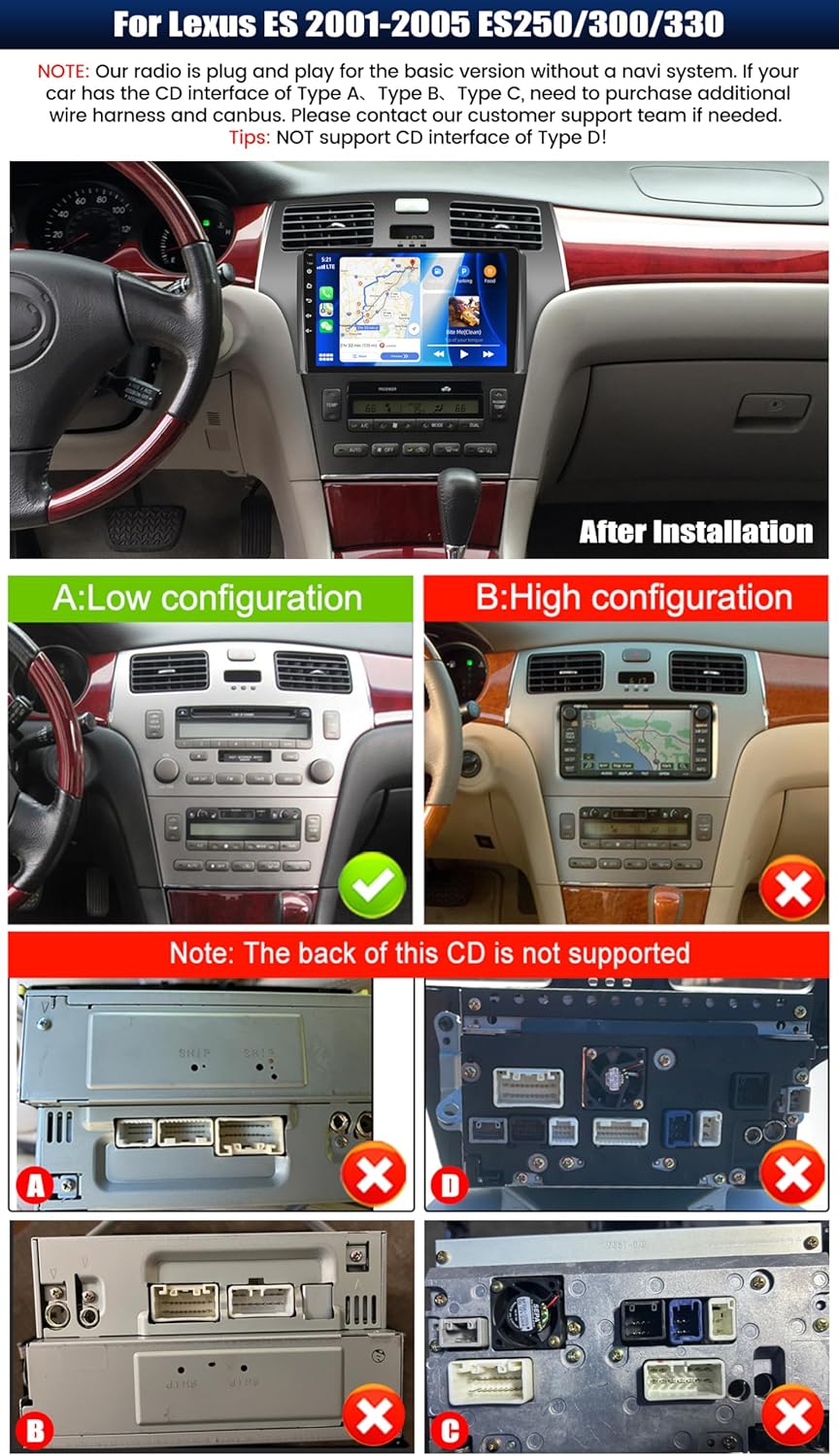
Зображення 4.1: Наприкладample of the car stereo installed in a Lexus ES dashboard.
5. Інструкція з експлуатації
5.1 Бездротовий CarPlay / Android Auto
The unit supports wireless CarPlay for iOS devices and wireless Android Auto for Android devices. This allows seamless integration of your smartphone's navigation, music, calls, and messaging functions directly on the car stereo display.
- Переконайтеся, що Bluetooth і Wi-Fi увімкнено на вашому смартфоні.
- На автомобільній стереосистемі перейдіть до програми CarPlay або Android Auto.
- Дотримуйтесь підказок на екрані, щоб підключити пристрій.
- Once connected, you can access compatible apps and use voice commands (Siri or Google Assistant).

Зображення 5.1: Функціональність бездротового CarPlay та Android Auto.
5.2 Функція дзеркального зв'язку
Mirror Link allows you to display your smartphone's screen on the car stereo. For Android devices, you can also control the phone directly from the stereo's touchscreen.
- Connect your smartphone to the car stereo via USB or Wi-Fi.
- Відкрийте програму «Mirror Link» на автомобільній стереосистемі.
- Follow the instructions on the screen to establish the connection.
5.3 GPS-навігація
The unit features a built-in GPS module supporting both online and offline navigation. Pre-installed maps for North America and worldwide are available.
- To use online navigation, ensure the unit is connected to Wi-Fi.
- For offline navigation, download map data in advance.
- Access navigation through the dedicated 'GPS' or 'Maps' application.

Image 5.2: GPS Navigation and Wi-Fi connectivity.
5.4 Bluetooth 5.0
Підключіть свій смартфон через Bluetooth для дзвінків у режимі hands-free та потокової передачі аудіо.
- Увімкніть Bluetooth на своєму смартфоні та автомобільній стереосистемі.
- шукати доступні пристрої на автомобільній стереосистемі та виберіть свій телефон.
- Підтвердьте код сполучення на обох пристроях.
- Після сполучення ви можете здійснювати/приймати дзвінки та відтворювати музику бездротовим способом.
5.5 FM/RDS радіо
The built-in FM/RDS tuner provides enhanced radio signal reception. You can store up to 18 preset stations.
- Відкрийте програму «Радіо».
- Використовуйте функцію сканування, щоб знайти доступні станції.
- Натисніть і утримуйте кнопку попередньої налаштування, щоб зберегти поточну станцію.
5.6 EQ Audio Settings
Adjust audio output with the integrated Equalizer (EQ) to customize your listening experience. Multiple preset sound effects are available.
- Navigate to 'Sound Settings' or 'EQ' in the main menu.
- Choose from various preset sound modes (e.g., Pop, Rock, Jazz) or manually adjust frequency bands.

Image 5.3: Bluetooth, FM/RDS Radio, and EQ Audio interfaces.
5.7 Керування на кермі (SWC)
The unit supports steering wheel controls, allowing you to manage audio functions (volume, track skipping, call answering) without taking your hands off the wheel.
- Access the 'Steering Wheel Control' settings in the system menu.
- Дотримуйтесь інструкцій на екрані, щоб запрограмувати кожну кнопку на кермі на потрібну функцію.
5.8 Функція розділеного екрана
The split-screen feature allows you to run two applications simultaneously on the display, such as navigation and music playback. You can adjust the size and position of each app.
- From a running application, swipe from the side or long-press the recent apps button (method may vary by UI theme) to activate split-screen mode.
- Select a second application to run alongside the first.

Image 5.4: Display features including IPS touchscreen, UI themes, and split screen.
6. Задній View Робота камери
Вбудована AHD-камера заднього виду забезпечує чітке view of the area behind your vehicle when reversing. It automatically activates when the vehicle is shifted into reverse gear.
- Ensure the rear camera is properly installed and connected to the 'Rear Camera Input' on the head unit.
- When the vehicle is in reverse, the display will automatically switch to the camera feed, showing parking assist lines.

Image 6.1: Steering Wheel Control interface and AHD Backup Camera view.
7. Технічні характеристики
| Особливість | Специфікація |
|---|---|
| Операційна система | Android 15 |
| ОЗУ | 4 ГБ |
| ROM | 64 ГБ |
| Розмір дисплея | 9 дюймів |
| Роздільна здатність екрана | 1280 x 720P IPS |
| Версія Bluetooth | 5.0 |
| Підключення | Bluetooth, Wi-Fi, USB |
| Особливості | Wireless CarPlay, Android Auto, Mirror Link, GPS Navigation, FM/RDS, EQ, Steering Wheel Control, AHD Backup Camera, Multiple UI Themes, Split Screen |
| Тип карти | North America, Worldwide (offline/online) |
| Вага товару | 3.89 фунта |
| Розміри упаковки | 15.35 x 9.65 x 3.35 дюймів |
8. Вирішення проблем
Якщо у вас виникли проблеми з автомобільною стереосистемою, зверніться до наступних поширених кроків усунення несправностей:
- Немає живлення: Перевірте всі з'єднання живлення та запобіжники. Переконайтеся, що акумулятор автомобіля правильно підключений.
- Немає звуку: Перевірте підключення динаміків. Перевірте рівні гучності та налаштування еквалайзера. Переконайтеся, що вибрано правильне джерело звуку.
- Втрата сигналу GPS: Переконайтеся, що GPS-антена правильно встановлена та має чіткий сигнал view неба. Перевірте налаштування GPS у пристрої.
- Проблеми з підключенням Bluetooth: Ensure Bluetooth is enabled on both devices. Delete previous pairings and attempt to re-pair.
- CarPlay/Android Auto не підключається: Ensure Wi-Fi and Bluetooth are active on your phone. Try restarting both the phone and the car stereo. Check for software updates for the car stereo.
- Задня камера не відображається: Check the camera's power and video input connections. Ensure the reverse gear signal wire is correctly connected.
- Сенсорний екран не реагує: Спробуйте перезавантажити пристрій. Якщо проблема не зникає, може знадобитися скидання до заводських налаштувань (примітка: це призведе до видалення всіх даних користувача).
У разі постійних проблем зверніться до служби підтримки клієнтів.
9. Технічне обслуговування
Правильне обслуговування забезпечує довговічність та оптимальну роботу вашої автомобільної стереосистеми.
- Очищення екрану: Використовуйте м’яку тканину без ворсу, щоб обережно протерти сенсорний екран. Для стійких плям злегкаampПротріть тканину водою або засобом для чищення екранів. Уникайте агресивних хімікатів або абразивних матеріалів.
- Оновлення програмного забезпечення: Periodically check for available software updates to ensure optimal performance and access to new features. Follow the instructions provided with the update.
- Умови навколишнього середовища: Уникайте тривалого перебування пристрою під екстремальними температурами, прямими сонячними променями або надмірною вологістю.
- Кабельні з'єднання: Periodically check that all cables are securely connected to prevent intermittent issues.
10. Гарантія та підтримка
UNITOPSCI offers comprehensive support for your product:
- Гарантія: The product comes with a 12-month replacement service.
- Гарантія повернення грошей: Надається 30-денна гарантія повернення грошей.
- Повернення: Enjoy 60-days no-worry returns.
- Технічна підтримка: Dedicated 24/7 professional after-sales team is available to assist with installation or usage inquiries. Lifetime after-sales consultation and technical support are provided.
Контактна інформація:
For online support, please contact: UNITOPSCI@126.com

Image 10.1: UNITOPSCI customer support information.


