
1. Вступ
Thank you for choosing the Pisichen 24 inch Touch Screen Gaming Monitor. This manual provides essential information for setting up, operating, and maintaining your monitor. Please read it thoroughly before use to ensure optimal performance and safety.
This monitor features a 24-inch QHD (2560x1440P) display with a 165Hz refresh rate, 2ms response time, and 10-point projected capacitive touchscreen functionality. It supports FreeSync and HDR, offering a vibrant and responsive visual experience for both gaming and professional applications.

Image: The Pisichen 24-inch 2K 165Hz Touch Screen Monitor highlighting its key features like HDR, IPS Panel, and 10-point Touch.
2. Вміст упаковки
Перш ніж продовжити налаштування, перевірте, чи всі компоненти присутні в упаковці:
- Pisichen 24 inch Touch Screen Monitor
- Підставка для монітора (основа та шия)
- Кабель DP
- Кабель HDMI
- USB B Touch Cable
- USB CC кабель
- Адаптер живлення постійного струму
- Посібник користувача (цей документ)
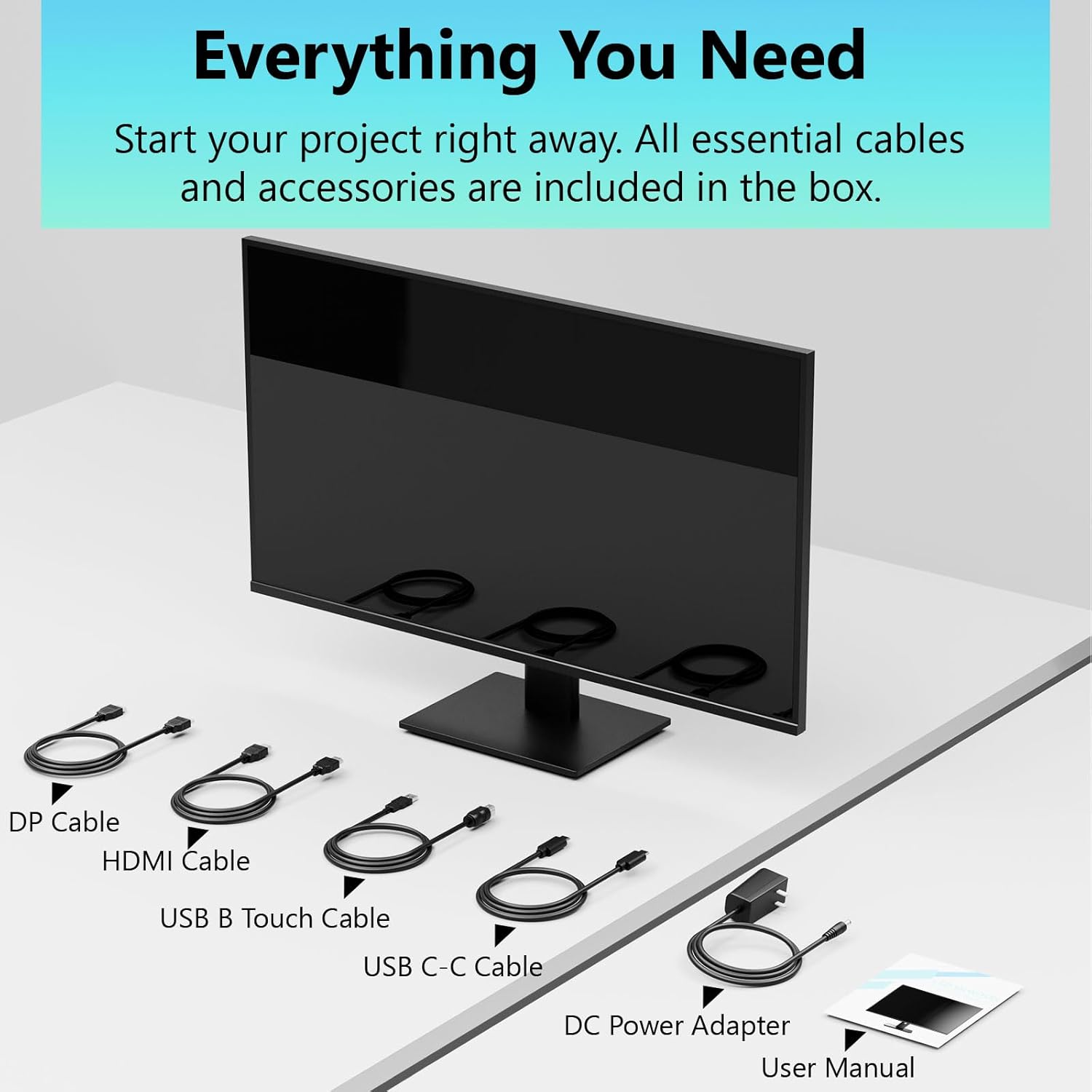
Image: All essential cables and accessories included in the box for the monitor setup.
3. Інструкції з налаштування
3.1 Збірка підставки
- Обережно вийміть монітор з упаковки, поклавши його екраном донизу на м’яку чисту поверхню, щоб запобігти подряпинам.
- Прикріпіть шийку підставки до задньої панелі монітора.
- Закріпіть основу підставки до шиї підставки за допомогою наданих гвинтів.
- Перш ніж ставити монітор вертикально, переконайтеся, що всі з'єднання надійно закріплені.
3.2 Встановлення кріплення VESA (додатково)
This monitor supports VESA mounting. If you plan to use a VESA-compatible arm or wall mount, remove the stand and attach the VESA mount according to the mount's instructions. The VESA pattern is typically 75x75mm or 100x100mm (refer to specifications for exact details).
3.3 Підключення до пристрою
Монітор пропонує кілька варіантів підключення:
- HDMI: Підключіть один кінець кабелю HDMI до порту HDMI монітора, а інший кінець – до виходу HDMI комп’ютера.
- DisplayPort (DP): Connect one end of the DP cable to the monitor's DP port and the other end to your computer's DP output.
- USB Type-C: For compatible devices, connect the USB C-C cable to the monitor's USB Type-C port and your device's USB Type-C port. This single cable can transmit video, data, and power (charging).
- USB Type-B (for Touch Functionality): To enable the touch screen feature, connect the USB B Touch Cable from the monitor's USB Type-B port to an available USB Type-A port on your computer.

Image: The monitor's rear panel with various connectivity options, including HDMI, DisplayPort, and USB-C ports.
3.4 Підключення живлення
Connect the DC Power Adapter to the monitor's power input port, then plug the adapter into a power outlet.
3.5 Initial Power On and Touch Compatibility
Press the power button on the monitor. The display should light up. If no image appears, ensure all cables are securely connected and the correct input source is selected on the monitor (via the OSD menu).
For touch functionality, ensure the USB B Touch Cable is connected to your computer. Touch compatibility may vary by operating system and device. Most Windows PCs support multi-touch. For Mac devices, single-touch click is generally supported, but multi-touch may require specific drivers or configurations. Game consoles (PS3/4/5, Xbox, Steam Deck) and some other devices (Fire TV, Apple products like iPhone/iPad) typically do not support touch functionality.

Image: A compatibility chart illustrating which devices support multi-touch or single-touch, and which devices do not support touch functionality with the monitor.
4. Інструкція з експлуатації
4.1 Увімкнення/вимкнення живлення
Натисніть кнопку живлення, розташовану на моніторі, щоб увімкнути або вимкнути його. Індикатор живлення показуватиме стан монітора.
4.2 Екранне меню (OSD)
The OSD menu allows you to adjust various monitor settings. Use the control buttons (usually located on the back or bottom of the monitor) to navigate the menu. Common menu options include:
- Параметри зображення: Brightness, Contrast, Sharpness, Color Temperature, HDR mode.
- Налаштування дисплею: Aspect Ratio, Input Source selection (HDMI, DP, USB-C).
- Ігрові налаштування: FreeSync, Response Time (Overdrive), Crosshair.
- Параметри звуку: Volume (if internal speakers or audio output are present).
- Налаштування системи: Мова, прозорість екранного меню, скидання до заводських налаштувань.
4.3 Функціональність сенсорного екрана
The monitor supports 10-point multi-touch, allowing for intuitive interaction directly on the screen. Ensure the USB B Touch Cable is connected to your computer for this feature to work.
- Однократне натискання: Еквівалентно клацанню лівою кнопкою миші.
- Натисніть і утримуйте: Еквівалентно клацанню правою кнопкою миші.
- Масштабування за допомогою розведення пальців: Використовуйте два пальці для збільшення або зменшення масштабу.
- Проведіть пальцем: Navigate through content or scroll.

Image: A user interacting with the monitor's touch screen, highlighting its precision and responsiveness for creative tasks.
4.4 Ергономічні налаштування
The monitor stand allows for tilt adjustments to achieve the most comfortable viewing and touch angle. Gently adjust the screen to your preferred position.
4.5 Функції догляду за очима
The monitor includes advanced eye-comfort features such as Flicker-Free technology and Low Bluelight mode to reduce eye strain during prolonged use. These settings can typically be adjusted within the OSD menu.

Image: Visual representation of the monitor's advanced eye-comfort features, including Flicker-Free and Low Bluelight technologies.
5. Технічне обслуговування
5.1 Очищення монітора
- Завжди вимикайте монітор та від’єднуйте шнур живлення від мережі перед чищенням.
- Злегка протріть м’якою тканиною без ворсу dampводою або м’яким, неабразивним засобом для чищення екранів.
- Не розпилюйте засіб для чищення безпосередньо на екран. Спочатку нанесіть його на тканину.
- Уникайте використання бензолу, розчинника, засобів для чищення на основі аміаку або абразивних матеріалів, оскільки вони можуть пошкодити поверхню екрана.
5.2 Зберігання
Під час тривалого зберігання монітора переконайтеся, що він вимкнений, від’єднаний від мережі та зберігається в прохолодному, сухому місці, захищеному від прямих сонячних променів та екстремальних температур. Для найкращого захисту використовуйте оригінальну упаковку, якщо вона є.
6. Вирішення проблем
Якщо у вас виникли проблеми з монітором, зверніться до наступних поширених кроків усунення несправностей:
- Немає живлення: Переконайтеся, що адаптер живлення надійно підключено як до монітора, так і до справної розетки. Перевірте, чи світиться індикатор живлення.
- Немає зображення/сигналу:
- Verify that the video cable (HDMI, DP, or USB-C) is securely connected to both the monitor and your computer.
- Переконайтеся, що в екранному меню монітора вибрано правильне джерело вхідного сигналу.
- Check your computer's display settings to ensure the monitor is detected and enabled.
- Функціональність без дотику:
- Confirm the USB B Touch Cable is connected from the monitor to your computer.
- Check your computer's device manager to see if the touch screen driver is installed and functioning correctly.
- Refer to the "Initial Power On and Touch Compatibility" section for device-specific limitations.
- Мерехтіння або спотворене зображення:
- Перевірте відеокабель на наявність пошкоджень або нещільних з'єднань.
- Спробуйте інший відеокабель або порт.
- Налаштуйте частоту оновлення в налаштуваннях дисплея вашого комп'ютера.
- Мертві пікселі: Невелика кількість яскравих або темних пікселів є поширеним явищем у технології LCD/LED і не вважається дефектом, якщо вона не перевищує специфікації виробника.
Якщо проблема не зникає після виконання цих кроків, зверніться до служби підтримки клієнтів.
7. Технічні характеристики
| Особливість | Специфікація |
|---|---|
| Бренд | Пісичен |
| Номер моделі | 24IN165HZ-QHD |
| Розмір екрана | 23.8 дюймів |
| роздільна здатність | QHD ширококутний 1440p (2560 x 1440) |
| Співвідношення сторін | 16:9 |
| Частота оновлення | 165 Гц |
| Час відгуку | 2 мілісекунд |
| Тип дисплея | Світлодіодний IPS-дисплей |
| Яскравість | 400 кандел (кд/м²) |
| Коефіцієнт контрастності | 3000:1 |
| Viewкут нахилу | 178 градусів |
| Колірна гамма | 99% |
| Picture Quality Enhancement | HDR |
| Адаптивна синхронізація | FreeSync |
| Технологія підключення | DisplayPort, HDMI, USB Type-C, USB Type-B |
| Додаткові функції | Tilt Adjustment, 10-Point Touchscreen |
| Розміри предмета (Д x Ш x В) | 0.75" Г x 21.5" Ш x 12.7" В |
| Вага товару | 5.38 кілограма |
| Колір | чорний |
8. Інформація про гарантію
This product comes with a 1-year limited warranty from the date of purchase. The warranty covers manufacturing defects and workmanship under normal use. It does not cover damage caused by misuse, accidents, unauthorized modifications, or external factors. Please retain your proof of purchase for warranty claims.
9. Підтримка клієнтів
For technical assistance, warranty claims, or further inquiries, please contact Pisichen customer support. You may find contact information on the official Pisichen webсайті або через вашого продавця.
Щоб отримати додаткові ресурси та інформацію про продукт, відвідайте Pisichen Store on Amazon.