
1. Вступ
The Raspberry Pi 500 Desktop Computer Kit is a compact and powerful personal computer integrated into a keyboard. Designed for both beginners and experienced users, this kit provides a complete computing experience with its quad-core processor, ample RAM, and essential peripherals. This manual will guide you through the setup, operation, and maintenance of your Raspberry Pi 500.
2. Вміст упаковки
Before you begin, please ensure all items listed below are present in your kit:
- Raspberry Pi 500 Computer (integrated into keyboard)
- 32GB microSD Card (pre-loaded with Raspberry Pi OS)
- English Beginner's Guide
- Micro HDMI to HDMI-A Cable
- USB миша
- US Keyboard (integrated with Raspberry Pi 500)
- Джерело живлення США
3. Посібник із налаштування
Follow these steps to set up your Raspberry Pi 500 Desktop Computer Kit:
- Вставте картку MicroSD: Locate the microSD card slot on the rear of the Raspberry Pi 500 keyboard. Gently insert the pre-loaded 32GB microSD card until it clicks into place.
- Підключення периферійних пристроїв:
- миша: Connect the USB mouse to one of the USB ports on the rear of the Raspberry Pi 500.
- Дисплей: Connect one end of the micro HDMI to HDMI-A cable to one of the micro HDMI ports on the Raspberry Pi 500 and the other end to an HDMI input on your monitor or TV.
- Підключіть живлення: Plug the US Power Supply into the USB-C power port on the Raspberry Pi 500, then plug the power supply into a wall outlet. The Raspberry Pi 500 will automatically power on and begin booting the operating system.
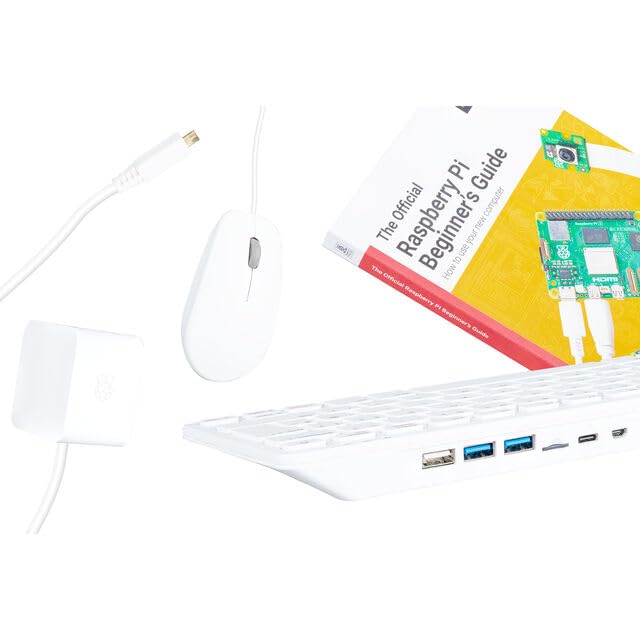
This image shows the Raspberry Pi 500 integrated into a keyboard, along with the included mouse and necessary cables for connection, illustrating a typical setup.
Зверніться до доданої English Beginner's Guide for more detailed setup instructions and initial software configuration.
4. Інструкція з експлуатації
Once powered on, your Raspberry Pi 500 will boot into the Raspberry Pi OS desktop environment. Here are some basic operating guidelines:
- Перше завантаження: The first boot may take a few minutes as the system initializes. Follow any on-screen prompts for initial setup, such as setting your region, language, and Wi-Fi network.
- Підключення:
- Wi-Fi та Bluetooth: The Raspberry Pi 500 has built-in Wi-Fi and Bluetooth. You can configure these through the desktop environment's network settings.
- Ethernet: For a wired network connection, plug an Ethernet cable into the Gigabit Ethernet port.
- Порти USB: Use the USB 2.0 and USB 3.0 ports for connecting additional peripherals like external storage, webcams, or other accessories.
- Вихід дисплея: The dual micro HDMI outputs allow you to connect two monitors for an extended desktop experience. The system supports OpenGL for graphics processing.
- Розширення GPIO: The General Purpose Input/Output (GPIO) pins provide advanced users with the ability to connect and control various electronic components and sensors for custom projects.
- Закриття: Always shut down the Raspberry Pi OS properly through the desktop menu (usually under the 'Raspberry Pi' icon) to prevent data corruption on the microSD card. Do not simply unplug the power.
5. Технічне обслуговування
Правильне обслуговування забезпечує довговічність та оптимальну продуктивність вашого Raspberry Pi 500:
- Прибирання: Keep the device clean and free from dust. Use a soft, dry cloth for the keyboard and exterior. For hard-to-reach areas, use compressed air. Ensure the device is powered off before cleaning.
- Вентиляція: The Raspberry Pi 500 includes a heat sink to manage operating temperatures. Ensure the vents are not obstructed to allow for proper airflow. Avoid operating the device in enclosed spaces or direct sunlight.
- Оновлення програмного забезпечення: Regularly update the Raspberry Pi OS and installed software to benefit from the latest features, security patches, and performance improvements. This can typically be done via the terminal using commands like
sudo apt updateіsudo apt upgrade. - Резервне копіювання даних: Periodically back up important data from your microSD card to an external storage device to prevent data loss.
6. Вирішення проблем
If you encounter issues with your Raspberry Pi 500, consider the following troubleshooting steps:
- Немає живлення:
- Ensure the power supply is correctly connected to both the Raspberry Pi 500 and a working wall outlet.
- Verify the power supply is the official Raspberry Pi 500 power supply or a compatible 5V USB-C power supply with sufficient current (e.g., 3A).
- Немає виводу на дисплей:
- Check that the micro HDMI to HDMI-A cable is securely connected to both the Raspberry Pi 500 and your monitor.
- Ensure your monitor is set to the correct HDMI input source.
- Try a different micro HDMI port or cable if available.
- Peripherals Not Responding (Mouse):
- Ensure the USB mouse is firmly plugged into a USB port.
- Спробуйте підключити мишу до іншого USB-порту.
- Restart the Raspberry Pi 500.
- Операційна система не завантажується:
- Ensure the microSD card is properly inserted and not damaged.
- If the microSD card is corrupted, you may need to re-flash the Raspberry Pi OS image onto it using a computer and imaging software.
7. Технічні характеристики
Key technical specifications for the Raspberry Pi 500 Desktop Computer Kit:
| Особливість | Деталь |
|---|---|
| Назва моделі | Raspberry Pi 500 |
| Номер моделі | Sc1285 |
| Процесор | 2.4GHz Quad-Core ARM Cortex-A76 |
| ОЗУ | 8 ГБ LPDDR4 |
| Зберігання | Карта MicroSD на 32 ГБ (в комплекті) |
| Операційна система | ОС Raspberry Pi |
| Підключення | Wi-Fi, Bluetooth, Gigabit Ethernet, 1x USB 2.0, 2x USB 3.0 |
| Відеовихід | Dual Micro HDMI (supports OpenGL) |
| Розширення | Піни GPIO |
| Розміри (Д x Ш x В) | Approximately 11.260" x 4.800" x 0.8" (integrated into keyboard) |
| вага | Приблизно 2 фунтів |
8. Гарантія та підтримка
Please note that no warranty is provided with this product. For technical assistance, software updates, community forums, and additional resources, please visit the official Raspberry Pi webсайт за адресою www.raspberrypi.com. The Raspberry Pi community offers extensive documentation and support for all Raspberry Pi products.