
ASUS RNUC15C7
Посібник користувача міні-ПК ASUS NUC 15 Pro
Model: RNUC15C7
вступ
This user manual provides comprehensive instructions for setting up, operating, maintaining, and troubleshooting your ASUS NUC 15 Pro Mini PC. Please read this manual thoroughly before using the device to ensure optimal performance and longevity.
Вміст упаковки
Перевірте, чи всі перелічені нижче предмети входять до вашої упаковки:
- ASUS NUC 15 Pro Mini PC
- Адаптер змінного струму та шнур живлення
- Бездротова клавіатура
- Бездротова миша
- Гора VESA
- Посібник користувача (цей документ)

Image: The ASUS NUC 15 Pro Mini PC, shown with its compact form factor, alongside the included wireless keyboard and mouse. This image illustrates the complete package contents.
Посібник із налаштування
1. Підключення периферійних пристроїв
Connect your monitor(s), keyboard, and mouse to the appropriate ports on the ASUS NUC 15 Pro. The device supports multiple display outputs for enhanced productivity.

Зображення: Детальне view of the ASUS NUC 15 Pro's multiple ports, including HDMI 2.1, Thunderbolt 4, USB 3.2 Gen2 Type-A, USB 2.0 Type-A, USB 3.2 Gen2x2 Type-C, and 2.5Gb Ethernet. This highlights the extensive connectivity options.
- Порти HDMI: Connect up to two HDMI displays.
- Порти Thunderbolt 4: Use for high-speed data transfer or connecting compatible displays.
- Порти USB: Connect the included wireless keyboard and mouse, or other USB devices.
- Порт Ethernet: Для дротового мережевого підключення.
2. Підключення живлення
Connect the AC adapter to the DC-In port on the Mini PC, then plug the power cord into a power outlet.
3. Початкове завантаження
Press the power button located on the front of the device. The system will boot into Windows 11 Pro. Follow the on-screen instructions for initial Windows setup.
Інструкція з експлуатації
Конфігурація дисплея
The ASUS NUC 15 Pro supports up to four 4K HDR displays or a single 8K display, leveraging its Intel Graphics. To configure multiple displays:
- Ensure all monitors are connected to the available HDMI and Thunderbolt 4 ports.
- Клацніть правою кнопкою миші на робочому столі та виберіть «Параметри дисплея».
- Under "Multiple displays", you can extend or duplicate your desktop across the connected screens.

Image: The ASUS NUC 15 Pro Mini PC demonstrating its capability to support a quad 4K HDR display setup, showcasing its versatility for multi-monitor environments.
Бездротове підключення
The Mini PC features Wi-Fi 7 and Bluetooth 5.4 for robust wireless connections.
- Wi-Fi: Access network settings in Windows to connect to your preferred Wi-Fi network.
- Bluetooth: Pair Bluetooth devices like headphones or speakers through Windows Bluetooth settings.
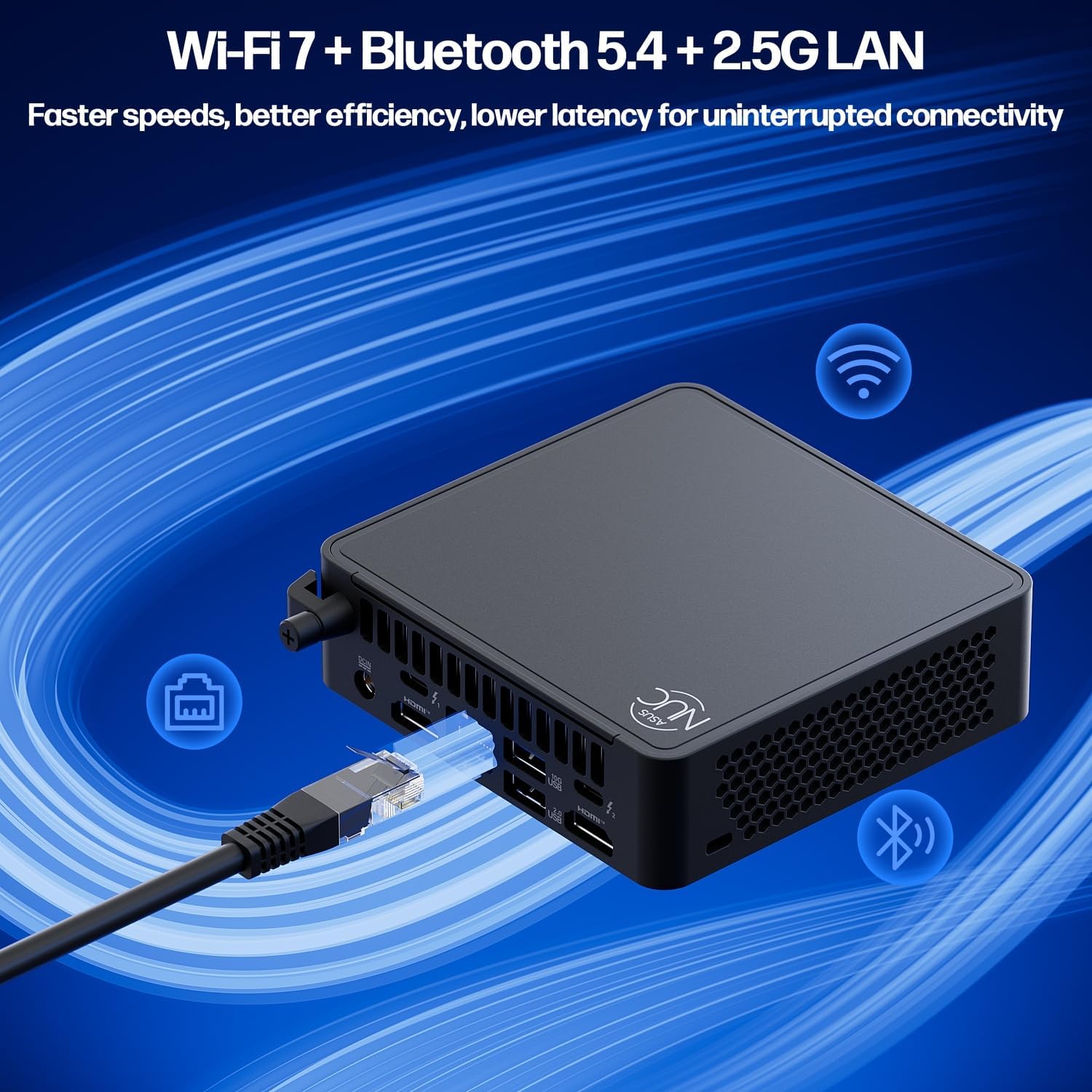
Image: Visual representation of the ASUS NUC 15 Pro's advanced connectivity options, including Wi-Fi 7, Bluetooth 5.4, and 2.5G LAN, emphasizing faster speeds and lower latency.
Технічне обслуговування
Оновлення системи
Regularly update your Windows operating system and drivers to ensure optimal performance and security. Go to Windows Settings > Windows Update to check for updates.
прибирання
Keep the Mini PC clean to prevent dust buildup, which can affect cooling. Use a soft, dry cloth for external surfaces. For vents, use compressed air sparingly.
Hardware Upgrades (Tool-Free)
The ASUS NUC 15 Pro features a tool-free design for easy upgrades of RAM and SSD storage.
- Вимкнення живлення: Ensure the device is completely powered off and unplugged from the power source.
- Відкрите шасі: Gently slide or lift the top cover to access the internal components.
- Оновлення оперативної пам'яті: The device supports dual channel DDR5 SO-DIMM, extendable up to 96GB. Insert new RAM modules into the available slots.
- Оновлення SSD-накопичувача: The device supports M.2 2280 PCIe SSDs up to 2TB. Additionally, there are built-in 2.5" SATA slots for further storage expansion.
- Закрити шасі: Securely reattach the top cover.

Зображення: Вибух view of the ASUS NUC 15 Pro, illustrating its tool-less design for easy access to and upgrade of DDR5 SO-DIMM RAM and M.2 2280 PCIe SSD storage.

Image: Diagram showing the internal cooling system of the ASUS NUC 15 Pro, featuring dual copper heat pipes and an intelligent fan for efficient and quiet operation.
Усунення несправностей
| проблема | Можлива причина | Рішення |
|---|---|---|
| Немає живлення / Не вмикається | Кабель живлення не підключено; несправний адаптер живлення | Ensure power cable is securely connected to the PC and outlet. Test with a different outlet if possible. |
| Немає виводу дисплея | Monitor not connected; Incorrect input source on monitor; Driver issue | Check display cable connections. Ensure monitor is set to correct input (HDMI/Thunderbolt). Update graphics drivers. |
| Повільна продуктивність | Too many applications running; Insufficient RAM/Storage; Overheating | Close unnecessary applications. Consider upgrading RAM or SSD. Ensure proper ventilation and clean vents. |
| Проблеми з підключенням Wi-Fi/Bluetooth | Driver issues; Interference; Incorrect settings | Restart the PC. Check Wi-Fi/Bluetooth settings in Windows. Update wireless drivers. Move closer to the router. |
Технічні характеристики
| Особливість | Деталь |
|---|---|
| Процесор | Intel Series 2 Core 7 240H (10 Cores, 16 Threads, up to 5.20 GHz) |
| Графіка | Графіка Intel (інтегрована) |
| ОЗУ | 64 ГБ DDR5 (з можливістю розширення до 96 ГБ) |
| Зберігання | 2TB PCIe Gen4 x4 SSD (Supports 2.5" SATA) |
| Операційна система | Windows 11 Pro |
| Підключення | Wi-Fi 7, Bluetooth 5.4, 2.5G Gigabit Ethernet |
| Порти | 2x HDMI 2.1, 2x Thunderbolt 4, 1x USB 3.2 Gen2x2 Type-C, 3x USB 3.2 Gen2 Type-A, 1x USB 2.0 Gen2 Type-A |
| Розміри (ДxШxВ) | 4.6 x 4.4 x 1.5 дюймів |
| вага | 1.2 фунтів |
Гарантія та підтримка
Щоб отримати інформацію про гарантію та технічну підтримку, зверніться до офіційної служби підтримки ASUS. webсайт або зверніться до служби підтримки клієнтів. Зберігайте чек про покупку як підтвердження покупки.
Інтернет-підтримка: www.asus.com/support/
This product is certified for 24/7 use and MIL-STD-810H durability.
Ask a question about this manual
Ask about setup, troubleshooting, compatibility, parts, safety, or missing instructions. Manuals+ will review the question and use this page’s manual context to help answer it.