
1. Вступ
This manual provides essential information for the proper setup, operation, and maintenance of your Veout 15.6-inch Portable Monitor. Please read these instructions thoroughly before using the product to ensure optimal performance and longevity.
2. Вміст упаковки
Перевірте, чи всі перелічені нижче елементи присутні в упаковці вашого продукту:
- 1 портативний монітор
- 1 кабель USB-A – USB-C
- 1 кабель USB-C – USB-C
- 1 кабель Mini HDMI-HDMI
- 1 х посібник користувача

Figure 2.1: Included accessories with the portable monitor.
3. Продукт закінчивсяview
The Veout portable monitor features a 15.6-inch IPS display with a slim profile and integrated kickstand for versatile use.
3.1. Фізичні характеристики

Малюнок 3.1: Спереду view of the Veout 15.6-inch Portable Monitor.

Малюнок 3.2: Задня частина view highlighting connectivity ports.

Рисунок 3.3: Бічний профіfile demonstrating the monitor's thin design.
3.2. Порти та елементи керування
- Full-Function USB-C Ports: For video, audio, data, and power delivery with a single cable.
- Порт Mini-HDMI: For video and audio input. Requires external power via USB-C when used.
- 3.5 мм аудіороз’єм: Для підключення зовнішніх навушників або динаміків.
- Control Wheel/Buttons: Used for adjusting volume, brightness, and navigating the On-Screen Display (OSD) menu.
3.3. Integrated Kickstand
The monitor features a foldable kickstand for stable positioning at various viewкути.
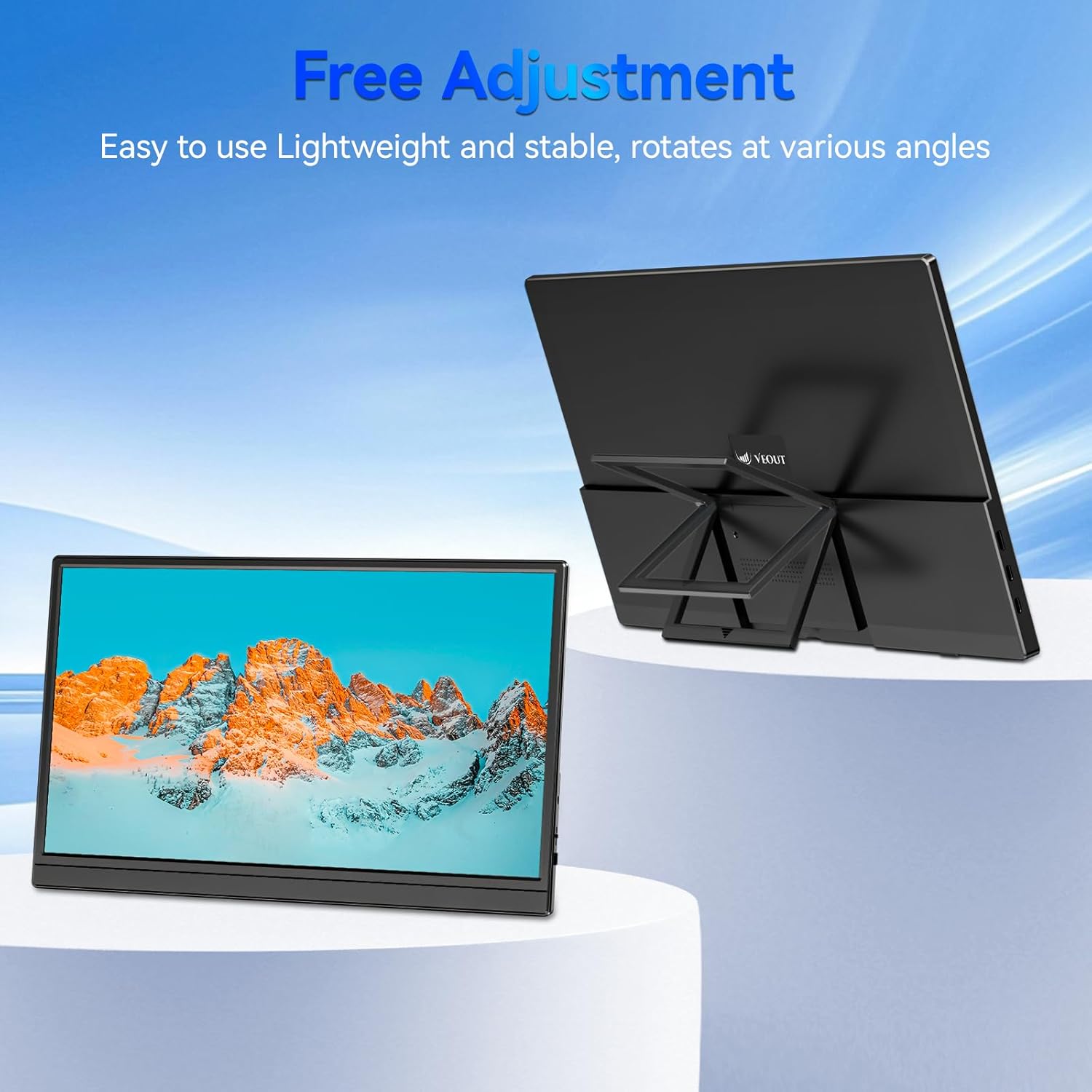
Figure 3.4: Monitor with kickstand for adjustable viewінж.
4. Налаштування
The Veout portable monitor supports plug-and-play functionality, requiring no driver installation for most devices.
4.1. Підключення до пристрою
- USB-C Connection (Single Cable):
- Connect one end of the USB-C to USB-C cable to a full-function USB-C port on your laptop, smartphone, or other compatible device.
- Connect the other end of the USB-C to USB-C cable to one of the full-function USB-C ports on the portable monitor.
- This connection provides video, audio, and power to the monitor.
- HDMI Connection (Requires Additional Power):
- Connect one end of the Mini-HDMI to HDMI cable to the Mini-HDMI port on the monitor.
- Connect the other end of the Mini-HDMI to HDMI cable to the HDMI port on your device.
- For power, connect the USB-A to USB-C cable or a USB-C to USB-C cable from your device's USB port or a power adapter (not included) to one of the monitor's USB-C ports.
4.2. Positioning the Monitor
Deploy the integrated kickstand to position the monitor on a flat surface. Adjust the angle for optimal viewing. The monitor can be used in both landscape and portrait orientations.

Figure 4.1: Monitor used in portrait mode for document viewінж.
5. Інструкція з експлуатації
5.1. Режими відображення
When connected to a computer, you can configure the display mode through your operating system's display settings:
- Copy Mode (Mirror Display): Duplicates your primary screen's content onto the portable monitor. Useful for presentations or sharing content.
- Розширений режим: Extends your desktop across both screens, providing additional workspace for multitasking.
- Режим лише другого екрана: Displays content only on the portable monitor, with the primary device's screen turned off.
5.2. Налаштування параметрів
The monitor features an intuitive control mechanism for quick adjustments:
- Регулювання яскравості: Scroll the control wheel up or down to instantly adjust screen brightness.
- Регулювання гучності: Scroll the control wheel up or down to instantly adjust speaker volume.
- Екранне меню: Press the control wheel or designated button to access the On-Screen Display menu for advanced settings like color, contrast, and input source selection.
5.3. Eye Care Technology
The monitor incorporates advanced eye-care technology designed to reduce blue light emission and screen flicker, promoting comfortable viewпід час тривалого використання.
6. Технічне обслуговування
To maintain your monitor's performance and appearance, follow these guidelines:
- Очищення екрану: Обережно протріть екран м’якою тканиною без ворсу. Для стійких плям злегка протрітьampПротріть тканину водою або розчином для чищення екрану. Уникайте використання агресивних хімікатів або абразивних матеріалів.
- Очищення Casing: Використовуйте м’яку суху тканину для очищення монітораasing.
- Зберігання: Коли монітор не використовується, зберігайте його в прохолодному, сухому місці, бажано в оригінальній упаковці або захисному чохлі.
- Уникайте рідин: Do not expose the monitor to excessive moisture or spill liquids directly onto it.
7. Вирішення проблем
Якщо у вас виникли проблеми з монітором, зверніться до наступних поширених проблем та способів їх вирішення:
| проблема | Можлива причина | Рішення |
|---|---|---|
| No display/"No Signal" message | Incorrect cable connection, insufficient power, incorrect input source. | Ensure cables are securely connected. If using HDMI, ensure a separate power source is connected to the monitor's USB-C port. Check your device's display settings to ensure the monitor is detected and enabled. Select the correct input source via the OSD menu. |
| Мерехтіння екрана | Loose cable connection, incompatible resolution/refresh rate, power fluctuations. | Reconnect cables. Adjust display resolution or refresh rate on your connected device. Ensure stable power supply. |
| Немає звуку з динаміків монітора | Monitor volume too low, incorrect audio output selected on device. | Increase monitor volume using the control wheel. On your connected device, ensure the portable monitor is selected as the audio output device. |
| Монітор не вмикається | No power supply, faulty cable. | Ensure the monitor is receiving power via a USB-C connection from a compatible device or power adapter. Try a different USB-C cable. |
8. Технічні характеристики
| Особливість | Деталь |
|---|---|
| Номер моделі товару | Veout-15.6 |
| Розмір екрана | 15.6 дюймів |
| роздільна здатність | 1920 x 1080 пікселів (FHD 1080p) |
| Співвідношення сторін | 16:9 |
| Тип панелі | IPS |
| Поверхня екрана | Матовий |
| Розміри продукту | 1.97 x 13.78 x 11.02 дюймів |
| Вага товару | 3.08 фунта |
| Вхідний об'ємtage | 5V |
| Номінальний струм | 3A |
| Вихідна потужність | 5.5 Вт |
| Виробник | Guangdong Zhanwei electronic Technology Co., LTD |

Figure 8.1: Product information and certification details.
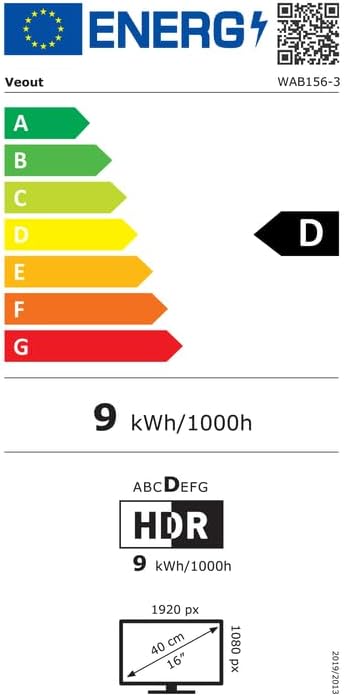
Figure 8.2: EU Energy Label for model WAB156-3. For more details, visit eprel.ec.europa.eu/qr/2209122.
9. Гарантія та підтримка
Your Veout Portable Monitor is backed by a 12-month warranty from the date of purchase. We are committed to providing customer service and support.
- Гарантійний термін: 12 місяців
- Політика повернення: 30-денна гарантія повернення грошей
- Обслуговування клієнтів: Доступно 24 години

Рисунок 9.1: Інформація про гарантію та підтримку.
For technical assistance or warranty claims, please contact Veout customer support at support@veout.com.