
1. Вступ
The TABWEE 10.1 Inch WiFi Digital Calendar, Model P10, is an interactive touchscreen display designed to streamline family organization. It integrates calendars, task management, meal planning, and digital photo frame capabilities into a single device. This manual provides detailed instructions to help you set up and utilize all features of your new digital calendar.

Зображення 1.1: The TABWEE Digital Calendar in use, showcasing its calendar interface and mobile app synchronization.
2. Інформація про безпеку
- Переконайтеся, що пристрій розміщено на стійкій, рівній поверхні, щоб запобігти випадковому падінню.
- Використовуйте лише наданий адаптер живлення. Використання неавторизованих адаптерів може пошкодити пристрій та анулювати гарантію.
- Тримайте пристрій подалі від води, вологи та екстремальних температур.
- Do not attempt to open or repair the device yourself. Refer to qualified service personnel for any maintenance or repair needs.
- Keep out of reach of small children to prevent accidental ingestion of small parts or damage to the device.
3. Вміст упаковки
Перевірте наявність усіх елементів в упаковці:
- TABWEE 10.1 Inch WiFi Digital Calendar (Model P10)
- Адаптер живлення
- Посібник користувача (цей документ)
4. Продукт закінчивсяview
Familiarize yourself with the physical components of your TABWEE Digital Calendar.

Зображення 4.1: Technical details and component layout of the TABWEE Digital Calendar.
- Кнопка ввімкнення/вимкнення живлення: Located on the side for turning the device on or off.
- Кнопки збільшення / зменшення гучності: Adjust the device's audio output.
- Датчик світла: Автоматично регулює яскравість екрана залежно від навколишнього освітлення.
- Опорна стійка: Integrated stand for desk placement.
5. Налаштування
5.1 Початкове ввімкнення
- Connect the provided power adapter to the device's power port.
- Plug the adapter into a standard electrical outlet. The device will automatically power on.
- Дотримуйтесь підказок на екрані, щоб вибрати мову та регіон.
5.2 Мережеве підключення
- On the initial setup screen, select your Wi-Fi network from the list.
- Enter your Wi-Fi password and tap 'Connect'.
- Ensure the device is connected to a stable internet connection for full functionality.
5.3 Встановлення програми та створення облікового запису
To fully utilize the calendar's features, download and set up the companion 'eCalendar' app on your smartphone (iOS or Android).

Зображення 5.1: Steps for downloading and creating an account on the eCalendar app.
- Scan the QR code displayed on the calendar screen or search for 'eCalendar' in your device's app store (Google Play Store for Android, Apple App Store for iOS).
- Завантажте та встановіть додаток.
- Open the eCalendar app and follow the prompts to create a new account or log in if you already have one.
- Agree to the User Agreement and Privacy Policy.
5.4 Device Linking
Link your TABWEE Digital Calendar to your eCalendar app account.

Зображення 5.2: Linking the calendar device to the eCalendar app and setting up your unique calendar email.
- In the eCalendar app, select the option to 'Add Device' or 'Activate a new eCalendar Frame'.
- Follow the on-screen instructions to pair your device. This may involve scanning a QR code displayed on the calendar or entering a pairing code.
- Once linked, you can set up your unique calendar email address within the app.
6. Операція
6.1 Основна навігація
The TABWEE Digital Calendar features a responsive touchscreen. Navigate through menus and features by tapping, swiping, and pinching as you would on a tablet device.
6.2 Керування календарем
The core function of your device is calendar management, allowing for seamless synchronization and event organization.
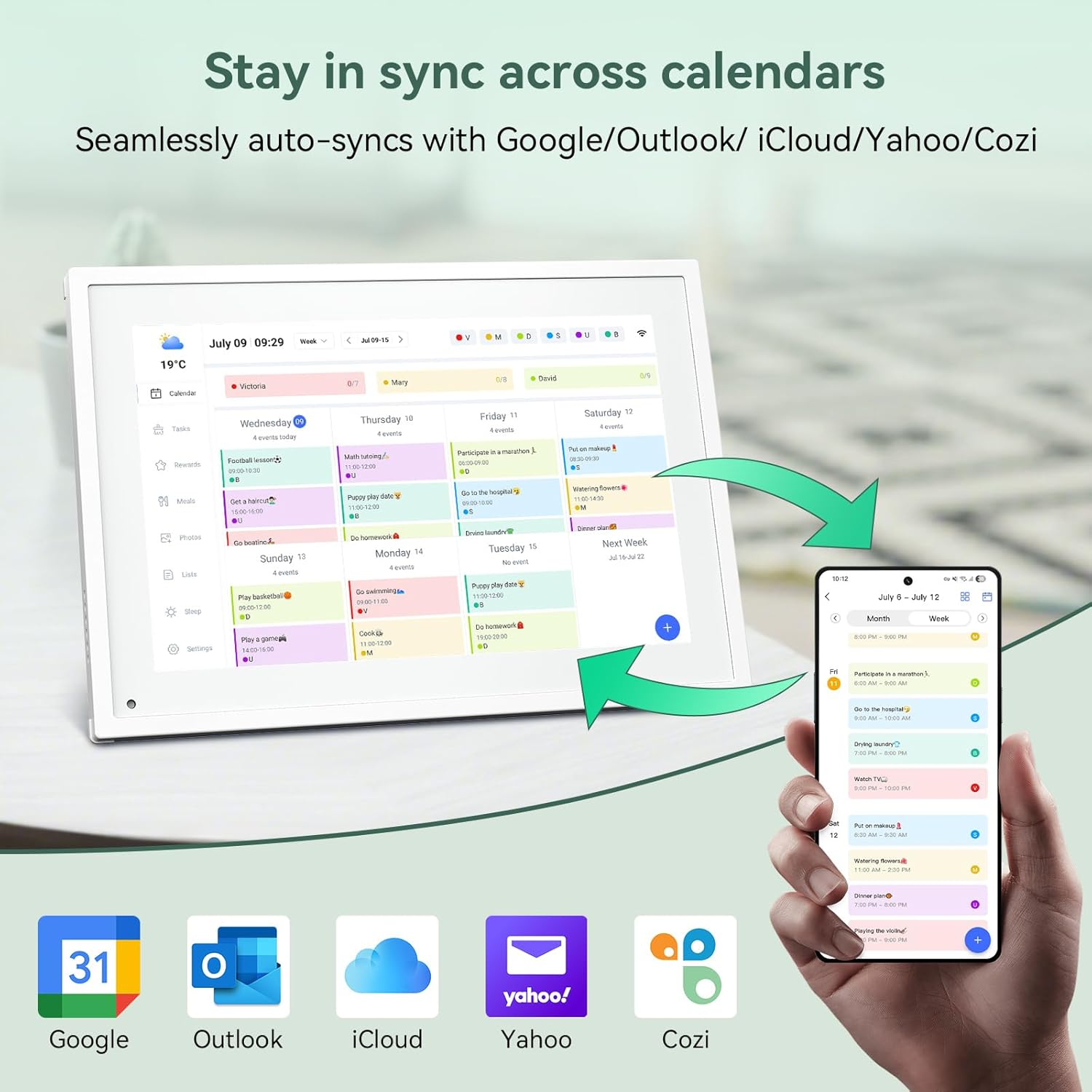
Зображення 6.1: Seamless synchronization of the digital calendar with various external calendar services.
- Syncing External Calendars: Within the eCalendar app settings, you can link your Google, Apple, Outlook, Yahoo, or Cozi calendars. Events from these linked accounts will automatically appear on your TABWEE Digital Calendar.
- Adding/Editing Events: Tap on a date or time slot on the calendar display or use the eCalendar app to add new events. You can specify event details, set reminders, and assign participants.
- Індивідуальний Views: Switch between day, week, or month views directly on the device or through the app.
6.3 Task Management (Chore Chart)
Organize tasks and chores for family members with a built-in reward system.
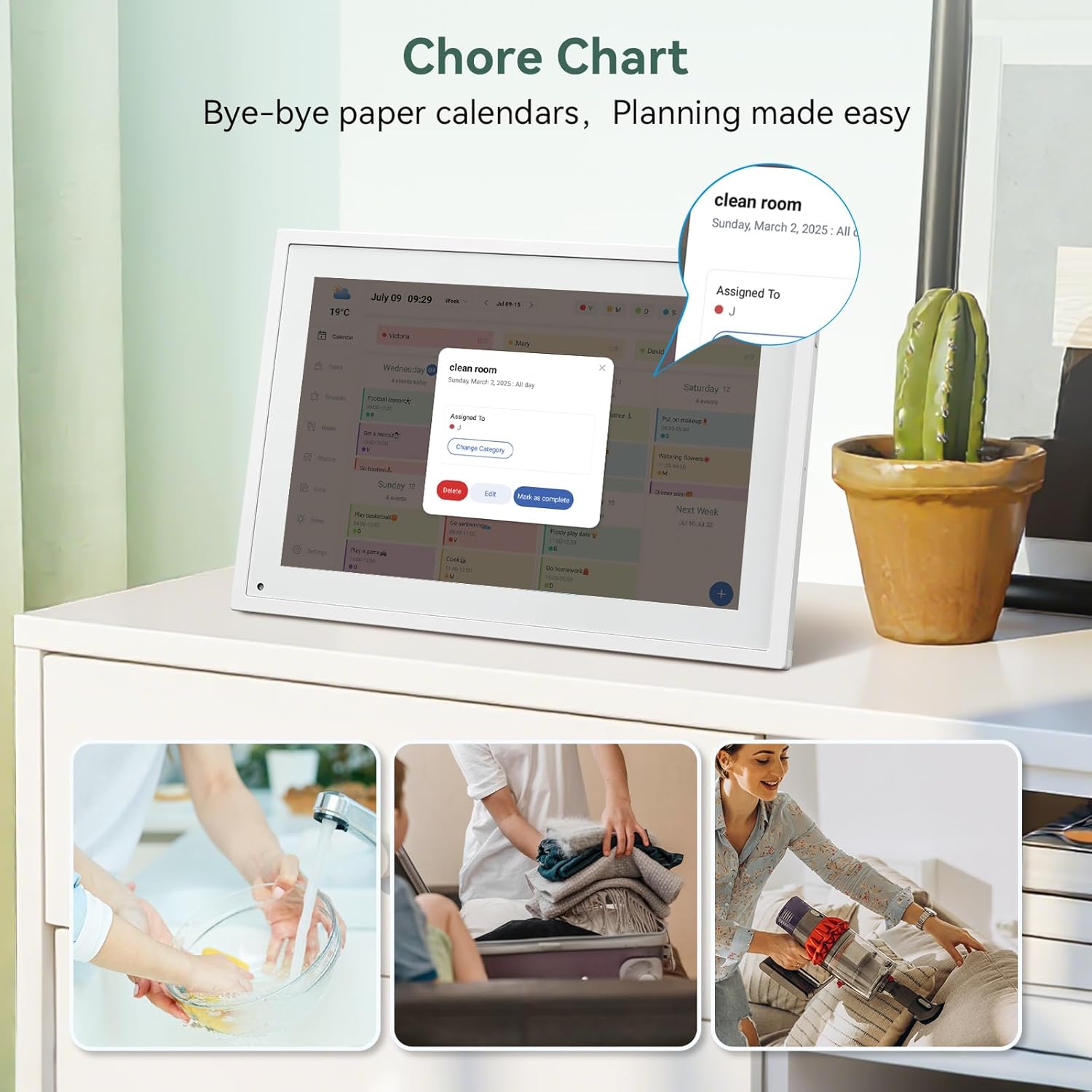
Зображення 6.2: Managing tasks and chores on the digital calendar interface.
- Creating Tasks: Use the 'Tasks' section on the device or app to create new tasks. Assign them to specific individuals, set due dates, and configure recurring tasks.
- Tracking Progress: Users can mark tasks as complete. The system tracks completion and can be configured to award points.
- Система винагород: Set up a star-point reward system within the app. Points earned from completed tasks can be redeemed for custom rewards, encouraging participation.

Зображення 6.3: The task manager and rewards interface, designed for engaging users.
6.4 Планування харчування
Plan your meals directly on the device or through the app.

Зображення 6.4: Visual meal planning interface on the digital calendar.
- Create Meal Plans: Access the 'Meals' section to plan breakfasts, lunches, dinners, and snacks for the week.
- Рецепти на замовлення: Upload and store your favorite recipes.
- Grocery Lists: Generate grocery lists based on your meal plans.
6.5 Digital Photo Frame Functionality
The device can also function as a digital photo frame.

Зображення 6.5: The digital calendar switching between calendar and photo frame modes, in both landscape and portrait orientations.
- Перемикання режимів: Navigate to the 'Photos' section on the device or app to activate the digital photo frame mode.
- Завантаження фотографій: Upload your favorite memories directly from your smartphone via the eCalendar app.
- Орієнтація: The device supports both landscape and portrait orientations, automatically adjusting the display.
6.6 Інші функції
The TABWEE Digital Calendar includes additional smart features to enhance usability.
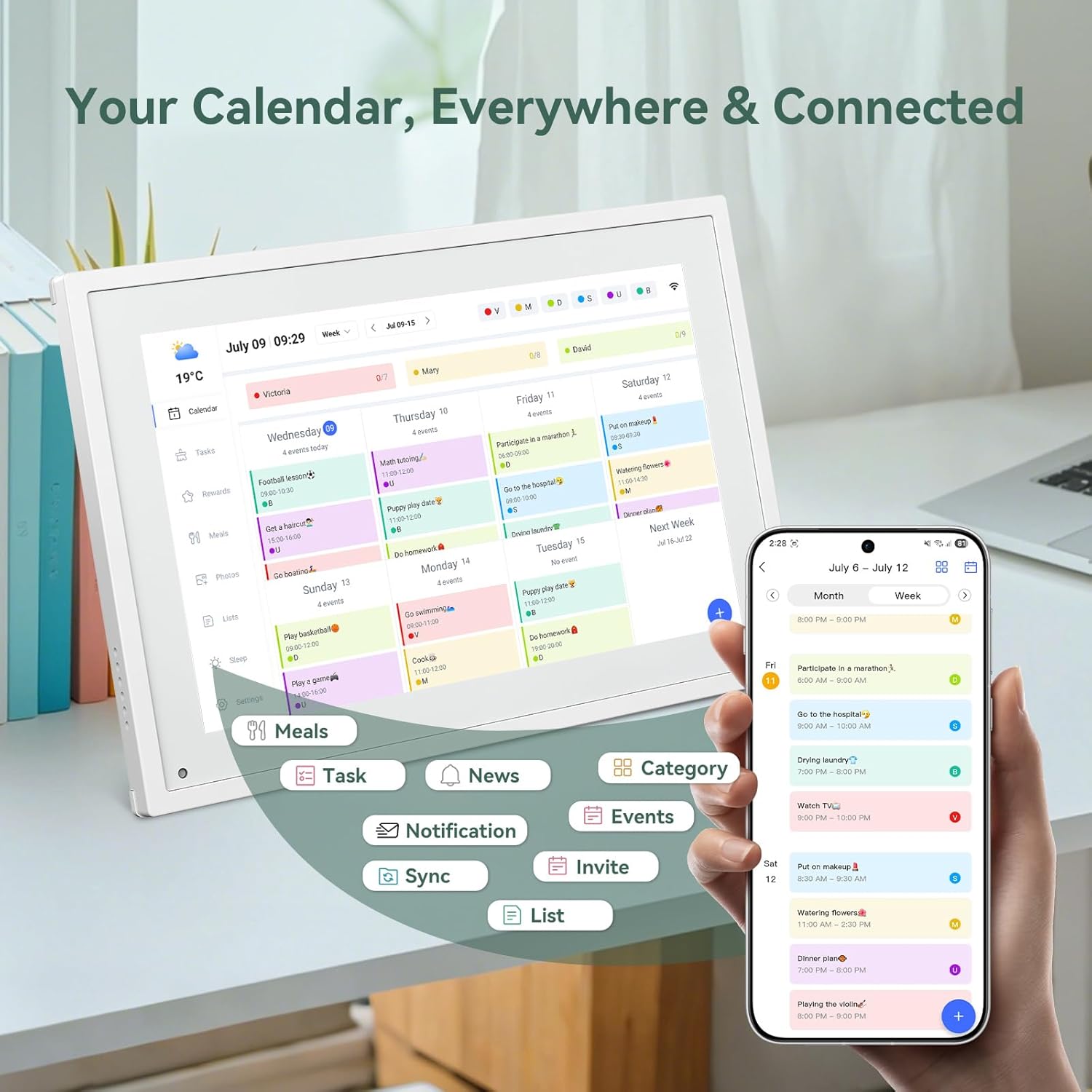
Зображення 6.6: закінченоview of smart features and app connectivity.
- Live Weather Forecasts: Відображає поточні погодні умови та прогнози.
- Автояскравість: The built-in light sensor automatically adjusts screen brightness for optimal viewінж.
- Режим сну: Configure scheduled times for the device to enter a low-power sleep mode.
- Custom Lists: Create and manage various lists (e.g., shopping lists, packing lists).
- Кольорове кодування: Assign different colors to events or tasks for easy visual identification.
7. Технічне обслуговування
7.1 Очищення пристрою
- Обережно протріть екран м’якою тканиною без ворсу. Для стійких плям злегка протрітьampпротріть тканину водою або розчином для очищення екрану.
- Уникайте використання агресивних хімікатів, абразивних матеріалів або аерозольних спреїв безпосередньо на пристрої.
- Перед очищенням переконайтеся, що пристрій вимкнено та відключено від мережі.
7.2 Оновлення програмного забезпечення
The device may receive periodic software updates to improve performance and add new features. Ensure your device is connected to Wi-Fi to receive these updates. You will typically be notified on-screen when an update is available.
8. Вирішення проблем
| проблема | Можлива причина | Рішення |
|---|---|---|
| Пристрій не включається. | Адаптер живлення не підключений або несправний. | Переконайтеся, що адаптер живлення надійно підключений до пристрою та справної розетки. |
| Неможливо підключитися до Wi-Fi. | Неправильний пароль, поза зоною досяжності або проблеми з мережею. | Verify Wi-Fi password. Move the device closer to the router. Restart your router. |
| Calendar events are not syncing. | App not linked, external calendar not connected, or internet issue. | Check app-device linking. Ensure external calendars are correctly linked in the eCalendar app. Verify internet connection. |
| Екран не реагує. | Тимчасовий збій програмного забезпечення. | Restart the device by holding the power button until it turns off, then power it back on. |
9. Технічні характеристики
| Особливість | Деталь |
|---|---|
| Номер моделі | P10 |
| Розмір екрана | 10.1 дюймів |
| Тип дисплея | Сенсорний екран |
| Підключення | WiFi |
| Розміри продукту | 10.51 x 0.91 x 7.32 дюйми (26.7 x 2.3 x 18.6 см) |
| Вага товару | 2.58 фунта (1.17 кг) |
| Тип монтажу | Desk Mount (not wall-mountable) |
| Джерело живлення | Plug-in (no internal battery) |
| Колір | Білий |
10. Гарантія та підтримка
The TABWEE Digital Calendar comes with a standard manufacturer's warranty. For specific warranty terms and conditions, please refer to the warranty card included in your product packaging or visit the official TABWEE webсайт.
For technical support, troubleshooting assistance, or any inquiries regarding your product, please contact TABWEE customer service through their official webсайт або контактну інформацію, надану в документації до вашого продукту.