
1. Вступ
Thank you for choosing the Dierya x TMKB M1 Wireless Gaming Mouse. This manual provides detailed instructions on how to set up, operate, and maintain your new gaming mouse. The M1 mouse offers versatile connectivity, high-precision tracking, and customizable features to enhance your gaming and productivity experience.
2. Продукт закінчивсяview
2.1 Компоненти та елементи керування
Familiarize yourself with the various buttons and features of your Dierya M1 mouse:
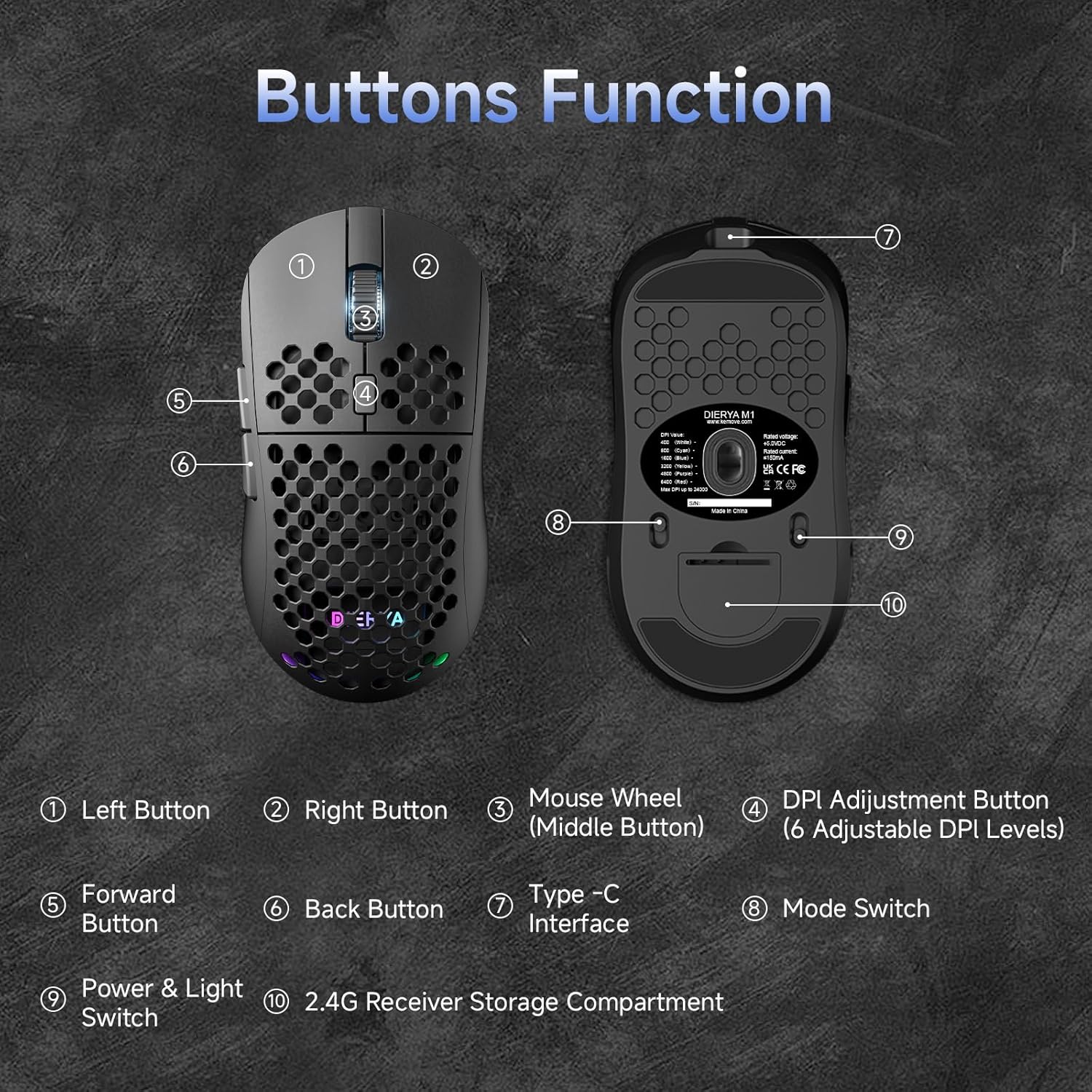
This diagram illustrates the various components of the Dierya M1 wireless gaming mouse. It highlights the Ліва кнопка (1), Права кнопка (2), Mouse Wheel (Middle Button) (3), DPI Adjustment Button (4) with 6 adjustable DPI levels, Кнопка «Вперед» (5), Кнопка «Назад» (6), Type-C Interface (7) for charging and wired connection, Перемикач режимів (8) for selecting connection type, Power & Light Switch (9), і 2.4G Receiver Storage Compartment (10) розташований на нижній стороні.
2.2 Основні характеристики
- Оптичний сенсор 24,000 DPI: Adjustable DPI range from 200 to 24,000, with 6 preset levels (400-6400 DPI).
- Трирежимне підключення: Supports ultra-fast 2.4GHz wireless, energy-efficient Bluetooth 5.2, and stable USB-C wired connections.
- Тривалий термін служби батареї: 1000mAh battery provides up to 180 hours in ECO mode or 48 hours with RGB lighting, with 1-hour fast charging.
- Легкий та ергономічний дизайн: Weighs only 90g with a honeycomb shell for breathability and a symmetrical design (125x63x41 mm).
- Програмовані кнопки: 6 customizable buttons via the M1 Driver software (Windows only).
- Динамічне RGB-підсвічування: 13 integrated RGB lighting effects with 16.8 million customizable colors.
- Висока продуктивність: 125-1000 Hz polling rate, 300 IPS tracking speed, and 35G acceleration.
- Міцні перемикачі: Equipped with Huano switches rated for 20 million clicks and 100% PTFE feet for smooth gliding.
3. Налаштування
3.1 Заряджання миші
Before first use, it is recommended to fully charge the mouse. Connect the provided USB-C cable to the Type-C Interface (7) on the mouse and the other end to a USB power source (e.g., computer USB port, USB wall adapter).
- The mouse charges in approximately 1 hour.
- The scroll wheel LED will indicate charging status (e.g., red for charging, green for fully charged).
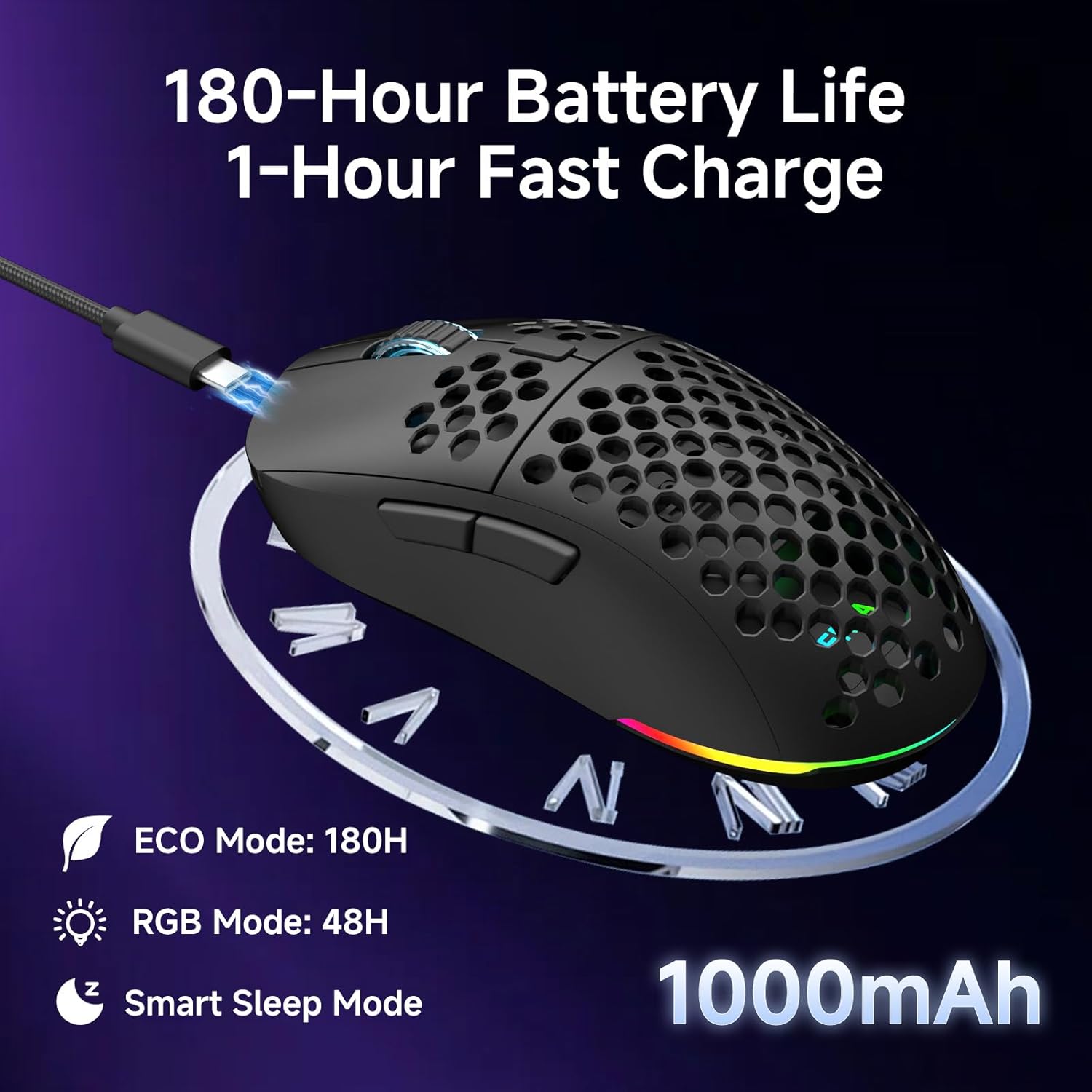
The Dierya M1 mouse features a 1000mAh battery, providing up to 180 hours of use in ECO mode or 48 hours with RGB lighting enabled. It supports fast charging, reaching full capacity in approximately 1 hour via the included USB-C cable. The mouse also includes a smart sleep mode to conserve power during inactivity.
3.2 Підключення миші
The Dierya M1 mouse offers three connection modes: 2.4GHz Wireless, Bluetooth 5.2, and USB-C Wired.

The Dierya M1 mouse supports three flexible connection modes: Bluetooth 5.2 for energy-efficient pairing with up to two devices, 2.4GHz Wireless via a USB dongle for ultra-fast response, and a stable USB-C Wired connection for charging and direct use. Each mode offers a different polling rate, with 2.4GHz and wired modes providing 1000Hz, and Bluetooth offering 125Hz.
3.2.1 Бездротове з'єднання 2.4 ГГц
- Locate the 2.4G receiver in the storage compartment (10) on the underside of the mouse.
- Підключіть приймач 2.4G до вільного USB-порту на вашому комп'ютері.
- Set the Mode Switch (8) on the underside of the mouse to the '2.4G' position.
- The mouse should connect automatically. The polling rate for this mode is 1000 Hz.
3.2.2 З’єднання Bluetooth 5.2
- Set the Mode Switch (8) on the underside of the mouse to the 'BT' position.
- На комп’ютері або пристрої відкрийте налаштування Bluetooth і знайдіть нові пристрої.
- Select 'Dierya M1' from the list of available devices to pair.
- The mouse supports Bluetooth 5.2 and has a polling rate of 125 Hz in this mode.
3.2.3 Дротове підключення USB-C
- Connect the USB-C cable to the Type-C Interface (7) on the mouse.
- Підключіть інший кінець кабелю USB-C до вільного USB-порту на вашому комп’ютері.
- The mouse will automatically switch to wired mode and begin charging. The polling rate for this mode is 1000 Hz.
4. Інструкція з експлуатації
4.1 Налаштування DPI
The Dierya M1 mouse features a dedicated DPI Adjustment Button (4) to cycle through preset DPI levels. The scroll wheel LED color indicates the current DPI setting.
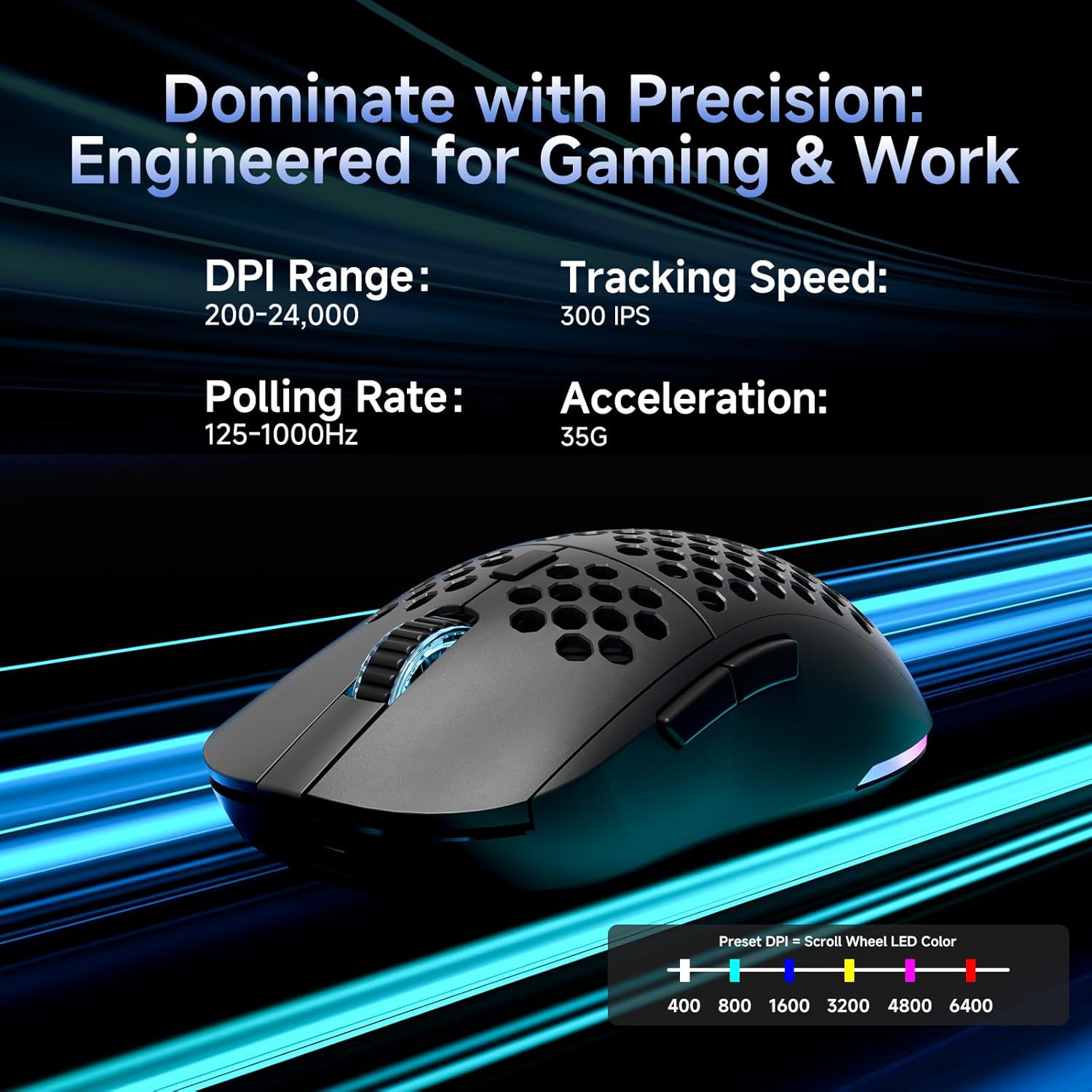
This image details the performance specifications of the Dierya M1 mouse, including a DPI range of 200-24,000, a tracking speed of 300 IPS, a polling rate of 125-1000Hz, and 35G acceleration. It also shows the preset DPI levels (400, 800, 1600, 3200, 4800, 6400) and the color indicators on the scroll wheel for each setting.
- Press the DPI Adjustment Button (4) to cycle through the 6 default DPI settings: 400, 800, 1600, 3200, 4800, and 6400 DPI.
- Each DPI level is indicated by a specific color on the scroll wheel LED.
- For custom DPI settings and a wider range (200-24,000 DPI), use the M1 Driver software.
4.2 Керування RGB-підсвічуванням
The Dierya M1 mouse features dynamic RGB lighting. You can control the lighting effects and colors using the M1 Driver software.
- The mouse has 13 built-in RGB lighting effects.
- Use the M1 Driver software to customize colors (16.8 million options), brightness, and speed of the lighting effects.
- The Power & Light Switch (9) on the underside can be used to turn the lighting on or off.
4.3 Програмовані кнопки та програмне забезпечення
The M1 mouse has 6 programmable buttons that can be customized using the dedicated M1 Driver software.

The Dierya M1 driver software, currently available for Windows, allows users to customize various aspects of the mouse. This includes reassigning the 6 programmable buttons, creating macros, adjusting DPI settings, modifying the polling rate, and personalizing the 13 dynamic RGB lighting effects with 16.8 million colors.
- Сумісність програмного забезпечення: The M1 Driver software is currently only available for Windows operating systems.
- Призначення клавіш: Reassign functions to any of the 6 programmable buttons (Left, Right, Middle, DPI, Forward, Back).
- Створення макросів: Create and assign complex macros to streamline in-game actions or productivity tasks.
- DPI & Polling Rate: Fine-tune DPI settings beyond the presets and adjust the polling rate.
- Налаштування RGB: Personalize lighting effects, colors, and patterns.
- Profile Управління: Збереження та завантаження різних професіоналівfileдля різних ігор або програм.
4.4 Режими енергозбереження
The M1 mouse is designed with automatic power-saving features to extend battery life:
- The mouse will enter an automatic power-saving mode after 1-5 minutes of inactivity.
- This inactivity time can be adjusted via the M1 Driver software.
- Щоб розбудити мишу, просто перемістіть її або натисніть будь-яку кнопку.
5. Технічне обслуговування
Proper maintenance ensures the longevity and optimal performance of your Dierya M1 mouse.
- Прибирання: Використовуйте м’яку суху тканину для протирання поверхні миші. Для стійкого бруду злегкаamp Можна використовувати тканину, але переконайтеся, що волога не потрапляє всередину миші. Уникайте використання агресивних хімікатів або абразивних засобів для чищення.
- Технічне обслуговування датчика: Тримайте оптичний датчик на нижній стороні миші чистим та без пилу чи сміття, щоб забезпечити точне відстеження.
- Догляд за акумулятором: Уникайте частого повного розряджання акумулятора. Для тривалого зберігання зарядіть мишу приблизно до 50% та зберігайте її в прохолодному сухому місці.
- Зберігання: Коли миша не використовується, зберігайте її в чистому, сухому місці, подалі від екстремальних температур.
6. Вирішення проблем
If you encounter issues with your Dierya M1 mouse, refer to the following common troubleshooting steps:
| проблема | Можлива причина | Рішення |
|---|---|---|
| Миша не реагує (2.4 ГГц) | Low battery, receiver unplugged, incorrect mode, interference. | Charge the mouse. Ensure 2.4G receiver is securely plugged in. Set Mode Switch to '2.4G'. Try a different USB port. Reduce distance to receiver. |
| Миша не реагує (Bluetooth) | Low battery, incorrect mode, not paired, Bluetooth off on device. | Charge the mouse. Set Mode Switch to 'BT'. Ensure Bluetooth is enabled on your device. Re-pair the mouse in Bluetooth settings. |
| Миша не реагує (дротова) | Cable not connected, faulty cable/port. | Ensure USB-C cable is securely connected to both mouse and computer. Try a different USB port or cable. |
| Неточне відстеження | Брудний сенсор, невідповідна поверхня, неправильна роздільна здатність (DPI). | Clean the optical sensor. Use a mouse pad or a clean, non-reflective surface. Adjust DPI settings. |
| Не працює RGB освітлення | Lighting switched off, low battery, software issue. | Check Power & Light Switch (9). Charge the mouse. Check settings in M1 Driver software. |
| Кнопки не програмуються | M1 Driver not installed/running, not on Windows. | Ensure M1 Driver software is installed and running (Windows only). Check software settings. |
7. Технічні характеристики
| Назва моделі | M1 |
| Бренд | Dierya |
| Технологія підключення | Бездротовий зв'язок 2.4 ГГц, Bluetooth 5.2, дротовий USB-C |
| Технологія виявлення руху | Оптичний |
| Діапазон DPI | 200 - 24,000 DPI (6 preset levels: 400, 800, 1600, 3200, 4800, 6400) |
| Швидкість опитування | 125-1000 Гц |
| Швидкість відстеження | IPS 300 |
| Прискорення | 35G |
| Кількість кнопок | 6 (програмованих) |
| Ємність акумулятора | 1000 мАг літій-іонний |
| Термін служби батареї | Up to 180 hours (ECO mode), 48 hours (RGB mode) |
| Час зарядки | прибл. 1 година |
| вага | 90 грамів |
| Розміри | 125 x 63 x 41 мм |
| Тип перемикача | Huano (20 million clicks) |
| Матеріал ніжок | 100% PTFE |
| Сумісність операційної системи | Windows, macOS, Linux, Chrome OS |
| Driver Software Compatibility | Тільки Windows |
8. Гарантія та підтримка
8.1 Гарантія виробника
The Dierya M1 Wireless Gaming Mouse comes with a Гарантія від виробника 1 рікЦя гарантія поширюється на дефекти матеріалів та виготовлення за умов нормального використання. Будь ласка, збережіть чек про покупку для пред'явлення претензій за гарантією.
8.2 Підтримка клієнтів
For further assistance, technical support, or warranty inquiries, please refer to the official Dierya website or contact your retailer. Ensure you have your product model (M1) and proof of purchase ready when seeking support.


