
вступ
Thank you for choosing the Rii RK211 Wireless Keyboard and Mouse Combo. This product provides a reliable 2.4G wireless connection for your computer, laptop, or other compatible devices. This manual will guide you through the setup, operation, maintenance, and troubleshooting of your new wireless keyboard and mouse.
Інструкції з налаштування
Follow these steps to set up your Rii RK211 Wireless Keyboard and Mouse Combo:
- Встановіть акумулятори: The keyboard requires 1 AAA battery, and the mouse requires 1 AA battery. Open the battery compartments on both devices and insert the batteries, ensuring correct polarity.
- Знайдіть USB-приймач: The tiny nano USB receiver is stored in the compartment next to the mouse battery slot. Open the mouse battery cover to find it.
- Підключіть приймач: Підключіть USB-приймач до вільного USB-порту комп’ютера або ноутбука.
- Увімкнення: Turn on the mouse using the ON/OFF switch located on its underside. The keyboard does not have a separate power switch and will activate upon battery installation and key press.
- Автоматичне підключення: The keyboard and mouse will automatically connect to your device. No additional drivers are required for most operating systems.
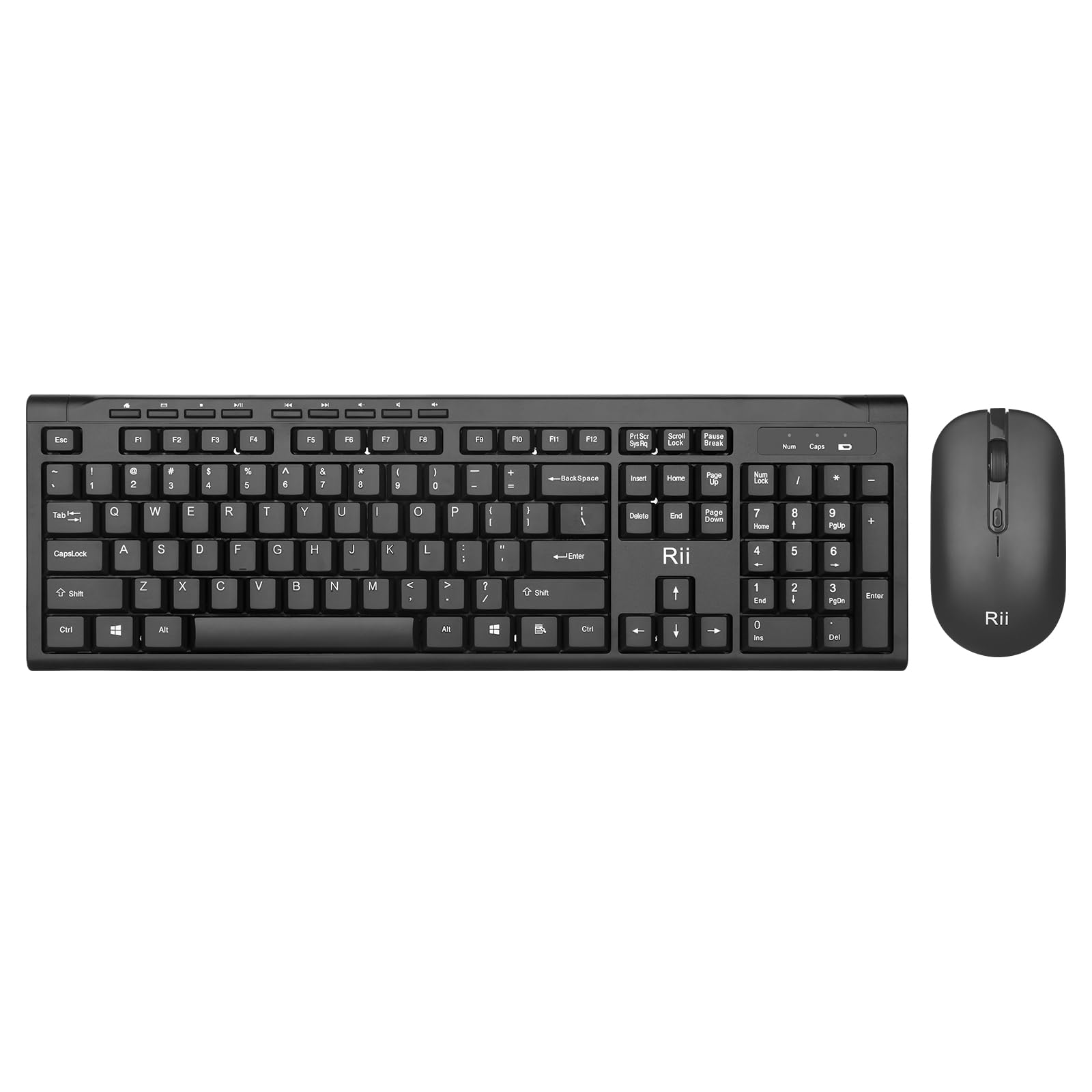
Image: The Rii RK211 wireless keyboard and mouse connected to a laptop using a single unifying nano receiver for plug-and-play functionality.

Image: The USB receiver is conveniently stored inside the mouse's battery compartment for safekeeping.
Інструкція з експлуатації
This section details the usage of your Rii RK211 Wireless Keyboard and Mouse Combo.
Особливості клавіатури:
- Повнорозмірний макет: The keyboard features a standard US QWERTY layout with a numeric keypad for efficient typing.
- Регульований кут нахилу: Utilize the adjustable legs on the underside of the keyboard to set a comfortable typing position and reduce wrist fatigue.
- Мультимедійні гарячі клавіші: Access 9 dedicated multimedia hotkeys for quick control over media playback, email, internet browser, volume, and more. Note: These shortcuts may have limited compatibility with Mac operating systems.

Image: The keyboard features an ergonomic design with adjustable legs to enhance typing comfort.
Особливості миші:
- Ергономічний дизайн: The mouse is contoured to fit comfortably in your hand, supporting extended use.
- Регульований DPI: Cycle through DPI settings of 800, 1000, 1200, and 1600 to adjust cursor sensitivity and precision on various surfaces. The DPI button is typically located near the scroll wheel.

Зображення: Миша має ергономічний дизайн для комфортного використання.
Технічне обслуговування
Правильне обслуговування забезпечує довговічність та оптимальну роботу вашого бездротового комбо-налаштування.
- Заміна батареї: Replace batteries when performance degrades. The keyboard uses 1 AAA battery, and the mouse uses 1 AA battery.
- Прибирання: Використовуйте м’яку суху тканину для очищення поверхонь клавіатури та миші. Для стійкого бруду злегкаamp cloth can be used, ensuring no moisture enters the internal components. Avoid harsh chemicals.
- Зберігання: When not in use for extended periods, turn off the mouse to conserve battery life. Store the USB receiver in the mouse's battery compartment to prevent loss.
- Автоматичне енергозбереження: Both devices feature an automatic sleep function. If inactive for more than 10 minutes, they will enter sleep mode. To reactivate, simply click any mouse button or press any key on the keyboard.
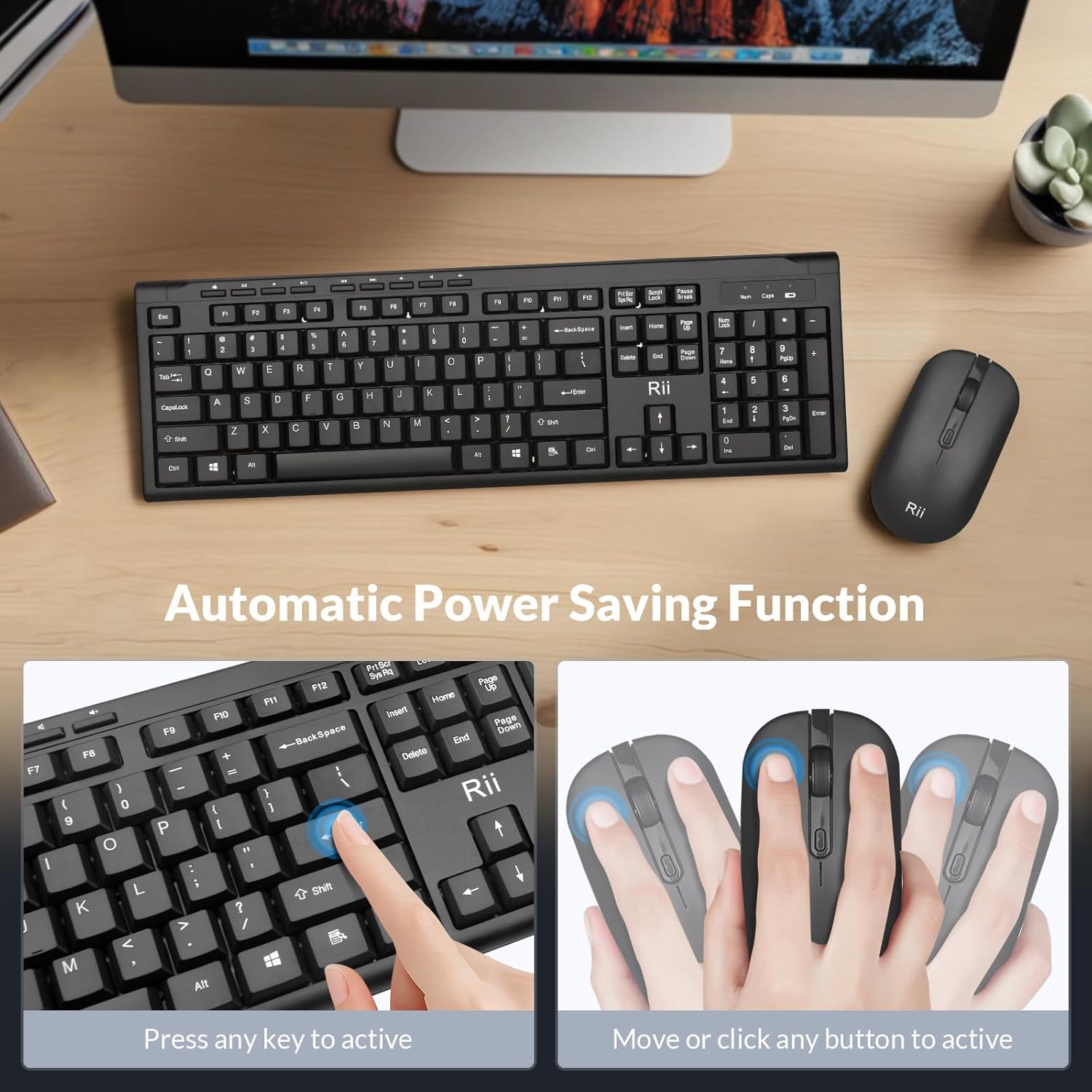
Image: The keyboard and mouse feature an automatic power saving function, activated by pressing any key or moving/clicking the mouse.
Усунення несправностей
Якщо у вас виникли проблеми, зверніться до наступних порад щодо усунення несправностей:
- Немає з'єднання/затримка:
- Переконайтеся, що USB-приймач надійно підключено до робочого USB-порту.
- Check if the mouse is turned ON.
- Replace batteries in both the keyboard and mouse.
- Move the devices closer to the USB receiver to rule out range issues (max 33 ft).
- Спробуйте підключити USB-приймач до іншого USB-порту на комп'ютері.
- Стрибки/неточність курсора миші:
- Change the DPI setting using the DPI button on the mouse.
- Переконайтеся, що миша використовується на відповідній поверхні (не сильно відбиваючій або прозорій).
- Очистіть оптичний датчик на нижній стороні миші.
- Keyboard Not Typing:
- Натисніть будь -яку клавішу, щоб вивести клавіатуру з режиму сну.
- Replace the AAA battery in the keyboard.
- Ensure the USB receiver is connected.
- Multimedia Keys Not Working on Mac:
- Some multimedia shortcuts may not be fully compatible with Mac OS. This is expected behavior.
Технічні характеристики
| Бренд | Ріі |
| Номер моделі | RK211 |
| Колір | чорний |
| Технологія підключення | Бездротовий зв'язок 2.4G |
| Особливість | Ергономічний дизайн |
| Сумісні пристрої | Laptop, Desktop, PC, Chromebook, Notebook (Windows 11/10/8/7/Vista/XP, Chrome OS, Linux, Mac OS) |
| Потрібні батареї | Yes (1 AAA for keyboard, 1 AA for mouse - Not Included) |
| Вага товару | 0.7 кілограма |
| Опис клавіатури | Мультимедіа |
| Параметри DPI миші | 800-1000-1200-1600 DPI |

Image: Detailed dimensions of the Rii RK211 keyboard and mouse.
Інформація про гарантію
The Rii RK211 Wireless Keyboard and Mouse Combo comes with a Гарантія 365 днів з дати покупки. Ця гарантія поширюється на виробничі дефекти та гарантує належне функціонування виробу за умови нормального використання. Будь ласка, збережіть підтвердження покупки для пред'явлення претензій по гарантії.
Підтримка
For further assistance, technical support, or warranty inquiries, please refer to the contact information provided with your product packaging or visit the official Rii webсайт. Ви також можете відвідати Rii Store on Amazon для отримання додаткової інформації та ресурсів про продукт.