
ASUS P520 ROG STRIX IMPACT III WL/WHT
ASUS ROG Strix Impact III Wireless Gaming Mouse
Посібник користувача
вступ
The ASUS ROG Strix Impact III Wireless Gaming Mouse is engineered for precision and performance, featuring an ultralight 57-gram design, dual-mode wireless connectivity (2.4 GHz RF and Bluetooth), and an advanced ROG AimPoint optical sensor. This manual provides detailed instructions to help you set up, operate, and maintain your gaming mouse for an optimal experience.

Малюнок 1: Верх view бездротової ігрової миші ASUS ROG Strix Impact III.
Що в коробці
Перевірте наявність усіх елементів у вашій упаковці:
- ROG Strix Impact III Wireless Optical Wireless Gaming Mouse
- Wireless Receiver (ROG Omni Receiver)
- Батарея АА
- Батарейка ААА
- Короткий посібник
Налаштування
1. Встановлення батареї
The ROG Strix Impact III Wireless Gaming Mouse supports both AA and AAA batteries. To install, remove the magnetic back cover and insert one AA or AAA battery into the compartment. Ensure correct polarity as indicated inside the compartment. The mouse is designed to be ultralight at 57 grams (excluding battery and receiver).

Figure 2: Battery compartment showing AA/AAA battery slot and magnetic back cover.
2. Підключення миші
The mouse offers two wireless connectivity options: 2.4 GHz RF via the ROG Omni Receiver or Bluetooth.
2.1. 2.4 GHz RF Connection (ROG Omni Receiver)
- Locate the ROG Omni Receiver. This compact USB dongle allows you to connect both your mouse and a compatible ROG keyboard using a single receiver.
- Insert the ROG Omni Receiver into an available USB port on your computer.
- On the bottom of the mouse, slide the power switch to the 2.4 ГГц RF положення (позначено піктограмою бездротового зв’язку).
- The mouse will automatically pair with the receiver. The indicator light on the mouse will confirm connection.

Figure 3: The ROG Omni Receiver allows connection of both mouse and keyboard via a single USB dongle.

Figure 4: Close-up of the ROG Omni Receiver plugged into a USB port.
2.2. Підключення Bluetooth
- On the bottom of the mouse, slide the power switch to the Bluetooth положення (позначено піктограмою Bluetooth).
- The mouse will enter pairing mode. The indicator light may blink.
- На комп’ютері або пристрої перейдіть до налаштувань Bluetooth і знайдіть нові пристрої.
- Select "ROG Strix Impact III" from the list of available devices to complete the pairing process.
Керування мишею
1. Налаштування роздільної здатності
The ROG Strix Impact III features an ROG AimPoint optical sensor with a sensitivity range of 100-36,000 DPI. Use the DPI button located on the bottom of the mouse to cycle through preset DPI levels. For advanced customization and precise DPI settings, install the ASUS Armoury Crate software.
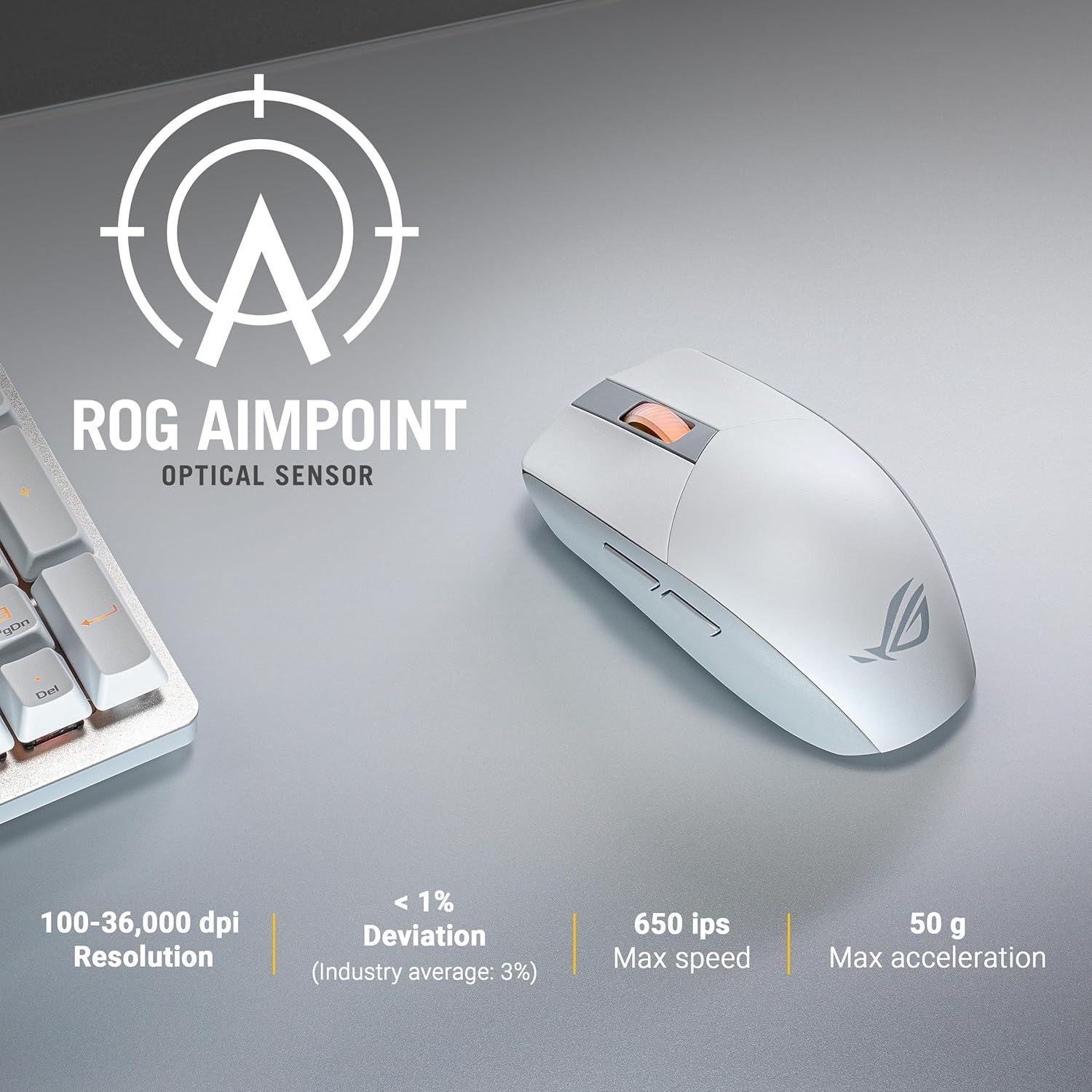
Figure 5: ROG AimPoint Optical Sensor specifications, including 100-36,000 DPI resolution.
2. Функції кнопок
The mouse features standard left and right click buttons, a scroll wheel, and two programmable side buttons. The left and right click buttons utilize durable L/R PBT material and ROG Micro Switches with a 70M click lifespan, providing a superior click feel.
3. Replaceable Switches
The ROG Strix Impact III is equipped with Push-Fit Switch Sockets, allowing for easy replacement of the mouse switches. This feature extends the lifespan of your mouse and allows for customization of click feel. To replace switches, carefully remove the magnetic back cover and then the top shell. Gently pull out the existing switches and insert new ones, ensuring they are properly seated.

Малюнок 6: Внутрішній view highlighting the Push-Fit Switch Socket for easy switch replacement.
4. Battery Life and Power Efficiency
The mouse offers outstanding battery life, up to 450 hours in 2.4 GHz RF mode and up to 618 hours in Bluetooth mode, when using a single AA lithium or AAA battery. The ROG SpeedNova wireless technology ensures low-latency, reliable 2.4 GHz RF wireless performance with incredible energy efficiency.

Figure 7: ROG SpeedNova Wireless Technology emphasizes max speed, consistency, and power efficiency.
Технічне обслуговування
1. прибирання
Для очищення миші використовуйте м’яку суху тканину. Для стійкого бруду використовуйте злегкаamp cloth with mild soap can be used, but ensure no liquid enters the mouse. Avoid using harsh chemicals or abrasive materials.
2. Заміна батареї
When the mouse's performance degrades or the indicator light signals low battery, replace the AA or AAA battery. Follow the battery installation steps outlined in the Setup section.
Усунення несправностей
- Миша не реагує:
- Ensure the mouse is powered on and the correct connectivity mode (2.4 GHz RF or Bluetooth) is selected.
- Перевірте рівень заряду батареї та замініть її, якщо необхідно.
- For 2.4 GHz RF, ensure the ROG Omni Receiver is securely plugged into a USB port. Try a different USB port.
- Щоб підключити Bluetooth, переконайтеся, що Bluetooth увімкнено на вашому пристрої, а миша підключена. Спробуйте повторно підключити мишу.
- Рух курсора нерівномірний або неточний:
- Очистіть оптичний датчик на нижній частині миші.
- Переконайтеся, що ви використовуєте мишу на відповідній поверхні. Уникайте поверхонь із високим рівнем відбиття або прозорих поверхонь.
- Adjust the DPI setting using the DPI button or Armoury Crate software.
- Connectivity issues (lag, disconnections):
- Зменште відстань між мишею та приймачем/пристроєм.
- Мінімізуйте перешкоди від інших бездротових пристроїв (наприклад, Wi-Fi роутерів, бездротових телефонів).
- Переконайтеся, що драйвери вашого комп'ютера оновлені.
Технічні характеристики
| Особливість | Деталь |
|---|---|
| Номер моделі | P520 ROG STRIX IMPACT III WL/WHT |
| Підключення | 2.4 GHz RF (ROG SpeedNova), Bluetooth |
| датчик | Оптичний сенсор ROG AimPoint |
| Роздільна здатність DPI | 100 - 36,000 DPI (with <1% deviation) |
| Максимальна швидкість | IPS 650 |
| Макс. Прискорення | 50 р |
| вага | 57 грамів (без батареї та приймача) |
| Розміри (ДxШxВ) | 4.72 x 2.44 x 0.04 дюймів |
| Тип батареї | 1 x AA or 1 x AAA battery |
| Термін служби батареї | Up to 618 hours (Bluetooth), Up to 450 hours (2.4 GHz RF) |
| Перемикачі | ROG Micro Switches (70M click lifespan), Push-Fit Switch Socket |
| кнопки | L/R PBT Buttons, Scroll Wheel, 2 Side Buttons, DPI Button |

Малюнок 8: Нижня частина view of the mouse showing model and regulatory markings.
Гарантія
ASUS products are manufactured to the highest quality standards. For detailed warranty information, please refer to the warranty card included with your product or visit the official ASUS support webсайт. Зберігайте чек про покупку для гарантійних претензій.
Підтримка
Для отримання додаткової допомоги, технічної підтримки або завантаження драйверів, будь ласка, відвідайте офіційний сайт підтримки ASUS. website. You can also refer to the Quick Start Guide included in your package for initial setup instructions.
- Підтримка ASUS Webсайт: www.asus.com/support/
- Quick Start Guide (Digital): https://qs.asus.com/C6MPMV000001
Ask a question about this manual
Ask about setup, troubleshooting, compatibility, parts, safety, or missing instructions. Manuals+ will review the question and use this page’s manual context to help answer it.