
вступ
This manual provides essential information for setting up, operating, maintaining, and troubleshooting your Acer AL15-33P laptop. Please read this guide thoroughly to ensure proper use and to maximize the lifespan of your device.
Налаштування
1. Розпакування та первинна перевірка
Carefully remove the laptop and all accessories from the packaging. Check for any visible damage. The package should include the laptop, power adapter, and this user manual.

Фронт view of the Acer AL15-33P laptop with the screen displaying the Windows desktop.
2. Підключення живлення
- Connect the AC adapter cable to the power adapter.
- Plug the DC output connector of the power adapter into the power input port on the side of your laptop.
- Підключіть шнур живлення змінного струму в електричну розетку.
Акумулятор почне заряджатися автоматично. Рекомендується повністю зарядити акумулятор перед першим використанням.
3. Початкове завантаження та налаштування Windows
- Відкрийте кришку ноутбука.
- Press the power button, typically located on the keyboard deck or side, to turn on the laptop.
- Follow the on-screen instructions to complete the Windows 11 setup process. This includes selecting your region, language, accepting terms, and setting up a user account.
Керування ноутбуком
1. Використання клавіатури та сенсорної панелі
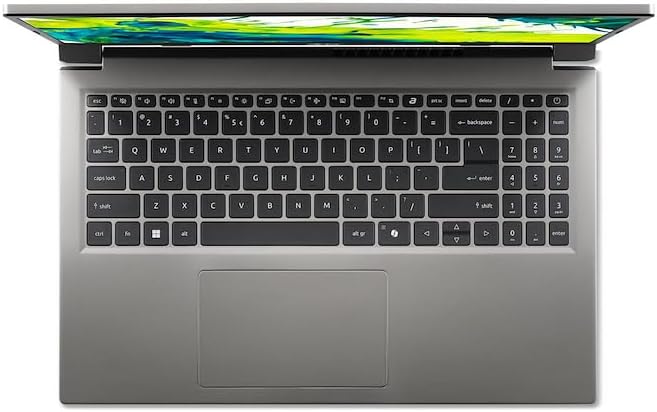
З верху до низу view клавіатури та сенсорної панелі ноутбука.
- Клавіатура: The laptop features a full-size keyboard. Use the function (Fn) key in combination with F-keys for special functions like adjusting brightness, volume, or enabling/disabling Wi-Fi.
- Сенсорна панель: The integrated touchpad supports multi-touch gestures. Tap to click, use two fingers to scroll, and pinch to zoom.
2. Підключення периферійних пристроїв
Your Acer AL15-33P laptop is equipped with various ports for connecting external devices.

Right side of the laptop showing ports including USB and audio jack.

Left side of the laptop showing ports including power, USB-C, HDMI, and USB-A.
- Порти USB: Підключіть USB-пристрої, такі як зовнішні жорсткі диски, миші або клавіатури.
- Порт HDMI: Підключіть зовнішній монітор або телевізор для більшого зображення.
- Аудіороз'єм: Підключіть навушники або зовнішні динаміки.
- Порт USB-C: For data transfer and potentially display output or charging, depending on the specific model configuration.
3. Бездротове підключення
- Wi-Fi: Щоб підключитися до бездротової мережі, натисніть значок Wi-Fi на панелі завдань, виберіть свою мережу та введіть пароль, якщо потрібно.
- Bluetooth: To pair Bluetooth devices, go to Windows Settings > Bluetooth & devices, and turn on Bluetooth.
4. Управління живленням
- Режим сну: Закрийте кришку або виберіть «Сплячий режим» у меню «Пуск», щоб перевести ноутбук у режим низького енергоспоживання.
- Вимкнення: To turn off the laptop completely, go to the Start menu, click the Power icon, and select 'Shut down'.
- Перезапуск: To restart the laptop, go to the Start menu, click the Power icon, and select 'Restart'.
Технічне обслуговування
1. Очищення ноутбука
- Злегка протріть м’якою тканиною без ворсу dampводою або засобом для чищення екранів, щоб очистити дисплей.
- Для клавіатури та корпусу використовуйте м’яку тканину. Уникайте використання агресивних хімікатів або абразивних матеріалів.
- Periodically use compressed air to clear dust from the cooling vents to prevent overheating.
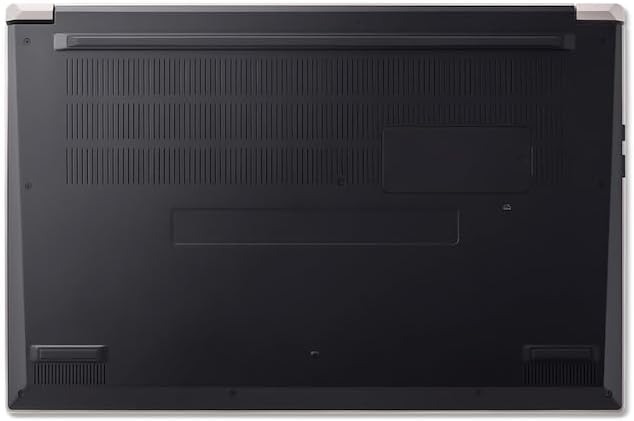
Дно view of the laptop, highlighting the ventilation grilles.
2. Догляд за акумулятором
- Уникайте частого повного розряджання акумулятора.
- Якщо ви зберігаєте ноутбук протягом тривалого часу, переконайтеся, що акумулятор заряджений приблизно на 50-70%.
- Operate the laptop in a moderate temperature environment.
3. Оновлення програмного забезпечення
Regularly update your operating system and drivers to ensure optimal performance and security. Windows Update can be accessed via Settings > Windows Update.
4. Управління зберіганням
Періодично переview та видаліть непотрібне files to free up storage space. Utilize cloud storage or external drives for backups of important data.
Усунення несправностей
This section addresses common issues you might encounter with your Acer AL15-33P laptop.
| проблема | Можливе рішення |
|---|---|
| Ноутбук не вмикається. | Ensure the power adapter is securely connected and the outlet is working. Try a different outlet. If the battery is completely drained, it may take a few minutes to show signs of life after plugging in. |
| Display is blank or black. | Check if the laptop is powered on. Try pressing Fn + F6 (or the corresponding display toggle key) to cycle through display modes. Connect an external monitor to check if the issue is with the laptop's screen. |
| Проблеми з підключенням до Wi-Fi. | Ensure Wi-Fi is enabled (Fn + F3 or check Windows settings). Restart your router and modem. Check if other devices can connect to the Wi-Fi network. Update Wi-Fi drivers. |
| Ноутбук працює повільно. | Close unnecessary applications. Check Task Manager for processes consuming high CPU or memory. Run a disk cleanup. Ensure Windows and drivers are up to date. |
Технічні характеристики
The following are key specifications for the Acer AL15-33P model. Note that specific configurations may vary.
- модель: Acer AL15-33P
- Процесор: Intel Core i3-N355
- Оперативна пам'ять: 8 ГБ
- Зберігання: 512 ГБ SSD
- Дисплей: 15.6-дюймовий
- Операційна система: Windows 11
- Бренд: Acer
Гарантія та підтримка
Your Acer AL15-33P laptop comes with a standard manufacturer's warranty. Please refer to the warranty card included with your product for specific terms and conditions, including the warranty period and coverage details.
Щоб отримати технічну підтримку, завантажити драйвери або звернутися до служби підтримки, відвідайте офіційний сайт підтримки Acer. website or contact Acer customer service directly. Have your laptop's serial number ready when contacting support.
Підтримка Acer Webсайт: www.acer.com/support