
1. Вступ
This manual provides essential information for the safe and efficient operation of your GooDee AC571 4K Smart Projector. Please read it thoroughly before use and retain it for future reference.
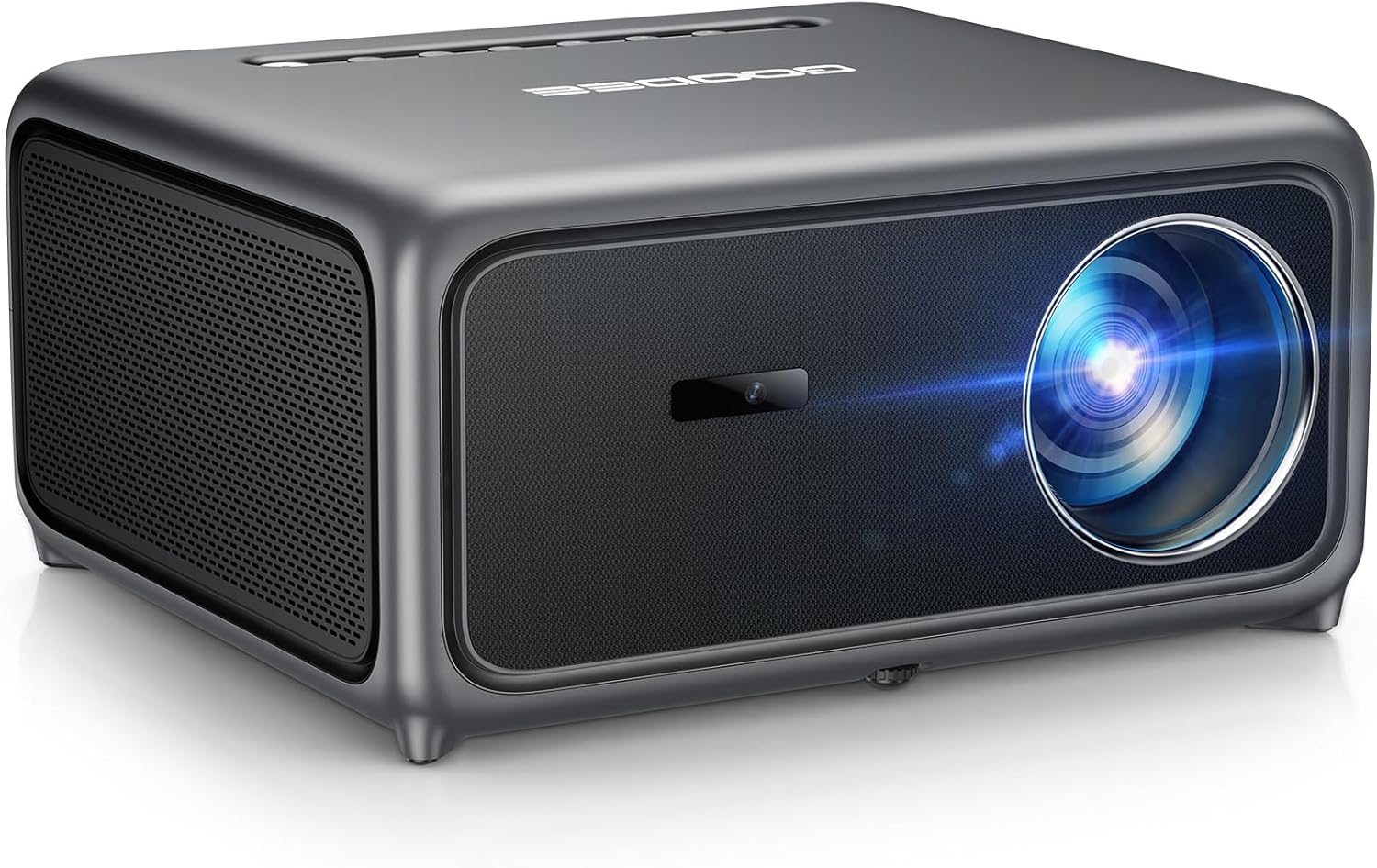
Image 1.1: The GooDee AC571 4K Smart Projector. This image displays the projector's front and side profile, highlighting its lens and speaker grille.
2. Що в коробці
Переконайтеся, що всі предмети присутні під час розпакування:
- GooDee AC571 4K Smart Projector
- Шнур живлення
- Кабель HDMI
- Пульт дистанційного керування
- Набір для чищення
- Кришка об'єктива проектора
- Посібник користувача (цей документ)
3. Посібник із налаштування
3.1 Початкове розміщення
Place the projector on a stable, flat surface. Ensure adequate ventilation around the device. For optimal viewРозташуйте проектор безпосередньо перед поверхнею проекції (стіною або екраном).
3.2 Підключення живлення
- Підключіть шнур живлення до входу живлення проектора.
- Підключіть інший кінець шнура живлення до відповідної електричної розетки.
3.3 Підключення зовнішніх пристроїв
The projector supports various input sources. Refer to the port diagram below for connection points.

Image 3.1: Rear panel connections of the GooDee AC571 Projector. This image illustrates the available ports including HDMI, USB, and audio output, with labels indicating their functions.
- HDMI: Connect Blu-ray players, gaming consoles, or laptops using the provided HDMI cable.
- USB: Вставте USB-накопичувачі для відтворення медіафайлів.
- 3.5 мм аудіовихід: Підключіть зовнішні навушники або динаміки.
3.4 Automatic Calibration (ToF Auto Focus & Keystone)
The projector features advanced AI + ToF Smart Sensing for automatic image calibration. Upon power-on or movement, the projector will automatically adjust focus, keystone correction, and screen adaptation for a clear, rectangular image.

Image 3.2: The GooDee AC571 Projector demonstrating 1ms ultra-low latency ToF Smart Sensing and AI Precision for auto-calibration. The image shows the projector automatically adjusting the projected image on a wall, ensuring optimal focus and keystone correction.
This process includes:
- Автофокус: Забезпечує чітке зображення.
- Автоматична трапеція: Виправляє трапецієподібне спотворення.
- Автоматичне уникнення перешкод: Adjusts the image to avoid objects on the projection surface.
- Automatic Screen Adaptation: Fits the image to the available screen area.
4. Інструкція з експлуатації
4.1 Увімкнення/вимкнення живлення
- Натисніть кнопку живлення на проекторі або пульті дистанційного керування, щоб увімкнути або вимкнути пристрій.
4.2 Навігація по Smart OS
The GooDee AC571 features an intelligent operating system with built-in applications. Use the remote control to navigate the interface.

Image 4.1: The GooDee AC571's Smart OS interface, displaying various streaming app icons like Netflix, Prime Video, and YouTube. This image shows the user-friendly layout for accessing built-in entertainment.
- Головний екран: Access pre-installed apps like Netflix, Prime Video, and YouTube.
- App Store: Download additional applications for personalized entertainment.
- Налаштування: Adjust display, audio, network, and system preferences.
4.3 Бездротове з’єднання (Wi-Fi та Bluetooth)
The projector supports WiFi 6 and Bluetooth 5.4 for seamless streaming and audio connections.

Image 4.2: The GooDee AC571 Projector demonstrating seamless streaming and effortless connectivity via WiFi 6 and Bluetooth 5.4. The image shows a smartphone mirroring content to the projector, highlighting its wireless capabilities.
- Підключення до Wi-Fi: Перейти до Settings > Network > WiFi для підключення до вашої бездротової мережі.
- Підключення Bluetooth: Перейти до Налаштування > Bluetooth to pair with Bluetooth headphones or speakers.
- Відображення екрана: Use AirPlay (iOS) or Miracast (Android/Windows) for wireless screen sharing.
4.4 Audio Settings (Dolby Audio & AI SoundBalance)
The projector features Dolby Audio-certified 30W dual speakers and AI SoundBalance technology.

Image 4.3: The GooDee AC571 Projector with Dolby Audio. The image visually represents sound waves emanating from the projector, emphasizing its immersive audio capabilities.
- Регулювання гучності: Adjust using the remote control.
- Режими звуку: Access audio settings to select different sound profiles or enable/disable AI SoundBalance.
5. Технічне обслуговування
5.1 Очищення об'єктива
Use the provided cleaning kit to gently clean the projector lens. Avoid abrasive materials that could scratch the lens surface.
5.2 Захист від пилу
The projector incorporates an advanced dust-shield triple-protection architecture. However, regular cleaning of the exterior with a soft, dry cloth is recommended to prevent dust buildup.

Image 5.1: Illustration of the GooDee AC571 Projector's advanced dust-shield triple-protection architecture. The image shows a transparent overlay highlighting the internal dust protection mechanisms, ensuring longevity and clear projection.
5.3 Зберігання
When not in use, cover the lens with the provided lens cap and store the projector in a cool, dry place away from direct sunlight and extreme temperatures.
6. Вирішення проблем
Зверніться до таблиці нижче, щоб дізнатися про поширені проблеми та їх вирішення.
| Випуск | Можлива причина | Рішення |
|---|---|---|
| Не відображається зображення | Живлення не підключено; Неправильне джерело вхідного сигналу; Кришка об'єктива встановлена | Перевірте підключення живлення; виберіть правильне джерело вхідного сигналу; зніміть кришку об’єктива |
| Зображення розмите | Не в фокусі; проектор перемістився | Allow auto-focus to recalibrate; Manually adjust focus if needed via settings |
| Зображення спотворене (трапецієподібна форма) | Трапецеїдний спот не виправлено | Allow auto-keystone to recalibrate; Manually adjust keystone via settings |
| Ні звуку | Volume too low; External audio device not connected; Muted | Increase volume; Check external audio connections; Unmute projector |
| Не вдається підключитися до Wi-Fi/Bluetooth | Incorrect password; Device out of range; Network issue | Verify password; Move closer to router/device; Restart router/projector |
7. Технічні характеристики
Key technical specifications for the GooDee AC571 4K Smart Projector:
| Особливість | Специфікація |
|---|---|
| Бренд | Гуді |
| Номер моделі | AC571 |
| Роздільна здатність дисплея | 1920 x 1080 (Native 1080P, 4K Decoding) |
| Яскравість | 3000 ANSI Lumens |
| Коефіцієнт контрастності | 20,000:1 |
| Колірна гамма | 98% NTSC |
| Особливості | ToF Auto Focus, Auto Keystone, Auto Obstacle Avoidance, Auto Screen Alignment, MEMC, Dolby Audio, AI SoundBalance Pro, AI Image Tech, Built-in Wi-Fi 6, Bluetooth 5.4, Built-in Speaker, Movin OS with Netflix/Prime Video/YouTube |
| Технологія підключення | Bluetooth, HDMI, USB, Wi-Fi |
| Рекомендоване використання | Бізнес, Освіта, Ігри, Домашній кінотеатр |
| Вага товару | 9.23 фунта |
| Розміри упаковки | 12 x 10 x 9.25 дюймів |
8. Гарантія та підтримка
8.1 Інформація про гарантію
Your GooDee AC571 4K Smart Projector is covered by a manufacturer's warranty. Please refer to the warranty card included in your product packaging for specific terms and conditions, including warranty duration and coverage details.
8.2 Підтримка клієнтів
For technical assistance, troubleshooting not covered in this manual, or warranty claims, please contact GooDee customer support. Contact information can typically be found on the GooDee official webсайті або в гарантійному талоні.

Image 8.1: A customer support representative, symbolizing reliable service and professional support available for GooDee products.