
СУПВАН E10
Інструкція з експлуатації пристрою для виготовлення етикеток SUPVAN E10
Модель: E10
1. Вступ
This manual provides comprehensive instructions for the SUPVAN E10 Label Maker. It covers essential information regarding the device's setup, operation, maintenance, and troubleshooting. Please read this manual thoroughly before using your E10 Label Maker to ensure proper function and longevity of the product.
2. Вміст упаковки
Перевірте, чи всі перелічені нижче предмети присутні у вашій упаковці:
- 1 x SUPVAN E10 Label Maker
- 1 x Roll of Dots Continuous Label
- 1 x Roll of Cosmetic Continuous Label
- 1 x Roll of White Continuous Label
- 1 x USB Charging Cable (not explicitly listed but standard for rechargeable devices)

Зображення 2.1: The SUPVAN E10 Label Maker shown alongside the three included label rolls: one with a dots pattern, one with a cosmetic pattern, and one plain white roll.
3. Особливості продукту
The SUPVAN E10 Label Maker offers several features designed for efficient and versatile labeling:
- Компактний і портативний дизайн: The E10 is designed to be smaller and lighter than traditional label makers, enhancing portability.
- Вбудована акумуляторна батарея: Eliminates the need for disposable AA batteries, offering convenience and cost savings.
- Технологія термодруку: Utilizes thermal printing, removing the requirement for ink or toner cartridges.
- Smart RFID Auto-Detection: Automatically recognizes and detects the size of the inserted label roll, minimizing misalignment errors and waste.
- BPA-Free Labels: The included labels comply with BPA-free standards, ensuring safety for various applications, including food and cosmetic labeling.
- Довговічні етикетки: Labels are designed to be waterproof and oilproof, suitable for diverse environments.
- Vibrant Label Color Options: The package includes labels with distinct colors and patterns for personalization and organization.

Зображення 3.1: A visual comparison highlighting the compact size of the SUPVAN E10 Label Maker against a larger, traditional label maker, emphasizing its portability and built-in rechargeable battery.
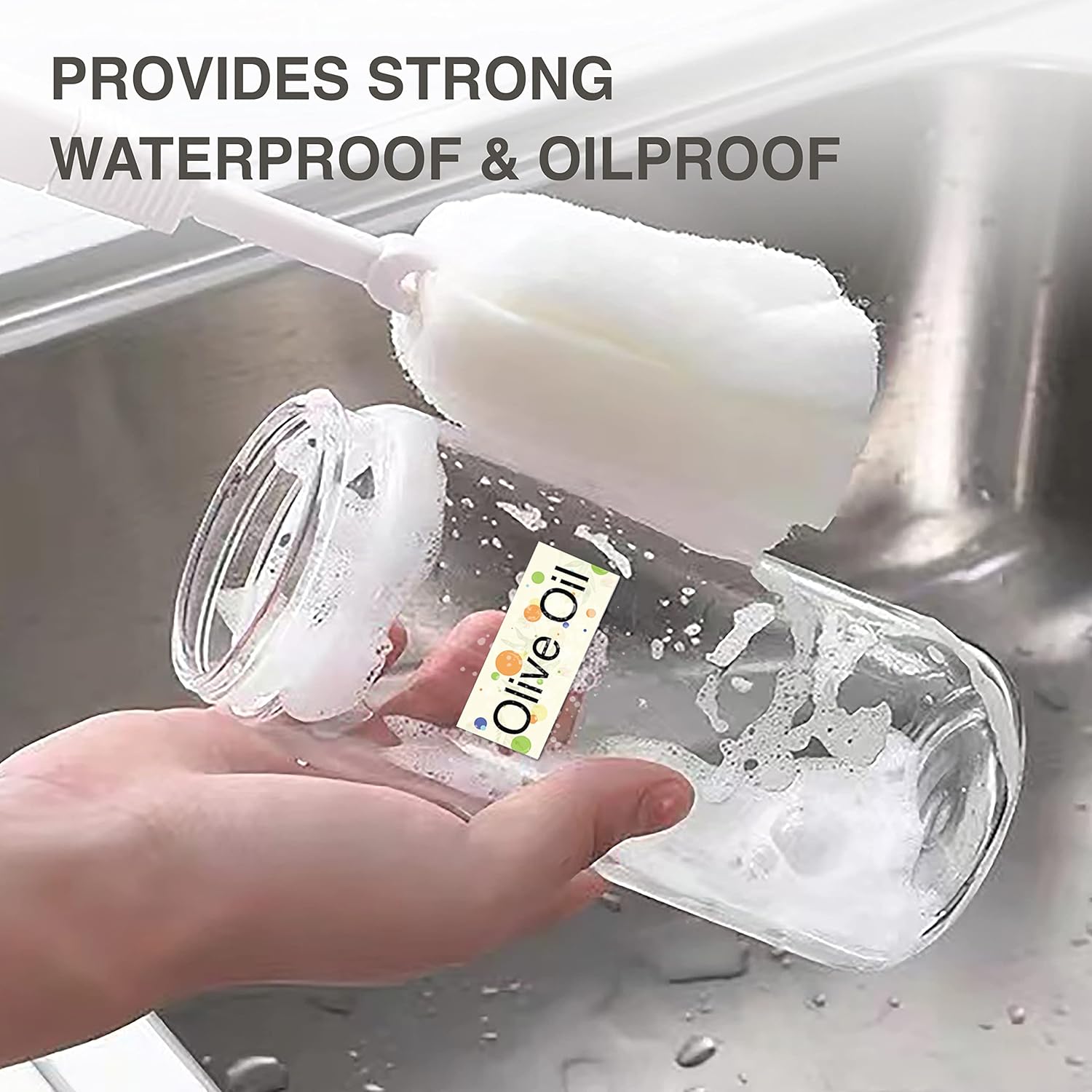
Зображення 3.2: A label applied to a bottle being washed, illustrating the waterproof and oilproof characteristics of the SUPVAN labels.

Зображення 3.3: Food storage containers with labels, demonstrating practical applications for organizing and identifying contents.
4. Налаштування
4.1 Зарядка пристрою
Before initial use, fully charge the E10 Label Maker. Connect the provided USB cable to the charging port on the device and to a standard USB power adapter (not included) or a computer's USB port. The charging indicator light will provide status feedback (refer to device indicators for specific light behaviors).
4.2 Завантаження рулонів етикеток
- Open the label compartment cover on the E10 Label Maker.
- Insert a label roll into the compartment, ensuring the printing side of the label faces upwards and the leading edge extends slightly out of the slot.
- Close the label compartment cover. The device's RFID auto-detection feature will identify the label type and size.
4.3 Встановлення та підключення програми
- Download the official SUPVAN labeling application from your smartphone's app store (iOS App Store or Google Play Store).
- Переконайтеся, що Bluetooth увімкнено на вашому смартфоні.
- Turn on the E10 Label Maker by pressing and holding the power button.
- Open the SUPVAN app and follow the on-screen instructions to connect to your E10 device via Bluetooth. The app will typically display available devices for pairing.
5. Інструкція з експлуатації
Once the E10 Label Maker is set up and connected to the app, you can begin creating and printing labels.
5.1 Designing Labels
- In the SUPVAN app, select the 'New Label' or 'Edit' option.
- Utilize the various design tools available in the app, which typically include:
- Текст: Add and format text with different fonts, sizes, and styles.
- Рама: Apply decorative borders around your label content.
- Значок: Insert pre-designed icons or symbols.
- Ескіз: Draw custom elements directly on the label.
- зображення: Import images from your device.
- Штрих-код/QR-код: Generate and add barcodes or QR codes.
- Excel: Integrate data from spreadsheets for batch printing.
- Adjust the layout and content to fit the label size detected by the E10.

Зображення 5.1: A smartphone displaying the SUPVAN app interface, demonstrating the various tools available for designing labels, including text, frames, icons, and image insertion, followed by the print command.

Зображення 5.2: A close-up of the Dots Continuous Label roll and various example labels printed using the SUPVAN E10, showcasing different design elements like text, icons, and barcodes.

Зображення 5.3: A close-up of the Cosmetic Continuous Label roll and various example labels printed using the SUPVAN E10, demonstrating different design elements like text, icons, and barcodes.
5.2 Друк етикеток
Після розробки дизайну етикетки:
- Review the label design in the app's preview режим.
- Виберіть кількість копій, які ви бажаєте надрукувати.
- Tap the 'Print' button in the app. The E10 Label Maker will then print the labels.
- Carefully tear off the printed label from the device's output slot.
6. Технічне обслуговування
Regular maintenance ensures optimal performance and extends the lifespan of your E10 Label Maker.
6.1 Очищення друкуючої головки
If print quality degrades (e.g., faint lines, smudges), the print head may need cleaning.
- Turn off the label maker and disconnect it from any power source.
- Відкрийте відділення для етикеток.
- Обережно протріть друкувальну головку ватним тампоном, злегкаampened with isopropyl alcohol. Allow it to dry completely before closing the cover and resuming use.
6.2 Догляд за акумулятором
- Уникайте частого повного розряджання акумулятора.
- Регулярно заряджайте пристрій, навіть якщо він не використовується постійно, щоб підтримувати справність акумулятора.
- Зберігайте пристрій у прохолодному, сухому місці, якщо він не використовується протягом тривалого часу.
6.3 Зберігання етикеток
Store label rolls in a cool, dry place away from direct sunlight and extreme temperatures to prevent degradation of the thermal material.
7. Вирішення проблем
If you encounter issues with your E10 Label Maker, refer to the following common problems and solutions:
| проблема | Можлива причина | Рішення |
|---|---|---|
| Пристрій не включається. | Низький заряд батареї або несправність пристрою. | Заряджайте пристрій щонайменше 30 хвилин. Якщо він все ще не вмикається, зверніться до служби підтримки. |
| Не вдається підключитися до програми через Bluetooth. | Bluetooth off, device not discoverable, or app issue. | Ensure Bluetooth is enabled on your phone and the E10 is powered on. Restart both the device and the app. Try re-pairing in the app. |
| Poor print quality (faint, blank lines). | Dirty print head, incorrect label orientation, or low battery. | Clean the print head (see Section 6.1). Ensure the label roll is inserted correctly with the printing side up. Charge the device. |
| Label not recognized or misaligned. | Label roll not inserted correctly, or RFID sensor issue. | Re-insert the label roll, ensuring it is seated properly. Close the cover firmly. |
| Додаток зависає або аварійно завершує роботу. | Software bug or compatibility issue. | Restart the app and your smartphone. Ensure the app is updated to the latest version. |
8. Технічні характеристики
| Особливість | Деталь |
|---|---|
| Назва моделі | E10 |
| Бренд | СУПВАН |
| Технологія друку | Теплові |
| Технологія підключення | Bluetooth (App-controlled), USB (for charging) |
| Колір | Зелений |
| Апаратний інтерфейс | USB |
| Додаткові функції принтера | Лише друк |
| Друковані ЗМІ | Термопапір |
| Максимальна ємність вхідного аркуша | 1 (roll) |
| Двосторонній друк | немає |
9. Гарантія та підтримка
For warranty information and technical support, please refer to the warranty card included with your product or visit the official SUPVAN website. You may also contact SUPVAN customer service directly through the contact information provided on their website or within the SUPVAN application.
Ask a question about this manual
Ask about setup, troubleshooting, compatibility, parts, safety, or missing instructions. Manuals+ will review the question and use this page’s manual context to help answer it.