
вступ
This manual provides detailed instructions for the setup, operation, maintenance, and troubleshooting of your 3nStar SC415 Handheld Barcode Scanner. The SC415 is designed for efficient and reliable data collection, capable of reading both 1D and 2D barcodes, including those displayed on mobile device screens. Its autosense feature and included base allow for versatile handheld and hands-free operation.
Компоненти продукту
- 3nStar SC415 Handheld Barcode Scanner
- USB кабель
- Scanner Base for hands-free operation
Налаштування
Виконайте такі кроки, щоб налаштувати сканер штрих-кодів 3nStar SC415:
- Підключіть кабель USB: Insert the USB cable into the port at the bottom of the scanner. Connect the other end of the USB cable to an available USB port on your computer or POS system.
- Встановлення драйвера: Сканер зазвичай працює за принципом «підключи і працюй». Ваша операційна система повинна автоматично виявити та встановити необхідні драйвери. Зачекайте завершення встановлення.
- Розташування основи: Place the scanner base on a stable, flat surface. The base allows for hands-free scanning using the autosense feature.
- Place Scanner in Base: Gently place the SC415 scanner into the base. Ensure it is seated securely. The scanner will automatically switch to autosense mode when placed in the base.
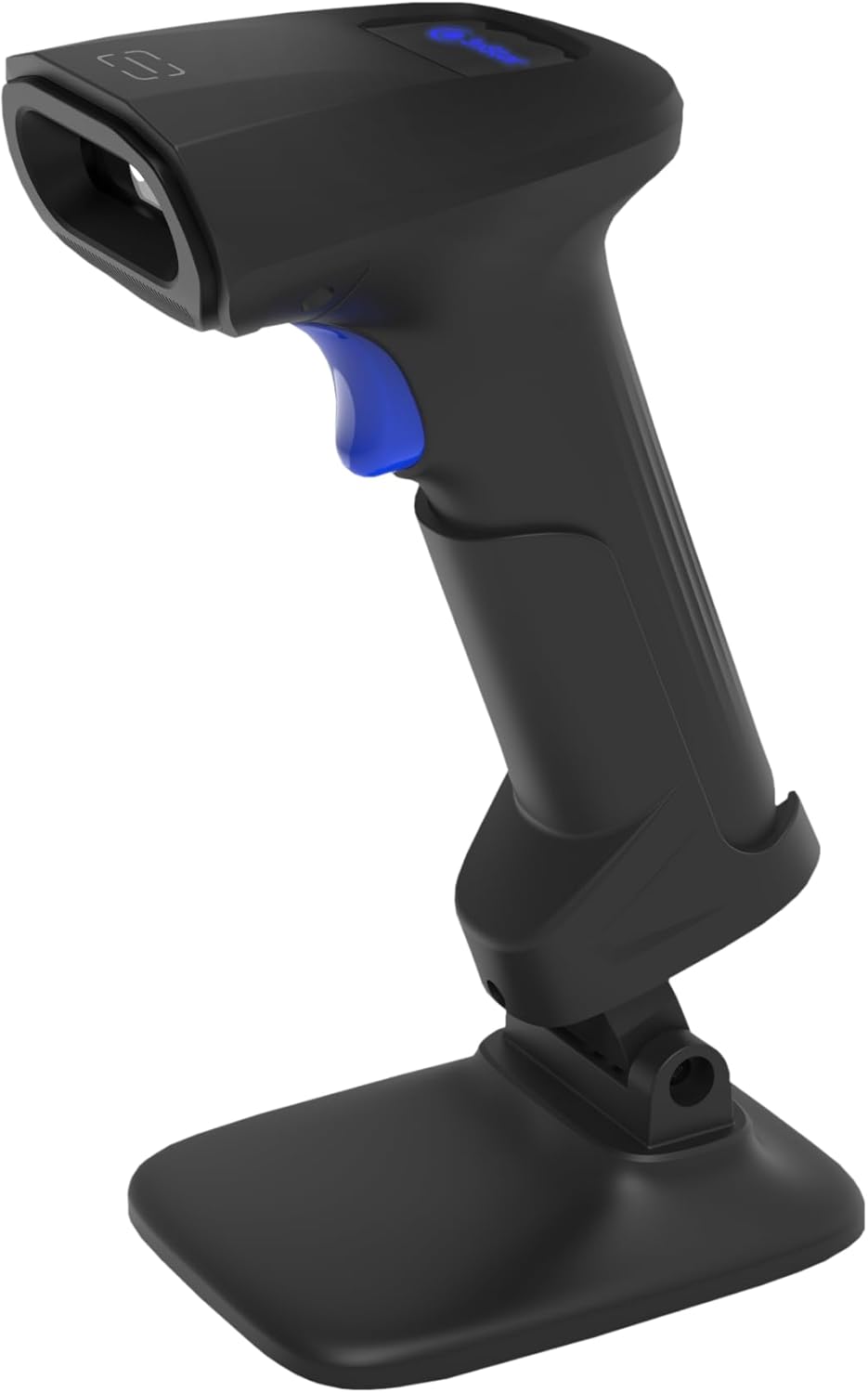
Image: The 3nStar SC415 barcode scanner securely placed in its dedicated base, ready for hands-free operation. The base provides stability and enables the autosense scanning mode.
Інструкція з експлуатації
The SC415 scanner offers flexible operation modes:
Ручне сканування
- Тримайте сканер: Зручно тримайте сканер у руці.
- Aim at Barcode: Спрямуйте вікно сканування на штрих-код, який ви хочете зчитати.
- Натисніть на курок: Press the trigger button located on the handle. A red aiming beam will appear.
- Scan Confirmation: Once the barcode is successfully read, the scanner will emit an audible beep and/or a visual indicator (e.g., LED flash). The data will be transmitted to your connected device.

Image: The 3nStar SC415 barcode scanner shown in a handheld position, illustrating how to grip the device for manual scanning. The blue trigger button is visible for activation.
Autosense (Hands-Free) Scanning
When the scanner is placed in its base, it automatically enters autosense mode:
- Розмістити елемент: Present the barcode of the item in front of the scanner's window.
- Автоматичне сканування: The scanner will automatically detect the barcode and read it without requiring you to press the trigger.
- Scan Confirmation: A successful scan will be indicated by an audible beep and/or visual cue.
Scanning Mobile Phone Screens
The SC415 is capable of reading barcodes directly from mobile device screens. Ensure the screen brightness is adequate and avoid glare for optimal performance.
Технічне обслуговування
Правильне обслуговування забезпечує довговічність та оптимальну роботу вашого сканера:
- Очищення вікна сканування: Використовуйте м’яку тканину без ворсу, злегкаampened with water or a mild, non-abrasive cleaner, to wipe the scanning window. Avoid using harsh chemicals, solvents, or abrasive materials, as these can damage the window.
- Очищення Casing: Протріть зовнішню частину casing м’якою сухою тканиною.
- Перевірка кабелю: Periodically check the USB cable for any signs of wear, cuts, or damage. Replace if necessary.
- Зберігання: Коли сканер не використовується, зберігайте його в чистому, сухому місці, подалі від екстремальних температур та прямих сонячних променів.
Усунення несправностей
If you encounter issues with your SC415 scanner, refer to the following common problems and solutions:
| проблема | Можлива причина | Рішення |
|---|---|---|
| Сканер не вмикається | USB-кабель не підключений або несправний. | Ensure the USB cable is securely connected to both the scanner and the host device. Try a different USB port or cable. |
| Сканер не зчитує штрих-коди | Barcode damaged or poorly printed. Incorrect aiming. Scanner not configured for barcode type. | Ensure the barcode is clear and undamaged. Aim the scanner directly at the center of the barcode. Refer to the programming guide (if available) to ensure the scanner supports the barcode type. |
| No data transmitted after scan | Incorrect interface settings. Host device not ready to receive input. | Verify the scanner is recognized by the host device (e.g., check Device Manager). Ensure the application on your computer is active and ready to receive keyboard input. |
| Autosense mode not working | Scanner not properly seated in base. Autosense feature disabled. | Ensure the scanner is firmly placed in its base. If issues persist, consult the full programming manual for autosense activation settings. |
Якщо ці кроки не вирішать вашу проблему, зверніться до служби підтримки клієнтів.
Технічні характеристики
Key technical specifications for the 3nStar SC415 Handheld Barcode Scanner:
| Особливість | Деталь |
|---|---|
| Модель | SC415 |
| Швидкість сканування | 60 Pages per second |
| Технологія підключення | USB кабель |
| Джерело живлення | Провідний електричний |
| Сумісні пристрої | Настільні комп'ютери, ноутбуки, POS-системи |
| Вага товару | 4.5 унції |
| Розміри упаковки | 8.66 x 5.12 x 4.33 дюймів |
| Виробник | 3nStar |
Інформація про гарантію
The 3nStar SC415 Handheld Barcode Scanner is covered by a manufacturer's warranty. For specific details regarding warranty duration and terms, please refer to the warranty card included with your product or visit the official 3nStar webсайт.
Підтримка клієнтів
For further assistance, technical support, or inquiries regarding your 3nStar SC415 scanner, please contact 3nStar customer service. You can find contact information on the official 3nStar webсайті або через документацію до вашого продукту.
Відвідайте 3nStar Store for more information on 3nStar products.