
1. Вступ
This manual provides detailed instructions for the setup, operation, maintenance, and troubleshooting of your NIMO Mini PC Desktop, Model DNB1. Please read this manual thoroughly before using the device to ensure proper functionality and to maximize your user experience. Keep this manual for future reference.

Image 1.1: The NIMO Mini PC Desktop DNB1, a compact and powerful computing device.
2. Що в коробці
Carefully unpack your NIMO Mini PC Desktop and verify that all items listed below are included:
- NIMO Mini PC Desktop (DNB1)
- Посібник користувача (цей документ)
- Монтажний кронштейн
- Адаптер живлення

Image 2.1: Contents of the NIMO Mini PC Desktop packaging, including the Mini PC, user manual, VESA mount, and power adapter.
3. Продукт закінчивсяview
The NIMO Mini PC Desktop DNB1 is designed for versatility and performance. Familiarize yourself with its various ports and features.
3.1. Front and Rear Panel Interfaces

Зображення 3.1: Детальний опис view of the NIMO Mini PC Desktop DNB1's interfaces, including USB, HDMI, LAN, Type-C, and power ports.
- Порт входу постійного струму: Підключається до адаптера живлення.
- Порти USB 3.2 типу A (x3): For connecting peripherals such as keyboards, mice, and external storage devices.
- Порти HDMI 2.0 (x2): For connecting to displays, supporting up to 4K resolution.
- LAN Port (Gigabit Ethernet): Для дротового мережевого підключення.
- Аудіо порт: Для підключення навушників або зовнішніх динаміків.
- Type-C Port (Multifunction): Supports data transfer and display output.
- Пристрій читання SD-карт: Для читання та запису на карти пам'яті SD.
- Кнопка живлення: Щоб увімкнути або вимкнути пристрій.
- Кнопка скидання: To restart the device.
4. Посібник із налаштування
Follow these steps to set up your NIMO Mini PC Desktop.
4.1. Початкове підключення
- Підключення периферійних пристроїв: Підключіть клавіатуру, мишу та будь-які інші USB-пристрої до доступних портів USB 3.2.
- Підключення дисплея(ів): Connect your monitor(s) to the HDMI 2.0 ports. The Mini PC supports up to three 4K displays simultaneously.
- Підключення до мережі (необов'язково): For a wired internet connection, connect an Ethernet cable to the LAN port. For wireless, ensure your WiFi network is available during initial setup.
- Підключіть живлення: Plug the power adapter into the DC-IN port on the Mini PC, then plug the adapter into a power outlet.
4.2. Встановлення кріплення VESA
The included VESA mount allows you to attach the Mini PC to the back of a compatible monitor or to a wall, saving desk space.
- Attach the VESA bracket to the back of your monitor using the provided screws. Ensure the monitor has VESA mounting holes (typically 75x75mm or 100x100mm).
- Slide the NIMO Mini PC Desktop onto the mounted bracket until it clicks securely into place.
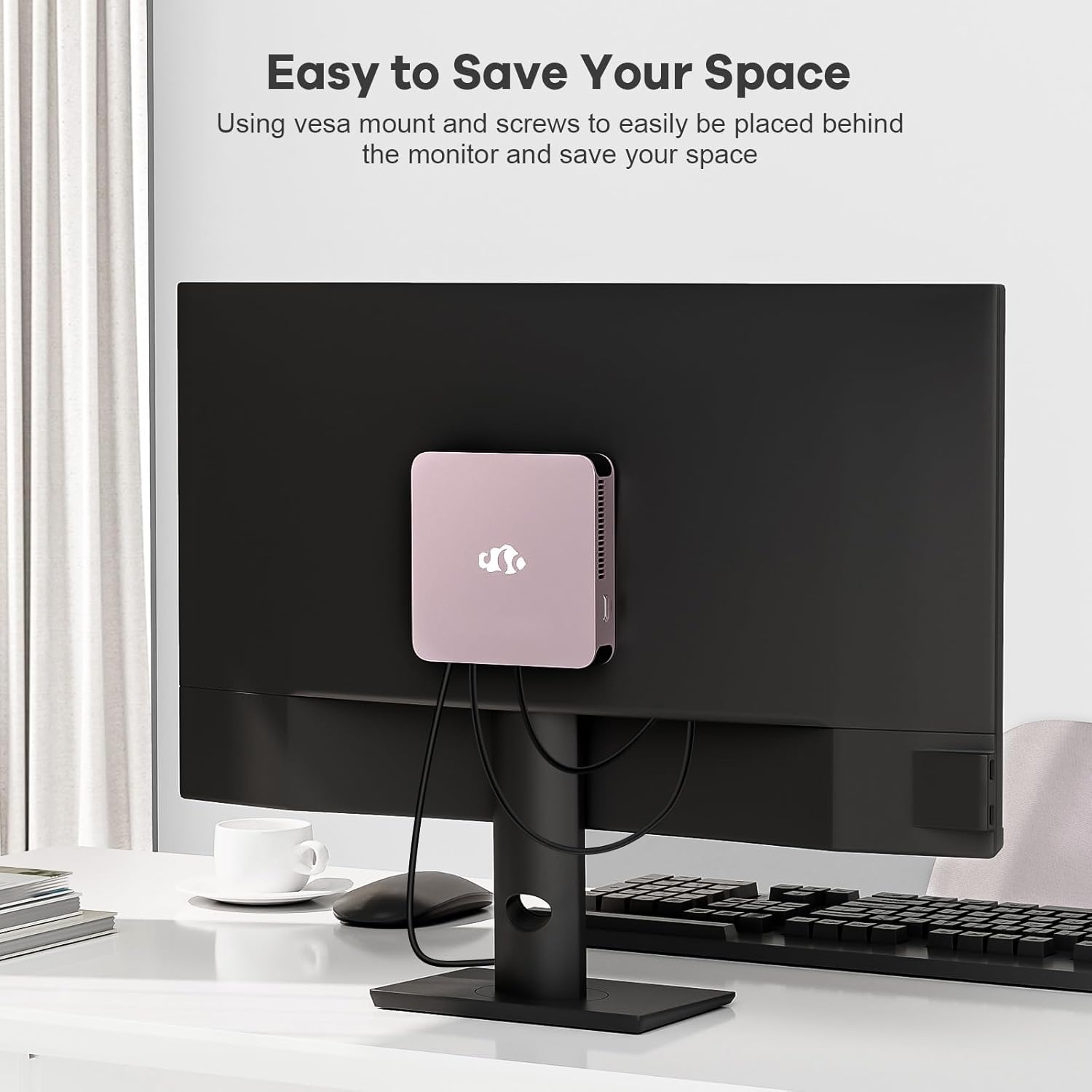
Image 4.1: The NIMO Mini PC Desktop DNB1 mounted on the back of a monitor using the VESA bracket, demonstrating space-saving placement.
5. Інструкція з експлуатації
5.1. Увімкнення/вимкнення живлення
- Щоб увімкнути: Press the Power Button once. The power indicator light will illuminate.
- Щоб вимкнути: From the operating system, select 'Shut Down'. Alternatively, press and hold the Power Button for 5-7 seconds to force a shutdown (use only when necessary).
5.2. Початкове завантаження та налаштування Windows 11
Upon first power-on, the system will guide you through the Windows 11 setup process. Follow the on-screen prompts to configure language, region, network, and user accounts.
5.3. Підключення до мереж
- Дротове підключення: If an Ethernet cable is connected to the LAN port, the system will automatically detect and connect to the wired network.
- Бездротове з'єднання (WiFi 6): Access the network settings in Windows 11, select your desired WiFi network, and enter the password.
- Bluetooth Connection (Bluetooth 5.2): Enable Bluetooth in Windows 11 settings, search for devices, and pair with your Bluetooth peripherals.
5.4. Використання кількох дисплеїв
The NIMO Mini PC supports up to three 4K displays. Connect your monitors to the available HDMI and Type-C ports. Windows 11 display settings allow you to extend, duplicate, or show only on one display.

Image 5.1: The NIMO Mini PC Desktop DNB1 supporting a triple monitor 4K display setup, enhancing productivity and multimedia experiences.
6. Технічне обслуговування
Правильне обслуговування забезпечує довговічність та оптимальну продуктивність вашого міні-ПК.
- Прибирання: Використовуйте м’яку суху тканину для очищення зовнішньої частини міні-ПК. Для видалення пилу у вентиляційних отворах використовуйте стиснене повітря. Не використовуйте рідкі засоби для чищення безпосередньо на пристрої.
- Вентиляція: Ensure the ventilation openings are not blocked to prevent overheating. Operate the device in a well-ventilated area.
- Оновлення програмного забезпечення: Регулярно оновлюйте операційну систему Windows та драйвери для підтримки безпеки та продуктивності.
- Резервне копіювання даних: Періодично створюйте резервні копії важливих даних на зовнішній диск або хмарне сховище.
7. Вирішення проблем
У цьому розділі розглядаються поширені проблеми, з якими ви можете зіткнутися.
7.1. Немає живлення
- Переконайтеся, що адаптер живлення надійно підключений як до міні-ПК, так і до справної розетки.
- Перевірте справність розетки, підключивши інший пристрій.
- Перевірте адаптер живлення на наявність видимих пошкоджень.
7.2. Немає виводу на дисплей
- Confirm that the monitor is powered on and set to the correct input source (HDMI, Type-C).
- Check that the HDMI or Type-C cable is securely connected to both the Mini PC and the monitor.
- Спробуйте інший кабель дисплея або монітор, якщо він є.
7.3. Немає підключення до Інтернету
- Провідний: Ensure the Ethernet cable is properly connected and your router/modem is working.
- Бездротовий: Check WiFi settings in Windows 11, ensure WiFi is enabled, and you are connected to the correct network with the correct password. Restart your router/modem if necessary.
7.4. Периферійні пристрої не реагують
- Спробуйте підключити периферійний пристрій до іншого USB-порту.
- Переконайтеся, що драйвери периферійного пристрою встановлені та оновлені.
- Test the peripheral on another computer if possible.
8. Технічні характеристики
Detailed technical specifications for the NIMO Mini PC Desktop DNB1.
| Особливість | Специфікація |
|---|---|
| Модель | DNB1 |
| Процесор | Intel 12th Gen N100 (up to 3.4 GHz) |
| Ядра/потоки | 4 ядра / 4 потоки |
| Графіка | Графіка Intel UHD |
| ОЗУ | 16 ГБ DDR5 |
| Зберігання | 512 ГБ PCIe SSD |
| Максимальна роздільна здатність екрана | 3840x2160 пікселів (4K) |
| Вихід на дисплей | 2x HDMI 2.0, 1x Type-C (supports triple display) |
| USB порти | 3x USB 3.2 Type-A, 1x USB Type-C |
| Мережа | Gigabit Ethernet (LAN), WiFi 6 |
| Bluetooth | Bluetooth 5.2 |
| Операційна система | Windows 11 |
| Вага товару | 1.76 фунта |
| Джерело живлення | DC |

Image 8.1: Summary of key features including Intel 12th Gen N100 processor, 4K Ultra HD support, Bluetooth 5.2, LPDDR5, WiFi 6, and PCIe SSD.
9. Гарантія та підтримка
NIMO is committed to providing excellent customer service and product reliability.
- Політика повернення: You may request a return or exchange within 90 days of purchase.
- Технічна підтримка: The NIMO Mini PC Desktop comes with 2 years of technical support. If you encounter any issues, please contact our dedicated customer support team for assistance.
For support, please refer to the contact information provided with your purchase or visit the official NIMO webсайт.