
вступ
Thank you for choosing the KOORUI S3241XO 31.5-inch 4K OLED Gaming Monitor. This manual provides essential information for setting up, operating, and maintaining your monitor. Please read it thoroughly before use to ensure optimal performance and safety.
Інформація про безпеку
- Не піддавайте монітор впливу дощу або вологи, щоб запобігти пожежі або ураженню електричним струмом.
- Не відкривайте монітор casing. Усередині немає деталей, які може обслуговувати користувач. Звертайтеся до кваліфікованого сервісного персоналу з усіх питань щодо обслуговування.
- Розмістіть монітор на стійкій, рівній поверхні, щоб запобігти його падінню.
- Забезпечте належну вентиляцію навколо монітора. Не блокуйте вентиляційні отвори.
- Використовуйте лише адаптер живлення та кабелі, надані виробником.
- Від’єднуйте монітор від розетки під час грози або якщо він не використовується протягом тривалого часу.
- Avoid placing heavy objects on the power cord or monitor cables.
Вміст упаковки
Перевірте наявність усіх предметів у вашій упаковці:
- KOORUI S3241XO 31.5-inch 4K OLED Gaming Monitor
- Кабель HDMI 2.1
- DisplayPort 1.4 Cable (1.8m)
- Кабель USB 3.0 AB
- Кабель Type-C
- Кабель змінного струму
- Адаптер живлення
- Посібник користувача
Налаштування
1. Збірка монітора
Виконайте ці кроки, щоб зібрати підставку монітора та прикріпити її до панелі дисплея.

Image: The KOORUI S3241XO monitor with its stand, showcasing the display and connectivity options.
2. Підключення до пристроїв
The monitor offers various connectivity options. Ensure your device supports the required output.
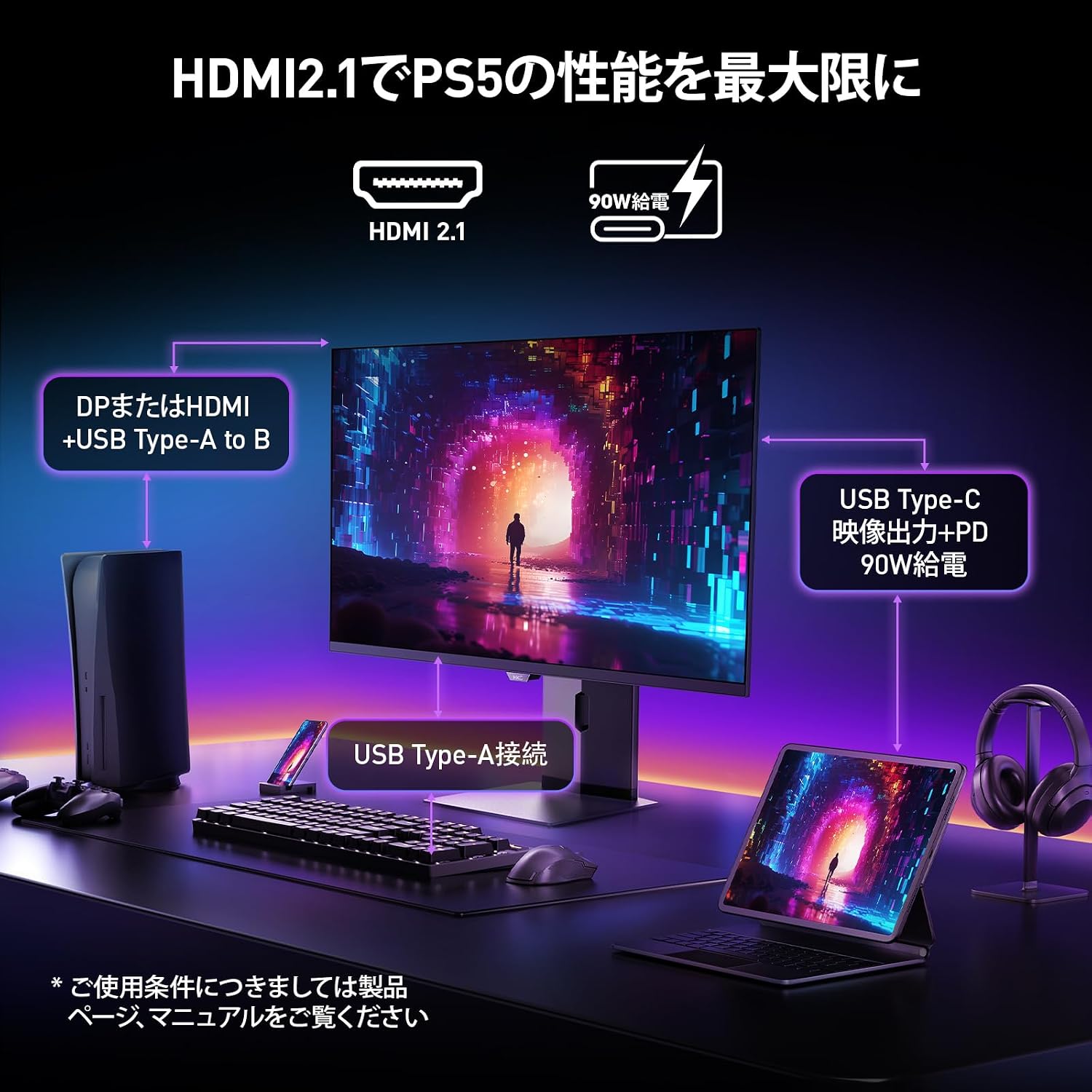
Image: A diagram illustrating how to connect various devices like a PS5, laptop, and peripherals to the monitor using HDMI 2.1, USB Type-C, and USB Type-A ports.
Порт закінчивсяview:

Зображення: Детальне view of the monitor's rear input/output ports with numerical labels for identification.
- Кабель живлення: Connect the AC power cable to the monitor and a power outlet.
- USB Type-B (Upstream): Connect to your computer to enable the monitor's USB-A ports.
- USB 3.1 типу A (x2): Для підключення периферійних USB-пристроїв.
- HDMI 2.1 (2 шт.): Connect to devices supporting HDMI 2.1 for 4K 240Hz output.
- DisplayPort 1.4: Connect to devices supporting DisplayPort 1.4 for 4K 240Hz output.
- Type-C (with PD): Connect to compatible devices for video input and power delivery (up to 90W).
- Вихід для навушників: Для підключення навушників або зовнішніх динаміків.
Інструкція з експлуатації
1. Увімкнення/вимкнення живлення
Натисніть кнопку живлення, яка зазвичай розташована на задній або нижній панелі монітора, щоб увімкнути або вимкнути його.
2. Екранне меню (OSD).
Use the joystick or buttons on the monitor to navigate the OSD menu. The OSD allows you to adjust various settings.
Основні налаштування екранного меню:
- Параметри зображення: Налаштуйте яскравість, контрастність, різкість та колірну температуру.
- Кольорові режими: Select from various preset color modes, including a professional color mode for accurate color reproduction (99% DCI-P3, 100% sRGB, Delta E<2, True 10-bit color).
- Джерело введення: Manually select the input source (HDMI 1, HDMI 2, DisplayPort, Type-C).
- Особливості гри: Access specific gaming modes (RPG, FPS, RCG) and settings like FreeSync and G-Sync compatibility.
- Час відгуку: The monitor features a 0.03ms (OD) response time for rapid image transitions.
- HDR True Black 400: Optimizes black levels for enhanced detail in dark scenes.
- DIC (Digital Image Control) Mode: Enable or disable DIC to prevent ghosting and improve image quality.

Image: Visual representation of the monitor's color accuracy and wide color gamut.

Image: Illustrates the difference in motion clarity at various refresh rates, highlighting the 240Hz 0.03ms response.

Image: Demonstrates the enhanced black levels and detail in dark scenes provided by the KOORUI QD OLED technology compared to a typical LCD.

Image: Shows the effect of Digital Image Control (DIC) mode on reducing ghosting for smoother visuals.
3. Ергономічні налаштування
Підставка для монітора дозволяє здійснювати різні налаштування для оптимізації viewдосвід роботи:
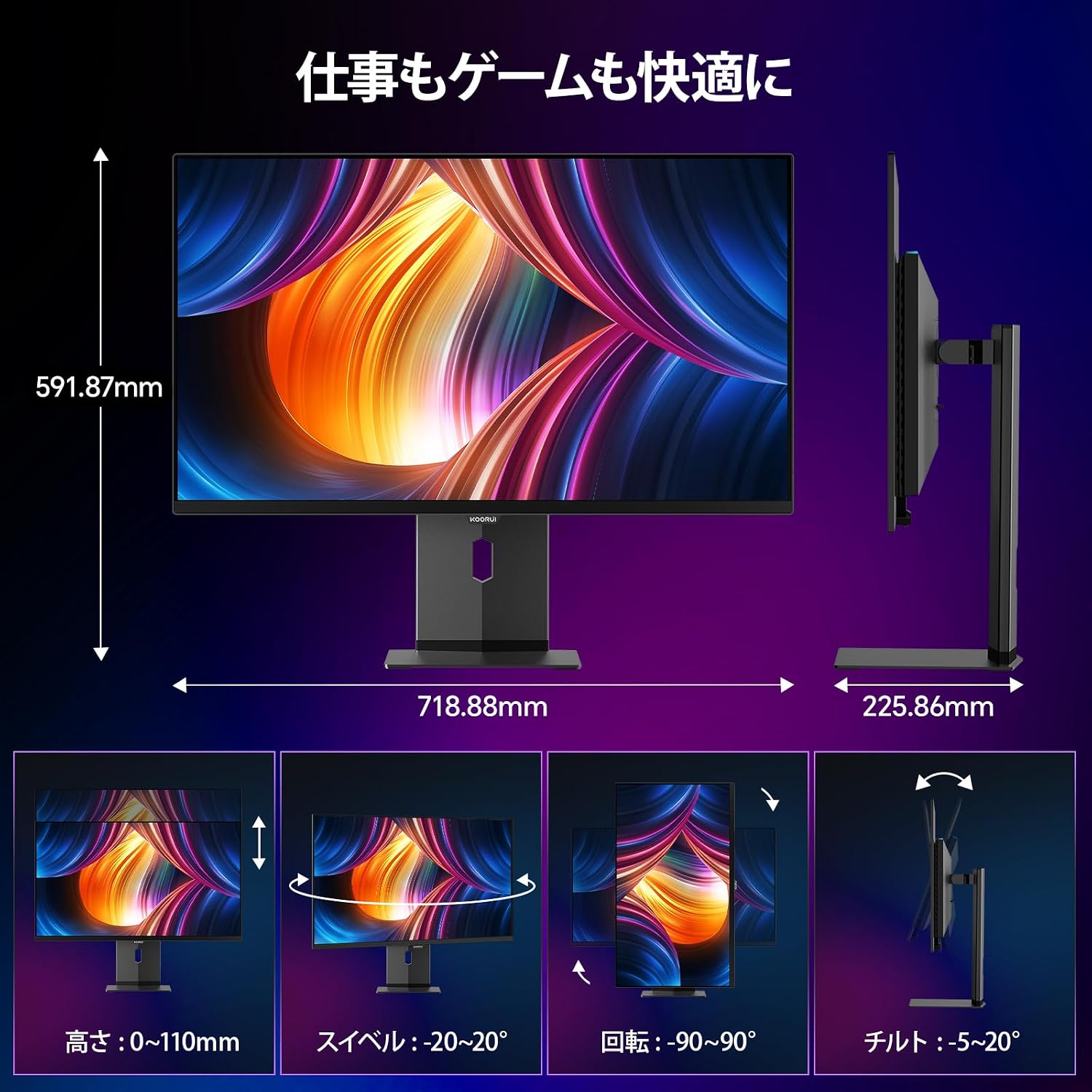
Image: Illustrations of the monitor's adjustable features: height, swivel, pivot (rotation), and tilt.
- Регулювання висоти: Adjust the display height by up to 110mm.
- Нахил: Tilt the screen from -5° to 20° for comfortable viewкути.
- Поворотний: Swivel the monitor -20° to 20° horizontally.
- Поворот (обертання): Rotate the screen -90° to 90° for portrait or landscape orientation.
Технічне обслуговування
1. Очищення монітора
- Завжди вимикайте монітор перед чищенням.
- Злегка протріть м’якою тканиною без ворсу dampводою або м’яким, неабразивним засобом для чищення екранів.
- Не розпилюйте засіб для чищення безпосередньо на екран.
- Avoid using benzene, thinner, or any volatile solvents, as they may damage the screen surface.
2. Функції догляду за очима
Монітор має функції для зменшення навантаження на очі під час тривалого використання:
- Hardware Blue Light Cut: Reduces harmful blue light emissions without affecting color accuracy.
- Flicker Guard: Усуває мерехтіння екрана для більш комфортної роботи viewнабутий досвід.

Image: Demonstrates the effectiveness of hardware blue light reduction in preserving natural colors.

Image: Illustrates the difference between Flicker Guard off and on, showing reduced screen flickering.
3. Panel Protection Features
To prevent OLED burn-in, the monitor incorporates proprietary panel protection technologies:
- Зміщення пікселів: Periodically shifts pixels slightly to prevent static images from causing burn-in.
- Виявлення панелі завдань: Detects static elements like the taskbar and adjusts their brightness to minimize burn-in risk.
- Graphene Sheet + Custom Heatsink: Advanced thermal management to maintain optimal operating temperature.

Image: Visual explanation of pixel shift, taskbar detection, and thermal management for panel protection.
Усунення несправностей
Якщо у вас виникли проблеми з монітором, зверніться до наступних поширених проблем та способів їх вирішення:
| проблема | Можлива причина | Рішення |
|---|---|---|
| На екрані немає зображення | Кабель живлення відключено, неправильне джерело вхідного сигналу, пристрій не увімкнено. | Check power connections, select correct input source via OSD, ensure connected device is on. |
| Мерехтіння зображення | Flicker Guard disabled, cable issue, graphics card driver issue. | Enable Flicker Guard in OSD, try a different cable, update graphics drivers. |
| Погана якість кольору | Incorrect color mode, cable issue. | Adjust color settings in OSD, try a different cable. |
| Немає звуку з навушників | Headphones not properly connected, audio settings on device/monitor. | Ensure headphones are fully plugged in, check audio output settings on your computer and monitor. |
| Не працюють порти USB | USB Type-B upstream cable not connected. | Connect the USB Type-B cable from the monitor to your computer. |
Технічні характеристики
| Особливість | Специфікація |
|---|---|
| Бренд | KOORUI |
| Номер моделі | S3241XO |
| Розмір екрана | 31.5 дюймів |
| Тип панелі | OLED (QLED) |
| роздільна здатність | 4K UHD (3840 x 2160 пікселів) |
| Частота оновлення | 240 Гц |
| Час відгуку | 0.03 мс (відстань відстаней) |
| Співвідношення сторін | 16:9 |
| Коефіцієнт контрастності | 1,500,000:1 |
| Яскравість | 280 кд/м² |
| Колірна гамма | 99% DCI-P3, 100% sRGB |
| Глибина кольору | True 10-bit (1.07 billion colors) |
| Підтримка HDR | DisplayHDR400 True Black |
| Адаптивна синхронізація | FreeSync and G-Sync Compatible |
| Підключення | 2x HDMI 2.1, 1x DisplayPort 1.4, 1x Type-C (with 90W PD), 2x USB-A 3.1, 1x USB-B, 1x Headphone Jack |
| Ергономіка | Height Adjustment (110mm), Tilt (-5° to 20°), Swivel (-20° to 20°), Pivot (-90° to 90°) |
| Гора VESA | 100 х 100 мм |
| Розміри (Ш x В x Г) | Приблизно 71.9 x 59.2 x 22.6 см (з підставкою) |
| вага | прибл. 8.3 кг |
| Споживана потужність | 264 Вт (макс.) |
Гарантія та підтримка
The KOORUI S3241XO monitor comes with a 3-річна гарантія виробника. The LCD panel itself is covered by a 1-year warranty. For warranty claims or technical support, please contact KOORUI customer service.
KOORUI also offers a free recycling service for monitors. Please refer to the official KOORUI website or contact support for details on how to utilize this service.
Для отримання додаткової допомоги, будь ласка, відвідайте KOORUI Brand Store.