
1. Вступ
This manual provides detailed instructions for the installation, operation, and maintenance of your RSNAVI Android Car Stereo. This unit is designed to integrate advanced multimedia and navigation features into your Chrysler Grand Voyager (2011-2015 model years).
Будь ласка, уважно прочитайте цей посібник перед встановленням та використанням, щоб забезпечити належну функціональність та максимально ефективно використовувати пристрій.

малюнок 1.1: RSNAVI Android Car Stereo with included accessories.
This image displays the RSNAVI 9-inch Android Car Stereo unit integrated into a vehicle's dashboard, specifically designed for the Chrysler Grand Voyager. Surrounding the main unit are various accessories: a rearview camera for enhanced visibility, an external microphone for clear audio input during calls, and a cooling fan to maintain optimal operating temperature. The screen shows a map interface and various application icons, indicating its multimedia and navigation capabilities.
2. Сумісність та комплектація
2.1 Сумісність з транспортними засобами
This RSNAVI Android Car Stereo is specifically designed for the Chrysler Grand Voyager виготовлено між 2011 і 2015. Before installation, confirm the year, size, and shape of your vehicle's center console to ensure proper fitment.
2.2 Вміст упаковки
Стандартний пакет включає такі компоненти:
- RSNAVI Android Car Stereo Head Unit
- Декодер CANbus
- Шнур живлення
- RCA кабель
- Радіо Антена
- GPS антена
- USB Cables (Dual USB interface)
- Зовнішній мікрофон
- Задняview Camera (AHD/CVBS compatible)
- Installation Frame (if applicable for specific models)
3. Налаштування та встановлення
3.1 Перевірка перед встановленням
- Перед початком будь-яких електромонтажних робіт переконайтеся, що запалювання автомобіля вимкнено, а акумулятор від'єднаний.
- Перевірте наявність усіх компонентів, перелічених у розділі 2.2.
- Familiarize yourself with your vehicle's dashboard removal process. Online video tutorials specific to the Chrysler Grand Voyager 2011-2015 can be helpful.
3.2 Проводка та підключення
The car stereo comes with dedicated wiring harnesses designed for your vehicle. Connect the power cord, RCA cables, radio antenna, GPS antenna, USB cables, external microphone, and rearview camera to their respective ports on the head unit and to the vehicle's wiring system.
- Шнур живлення: Connect to the vehicle's power supply, ensuring correct polarity. The included Canbus decoder facilitates integration with vehicle systems.
- Кабелі RCA: Для аудіо/відео вхідних/вихідних підключень (наприклад, зовнішніх amplifier, additional monitors).
- Антени: Connect the radio antenna for FM/RDS reception and the GPS antenna for navigation functionality. Position the GPS antenna in a location with a clear view неба.
- Інтерфейси USB: Use the dual USB interfaces for connecting USB drives, charging devices, or for wired CarPlay/Android Auto connections.
- Зовнішній мікрофон: Connect for improved call quality and voice commands.
- Задняview Камера: Connect the camera to the 'Inverted Input' (AHD/CVBS) port. Ensure proper routing of the camera cable to the rear of the vehicle.

малюнок 3.1: Included wiring harness and installation frame.
This image displays the specific wiring harness and a custom-fit frame provided with the RSNAVI car stereo. The harness includes various connectors for power, speakers, and data, designed to integrate seamlessly with the Chrysler Grand Voyager's electrical system. The frame ensures a flush and secure installation of the 9-inch head unit into the vehicle's dashboard opening.

малюнок 3.2: Dashboard before and after stereo installation.
This image set illustrates the visual transformation of a Chrysler Grand Voyager dashboard. The top-left panel shows the original factory radio. The other panels demonstrate the RSNAVI Android Car Stereo installed, displaying various interfaces such as a navigation map, a media player, and the main application screen, highlighting the integrated appearance and functionality.
3.3 Перевірки після інсталяції
- Знову підключіть акумулятор автомобіля.
- Turn on the ignition and power on the head unit.
- Test all functions: radio, Bluetooth, GPS, USB, steering wheel controls, and rearview камера.
- If any issues arise, refer to the Troubleshooting section or recheck connections.
4. Інструкція з експлуатації
4.1 System Overview
The RSNAVI car stereo operates on an Android system, providing a familiar and customizable user interface via its 9-inch touchscreen. The system supports various applications and features, similar to a smartphone or tablet.
4.2 Бездротовий CarPlay / Android Auto
Connect your smartphone wirelessly to access Apple CarPlay or Android Auto. This feature allows for hands-free calls, access to phone contacts, emails, notifications, map navigation, music, and video playback directly on the car stereo display. This integration is designed to enhance driving safety by minimizing phone interaction.
- Переконайтеся, що Bluetooth і Wi-Fi увімкнено на вашому смартфоні.
- На автомобільній стереосистемі відкрийте програму CarPlay або Android Auto.
- Дотримуйтесь підказок на екрані, щоб підключити пристрій.
- Once connected, your phone's compatible apps will appear on the stereo display.

малюнок 4.1: CarPlay, Android Auto, and Mirror Link interfaces.
This image illustrates the various smartphone integration options available with the RSNAVI car stereo. It shows the user interfaces for Wireless CarPlay and Android Auto, displaying familiar app icons for navigation, music, and communication. Additionally, it demonstrates the Mirror Link function, which allows the display of an iOS or Android phone screen directly onto the car stereo, enabling full control of the phone's interface.
4.3 GPS-навігація
The unit features a dual navigation system supporting both offline and online maps. A built-in offline map is provided, but internet data download is required for initial setup or updates. Online maps require a Wi-Fi connection.
- Ensure the GPS antenna is properly installed and has a clear signal.
- To use offline maps, navigate to the map application and download the necessary regional data via a Wi-Fi connection.
- For online navigation, connect the unit to a Wi-Fi hotspot.
4.4 Підключення до Wi-Fi
Connect the car stereo to a Wi-Fi hotspot (e.g., from your smartphone) to access online features. This enables app installation from the Play Store, online navigation, and streaming media.
- Go to the system settings and select 'Wi-Fi'.
- Увімкніть Wi-Fi та виберіть потрібну мережу.
- Введіть пароль, якщо буде запропоновано.

малюнок 4.2: GPS Navigation and WiFi Hotspot features.
This image highlights the navigation and connectivity capabilities of the RSNAVI car stereo. The top section displays a detailed GPS map with route guidance, indicating distance and estimated travel time. The bottom section illustrates the WiFi Hotspot feature, showing a screen filled with various streaming applications like Netflix, Hulu, and YouTube, demonstrating the unit's ability to access online content when connected to a network.
4.5 Функціональність Bluetooth
The integrated Bluetooth module allows for hands-free calling, phone book synchronization, and audio streaming from your smartphone.
- Увімкніть Bluetooth на своєму смартфоні та зробіть його видимим.
- On the car stereo, open the Bluetooth application and search for devices.
- Select your phone from the list and confirm the pairing code.
- Після сполучення ви можете здійснювати/приймати дзвінки та відтворювати музику бездротовим способом.
4.6 FM/RDS радіо
The unit includes an FM/RDS radio tuner for clear channel reception and low noise. RDS (Radio Data System) provides additional information such as station name and program type.
- Відкрийте програму «Радіо».
- Use the scan function to automatically find and save available stations.
- Manually tune to frequencies or select from saved presets.
4.7 Audio Equalizer (EQ)
Adjust the audio output using the built-in equalizer to customize the sound profile. This includes settings for bass, treble, and mid-range frequencies, as well as various sound field modes.
- Access the EQ settings from the main menu or audio settings.
- Select a preset or manually adjust the frequency bands to your preference.
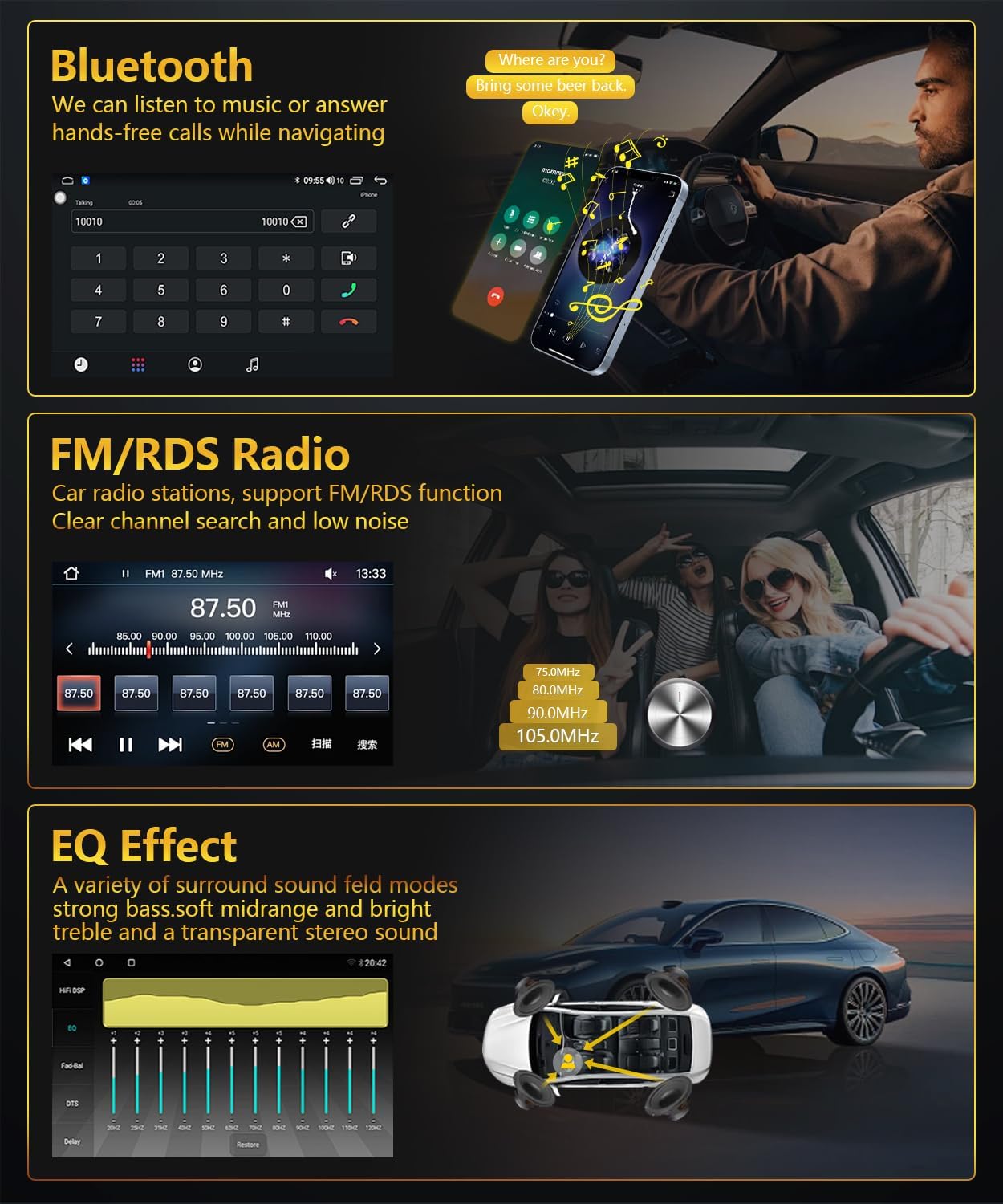
малюнок 4.3: Bluetooth, FM/RDS Radio, and EQ Effect features.
This image showcases three key audio features of the RSNAVI car stereo. The top section displays the Bluetooth calling interface, showing a dial pad and contact information. The middle section illustrates the FM/RDS radio tuner, with frequency display and station presets. The bottom section presents an audio equalizer (EQ) interface, allowing users to fine-tune sound characteristics like bass, mid-range, and treble, accompanied by a diagram showing speaker placement in a car for optimal sound distribution.
4.8 Reversing Camera Display
Пристрій підтримує заднюview camera input. When the vehicle is shifted into reverse gear, the screen automatically switches to display the camera feed, aiding in safe maneuvering. The included camera is waterproof and features night vision and a wide-angle view.
- Забезпечте задню частинуview camera is correctly installed and connected to the 'Inverted Input'.
- Shift the vehicle into reverse gear; the display will automatically show the camera view.
4.9 Кермове керування
If your vehicle has original steering wheel control buttons, they can be configured to operate the car radio, providing convenient and safe control while driving.
- Access the 'Steering Wheel Control' settings in the system menu.
- Follow the on-screen instructions to map the vehicle's steering wheel buttons to the desired functions on the car stereo.

малюнок 4.4: Reversing Display and Steering Wheel Control.
This image highlights two important safety and convenience features. The top section illustrates the rearview camera system, detailing its HD image quality, waterproof design, night vision, and wide-angle capabilities, with a visual representation of the camera's field of view. The bottom section displays the car stereo's interface for configuring steering wheel controls, showing various button functions like volume, track skip, and call management, allowing for seamless operation without taking hands off the wheel.
5. Технічне обслуговування
5.1 Загальний догляд
Щоб забезпечити довговічність та оптимальну роботу вашої автомобільної стереосистеми, дотримуйтесь цих загальних правил технічного обслуговування:
- Очищення екрану: Використовуйте м’яку тканину без ворсу, щоб обережно протерти сенсорний екран. Для стійких плям злегкаampПротріть тканину водою або засобом для чищення екранів. Уникайте агресивних хімікатів або абразивних матеріалів.
- Видалення пилу: Periodically clean dust from the unit's vents and openings using a soft brush or compressed air to prevent overheating.
- температура: Уникайте тривалого впливу екстремальних температур на пристрій. Робочий діапазон температур становить від -20℃ до 75℃.
- Оновлення програмного забезпечення: Check for available software updates periodically to ensure the system has the latest features and bug fixes.
6. Вирішення проблем
This section addresses common issues you might encounter with your RSNAVI Android Car Stereo.
6.1 Поширені проблеми та рішення
- Немає живлення:
- Перевірте всі підключення живлення та запобіжники.
- Переконайтеся, що акумулятор автомобіля правильно підключено.
- Немає звуку:
- Перевірте підключення динаміків.
- Перевірте рівні гучності та налаштування вимкнення звуку.
- Переконайтеся, що вибрано правильне джерело аудіо.
- Втрата сигналу GPS:
- Переконайтеся, що GPS-антена надійно підключена та розташована в місці з чітким view неба.
- If using offline maps, ensure map data has been fully downloaded.
- Проблеми з підключенням Bluetooth:
- Переконайтеся, що Bluetooth увімкнено як на стереосистемі, так і на телефоні.
- Delete previous pairings and attempt to re-pair.
- Перезапустіть обидва пристрої.
- Poor UI Responsiveness:
- Закрийте непотрібні фонові програми.
- Виконайте перезавантаження системи.
- Не працює керування на кермі:
- Verify the Canbus decoder is correctly installed.
- Reconfigure the steering wheel control settings in the system menu.
6.2 Заводські налаштування
If persistent issues occur, a factory reset may resolve them. The factory setting keyword is 3368. Use this option with caution as it will erase all user data and settings.
7. Технічні характеристики
| Особливість | Специфікація |
|---|---|
| система | Android |
| Чіпсет | UIS81411 |
| Розмір екрана | 9 дюймів |
| Пам'ять (ОЗП + ПЗП) | 2 ГБ (RAM) + 64 ГБ (ROM) |
| Роздільна здатність екрана | 1280*720 |
| Радіочіп | ЄІС |
| Вихідна потужність | 4 x 45 Вт |
| Робоча температура | -20℃ до 75℃ |
| потужність AmpLifier Chip | TDA7388 |
| Радіодіапазон | FM/RDS |
| Відеовихід | Підтримується |
| Inverted Input | AHD/CVBS (Rearview камера) |
| Зовнішній мікрофон | Підтримується |
| Розділений екран | Підтримується |
| Карта | Built-in offline map (Internet download data required) |
| WIFI | Підтримується |
| USB | Подвійний USB-інтерфейс |
| Технологія підключення | Bluetooth, USB, Wi-Fi |
| Режим аудіовиходу | Стерео |
| Включені компоненти | Canbus, Car Radio, Power cord, RCA Cable, Radio Antenna |
| Розміри продукту | 33.02 х 27 х 11.02 см; 1 кг |
| Номер моделі | 4 Core 2G-64G CAM |
8. Гарантія та підтримка клієнтів
RSNAVI is committed to providing quality products and support. Your purchase includes:
- 30-денна гарантія повернення грошей: Якщо ви не задоволені своєю покупкою, ви можете повернути її протягом 30 днів для повного відшкодування коштів.
- 24-місяць Гарантія: На продукт поширюється 24-місячна гарантія від виробничих дефектів.
- Довічна технічна підтримка: RSNAVI offers lifetime technical assistance for any questions regarding installation or use.
For any questions or assistance, please contact our customer service team via email. We aim to respond and address your concerns within 24 hours.