
1. Продукт закінчивсяview
The ASUS ProArt Display PA279CRV is a 27-inch 4K UHD (3840 x 2160) IPS professional monitor designed for creative professionals. It offers exceptional color accuracy with 100% sRGB and 100% Rec.709 color gamut, factory-calibrated and Calman Verified for precise visuals. Key features include HDR10 support, ProArt Preset and ProArt Palette for customizable color settings, flicker-free technology, and low blue light emission for extended comfort. Connectivity options are versatile, featuring USB-C with 96W Power Delivery, HDMI, DisplayPort with daisy chain capability, and an integrated USB hub. The ergonomic stand allows for height, tilt, swivel, and pivot adjustments, making it suitable for various professional workflows.

Figure 1.1: Dual ASUS ProArt PA279CRV monitors showcasing their display quality and slim bezels.
2. Посібник із налаштування
Follow these steps to set up your ASUS ProArt PA279CRV monitor.
- Розпакуйте монітор: Carefully remove the monitor and all accessories from the packaging. Place the monitor face down on a soft, clean surface to prevent scratches.
- Зберіть підставку: Attach the stand base to the stand column, then secure the assembled stand to the back of the monitor until it clicks into place. Ensure all screws are tightened if applicable.
- Підключіть живлення: Connect the power adapter to the monitor's power input port, then plug the power cord into an electrical outlet.
- Connect Video Cables: Виберіть один із наведених нижче варіантів.
- Підключення USB-C: Connect a USB-C cable from your computer to the monitor's USB-C port. This single cable can provide video, data (for the USB hub), and up to 96W power delivery to your laptop.
- Підключення DisplayPort: Connect a DisplayPort cable from your computer to the monitor's DisplayPort input.
- Підключення HDMI: Connect an HDMI cable from your computer to one of the monitor's HDMI input ports.
- Connect USB Upstream (Optional): If using HDMI or DisplayPort for video and you wish to use the monitor's integrated USB hub, connect a USB-B to USB-A cable from the monitor's USB upstream port to an available USB port on your computer.
- Daisy Chain Setup (DisplayPort Only): To connect multiple monitors, connect a DisplayPort cable from the DisplayPort output of the first monitor to the DisplayPort input of the second monitor. Ensure your graphics card and operating system support DisplayPort MST (Multi-Stream Transport).
- Розташування монітора: Відрегулюйте висоту, нахил, поворот та обертання монітора для оптимального viewкомфорту.
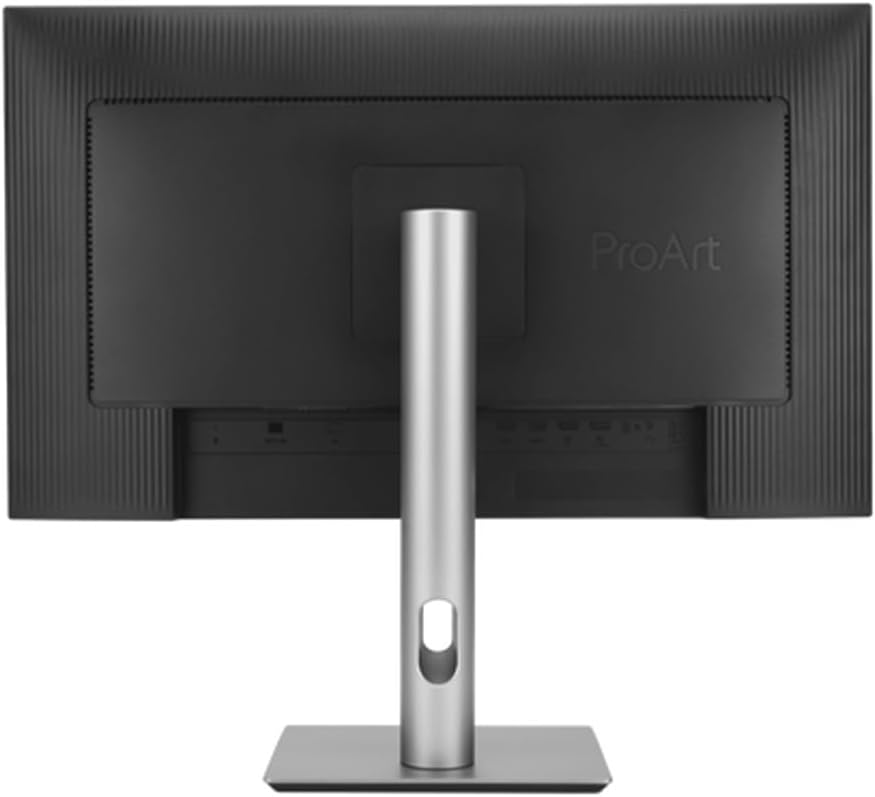
Малюнок 2.1: Задня частина view illustrating the connectivity ports including USB-C, HDMI, and DisplayPort.

Малюнок 2.2: Сторона view demonstrating the monitor's ergonomic stand and slim profile.
3. Інструкція з експлуатації
This section details how to operate your ASUS ProArt PA279CRV monitor.
- Увімкнення/вимкнення живлення: Натисніть кнопку живлення, розташовану на рамці монітора, щоб увімкнути або вимкнути монітор. Індикатор живлення світитиметься, коли монітор активний.
- Екранне меню (OSD): Use the joystick or buttons on the monitor's bezel to navigate the OSD menu. This menu allows you to adjust various display settings.
- Вибір входу: Access the OSD menu to manually select the desired input source (USB-C, DisplayPort, HDMI) if the monitor does not auto-detect.
- Попередньо встановлені режими ProArt: The monitor features several ProArt Preset modes optimized for different creative tasks (e.g., sRGB, Rec.709, DCI-P3, Standard). Select the mode that best suits your current workflow for accurate color reproduction.
- Палітра ProArt: Utilize the ProArt Palette feature within the OSD to fine-tune color parameters such as brightness, contrast, saturation, hue, and color temperature. This allows for advanced customization beyond the preset modes.
- Функціональність USB-концентратора: The integrated USB hub provides additional USB-A ports for connecting peripherals such as keyboards, mice, or external storage devices. Ensure the USB upstream cable is connected to your computer for this feature to work.
- Технологія ASUS Eye Care: The monitor incorporates Flicker-Free technology and Low Blue Light modes to reduce eye strain during extended use. These settings can be adjusted via the OSD menu.
4. Технічне обслуговування
Правильне обслуговування забезпечує довговічність та оптимальну роботу вашого монітора.
- Очищення екрану: Обережно протріть екран м’якою тканиною без ворсу. Для стійких плям злегка протрітьampПротріть тканину водою або спеціалізованим засобом для чищення екранів. Уникайте використання агресивних хімікатів, спирту або абразивних матеріалів.
- Очищення шасі: Використовуйте м’яку суху тканину, щоб протерти поверхню монітораasing. Не використовуйте рідкі засоби для чищення безпосередньо на моніторі.
- Вентиляція: Ensure the monitor's ventilation openings are not blocked to prevent overheating. Maintain adequate space around the monitor for airflow.
- Управління живленням: Unplug the monitor from the power outlet during thunderstorms or if it will be unused for an extended period.
5. Вирішення проблем
Зверніться до цього розділу, щоб знайти рішення поширених проблем, з якими ви можете зіткнутися.
| проблема | Можливе рішення |
|---|---|
| На екрані немає зображення |
|
| Зображення розмите або спотворене |
|
| Немає звуку з динаміків |
|
| USB-концентратор не працює |
|
| Daisy chain not functioning |
|
6. Технічні характеристики
Detailed specifications for the ASUS ProArt PA279CRV monitor.
- модель: PA279CRV
- Розмір екрана: 27 дюймів
- Тип панелі: IPS
- роздільна здатність: 3840 x 2160 (4K UHD)
- Співвідношення сторін: 16:9
- Частота оновлення: 60 Гц
- Час відгуку: 5 мс (від сірого до сірого)
- Колірна гамма: 100% sRGB, 100% Rec.709
- Глибина кольору: 1.07 Billion Colors (10-bit)
- Підтримка HDR: HDR10
- Surface Description: Матовий
- Підключення: 1x USB-C (with 96W PD), 1x DisplayPort (with Daisy Chain), 2x HDMI, USB Hub
- Доповідачі: 2 вбудовані динаміки потужністю 2 Вт
- Ергономіка: Height, Tilt, Swivel, Pivot Adjustments
- Розміри продукту: 24.1 x 8.5 x 21.2 дюймів
- Вага товару: 18.8 фунта
- Виробник: Asus
- Дата першої доступності: 7 березня 2025 р
7. Інформація про гарантію
ASUS provides a limited warranty for this product. The specific terms and duration of the warranty may vary by region and purchase date. Please retain your proof of purchase for warranty claims.
For detailed warranty information, including coverage, exclusions, and the claims process, please visit the official ASUS support website or contact your local ASUS representative.
8. Підтримка
If you require further assistance or have questions not covered in this manual, please contact ASUS customer support.
- Підтримка ASUS Webсайт: Відвідайте www.asus.com/support/ for drivers, FAQs, and contact information.
- Контактна інформація: Зверніться до ASUS webсайт для регіональних номерів телефонів та варіантів підтримки електронною поштою.
- When contacting support, please have your monitor's model number (PA279CRV) and serial number ready.