
вступ
This manual provides detailed instructions for the setup, operation, and maintenance of your T'nB KBWERGO Ergonomic Wireless Rechargeable Bluetooth Keyboard. This keyboard features an ergonomic wave design, integrated wrist rest, adjustable feet, and dual connectivity modes (Bluetooth and 2.4 GHz USB-A dongle) for compatibility with both PC and Mac systems. It is designed to enhance comfort and reduce wrist strain during extended use.
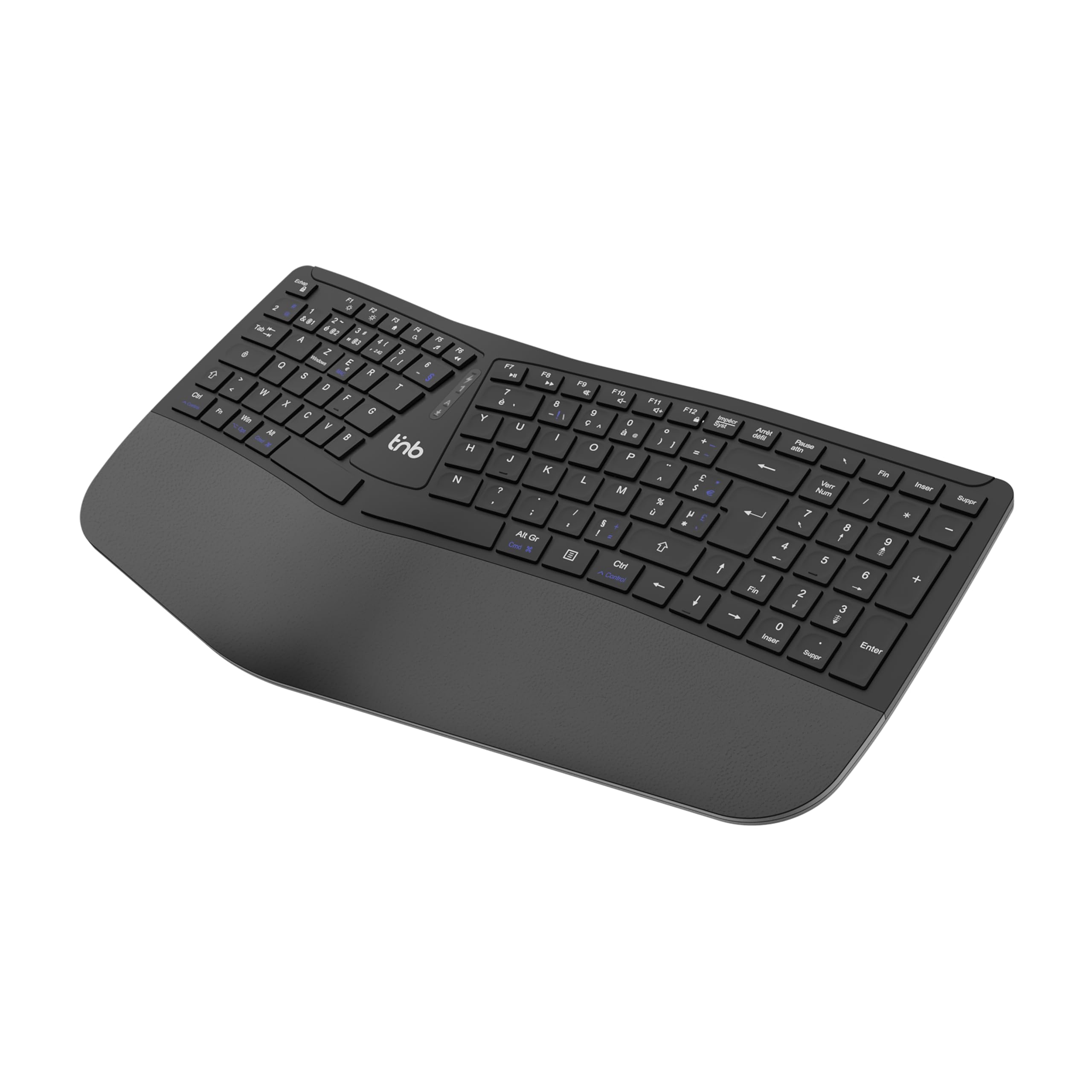
Малюнок 1: Верх view of the T'nB KBWERGO Ergonomic Wireless Keyboard.
Вміст упаковки
Будь ласка, переконайтеся, що всі предмети присутні в упаковці:
- T'nB KBWERGO Ergonomic Wireless Keyboard
- USB-A 2.4 GHz Wireless Dongle (typically stored in the keyboard's battery compartment)
- Зарядний кабель USB-C
- Посібник користувача (цей документ)
Налаштування
1. Заряджання клавіатури
The keyboard is equipped with a rechargeable Lithium-Ion battery. Before first use, it is recommended to fully charge the keyboard.
- Знайдіть порт зарядки USB-C на клавіатурі.
- Connect one end of the provided USB-C cable to the keyboard's charging port.
- Connect the other end of the USB-C cable to a USB-A power source (e.g., computer USB port, USB wall adapter).
- Індикатор заряджання світитиметься. Після повного заряджання індикатор може змінити колір або згаснути.
2. Підключення клавіатури
The keyboard supports dual-mode connectivity: 2.4 GHz wireless via USB-A dongle and Bluetooth (up to 3 profiles).
2.1. 2.4 GHz Wireless Connection (USB-A Dongle)
- Locate the USB-A wireless dongle, usually stored in a compartment on the underside of the keyboard.
- Insert the USB-A dongle into an available USB-A port on your computer.
- Turn on the keyboard using the power switch (location may vary, typically on the back or side).
- Клавіатура має автоматично підключитися до комп’ютера. Зазвичай додаткові драйвери не потрібні.
2.2. Підключення Bluetooth (до 3 пристроїв)
The keyboard can be paired with up to three Bluetooth-enabled devices.
- Переконайтеся, що клавіатуру увімкнено.
- Press and hold one of the Bluetooth pairing keys (e.g., BT1, BT2, BT3, or a dedicated Bluetooth button) for a few seconds until the corresponding indicator light flashes, indicating pairing mode.
- On your device (PC, Mac, tablet, smartphone), go to Bluetooth settings and search for new devices.
- Select "T'nB KBWERGO" or a similar name from the list of available devices.
- Follow any on-screen prompts to complete the pairing process. The indicator light will stop flashing once successfully paired.
- To switch between paired Bluetooth devices, simply press the corresponding Bluetooth key (BT1, BT2, або BT3).
3. Регулювання нахилу клавіатури
The keyboard features 4 adjustable pads, allowing for two different tilt heights to optimize your typing posture.
- Flip the keyboard over to access the underside.
- Locate the adjustable feet at the front and back of the keyboard.
- Extend the smaller feet for a slight tilt, or extend both the smaller and larger feet for a higher tilt.
- Ensure all four feet are set to the same height for stability.

Малюнок 2: Нижня сторона view of the keyboard, highlighting the adjustable feet.

Figure 3: Diagram illustrating the ergonomic design and adjustable tilt options.
Робота з клавіатурою
Ergonomic Design Benefits
The T'nB KBWERGO keyboard features a wave-shaped ergonomic design and an integrated synthetic leather wrist rest. This design aims to:
- Minimize wrist movement and effort to reach all keys.
- Alleviate wrist strain during prolonged typing sessions.
- Provide a natural and comfortable hand position.
- Reduce muscle tension in the arms and shoulders.

Малюнок 4: Сторона view illustrating the ergonomic wave design.
Функціональні клавіші та комбінації клавіш
The keyboard includes 12 direct access keys (function keys) for common tasks. These keys are typically located along the top row of the keyboard (F1-F12) and may require pressing the Fn key simultaneously for their secondary functions. Refer to the keycap legends for specific functions such as media control, volume adjustment, and application shortcuts.
The keyboard also features a full numeric keypad for efficient data entry.
Сумісність
The T'nB KBWERGO keyboard is compatible with both PC (Windows operating systems) and Mac (macOS) systems, offering versatile use across different computing environments.
Технічне обслуговування
прибирання
Щоб зберегти зовнішній вигляд та функціональність клавіатури:
- Ensure the keyboard is turned off before cleaning.
- Злегка протріть м’якою тканиною без ворсу dampпромити водою або м’яким миючим розчином.
- Avoid harsh chemicals, abrasive cleaners, or spraying liquids directly onto the keyboard.
- Для видалення пилу та сміття між клавішами використовуйте стиснене повітря.
- Wipe the synthetic leather wrist rest gently.
Догляд за акумулятором
The integrated Lithium-Ion battery requires proper care for longevity:
- Уникайте частого повного розряджання акумулятора.
- Регулярно заряджайте клавіатуру, особливо якщо вона зберігатиметься протягом тривалого часу.
- Не піддавайте клавіатуру впливу екстремальних температур.
- Використовуйте для заряджання лише наданий кабель USB-C або сертифікований еквівалент.
Усунення несправностей
Клавіатура не відповідає
- Перевірте живлення: Переконайтеся, що клавіатура увімкнена та має достатній заряд батареї. За потреби зарядіть її.
- Підключення 2.4 ГГц:
- Verify the USB-A dongle is securely plugged into a working USB port on your computer.
- Спробуйте підключити донгл до іншого USB-порту.
- Підключення Bluetooth:
- Переконайтеся, що на вашому пристрої ввімкнено Bluetooth.
- Confirm the keyboard is selected as the active Bluetooth device (e.g., by pressing the correct BT1/BT2/BT3 key).
- If connection issues persist, try unpairing and re-pairing the keyboard with your device.
- Перешкоди: Перемістіть клавіатуру ближче до свого пристрою та подалі від інших бездротових пристроїв, які можуть створювати перешкоди.
- Перезапуск: Перезавантажте комп'ютер і клавіатуру.
Проблеми із зарядкою
- Перевірка кабелю: Ensure the USB-C charging cable is securely connected to both the keyboard and the power source.
- Джерело живлення: Спробуйте інше джерело живлення USB або адаптер для розетки.
- Пошкодження кабелю: Inspect the charging cable for any signs of damage. Use a different USB-C cable if available.
Технічні характеристики
| Особливість | Деталь |
|---|---|
| Назва моделі | KBWERGO |
| Бренд | T'nB |
| Технологія підключення | Bluetooth, 2.4 GHz USB-A |
| Number of Bluetooth Profiles | 3 |
| Джерело живлення | Акумуляторна літій-іонна батарея |
| Порт зарядки | USB-C |
| Розкладка клавіатури | QWERTY (Spanish layout implied by source, but general QWERTY for instructions) |
| Кількість клавіш | 104 |
| Особливість | Ergonomic design, Integrated Wrist Rest, Adjustable Tilt |
| Сумісні пристрої | Персональний комп'ютер, ноутбук |
| Сумісні операційні системи | Windows, macOS |
| Розміри (Д x Ш x В) | 43 x 21 x 2 см (16.9 x 8.3 x 0.8 дюйма) |
| вага | 1.16 кг (2.56 фунта) |
| матеріал | пластик |
| Колір | чорний |
Гарантія та підтримка
For warranty information or technical support, please refer to the documentation included with your purchase or contact T'nB customer service through their official webсайт або магазин, де було придбано продукт. Зберігайте чек про покупку для гарантійних претензій.
A safety information PDF is available: Інформація про безпеку (PDF)