
вступ
Thank you for choosing the Gawfolk GF270K 27-inch Curved 180Hz Gaming Monitor. This manual provides essential information for setting up, operating, maintaining, and troubleshooting your new monitor. Please read it carefully before use and keep it for future reference.
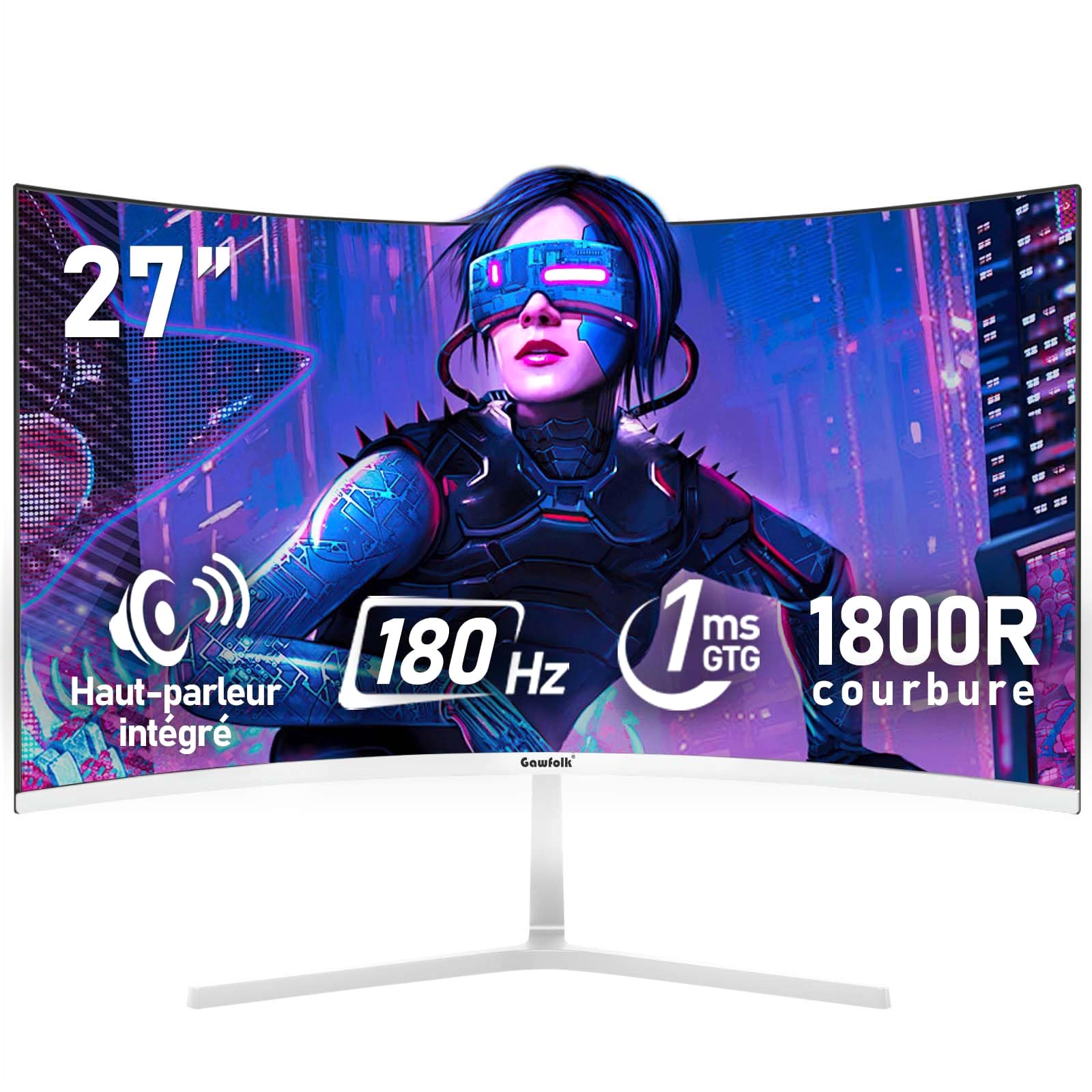
Зображення: спереду view of the Gawfolk GF270K 27-inch curved gaming monitor.
Важлива інформація з безпеки
- Always disconnect the power cable from the electrical outlet before cleaning the monitor.
- Не піддавайте монітор впливу дощу або вологи, щоб уникнути небезпеки пожежі чи ураження електричним струмом.
- Не відкривайте монітор casing. Усередині немає деталей, які може обслуговувати користувач. Звертайтеся до кваліфікованого сервісного персоналу з усіх питань щодо обслуговування.
- Розмістіть монітор на стійкій, рівній поверхні, щоб запобігти його падінню.
- Забезпечте належну вентиляцію навколо монітора. Не блокуйте вентиляційні отвори.
- Використовуйте лише адаптер живлення та кабелі, що постачаються з монітором.
Вміст упаковки
Будь ласка, перевірте вміст упаковки після відкриття. Якщо будь-які елементи відсутні або пошкоджені, зверніться до служби підтримки клієнтів.
- Gawfolk GF270K Monitor
- Підставка для монітора (основа та шия)
- Адаптер живлення
- Кабель HDMI
- Посібник користувача
Інструкції з налаштування
1. Збірка підставки
Carefully remove the monitor from its packaging. Attach the stand neck to the monitor panel, then secure the base to the neck. Ensure all screws are tightened securely.

Зображення: Задня частина view of the monitor, illustrating the stand attachment area and VESA mounting points.
The monitor stand allows for a tilt adjustment range of -5° to 15°.
2. Настінне кріплення VESA (додатково)
The monitor is compatible with a 100x100mm VESA wall mount. Remove the stand before attaching a VESA mount. Ensure the wall mount can support the monitor's weight (3.3 kg).

Image: Detailed diagram of the monitor's rear, showing dimensions, VESA 100x100mm compatibility, and port locations.
3. Підключення до комп'ютера
Connect the monitor to your computer using the provided HDMI cable or a VGA cable (not included). Ensure the cables are securely plugged into both the monitor and your computer's graphics card.
- HDMI: For optimal performance, use the HDMI 2.0 port to achieve up to 180Hz refresh rate.
- VGA: Supports up to 60Hz refresh rate.
- Аудіо вихід: Connect external speakers or headphones to the 3.5mm audio jack.
Image: Illustration of multiple interfaces (HDMI, VGA, Audio) and their connection to various devices.
4. Підключення живлення
Connect the power adapter to the monitor's DC input port, then plug the power adapter into a wall outlet.
Інструкція з експлуатації
1. Увімкнення/вимкнення живлення
Press the power button, usually located on the back or bottom right of the monitor, to turn it on or off. The power indicator light will illuminate when the monitor is on.
2. Екранне меню (OSD).
The OSD menu allows you to adjust various monitor settings. Typically, buttons on the back or bottom of the monitor are used to navigate and select options within the OSD. Common settings include:
- Яскравість/Контрастність: Налаштуйте яскравість зображення.
- Параметри кольору: Змінити колірну температуру, гаму та насиченість.
- Джерело введення: Manually select HDMI or VGA input.
- Режим зображення: Select preset modes for gaming, movies, or standard use.
- Аудіо: Adjust volume for integrated speakers or connected headphones.
3. Ключові характеристики
- Частота оновлення 180 Гц та час відгуку 1 мс: Experience smooth, fluid visuals with minimal motion blur, crucial for fast-paced gaming.

Image: Visual comparison demonstrating the difference between 60Hz and 180Hz refresh rates in motion clarity.
- Технологія FreeSync: Synchronizes the monitor's refresh rate with your GPU's frame rate to eliminate screen tearing and stuttering, providing a seamless gaming experience. Supports G-Sync compatibility.

Image: Side-by-side comparison illustrating the effect of FreeSync technology on screen tearing.
- Вигнутий дисплей 1800R: The 1800R curvature provides an immersive viewing experience, drawing you into the content and making the virtual world feel more realistic.

Image: Diagram explaining the 1800R curvature and its benefit for immersive viewінж.
- FHD 1080p Resolution: Enjoy crisp and clear visuals with a Full HD (1920x1080) resolution, making details stand out.

Image: A gaming scene displayed on the monitor, emphasizing the clarity of FHD resolution.
- Rich Colors & High Contrast: With 98% sRGB color gamut and a 4000:1 contrast ratio, the monitor delivers vibrant colors and deep blacks for a lifelike image.

Image: Visual representation of the monitor's rich color capabilities with 98% sRGB.

Image: Comparison demonstrating the enhanced detail and depth provided by a 4000:1 contrast ratio.
- Низький рівень синього світла та відсутність мерехтіння: DC dimming technology and a low blue light mode reduce eye strain during prolonged use, ensuring comfortable viewінж.

Image: Visual explanation of flicker-free technology and low blue light mode for eye protection.
- Інтегровані динаміки: The monitor includes built-in speakers for basic audio output. For higher quality audio, external speakers or headphones are recommended via the 3.5mm audio jack.

Зображення: спереду view of the monitor, highlighting the integrated speakers and their sound output.
Технічне обслуговування
- Очищення екрану: Обережно протріть екран м’якою тканиною без ворсу. Для стійких плям, dampЗлегка промокніть тканину водою або спеціалізованим засобом для чищення екранів. Ніколи не розпилюйте рідину безпосередньо на екран.
- Очищення Casing: Використовуйте м’яку суху тканину для протирання монітора casing. Уникайте абразивних засобів для чищення або розчинників.
- Зберігання: If storing the monitor for an extended period, disconnect it from power, pack it in its original packaging if possible, and store it in a cool, dry place.
Усунення несправностей
| проблема | Можлива причина | Рішення |
|---|---|---|
| Немає живлення | Кабель живлення не підключено; розетка не працює. | Переконайтеся, що кабель живлення надійно підключений. Перевірте розетку за допомогою іншого пристрою. |
| Немає сигналу | Відеокабель не підключено; вибрано неправильне джерело вхідного сигналу. | Check video cable connections (HDMI/VGA). Use the OSD menu to select the correct input source. |
| Мерехтіння або спотворене зображення | Loose video cable; Incorrect resolution/refresh rate; Graphics card issue. | Ensure video cable is secure. Adjust display settings on your computer to match monitor's native resolution (1920x1080) and refresh rate (180Hz for HDMI). Update graphics drivers. |
| No sound from integrated speakers | Занадто низька гучність; звук вимкнено; на комп’ютері вибрано неправильний аудіовихід. | Adjust monitor volume via OSD. Check computer's audio settings to ensure monitor is selected as output device. |
Технічні характеристики продукту
| Бренд | Гоуфолк |
| Номер моделі | GF270K |
| Розмір екрана | 27 дюймів |
| роздільна здатність | FHD 1080p (1920 x 1080 пікселів) |
| Співвідношення сторін | 16:9 |
| Кривизна | 1800R |
| Тип панелі | VA |
| Частота оновлення | 180 Hz (HDMI), 60 Hz (VGA) |
| Час відгуку | 1 мс (GTG) |
| Коефіцієнт контрастності | 4000:1 |
| Яскравість | 300 кд/м² |
| Колірна гамма | 98% sRGB |
| Viewкут нахилу | 178° |
| Адаптивна синхронізація | FreeSync (G-Sync Compatible) |
| Підключення | 1x HDMI 2.0, 1x VGA, 1x 3.5mm Audio Out |
| Сумісність VESA | 100 х 100 мм |
| Розміри (Д x Ш x В) | 18.3 х 61.3 х 47.3 см |
| вага | 3.3 кілограма |
| Колір | Білий |
Гарантія та підтримка
This Gawfolk monitor comes with a 1-year after-sales service warranty. If you encounter any problems during the use of your monitor, please do not hesitate to contact our customer support team for assistance.
For support, please refer to the contact information provided with your purchase or visit the official Gawfolk webсайт.