
1. Вступ та сумісність
This manual provides detailed instructions for the installation, operation, and maintenance of your Surakey Android 13 Car Stereo Radio. Please read this manual thoroughly before installation and use to ensure proper function and safety.
Важливе зауваження щодо сумісності: This car stereo is designed for Dodge Ram 1500 and 3500 models from 2013 to 2019. Before purchasing or installing, it is crucial to verify compatibility with your specific vehicle's year and model. We recommend carefully measuring your dashboard and comparing it with the product dimensions. If uncertain, please provide a complete image of the plugs on the back of your center console and the on-board main unit to your supplier for confirmation and to determine if any additional wiring harnesses or adapters are required.

Figure 1.1: Dashboard compatibility examples. Ensure your vehicle's dashboard matches the compatible design for proper fitment.
2. Продукт закінчивсяview та включені компоненти
The Surakey Android 13 Car Stereo Radio features a 9.7-inch touch screen, offering advanced navigation, entertainment, and connectivity options for your vehicle.
2.1 основні характеристики:
- 9.7-inch HD 2.5D Tempered Glass Mirror Touch Screen
- Операційна система Android 13
- Wireless & Wired Apple CarPlay and Android Auto
- Вбудована GPS-навігація
- Integrated Wi-Fi Connectivity
- Bluetooth with A2DP, Hands-Free Calling, and Phone Book
- FM/RDS радіотюнер
- DSP Function for High-Fidelity Audio
- Support for AHD Backup Camera Input
- Сумісність керування кермом
- Double USB Interface
- Multi-language Support (up to 40 national languages)
2.2 Вміст упаковки:
Будь ласка, перевірте, чи всі наступні компоненти входять до вашої упаковки:
- Surakey Android Car Stereo Unit
- Кабель живлення
- Вхідні/вихідні кабелі RCA
- USB-кабелі (x2)
- Вхідний кабель камери
- Кабель-адаптер радіо
- GPS антена
- Інструкція з експлуатації
- External Microphone ('Wheat head')
- Canbus Box
- Car Compass

Рисунок 2.1: Розміри виробу та аксесуари, що входять до комплекту.
3. Налаштування та встановлення
Professional installation is highly recommended for this product. Incorrect wiring or installation can damage the unit or your vehicle's electrical system. Always disconnect the vehicle's battery before beginning installation.
3.1 Перевірка перед встановленням:
- Переконайтеся, що запалювання автомобіля вимкнено, а акумулятор від'єднаний.
- Confirm dashboard compatibility and dimensions.
- Identify all existing wiring harnesses in your vehicle.
3.2 Підключення проводів:
Refer to the wiring diagram provided in the included instruction manual for specific connections. General connections include:
- Кабель живлення: Підключіть до проводів живлення, заземлення та допоміжних пристроїв автомобіля.
- Вхід/вихід RCA: Для зовнішніх ampліхтарі, сабвуфери або відеовихід.
- USB кабелі: Connect to the unit for media playback, phone charging, and CarPlay/Android Auto (wired).
- Вхід камери: Connect your AHD backup camera here.
- Radio Adapter Cable: Підключіться до антени автомобіля.
- GPS антена: Встановіть у місці з чітким view неба для оптимального прийому сигналу.
- Зовнішній мікрофон: Plug in for improved hands-free call quality.
- Коробка CANbus: Connect as per vehicle-specific instructions for steering wheel controls and other vehicle data integration.

Малюнок 3.1: Задня частина view of the car stereo unit with wiring connections.
3.3 Після встановлення:
- Знову підключіть акумулятор автомобіля.
- Turn on the ignition and power on the stereo.
- Perform initial setup and test all functions (radio, Bluetooth, GPS, etc.).
4. Інструкція з експлуатації
This section details the primary functions and how to operate your Surakey Android 13 Car Stereo.
4.1 Power On/Off and Basic Interface:
- Натисніть кнопку живлення, щоб увімкнути або вимкнути пристрій.
- The 9.7-inch capacitive touch screen allows for easy navigation through the Android interface.
4.2 Apple CarPlay & Android Auto:
The unit supports both wireless and wired Apple CarPlay (for iOS devices) and Android Auto (for Android devices).
- Для Apple CarPlay: Connect your iPhone via Bluetooth for wireless connection or via USB for wired connection. Use the ZLINK APP on the stereo. This integrates your iOS device for navigation, calls, messages, and music.
- Для Android Auto: Connect your Android phone via Bluetooth for wireless connection or via USB for wired connection. Ensure the Android Auto APP is installed on your phone. This integrates your Android device for navigation, calls, messages, and music.

Figure 4.1: Apple CarPlay connection example.
4.3 GPS-навігація:
The unit comes with built-in offline maps. For online navigation, connect to Wi-Fi to use Google Maps or other navigation applications downloaded from the Play Store.
4.4 Wi-Fi Connectivity:
Connect the stereo to a Wi-Fi hotspot (e.g., from your smartphone) to access online features, download apps, and use online maps.
4.5 Функціональність Bluetooth:
Pair your smartphone via Bluetooth for hands-free calling, Bluetooth music streaming (A2DP), and automatic phonebook loading.
4.6 FM/RDS-радіо:
Access the FM radio tuner. The RDS function displays station information where available. You can save up to 18 preset stations.
4.7 Steering Wheel Controls:
If properly connected via the Canbus box, you can control various functions of the stereo directly from your vehicle's steering wheel controls for convenience and safety.
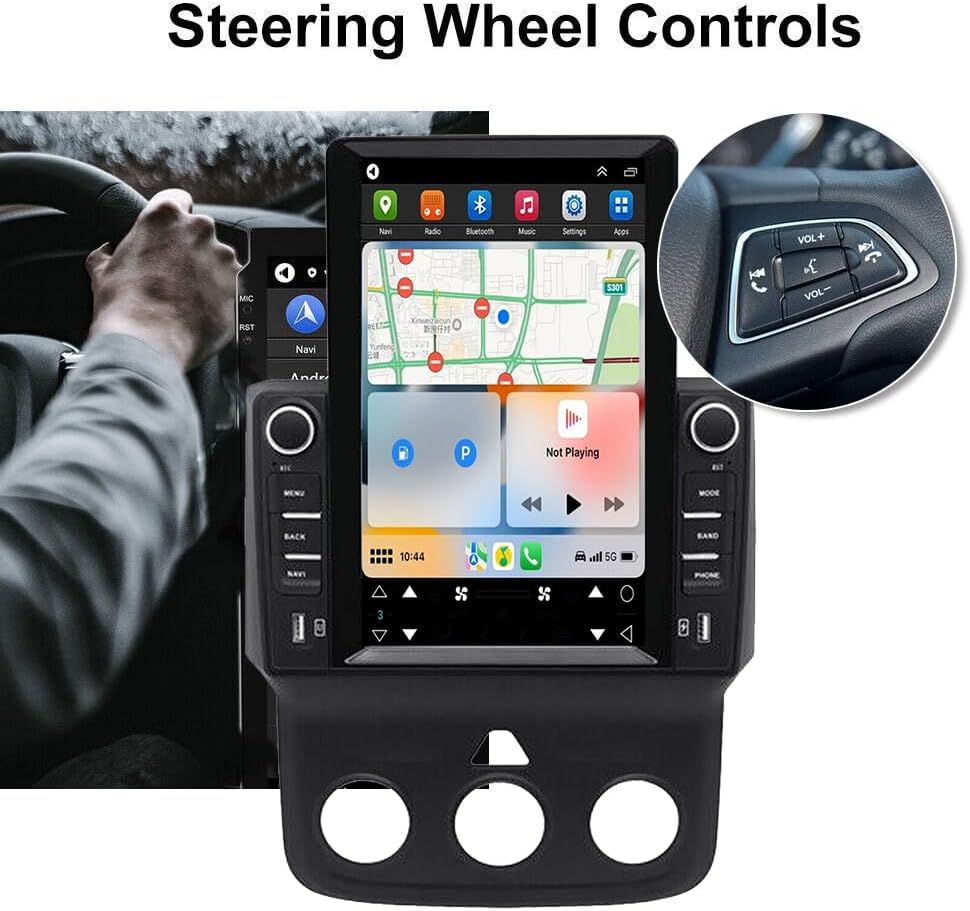
Рисунок 4.2: Інтеграція керування з керма.
4.8 DSP Function:
The Digital Sound Processor (DSP) ensures high-fidelity audio reproduction, closely matching the original sound quality.
4.9 Rear Camera Input:
Connect an AHD backup camera to the CVBS input. The display will automatically switch to the camera view при русі заднім ходом.
4.10 File Manager & Apps:
Вбудований file manager allows you to browse, download, install, and delete Android applications. You can access the Google Play Store (with Wi-Fi connected) to expand the stereo's functionality.
4.11 Налаштування часу:
The date and time can be set automatically via network or GPS, or adjusted manually through the system settings.
5. Технічне обслуговування
Правильне обслуговування забезпечує довговічність та оптимальну роботу вашої автомобільної стереосистеми.
- Очищення екрану: Використовуйте м’яку тканину без ворсу, щоб обережно протерти сенсорний екран. Для стійких плям злегка протрітьampПротріть тканину водою або засобом для чищення екранів. Уникайте агресивних хімікатів або абразивних матеріалів.
- Оновлення програмного забезпечення: Periodically check for system software updates to ensure optimal performance and access to new features. Updates can usually be found in the system settings menu.
- температура: Уникайте тривалого впливу екстремальних температур на пристрій. Робочий діапазон температур становить від -20℃ до 75℃.
- Підключення: Переконайтеся, що всі кабелі надійно підключені. Нещільні з'єднання можуть призвести до періодичних проблем.
6. Вирішення проблем
This section addresses common issues you might encounter. If you experience problems not listed here, please contact customer support.
- Немає живлення:
- Перевірте всі підключення живлення та запобіжники.
- Переконайтеся, що акумулятор автомобіля заряджений.
- Немає звуку:
- Перевірте підключення динаміків.
- Перевірте рівні гучності та налаштування вимкнення звуку.
- Переконайтеся, що вибрано правильне джерело аудіо.
- Втрата сигналу GPS:
- Переконайтеся, що GPS-антена правильно встановлена та має чіткий сигнал view неба.
- Check antenna cable connection.
- Проблеми з підключенням Bluetooth:
- Переконайтеся, що Bluetooth увімкнено як на стереосистемі, так і на телефоні.
- Видаліть попередні сполучення та спробуйте сполучення ще раз.
- Перезапустіть обидва пристрої.
- CarPlay/Android Auto не підключається:
- Для дротового підключення спробуйте інший USB-кабель.
- For wireless, ensure Bluetooth and Wi-Fi are enabled on your phone.
- Verify the correct app (ZLINK for CarPlay, Android Auto app for Android Auto) is running.
- Пристрій зависає або реагує повільно:
- Perform a soft reset (refer to the specific reset procedure in the included manual, or hold the power button for 10 seconds).
- Закрийте непотрібні фонові програми.
Factory Settings Keyword: If prompted for a factory setting keyword, try 8888 or 3368.
7. Технічні характеристики
| Особливість | Специфікація |
|---|---|
| система | Android 13 |
| Чіпсет | 8227L-ДЕМО |
| Розмір екрана | 9.7 дюймів |
| Роздільна здатність екрана | 1024x768 |
| Пам'ять (RAM+ROM) | 2GB RAM + 32GB ROM |
| Радіочіп | MT6625 |
| Вихідна потужність | 4x45W |
| Робоча температура | -20℃ до 75℃ |
| потужність AmpLifier Chip | TDA7388 |
| Радіодіапазон | FM/RDS |
| Відеовихід | Підтримується |
| Реверсивний вхід | CVBS |
| Зовнішній мікрофон | Підтримується |
| Розділений екран | Підтримується |
| Карти | Вбудовані офлайн-карти (для завантаження даних потрібен інтернет) |
| Wi-Fi | Підтримується |
| Інтерфейс USB | Подвійний USB |
| Аудіоформати | APE/FLAC/WAV/MP3/WMA тощо. |
| Формати відео | MKV/RMVB/AVI/MP4/MDV тощо. |
| Формати зображення | PNG/JPEG/JPG/GIF/WBMP/BNP тощо. |
| Ключове слово заводських налаштувань | 8888 або 3368 |
| Підтримувані мови | Chinese/English/French/Italian/Korean/Japanese/Arabic/Spanish/Portuguese/Russian/Turkish/Vietnamese/Hebrew/Polish/German (up to 40 national languages) |
| Тип обслуговування автомобіля | Вантажівка |
| Технологія підключення | USB |
| Тип карти | Північна Америка |
| Режим аудіовиходу | Стерео |
| Тип сенсорного екрана | Ємнісні |
| Тип дисплея | Сенсорний екран |
| Вхід через людський інтерфейс | Сенсорний екран |
| Спосіб контролю | Дотик |
| Підтримувана система супутникової навігації | GPS |
| Вага товару | 1875 грамів |
| Номер моделі | JIAQI-QA1572X-WYQ-2412 |
8. Гарантія та підтримка
For warranty information and technical support, please refer to the specific warranty card included with your product or contact your retailer. Keep your purchase receipt as proof of purchase.