
1. Продукт закінчивсяview
The KOORUI G2722P is a 27-inch QHD (2560x1440) gaming monitor designed for an immersive visual experience. It features a Fast IPS panel with a 200Hz refresh rate and a 1ms response time, ensuring smooth and responsive gameplay. The monitor supports HDR 400 for enhanced contrast and color depth, and Adaptive Sync technology to minimize screen tearing and stuttering. Its ergonomic stand allows for height, tilt, and pivot adjustments, and it is VESA 75x75mm compatible for flexible mounting options.

The KOORUI G2722P monitor integrated into a typical gaming environment.
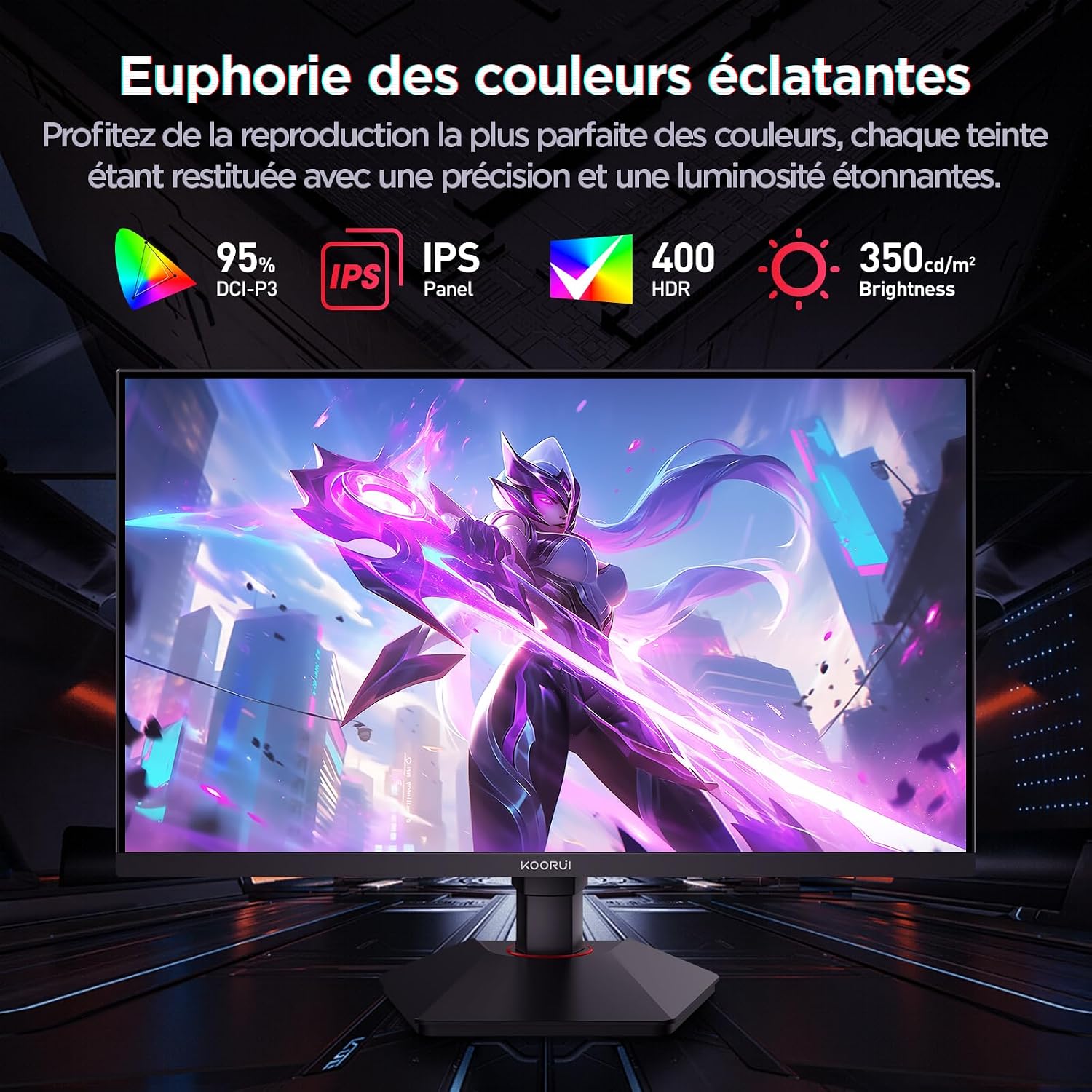
This image highlights the monitor's color capabilities, including 95% DCI-P3 color gamut, IPS panel technology, HDR 400 support, and 350 cd/m² brightness.
2. Інформація про безпеку
- Уважно прочитайте всі інструкції перед використанням монітора.
- Не піддавайте монітор впливу дощу або вологи, щоб запобігти небезпеці пожежі або ураження електричним струмом.
- Не відкривайте монітор casing. Усередині немає деталей, які може обслуговувати користувач. Звертайтеся до кваліфікованого персоналу з будь-яким обслуговуванням.
- Розмістіть монітор на стійкій, рівній поверхні, щоб запобігти його падінню.
- Тримайте монітор подалі від прямих сонячних променів, джерел тепла та екстремальних температур.
- Забезпечте належну вентиляцію навколо монітора. Не блокуйте вентиляційні отвори.
- Використовуйте лише адаптер живлення та кабелі, надані або рекомендовані виробником.
- Від’єднуйте монітор від розетки під час грози або якщо він не використовується протягом тривалого часу.
3. Вміст упаковки
Перевірте наявність усіх елементів в упаковці:
- KOORUI G2722P Monitor
- Підставка для монітора (основа та шия)
- Адаптер живлення та кабель живлення
- Кабель DisplayPort (DP)
- Посібник користувача (цей документ)
- Гвинти для монтажу підставки
4. Збірка монітора
4.1 Прикріплення підставки
- Обережно покладіть монітор екраном донизу на м’яку чисту тканину, щоб запобігти подряпинам.
- Attach the stand neck to the back of the monitor until it clicks into place or is secured with screws (refer to specific instructions in the included quick start guide).
- Прикріпіть основу підставки до шиї підставки та закріпіть її за допомогою наданого гвинта.
- Carefully lift the monitor and place it on a stable desk.
4.2 Кріплення VESA
The monitor supports VESA 75x75mm mounting. To use a VESA mount:
- Зніміть підставку, якщо вона вже прикріплена.
- Attach your VESA-compatible mount (sold separately) to the 75x75mm screw holes on the back of the monitor using appropriate screws.
- Ensure the mount is securely fastened before releasinмонітор.

This image demonstrates the monitor's ergonomic adjustments (height, tilt, pivot) and provides a visual reference for stand attachment points.
5. Підключення монітора
Connect the monitor to your computer or other devices using the available ports.
- Підключення живлення: Connect the power cable to the power adapter, then connect the adapter to the monitor's power input and a wall outlet.
- Підключення відео:
- For optimal performance (QHD @ 200Hz), use the provided DisplayPort (DP 1.4) cable to connect the monitor to your graphics card.
- Alternatively, use an HDMI 2.0 cable to connect to an HDMI port on your device.
- Аудіовихід: Connect external speakers or headphones to the 3.5mm audio output jack on the monitor if you wish to use the monitor's audio passthrough.

This image displays the rear of the monitor, highlighting the available connectivity options: two HDMI 2.0 ports, one DisplayPort 1.4, an audio output jack, and the VESA 75x75mm mounting pattern.
6. Експлуатація монітора
6.1 Увімкнення/вимкнення живлення
- Натисніть кнопку живлення, розташовану на моніторі, щоб увімкнути або вимкнути його.
- The power indicator light will illuminate when the monitor is on.
6.2 Екранне меню (OSD)
The OSD menu allows you to adjust various monitor settings. Typically, buttons are located on the back or bottom right of the monitor.
- Натисніть одну з кнопок екранного меню, щоб активувати меню.
- Use the navigation buttons (usually directional or a joystick) to browse through menu options.
- Натисніть кнопку вибору, щоб увійти до підменю або підтвердити налаштування.
- Натисніть кнопку виходу, щоб закрити екранне меню.
7. Налаштування дисплея
7.1 Роздільна здатність та частота оновлення
The monitor supports a native resolution of 2560x1440 (QHD) and a maximum refresh rate of 200Hz. Ensure your graphics card and operating system are configured to use these settings for the best experience.

This image illustrates the difference in motion clarity between a 75Hz and a 200Hz refresh rate, emphasizing the 1ms response time for reduced blur and ghosting.
7.2 Adaptive Sync (FreeSync)
This monitor supports Adaptive Sync technology (compatible with AMD FreeSync) to synchronize the monitor's refresh rate with your graphics card's frame rate, eliminating screen tearing and reducing stuttering.
- Enable Adaptive Sync in the monitor's OSD menu.
- Ensure Adaptive Sync (or FreeSync) is enabled in your graphics card control panel.

This image visually compares the display with Adaptive Sync enabled versus disabled, demonstrating how Adaptive Sync eliminates screen tearing for a smoother visual experience.
7.3 HDR 400
The monitor supports HDR 400, providing a wider dynamic range for brighter whites and deeper blacks, resulting in more vibrant and realistic images.
- Enable HDR in your operating system's display settings and in the monitor's OSD menu if available.
7.4 Параметри кольору
The Fast IPS panel offers excellent color reproduction and wide viewкути.
- Adjust color temperature, gamma, and saturation through the OSD menu to suit your preferences.
- The monitor features a 178-degree wide viewing angle, ensuring consistent color and image quality from various perspectives.
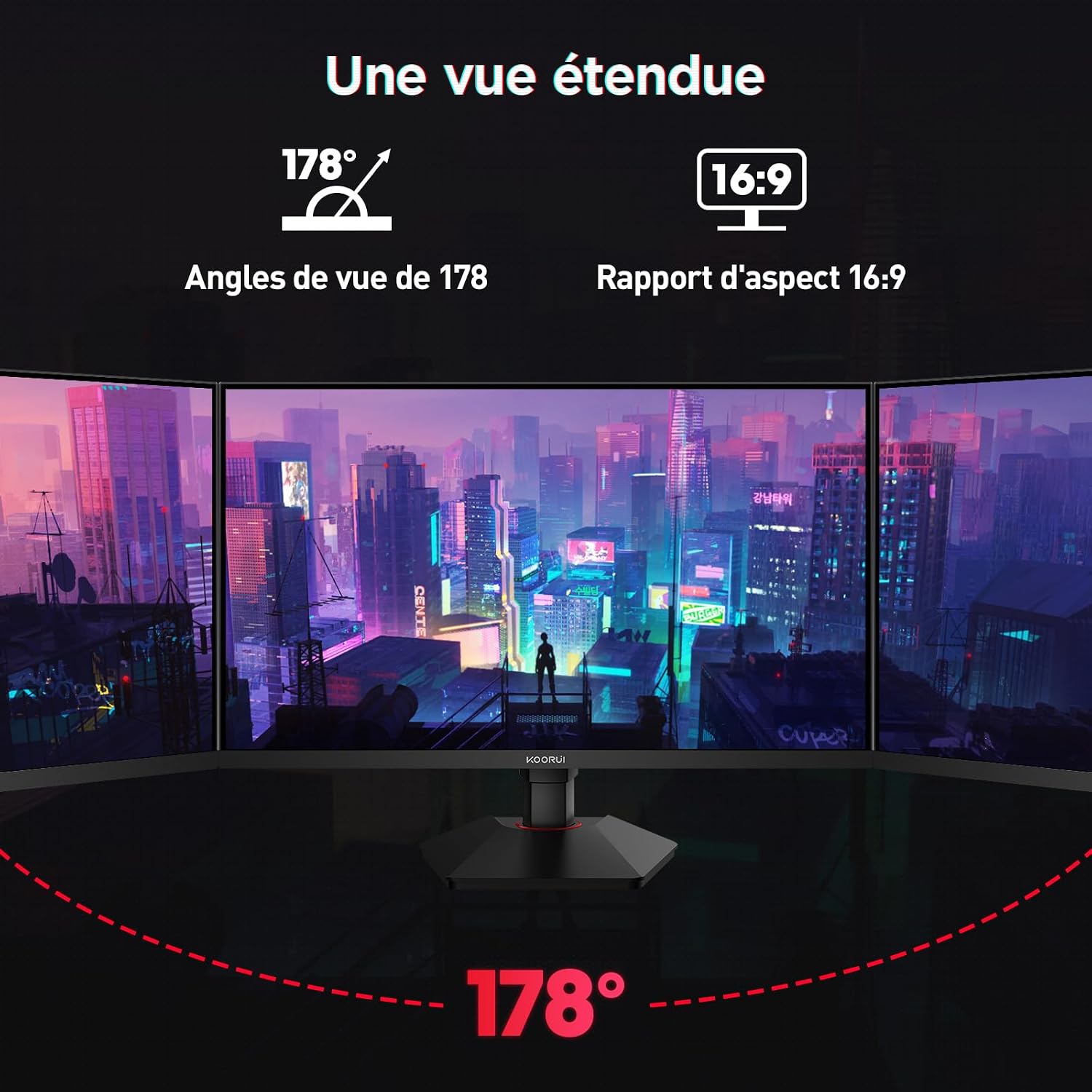
This image demonstrates the monitor's wide 178-degree viewing angle, illustrating how the display maintains clarity and color consistency even when viewed from extreme angles, ideal for multi-monitor setups.
8. Ергономічні налаштування
Підставка для монітора дозволяє здійснювати різні налаштування для оптимізації viewкомфорт:
- Регулювання висоти: Adjust the monitor height by up to 100mm by gently pushing or pulling the monitor up or down.
- Регулювання нахилу: Tilt the screen from -5° (forward) to +20° (backward) to find your preferred viewкут.
- Поворот (обертання): Rotate the screen 90° to switch between landscape and portrait orientations.
This image illustrates the full range of ergonomic adjustments available: 100mm height adjustment, -5° to +20° tilt, and 90° pivot rotation for optimal viewкомфорту.
9. Функції догляду за очима
The KOORUI G2722P monitor incorporates features designed to reduce eye strain during prolonged use:
- Технологія без мерехтіння: Reduces screen flickering, which can cause eye fatigue.
- Фільтр слабкого синього світла: Minimizes harmful blue light emissions to protect your eyes. This feature can usually be adjusted or enabled/disabled in the OSD menu.
10. Технічне обслуговування
Правильне обслуговування забезпечує довговічність та оптимальну роботу вашого монітора.
- Очищення екрану: Обережно протріть екран м’якою тканиною без ворсу. Для стійких плям використовуйте спеціальний розчин для чищення моніторів, нанесений на тканину, а не безпосередньо на екран.
- Очищення Casing: Використовуйте м’яку суху тканину для очищення монітора casing. Уникайте використання абразивних засобів для чищення або розчинників.
- Обробка: Avoid touching the screen directly with your fingers or sharp objects. Do not place heavy objects on the monitor.
11. Вирішення проблем
Якщо у вас виникли проблеми з монітором, зверніться до наступних поширених проблем та способів їх вирішення:
| проблема | Можливе рішення |
|---|---|
| На екрані немає зображення |
|
| Мерехтіння або розриви зображення |
|
| Немає звуку з аудіовиходу |
|
| Монітор не досягає 200 Гц |
|
12. Технічні характеристики
Key technical specifications for the KOORUI G2722P monitor:
| Особливість | Специфікація |
|---|---|
| Розмір екрана | 27 дюймів |
| Тип панелі | Майже IPS |
| роздільна здатність | QHD (2560 x 1440) |
| Частота оновлення | 200 Гц |
| Час відгуку | 1 мс |
| Підтримка HDR | HDR 400 |
| Адаптивна синхронізація | FreeSync |
| Коефіцієнт контрастності | 1000:1 (статичний) |
| Яскравість | 350 кд/м² |
| Viewкут нахилу | 178° (Г/В) |
| Колірна гамма | 95% DCI-P3 |
| Відеовходи | 2x HDMI 2.0, 1x DisplayPort 1.4 |
| Аудіовихід | 1x 3.5mm Audio Out |
| Сумісність VESA | 75х75 мм |
| Споживана потужність | 19 Watts (Typical) |
| Ергономіка | Height, Tilt, Pivot Adjustment |

This diagram provides the physical dimensions of the monitor, including width, height, and depth.
Для отримання детальної інформації про енергетику, будь ласка, зверніться до бази даних EPREL: https://eprel.ec.europa.eu/qr/2216313
13. Гарантія та підтримка
The KOORUI G2722P monitor comes with a 2-річна гарантія виробника. Ця гарантія поширюється на дефекти матеріалів і виготовлення за нормального використання.
For technical support, warranty claims, or further assistance, please contact KOORUI customer service through their official webсайт або роздрібний продавець, де було придбано товар.