
1. Вступ
Thank you for choosing the Gawfolk 34-inch Ultrawide Curved Gaming Monitor. This manual provides essential information for setting up, operating, and maintaining your monitor. Please read it thoroughly before use to ensure optimal performance and safety.
The Gawfolk GF340C monitor features a 34-inch 1500R curved VA panel, UWQHD (3440x1440) resolution, a 165Hz refresh rate, and a 1ms response time (GtG). It supports FreeSync technology for smooth gaming and includes Eye Care Technology to reduce eye strain during extended use. The monitor also offers multiple connectivity options and VESA mount compatibility.

Малюнок 1: Спереду view of the Gawfolk 34-inch Ultrawide Curved Gaming Monitor.
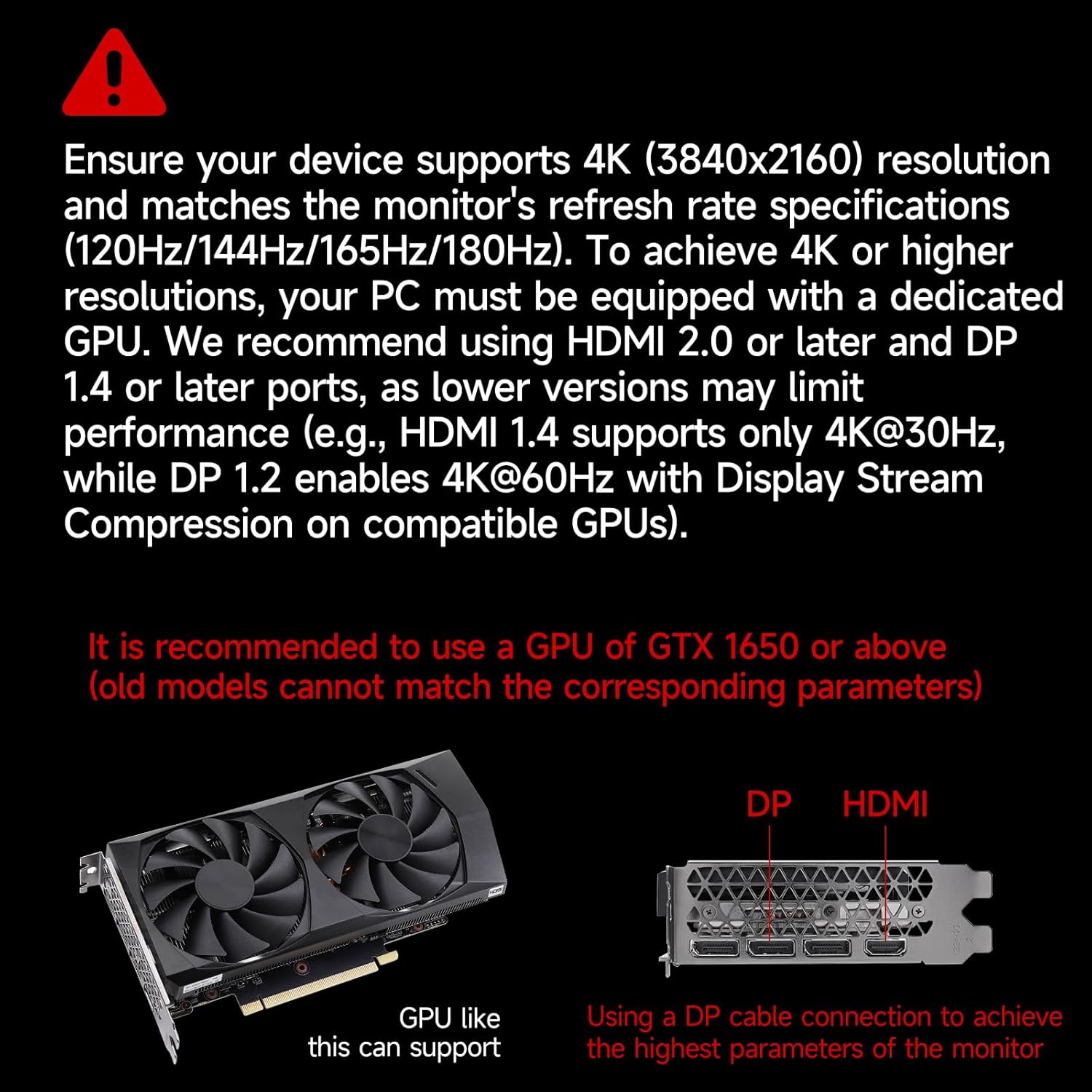
Рисунок 2: Зверху вниз view illustrating the 1500R curvature of the monitor, designed for immersive gameplay.
2. Що в коробці
Обережно розпакуйте коробку та переконайтеся, що всі предмети присутні та у належному стані. Якщо якісь предмети відсутні або пошкоджені, зверніться до служби підтримки клієнтів.
- Gawfolk 34-inch Ultrawide Curved Gaming Monitor
- Monitor Stand (Chassis)
- Кабель живлення
- Кабель HDMI
- Кабель DisplayPort (DP)
- Посібник користувача (цей документ)
3. Налаштування
3.1 Збірка підставки
- Покладіть екран монітора екраном вниз на м’яку, чисту поверхню, щоб запобігти подряпинам.
- Attach the stand neck to the back of the monitor until it clicks into place or is secured with screws (refer to the diagram for specific screw locations).
- Attach the base to the stand neck and tighten the thumb screw or screws securely.
- Обережно підніміть зібраний монітор і поставте його на стійку, рівну поверхню.
3.2 Встановлення кріплення VESA (додатково)
The monitor supports VESA 75 x 75 mm mounting. If you plan to use a VESA mount (not included), remove the stand and attach the VESA mount bracket to the monitor's VESA holes using appropriate screws. Ensure the VESA mount can support the monitor's weight (approximately 5.55 kg).
3.3 Підключення до пристроїв
The monitor provides multiple input ports for various devices. Ensure your device supports the required resolutions and refresh rates for optimal performance.
- DisplayPort (DP 1.4): Connect your PC or laptop using the provided DP cable for resolutions up to 3440x1440 at 165Hz.
- HDMI (HDMI 2.0): Connect your PC, laptop, or gaming console (e.g., PS5, Xbox) using an HDMI cable. HDMI 2.0 supports up to 3440x1440 at 120Hz.
- Аудіо вихід: Connect external speakers or headphones to the 3.5mm audio jack.
Important: For 4K (3840x2160) resolutions, your PC must be equipped with a dedicated GPU. We recommend using HDMI 2.0 or later and DP 1.4 or later ports. Lower versions may limit performance (e.g., HDMI 1.4 supports only 4K@30Hz, while DP 1.2 enables 4K@60Hz with Display Stream Compression on compatible GPUs). It is recommended to use a GPU of GTX 1650 or above.

Figure 3: Diagram illustrating various device connections (PC, Notebook, PS5, Xbox) and their supported resolutions/refresh rates via DP 1.4 and HDMI 2.1 (note: product specs list HDMI 2.0).

Figure 4: Visual guide for GPU compatibility and recommended port types (DP 1.4, HDMI 2.0 or later) for optimal display performance.
4. Інструкція з експлуатації
4.1 Увімкнення/вимкнення живлення
Connect the power cable to the monitor and a power outlet. Press the power button, usually located on the back or bottom right of the monitor, to turn it on or off.
4.2 Екранне меню (OSD)
The OSD menu allows you to adjust various monitor settings. Use the buttons on the back or bottom of the monitor to navigate the menu. Common settings include:
- Яскравість/Контрастність: Налаштуйте яскравість зображення.
- Параметри кольору: Змінити колірну температуру, гаму та насиченість.
- Джерело введення: Manually select between HDMI and DisplayPort inputs.
- Режим зображення: Виберіть попередньо встановлені режими відображення (наприклад, Стандартний, Гра, Фільм).
- Режим Eye Saver: Reduces blue light emissions to minimize eye fatigue.
- FreeSync: Enable/disable adaptive synchronization for tear-free gaming.
4.3 Функції дисплея
The Gawfolk GF340C monitor offers several features to enhance your viewдосвід гри та ігор:
- Роздільна здатність UWQHD 3440x1440: Provides a wide and detailed viewплощі.
- Частота оновлення 165 Гц: Ensures smooth motion and reduced input lag, especially beneficial for gaming.
- Час відгуку 1 мс (GtG): Minimizes ghosting and motion blur for crisp visuals.
- Підтримка HDR: Enhances contrast and color depth for a more vivid image.
- Multi-Tasking (PIP/PBP): Display multiple sources simultaneously. Refer to the OSD menu for Picture-in-Picture (PIP) and Picture-by-Picture (PBP) settings.

Figure 5: The monitor's capability for multi-tasking, showing multiple programs and external device connections, including PIP/PBP mode.

Figure 6: Highlighting the 165Hz refresh rate and 1ms GtG response time for superior gaming performance.

Figure 7: Demonstrating the monitor's ability to capture fine details with Adaptive Sync and 300 cd/m² brightness.

Figure 8: The Eye Saver Mode, which reduces blue light and flicker for comfortable extended use.
5. Технічне обслуговування
5.1 Очищення монітора
- Завжди відключайте монітор від розетки перед чищенням.
- Злегка протріть м’якою тканиною без ворсу dampводою або м’яким, неабразивним засобом для чищення екранів.
- Не розпилюйте засіб для чищення безпосередньо на екран. Спочатку нанесіть його на тканину.
- Уникайте використання агресивних хімікатів, спирту або абразивних матеріалів, оскільки вони можуть пошкодити поверхню екрана.
5.2 Зберігання
If storing the monitor for an extended period, ensure it is clean, dry, and stored in its original packaging or a protective cover to prevent dust and damage.
6. Вирішення проблем
Якщо у вас виникли проблеми з монітором, зверніться до наступних поширених рішень:
| проблема | Можливе рішення |
|---|---|
| На екрані немає зображення | Ensure the power cable is securely connected and the monitor is turned on. Check that the video cable (HDMI/DP) is firmly connected to both the monitor and your device. Select the correct input source via the OSD menu. |
| Мерехтіння або спотворення зображення | Check video cable connections. Ensure your graphics card drivers are up to date. Try a different video cable. Disable FreeSync in the OSD menu to see if the issue persists. Verify your device's resolution and refresh rate settings are compatible with the monitor. |
| Dead pixels or stuck pixels | A small number of dead or stuck pixels is common in LCD/LED technology and may not indicate a defect. If the number of pixels exceeds manufacturer specifications, contact customer support. |
| Кнопки не реагують | Unplug the monitor, wait 30 seconds, then plug it back in. Ensure no buttons are physically stuck. |
| Немає звуку з навушників/динаміків | Ensure external audio devices are properly connected to the 3.5mm audio out port. Check audio settings on your connected device and the monitor's OSD menu. |
If the problem persists after trying these solutions, please contact Gawfolk customer support.
7. Технічні характеристики
Below are the technical specifications for the Gawfolk GF340C monitor:
| Особливість | Специфікація |
|---|---|
| Бренд | Гоуфолк |
| Назва моделі | GF340C |
| Розмір екрана | 34 дюймів |
| роздільна здатність | UWQHD 3440 x 1440p |
| Співвідношення сторін | 21:9 |
| Кривизна | 1500R |
| Тип панелі | VA |
| Частота оновлення | 165 Гц |
| Час відгуку | 1 мс (GtG) |
| Яскравість | 350 cd/m² (lumens) |
| Коефіцієнт контрастності | 3000:1 |
| Колірна гамма | 99% sRGB (8-bit, 16.7 million colors) |
| Viewкут нахилу | 178 градусів |
| Адаптивна синхронізація | FreeSync |
| Підключення | 2 x HDMI (2.0), 2 x DisplayPort (1.4), 1 x Audio Out (3.5mm) |
| Гора VESA | 75 х 75 мм |
| Споживана потужність | 12 Вт |
| Dimensions (P x L x H) | 23P x 80L x 44H сантиметрів |
| вага | 5.55 кілограма |
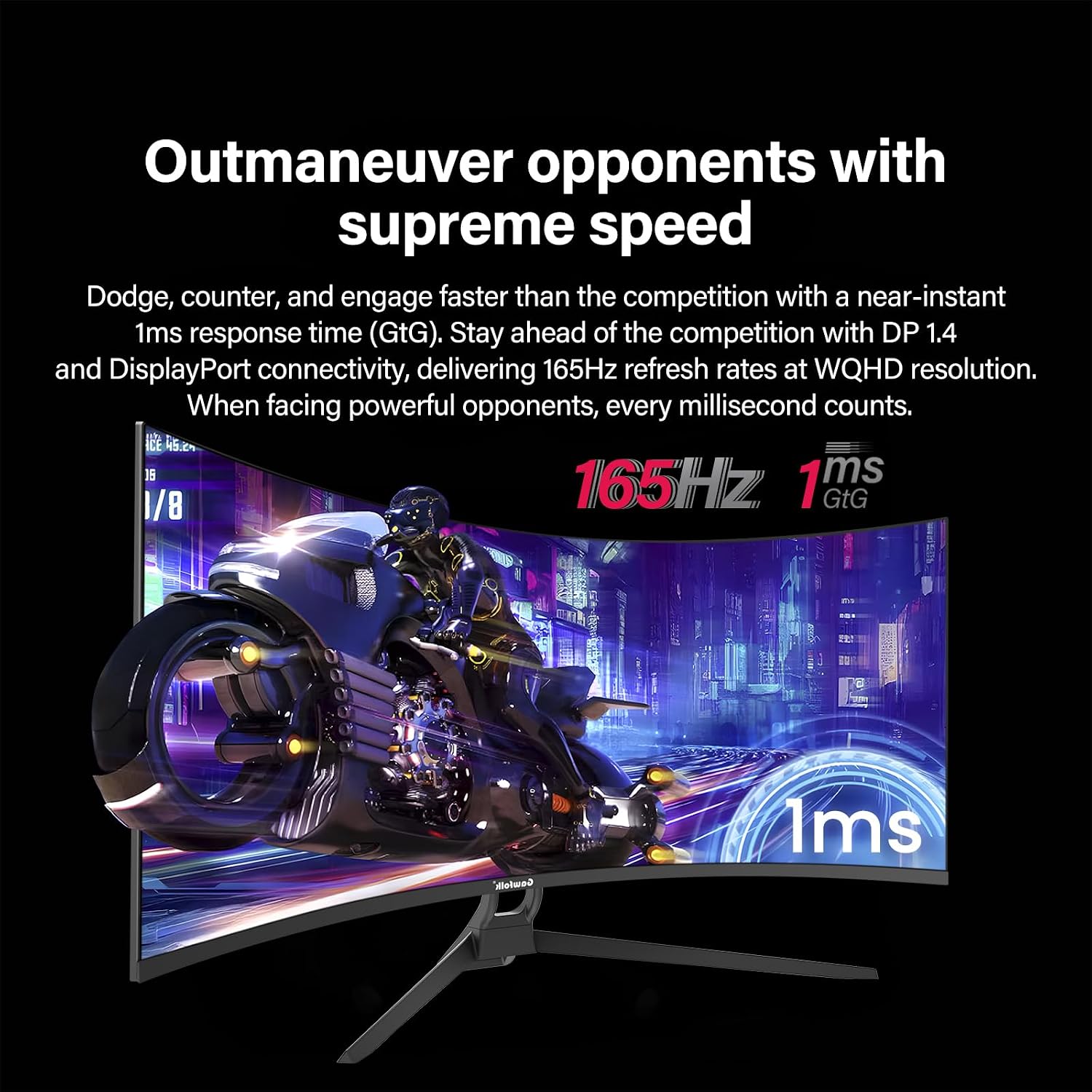
Figure 9: Comparison of the 21:9 ultrawide aspect ratio with a traditional 16:9 display, highlighting the increased screen real estate.
8. Гарантія та підтримка
8.1 Гарантія виробника
This Gawfolk monitor comes with a 1-річна гарантія виробника from the date of purchase. This warranty covers defects in materials and workmanship under normal use. It does not cover damage caused by misuse, accidents, unauthorized modifications, or external factors.
Зберігайте підтвердження покупки для гарантійних претензій.
8.2 Підтримка клієнтів
For technical assistance, warranty claims, or any questions regarding your Gawfolk monitor, please contact Gawfolk customer support. Refer to the official Gawfolk webна сайті або в документації щодо придбання, щоб отримати контактну інформацію.
Note: The provided product data did not include specific contact information for support. Please refer to the product packaging or the official brand webсайт із найактуальнішими каналами підтримки.