
1. Вступ
This manual provides instructions for the installation, operation, and maintenance of your ADATA Legend 860 PCIe Gen4 x4 M.2 2280 Solid State Drive (SSD). The Legend 860 is designed to offer high-speed storage performance for compatible desktop computers, laptops, and Sony PlayStation 5 consoles.

Зображення 1.1: спереду view of the ADATA Legend 860 M.2 SSD, showing the ADATA logo and model name on the heat spreader.
2. Вміст упаковки
Переконайтеся, що ваш пакет містить такі елементи:
- ADATA Legend 860 PCIe Gen4 x4 M.2 2280 SSD (Solid State Drive NVMe)
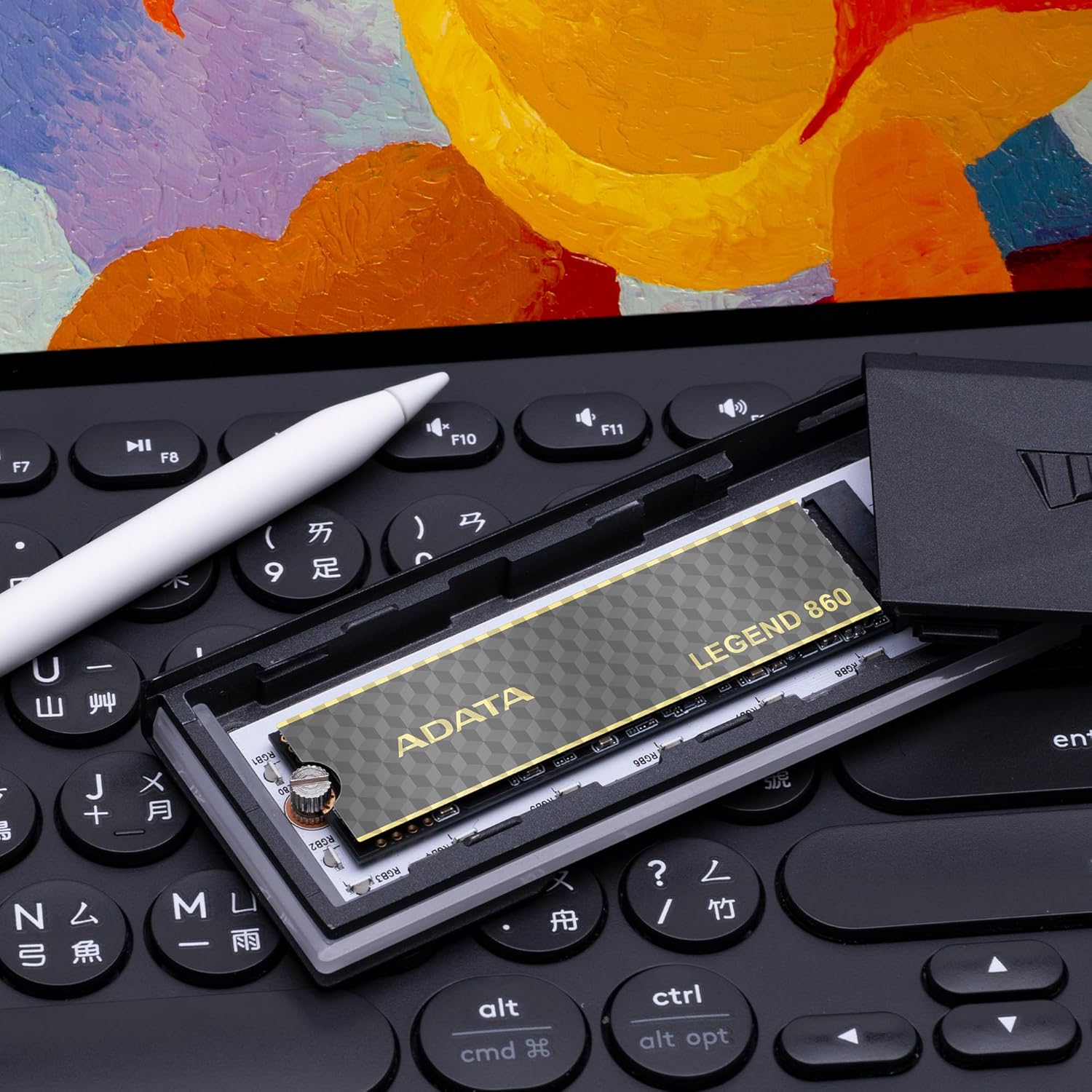
Image 2.1: Retail packaging for the ADATA Legend 860 SSD, displaying the product and its capacity.
3. Налаштування та встановлення
Before installation, ensure your system is powered off and disconnected from the power source. It is recommended to wear an anti-static wrist strap to prevent electrostatic discharge (ESD) damage.
3.1. Desktop/Laptop Installation
- Знайдіть слот M.2: Identify an available M.2 slot on your motherboard. The Legend 860 is a 2280 form factor SSD, requiring a compatible M.2 2280 slot.
- Вставте SSD: Gently insert the ADATA Legend 860 SSD into the M.2 slot at a 30-degree angle. Ensure the gold contacts are fully seated.
- Безпечний SSD-накопичувач: Press the SSD down until it is parallel with the motherboard. Secure it with the M.2 screw provided with your motherboard or system.
- Закрити систему: Reassemble your computer and reconnect the power.

Image 3.1: The ADATA Legend 860 SSD correctly installed in an M.2 slot on a computer motherboard.
3.2. PlayStation 5 (PS5) Installation
The ADATA Legend 860 is compatible with the PlayStation 5 console for storage expansion. Refer to the official PlayStation 5 user guide for detailed instructions on how to open the console and access the M.2 expansion slot. Ensure the SSD meets all PS5 requirements, including physical dimensions and performance specifications.
- Prepare PS5: Power off your PS5 console and disconnect all cables. Allow it to cool down.
- Зняти обкладинку: Carefully remove the PS5 console cover to expose the expansion slot.
- Доступ до слота M.2: Unscrew and remove the expansion slot cover.
- Вставте SSD: Insert the ADATA Legend 860 SSD into the expansion slot. Align the notch on the SSD with the ridge on the expansion slot.
- Безпечний SSD-накопичувач: Secure the SSD with the screw and spacer provided with your PS5 console.
- Зберіть: Replace the expansion slot cover and the PS5 console cover. Reconnect all cables and power on the console.
- Format SSD: Follow the on-screen prompts on your PS5 to format the newly installed SSD.
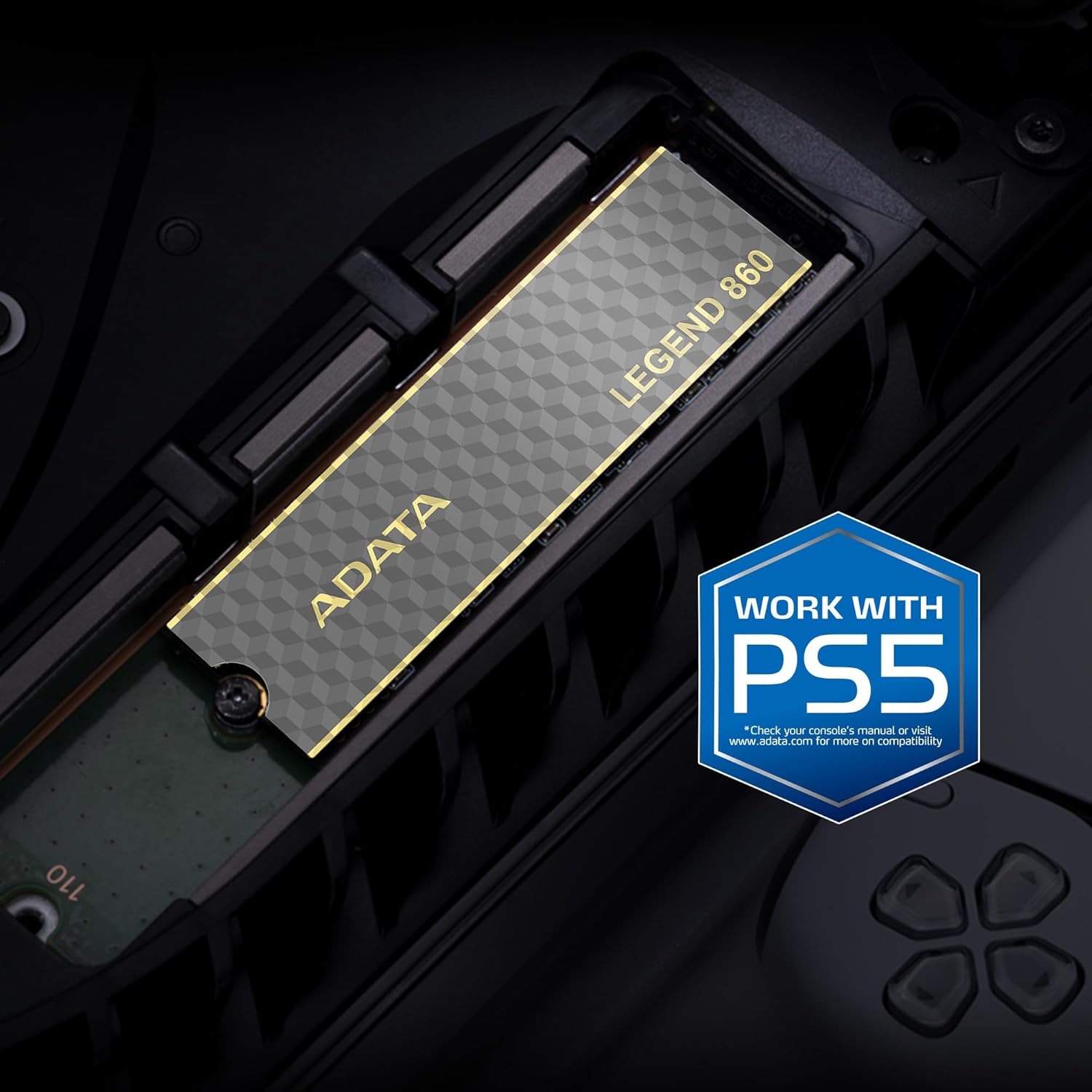
Image 3.2: The ADATA Legend 860 SSD installed within the M.2 expansion slot of a PlayStation 5 console.
4. Робота з SSD-накопичувачем
After successful installation, your operating system (Windows, macOS, Linux) or PlayStation 5 console should detect the new storage device. You may need to initialize and format the SSD before it can be used for data storage.
4.1. Initializing and Formatting (Windows)
- Відкрийте «Керування дисками»: Right-click on the Start button and select "Disk Management."
- Ініціалізація диска: Locate your new SSD (it may appear as "Disk 1" or similar and be marked as "Unallocated"). Right-click on the disk number and select "Initialize Disk." Choose GPT (GUID Partition Table) for modern systems.
- Створити новий простий том: Right-click on the "Unallocated" space on your new SSD and select "New Simple Volume." Follow the wizard to assign a drive letter and format the drive (NTFS is recommended for Windows).
4.2. Міркування щодо продуктивності
The ADATA Legend 860 utilizes PCIe Gen4 x4 interface for high-speed data transfer. Actual performance may vary depending on your system's hardware, software, and usage patterns. Ensure your motherboard supports PCIe Gen4 for optimal speeds. The SSD also features SLC caching and Host Memory Buffer (HMB) for improved responsiveness.
5. Технічне обслуговування
To ensure the longevity and optimal performance of your ADATA Legend 860 SSD, consider the following maintenance practices:
- Оновлення прошивки: Periodically check the official ADATA webсайт для оновлень прошивки для вашого SSD. Оновлення прошивки можуть покращити продуктивність, стабільність та сумісність.
- Команда TRIM: Ensure your operating system has TRIM enabled. TRIM helps maintain the performance of SSDs over time by allowing the operating system to inform the SSD which data blocks are no longer in use and can be wiped.
- Уникайте повної потужності: While SSDs perform well even when nearly full, maintaining some free space (e.g., 10-15%) can help sustain optimal performance and extend lifespan.
- Резервне копіювання даних: Регулярно створюйте резервні копії важливих даних на інший пристрій зберігання даних. Хоча SSD-накопичувачі надійні, жоден пристрій зберігання даних не застрахований від збоїв.
- LDPC Data Protection: The Legend 860 incorporates Low Density Parity Check (LDPC) error correction, which enhances data integrity and transmission accuracy.
6. Вирішення проблем
If you encounter issues with your ADATA Legend 860 SSD, refer to the following common troubleshooting steps:
- SSD не виявлено:
- Переконайтеся, що SSD правильно встановлено у слот M.2.
- Check your motherboard's BIOS/UEFI settings to confirm the M.2 slot is enabled and configured correctly (e.g., PCIe mode).
- Verify that your motherboard supports M.2 NVMe SSDs.
- For PS5, ensure the console cover is properly reattached and the SSD is secured.
- Повільна продуктивність:
- Confirm your system's M.2 slot supports PCIe Gen4 speeds. If it's a Gen3 slot, the SSD will operate at Gen3 speeds.
- Ensure your operating system is up-to-date and TRIM is enabled.
- Check for background processes that might be consuming disk I/O.
- Ensure the SSD is not excessively full.
- Пошкодження/помилки даних:
- Run a disk check utility (e.g., CHKDSK on Windows).
- Оновіть прошивку SSD.
- Ensure proper system cooling to prevent overheating, which can affect SSD stability.
7. Технічні характеристики
| Особливість | Специфікація |
|---|---|
| Назва моделі | ЛЕГЕНДА 860 |
| Номер моделі | SLEG-860-2000GCS |
| Ємність цифрового зберігання | 2000 ГБ (2 ТБ) |
| Інтерфейс жорсткого диска | PCIe Gen4 x4 |
| Форм-фактор | М.2 2280 |
| Швидкість читання (макс.) | До 6000 XNUMX МБ/с |
| Швидкість запису (макс.) | До 5000 XNUMX МБ/с |
| NAND Flash | 3D NAND |
| Виправлення помилок | LDPC (Low Density Parity Check) |
| особливості | SLC Caching, Host Memory Buffer (HMB), Shock Resistant |
| Сумісні пристрої | Desktop PCs, Laptops, Sony PlayStation 5 |
| Розміри (Д х Ш х В) | 5.51 дюйма x 1.57 дюйма x 0.31 дюйма (приблизно 140 мм x 40 мм x 7.9 мм) |
| Вага товару | 11 грамів |
8. Гарантія та підтримка
ADATA Technology Co., Ltd. provides a limited warranty for its products. For specific warranty terms, conditions, and duration applicable to your ADATA Legend 860 SSD, please refer to the warranty information included with your product packaging or visit the official ADATA webсайт.
For technical support, driver downloads, firmware updates, or further assistance, please visit the official ADATA support webсайт:
Офіційна підтримка ADATA Webсайт
When contacting support, please have your product model number (SLEG-860-2000GCS) and proof of purchase readily available.