
1. Вступ
The ASUS ROG Strix LC III 360 ARGB LCD is an all-in-one CPU liquid cooler designed to provide efficient thermal management for high-performance processors. Featuring Asetek's latest Gen7 v2 pump and premium ROG ARGB radiator fans, this cooler is compatible with a wide range of Intel and AMD sockets, including Intel LGA 1700, 1200, 115X and AMD AM5, AM4. It includes a 2.1-inch IPS LCD on the pump head for real-time system monitoring and customizable visuals.
Ключові характеристики:
- 2.1" 480x480 60 Hz Refresh Rate IPS LCD: Display system statistics, custom artwork, or the time of day with 360° rotatable graphics.
- New Asetek Gen7 v2 Pump: Equipped with a robust motor for ultimate cooling performance.
- Преміальні вентилятори ROG ARGB: High airflow, optimized acoustics, and 0dB technology for quiet operation.
- Підвищена довговічність: Reinforced, sleeved tubing for increased longevity.
- Широка сумісність: Supports Intel LGA 1700, 1200, 115X and AMD AM5, AM4 sockets.

Figure 1.1: The ASUS ROG Strix LC III 360 ARGB LCD All-in-one CPU Liquid Cooler, showcasing its radiator, three ARGB fans, and the pump head with an illuminated LCD display.

Малюнок 1.2: Збільшений план view of the 2.1-inch IPS LCD display on the pump head, highlighting its 480x480 resolution and 60 Hz refresh rate, capable of displaying rotatable images and animations.
2. Що в коробці
Upon unboxing your ASUS ROG Strix LC III 360 ARGB LCD cooler, verify that all components listed below are present and in good condition:
- ROG Strix LC III 360 ARGB LCD All-in-one CPU Liquid Cooler (Radiator, Pump, and Tubing assembly)
- 3 x ROG Strix AF-12S ARGB Fans
- Accessory Pack of Screws and Brackets (for Intel and AMD sockets)
- Fan Connection Cable
- ARGB Cable for Lighting Control
- Короткий посібник
- ROG VIP card
- Наклейка ROG
- ROG cable organizer

Рисунок 2.1: Розібраний view showing all components included in the ASUS ROG Strix LC III 360 ARGB LCD packaging, including the cooler unit, fans, mounting hardware, and documentation.
3. Технічні характеристики
| Особливість | Специфікація |
|---|---|
| Розміри продукту | 15.5 x 4.7 x 1.1 дюйма; 5.29 фунтів |
| Номер моделі товару | ROG STRIX LC III 360 ARGB LCD |
| Виробник | ASUS |
| Тип роз'єму живлення | 3-контактний |
| томtage | 12 вольт |
| Wattage | 10 Вт |
| Спосіб охолодження | вентилятор |
| Сумісні пристрої | CPU, Desktop, Server |
| Рівень шуму | 36 дБ |
| матеріал | Метал, пластик |
| Максимальна швидкість обертання | 360 об/хв (насос) |
| UPC | 197105579682 |
4. Налаштування та встановлення
Proper installation is crucial for optimal performance and longevity of your liquid cooler. Always refer to the detailed Quick Start Guide included in your product box for specific, step-by-step instructions tailored to your CPU socket type (Intel LGA 1700, 1200, 115X or AMD AM5, AM4).
Загальні кроки встановлення:
- Prepare Motherboard and CPU: Ensure your motherboard is ready for cooler installation. If applicable, remove any existing CPU cooler and clean the CPU surface.
- Встановіть монтажні кронштейни: Attach the appropriate mounting brackets for your CPU socket to the pump head. The cooler comes with pre-applied thermal paste on the cold plate.
- Mount Radiator and Fans: Secure the three ROG ARGB fans to the radiator. Then, mount the radiator assembly to an available fan mount location in your PC case (typically top or front, depending on case design and radiator size). Ensure proper airflow direction.
- Install Pump Head: Carefully align the pump head with the CPU socket and secure it using the provided screws. Apply even pressure to ensure good contact between the cold plate and the CPU.
- Підключіть кабелі:
- Connect the pump's power cable to the designated AIO_PUMP or CPU_FAN header on your motherboard.
- Connect the fan cables to the fan headers on your motherboard or a fan controller.
- Connect the ARGB cable from the pump and fans to a compatible ARGB header on your motherboard (5V, 3-pin) for lighting control.
- Connect the USB cable from the pump to an available internal USB 2.0 header on your motherboard for LCD display control and software communication.
- Управління кабелем: Route all cables neatly to ensure proper airflow within your case and a clean aesthetic.
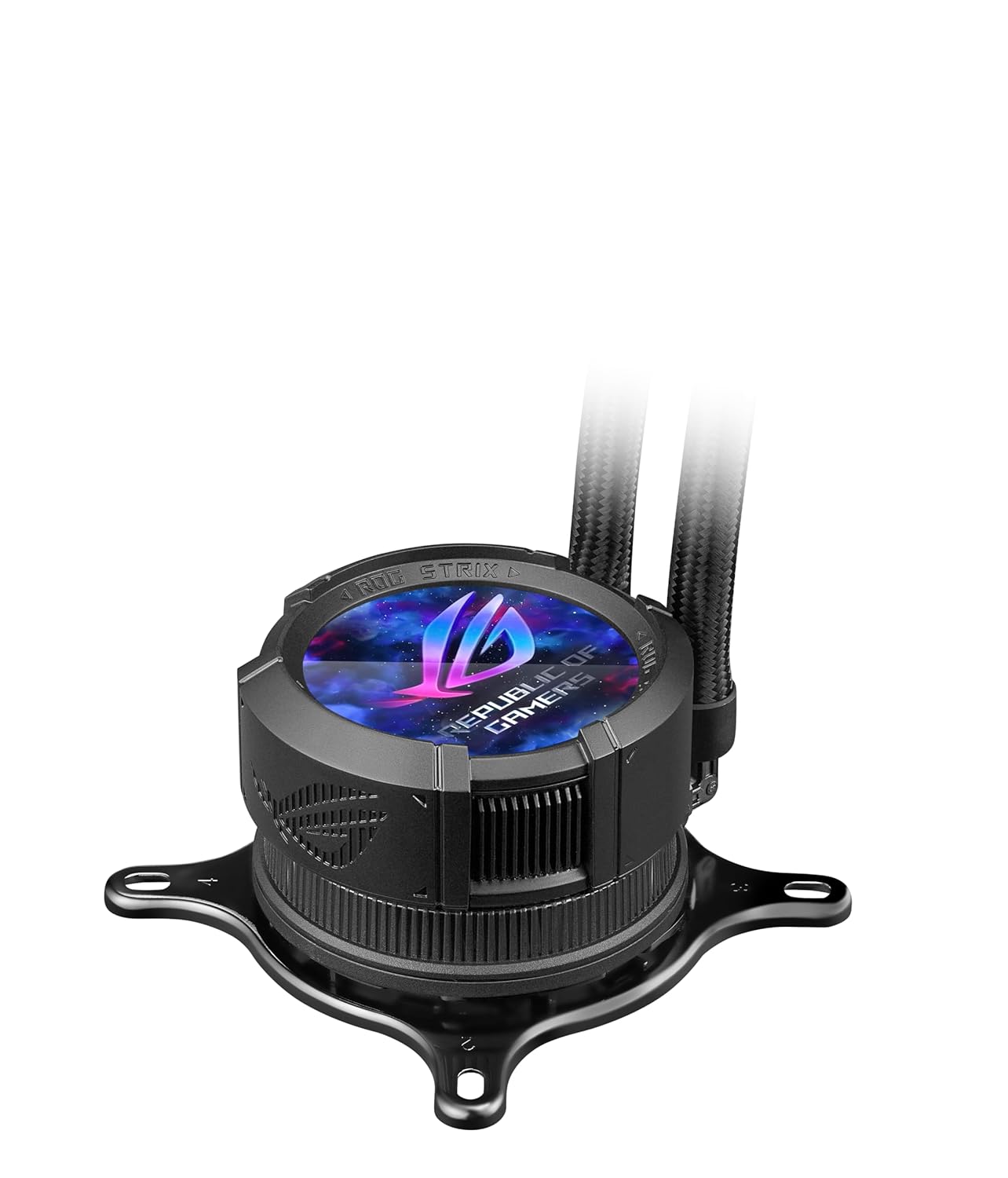
Figure 4.1: The copper cold plate of the pump head, showing the pre-applied thermal paste for direct contact with the CPU IHS.

Figure 4.2: The radiator and pump assembly, illustrating the flexible, sleeved tubing connecting the two main components of the liquid cooling system.
5. Операція
Once installed, the ROG Strix LC III 360 ARGB LCD cooler operates automatically, managing CPU temperatures. The primary user interaction involves customizing the LCD display and ARGB lighting via software.
LCD Display Customization:
The 2.1-inch IPS LCD on the pump head can be customized using ASUS's Armory Crate software (or similar utility). This software allows you to:
- Monitor System Stats: Display real-time CPU temperature, fan speeds, and other critical system information.
- Upload Custom Art/Animations: Personalize your cooler with static images or animated GIFs.
- Set Clock Mode: Відображення поточного часу.
- Повернути дисплей: Adjust the display orientation by 360 degrees to match your pump head's mounting orientation.

Figure 5.1: The LCD display on the pump head showing a real-time CPU temperature reading, indicating effective cooling performance.
Керування освітленням ARGB:
The ROG ARGB fans and the pump head feature addressable RGB lighting. This can be synchronized with other ASUS Aura Sync compatible components in your system via the Armory Crate software, allowing for a unified lighting aesthetic.

Figure 5.2: One of the ROG ARGB fans, showcasing its vibrant, customizable lighting effects and design optimized for high airflow.
6. Технічне обслуговування
Регулярне технічне обслуговування допомагає забезпечити довговічність та оптимальну роботу вашого рідинного охолоджувача.
- Очищення від пилу: Periodically clean the radiator fins and fan blades to prevent dust buildup, which can impede airflow and reduce cooling efficiency. Use compressed air or a soft brush. Ensure fans are not spinning during cleaning.
- Перевірте труби та з'єднання: Occasionally inspect the tubing for any signs of kinks, damage, or leaks. While liquid coolers are sealed systems, a visual check can help identify potential issues early. Ensure all cable connections are secure.
- Оновлення програмного забезпечення: Keep your motherboard BIOS and ASUS Armory Crate software updated to the latest versions. This ensures compatibility, performance improvements, and access to new features for your cooler.
- Термопаста: The cooler comes with pre-applied thermal paste. If you ever need to remove and re-install the pump head, it is recommended to clean off the old thermal paste from both the CPU and the cold plate, and apply a fresh layer of high-quality thermal paste.
7. Вирішення проблем
This section addresses common issues you might encounter with your ASUS ROG Strix LC III 360 ARGB LCD cooler.
Поширені проблеми та рішення:
- Високі температури процесора:
- Перевірте підключення насоса: Ensure the pump's power cable is securely connected to the correct header (AIO_PUMP or CPU_FAN) and receiving power.
- Перевірте контакт холодної пластини: Confirm the pump head is making firm, even contact with the CPU. Re-seat if necessary, ensuring mounting screws are tightened appropriately.
- Функціонування вентилятора: Check if all radiator fans are spinning correctly and are connected to appropriate headers. Ensure they are oriented to push or pull air through the radiator effectively.
- Потік повітря: Ensure your PC case has adequate airflow and that the radiator is not obstructed.
- Термопаста: If the cooler has been re-seated multiple times, consider cleaning and re-applying fresh thermal paste.
- Вентилятори не обертаються або RGB не працює:
- Підключення живлення: Verify all fan power cables are securely connected to motherboard headers or a fan controller.
- З'єднання ARGB: Ensure the ARGB cables are correctly connected to a 5V, 3-pin ARGB header on your motherboard. Incorrect connection to a 12V RGB header can damage the LEDs.
- Програмний контроль: Check ASUS Armory Crate or your motherboard's RGB software to ensure lighting effects are enabled and configured correctly.
- LCD Display Not Working or Showing Incorrect Information:
- Підключення USB: Ensure the internal USB 2.0 cable from the pump head is securely connected to an available header on your motherboard.
- програмне забезпечення: Make sure ASUS Armory Crate software is installed, up-to-date, and running. The LCD display relies on this software for functionality and customization.
- Проблеми з драйверами: Reinstall the Armory Crate software and any related drivers if the issue persists.
- Unusual Noises (e.g., Gurgling, Rattling):
- булькання: Minor gurgling sounds upon initial startup are normal as air bubbles settle. If persistent, try gently tilting your PC case to help trapped air move to the radiator. Ensure the pump is not the highest point in the loop.
- Rattling/Whining: Check fan screws to ensure they are tight. Inspect fan blades for any obstructions or damage. If a fan is making excessive noise, it may indicate a faulty bearing and require replacement.
8. Гарантія та підтримка
Інформація про гарантію:
This ASUS ROG Strix LC III 360 ARGB LCD All-in-one CPU Liquid Cooler is covered by a manufacturer's warranty. Please refer to the warranty card included in your product packaging or visit the official ASUS support webДетальні умови гарантії для вашого регіону див. на сайті. Зберігайте чек про покупку для гарантійних претензій.
Плани захисту:
Extended protection plans may be available for purchase to provide additional coverage beyond the standard manufacturer's warranty. Options may include 3-Year or 4-Year Protection Plans, or comprehensive plans like 'Complete Protect' which covers multiple eligible purchases.
Політика повернення:
Products purchased from authorized retailers typically come with a return policy, often allowing returns within 30 days of purchase for refund or replacement, subject to the retailer's specific terms.
Технічна підтримка:
For technical assistance, troubleshooting beyond this manual, or warranty service, please contact ASUS customer support. You can find contact information and additional resources, including drivers and FAQs, on the official ASUS support webсайт: