
1. Вступ
This manual provides detailed instructions for the installation, operation, and maintenance of the Novastar TU15PRO LED Vision Controller. Please read this manual thoroughly before using the device to ensure proper and safe operation. The TU15PRO is designed for controlling LED displays, offering robust performance and versatile connectivity.
2. Інформація про безпеку
- Джерело живлення: Use only the specified power adapter (AC100-240V 50/60Hz). Ensure the power source is stable and matches the device's requirements.
- Середовище: Operate the device in a dry, well-ventilated area. Avoid exposure to extreme temperatures, humidity, dust, or direct sunlight.
- Обробка: Do not drop, disassemble, or modify the device. Refer all servicing to qualified personnel.
- Кабелі: Ensure all cables are securely connected. Avoid placing heavy objects on cables or bending them sharply.
- Прибирання: Від’єднайте живлення перед чищенням. Використовуйте м’яку суху тканину. Не використовуйте рідкі або аерозольні засоби для чищення.
3. Вміст упаковки
Будь ласка, перевірте вміст упаковки після розпакування. Якщо будь-які елементи відсутні або пошкоджені, негайно зверніться до продавця.
- Novastar TU15PRO LED Vision Controller
- Адаптер живлення
- USB кабель
- Посібник користувача (цей документ)
4. Продукт закінчивсяview
The Novastar TU15PRO is a compact and powerful LED vision controller designed for various display applications. It features multiple input and output ports for flexible connectivity.
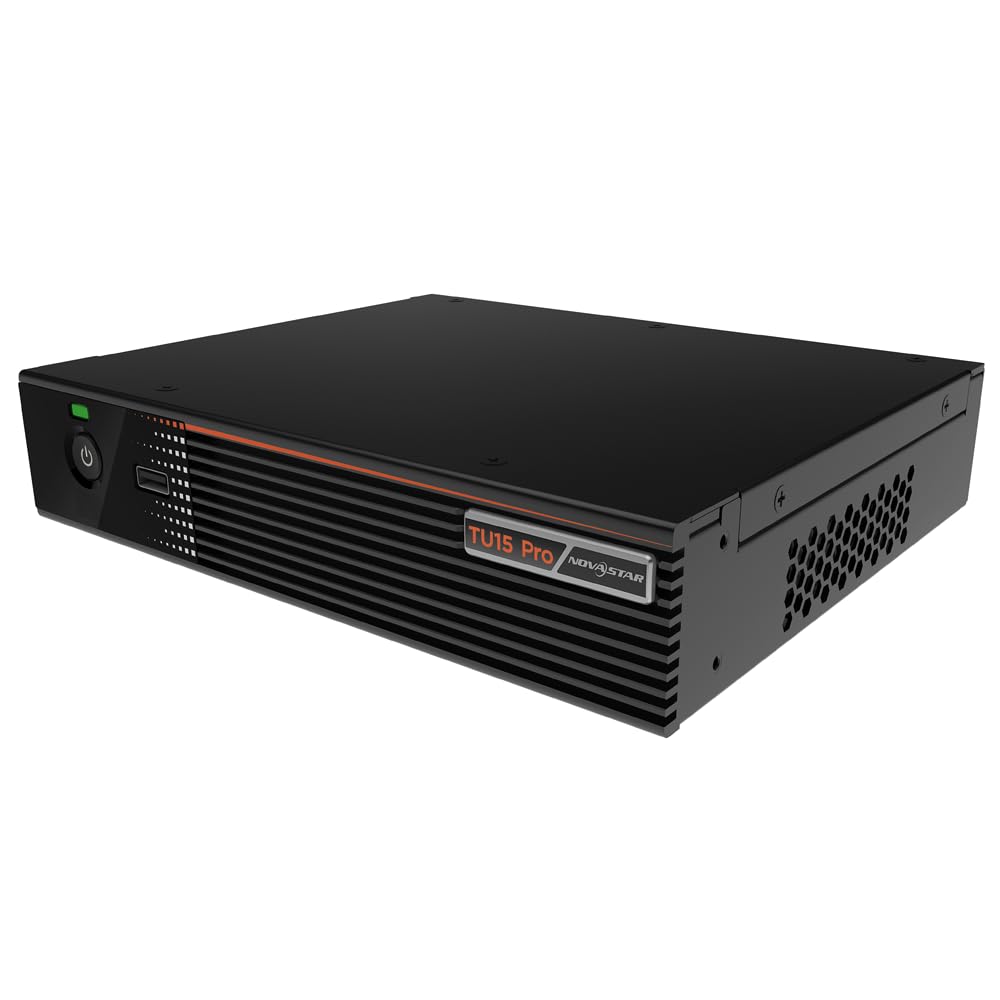
Рисунок 4.1: Кутовий view of the Novastar TU15PRO LED Vision Controller, highlighting the rear panel with various input and output ports.

Рисунок 4.2: Зверху вниз view of the Novastar TU15PRO, showing the front panel with power button and USB port, and a detailed view з’єднань задньої панелі.
4.1. Передня панель
- Кнопка живлення: Використовується для ввімкнення або вимкнення пристрою.
- Порт USB 2.0: For connecting USB devices, such as a mouse or keyboard for control, or for firmware updates.
4.2. Задня панель
- WIFI-AP (1, 2): Wi-Fi Access Point antennas for wireless control or network extension.
- WIFI-STA: Wi-Fi Station antenna for connecting the device to an existing Wi-Fi network.
- ДАТЧИК: Port for connecting an external sensor.
- IR / I/O G RELAY: Input/Output General Purpose Relay terminal block for external control signals.
- ETHERNET: Ethernet port for network connection and control.
- USB 2.0 (x2): Additional USB ports for peripherals or data transfer.
- HDMI IN (x2): HDMI input ports for video sources.
- Вихід HDMI: HDMI output port for monitoring or cascading.
- SPDIF: Цифровий аудіо вихід.
- AUDIO 12V === 3A: Power input port (DC 12V, 3A).
5. Налаштування
- Розпакувати: Carefully remove the TU15PRO controller from its packaging.
- Підключіть антени: Attach the Wi-Fi antennas to the WIFI-AP and WIFI-STA ports on the rear panel.
- Підключити джерело відео: Connect your video source (e.g., computer, media player) to one of the HDMI-IN ports using an HDMI cable.
- Connect to LED Display: Connect the controller's Network Ports (1-4) to your LED display receiving cards using Ethernet cables.
- Підключіть живлення: Підключіть наданий адаптер живлення до AUDIO 12V === 3A port and then plug it into a power outlet.
- Увімкнення: Натисніть кнопку живлення на передній панелі, щоб увімкнути пристрій.
- Network Configuration (Optional): For network control, connect an Ethernet cable to the ETHERNET port or configure Wi-Fi settings.
6. Інструкція з експлуатації
Once the device is set up, you can begin operating it. Detailed operation typically involves using dedicated software on a connected computer or through a web інтерфейс.
- Встановлення програмного забезпечення: Install the Novastar control software on your computer. Refer to the software's documentation for installation and usage.
- Розпізнавання пристрою: Ensure the software recognizes the TU15PRO controller. This may require network configuration or direct USB connection.
- Конфігурація екрана: Configure your LED screen parameters within the software, including resolution, cabinet layout, and connection method.
- Вибір джерела вхідного сигналу: Select the desired HDMI input source within the control software.
- Показати вміст: Use the software to manage and display content on your LED screen.
7. Технічне обслуговування
- Регулярне прибирання: Keep the device free from dust. Use a soft, dry cloth to wipe the exterior. Do not use harsh chemicals or abrasive materials.
- Вентиляція: Переконайтеся, що вентиляційні отвори не заблоковані, щоб запобігти перегріванню.
- Оновлення прошивки: Periodically check the Novastar official website for firmware updates to ensure optimal performance and access to new features. Follow the update instructions carefully.
- Управління кабелем: Keep cables organized and free from kinks or damage to prevent signal loss or power issues.
8. Вирішення проблем
- Немає живлення:
- Перевірте, чи адаптер живлення надійно підключено як до пристрою, так і до розетки.
- Перевірте справність розетки.
- Немає виводу на дисплей:
- Ensure HDMI input source is active and correctly connected.
- Verify Ethernet cables to the LED display are properly connected.
- Check screen configuration in the control software.
- Device Not Recognized by Software:
- Confirm network settings (IP address, subnet mask) are correct if using Ethernet.
- Ensure USB cable is connected if using direct USB control.
- Temporarily disable firewall or antivirus software to check for interference.
- Періодичний сигнал:
- Перевірте всі кабельні з'єднання на наявність ослабленого кріплення або пошкоджень.
- Ensure cables are of appropriate quality and length for the signal type.
9. Технічні характеристики
| Особливість | опис |
|---|---|
| Бренд | Novastar |
| Модель | TU15PRO |
| Вхідна потужність | AC100-240V 50 / 60Hz |
| Розмір корпусу (Д×Ш×В) | 211.7 мм × 185.0 мм × 50.6 мм |
| Control Dots | 2,600,000 |
| Output LAN | Network Port × 4 |
| Max Output Width | 4096 XNUMX XNUMX пікселів |
| Максимальна вихідна висота | 1920 XNUMX XNUMX пікселів |
| ASIN | B0D791C3C7 |
10. Гарантія та підтримка
For warranty information and technical support, please refer to the official Novastar webсайт або зверніться до авторизованого дилера. Зберігайте чек про покупку як підтвердження покупки для гарантійних претензій.
Інтернет-ресурси: For the latest drivers, software, and additional documentation, please visit the official Novastar support page.