
Baseus B0D78WFLST
Посібник користувача док-станції Baseus 17-в-1
Model: B0D78WFLST
1. Вступ
This user manual provides detailed instructions for the Baseus 17-in-1 Docking Station (Model: B0D78WFLST). This versatile docking station is designed to expand the connectivity of your laptop or compatible device, offering multiple ports for display, data transfer, networking, and power delivery. Please read this manual thoroughly before using the product to ensure proper operation and to maximize its capabilities.
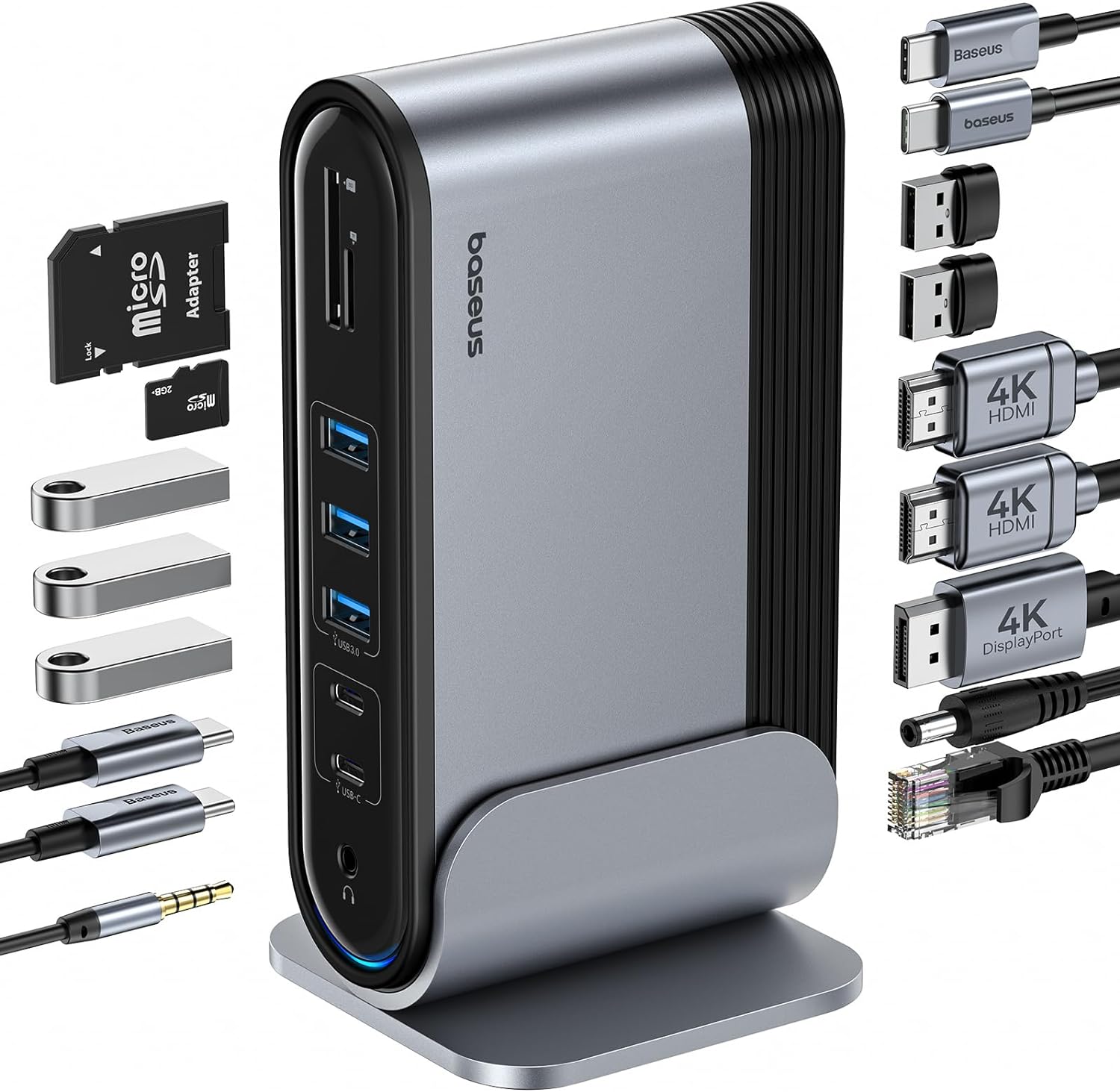
Рисунок 1: Док-станція Baseus 17-в-1 та аксесуари, що входять до комплекту.
2. Ключові характеристики
The Baseus 17-in-1 Docking Station offers comprehensive connectivity solutions:
- Розширення портів 17-в-1: Integrates a wide array of ports for diverse connectivity needs.
- Triple Monitor Support: Connect up to three external monitors for enhanced productivity.
- Дисплей з високою роздільною здатністю: Supports 4K@60Hz resolution for single and dual displays, and 1080P@60Hz for triple displays on Windows systems.
- Швидка передача даних: Features USB 3.0 ports with 5Gbps transfer speeds and USB 2.0 ports for peripherals.
- Потужність 100 Вт: Provides up to 85W power output to charge your laptop (100W input required).
- Гігабітний Ethernet: Ensures stable and high-speed wired network connection up to 1Gbps.
- Зчитувач карт SD/TF: Convenient access to memory cards with speeds up to 104 MB/s.
- Підключення аудіо: Integrated 3.5mm audio jack for headphones or speakers.
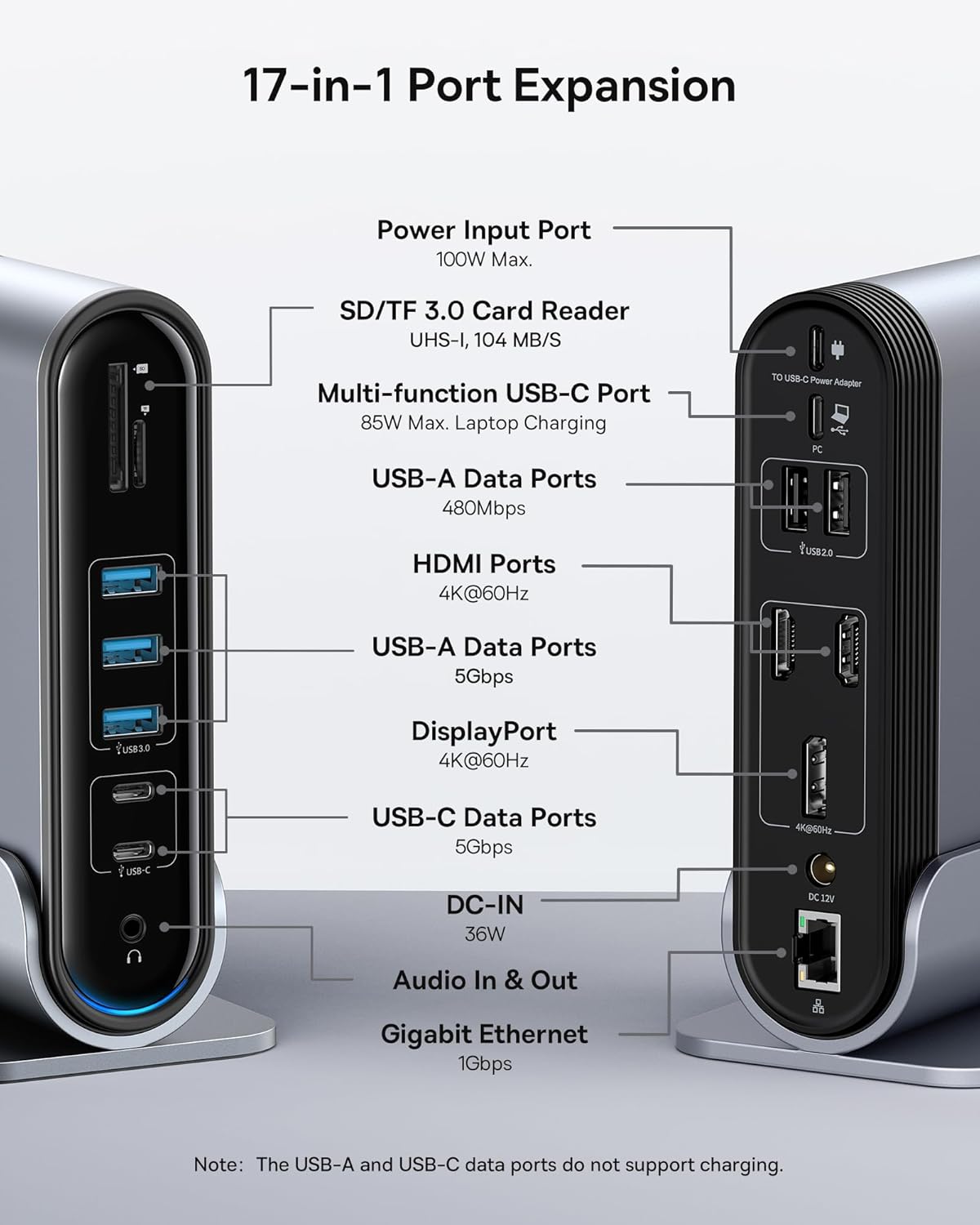
Figure 2: Detailed port layout and specifications of the docking station.
3. Вміст упаковки
Будь ласка, перевірте наявність усіх предметів у упаковці:
- 17-портова док-станція з трьома дисплеями Baseus UnionJoy
- Док-станція
- Адаптер живлення
- Кабель USB-C – USB-C
- Перехідник для США
- адаптер ЄС
- Перехідник для британської вилки
- Посібник користувача

Рисунок 3: Що входить до комплекту.
4. Інструкції з налаштування
Виконайте такі кроки, щоб налаштувати док-станцію Baseus 17-в-1:
- Підключіть живлення:
Connect the provided power adapter to the DC-IN port (36W) on the docking station. Use the appropriate regional adapter plug (US, EU, or UK) for your power outlet. For laptop charging, ensure a 100W PD charger (not included) is connected to the Power Input Port (100W Max.) on the docking station.

Figure 4: Power connection for the docking station and laptop charging.
- Підключення до хост-пристрою:
Use the included USB-C to USB-C cable to connect the docking station's Multi-function USB-C Port (85W Max. Laptop Charging) to your laptop or compatible host device.
- Підключення моніторів:
Connect your external monitors to the HDMI Ports (4K@60Hz) and/or DisplayPort (4K@60Hz) on the docking station using appropriate cables. Refer to the "Operating Instructions" section for display mode configurations.
- Підключення периферійних пристроїв:
Connect your USB devices (keyboard, mouse, external drives, etc.) to the available USB-A Data Ports (5Gbps or 480Mbps) and USB-C Data Ports (5Gbps). Insert SD or TF cards into the respective card reader slots.
- Підключення до мережі (необов'язково):
For a wired network connection, connect an Ethernet cable from your router/modem to the Gigabit Ethernet port (1Gbps) on the docking station.
- Підключіть аудіо (додатково):
Connect headphones or speakers to the 3.5mm Audio In & Out jack.
5. Інструкція з експлуатації
5.1 Режими відображення
The docking station supports various display configurations depending on your operating system and the number of connected monitors.
Для систем Windows:
- Режим дзеркала (A+A+A): Displays the same content on all connected monitors and the laptop screen. Supports 1080P@60Hz.
- Extend Mode (A+B+C): Extends your desktop across multiple monitors, allowing different content on each screen. Supports 1080P@60Hz for triple display.
Для систем macOS:
- Режим дзеркала (A+A+A): Displays the same content on all connected monitors and the laptop screen. Supports 4K@60Hz.
- Extend Mode (A+B+B): Extends your desktop across external monitors, but macOS typically mirrors content across multiple external displays when using a single MST hub. Supports 4K@60Hz.
- Note: macOS does not support triple extended display (A+B+C) through a single MST hub.

Figure 5: Display mode configurations for Windows and macOS.

Figure 6: Detailed resolution capabilities for various display configurations and DP versions.
5.2 Передача даних
Док-станція забезпечує можливості високошвидкісної передачі даних:
- USB 3.0 (5 Гбіт/с): Ideal for external hard drives, SSDs, and other high-bandwidth devices.
- USB 2.0 (480 Мбіт/с): Suitable for keyboards, mice, printers, and other standard peripherals.
- Зчитувач карт SD/TF: Quickly transfer photos and videos from memory cards.

Figure 7: Illustrating super-fast data transfer via the docking station.
5.3 Подача живлення
The docking station supports Power Delivery (PD) to charge your laptop:
- Connect a 100W PD charger (not included) to the dedicated Power Input Port on the docking station.
- The docking station will then provide up to 85W of power to your connected laptop via the USB-C host connection.
Note: The USB-A and USB-C data ports on the front of the docking station do not support charging.
6. Технічне обслуговування та догляд
To ensure the longevity and optimal performance of your docking station, follow these guidelines:
- Підтримуйте чистоту пристрою, протираючи його м’якою сухою тканиною. Уникайте використання абразивних засобів для чищення або розчинників.
- Do not expose the docking station to water, moisture, or extreme temperatures.
- Уникайте падіння та сильних ударів пристрою.
- Забезпечте належну вентиляцію навколо док-станції, щоб запобігти перегріву.
- Від’єднуйте всі кабелі, коли пристрій не використовується протягом тривалого часу.
7. Вирішення проблем
If you encounter issues with your Baseus 17-in-1 Docking Station, refer to the following common problems and solutions:
7.1 No Display Output / Flickering Screen
- Перевірте кабельні з'єднання: Ensure all HDMI/DisplayPort cables are securely connected to both the docking station and the monitors.
- Verify Host Connection: Confirm the USB-C cable connecting the docking station to your laptop is firmly plugged in.
- Джерело живлення: Make sure the docking station is receiving adequate power from its power adapter.
- Налаштування дисплею: Check your computer's display settings (e.g., Windows Display Settings, macOS System Preferences > Displays) to ensure the external monitors are detected and configured correctly (Extend, Mirror).
- Оновлення драйверів: Ensure your laptop's graphics drivers and USB-C drivers are up to date.
- Сумісність роздільної здатності: Verify that the selected resolution and refresh rate are supported by your monitors and the docking station. Refer to the "Multiple Display Modes" table in Section 5.1.
- macOS Triple Display: Remember that macOS does not support triple extended display (A+B+C) through a single MST hub.
7.2 USB Devices Not Working
- Reconnect Device: Unplug and re-plug the USB device from the docking station.
- Спробуйте інший порт: Test the USB device in another USB port on the docking station or directly on your laptop to isolate the issue.
- Джерело живлення: Ensure the docking station has sufficient power, especially for power-hungry USB devices.
- Проблеми з драйверами: Check if the USB device requires specific drivers and ensure they are installed on your computer.
7.3 Laptop Not Charging
- 100W PD Charger: Confirm you are using a 100W Power Delivery charger connected to the dedicated Power Input Port on the docking station. The docking station itself does not generate power for your laptop.
- Кабель USB-C: Ensure the USB-C cable connecting the docking station to your laptop supports power delivery.
- Сумісність з ноутбуком: Verify your laptop supports charging via its USB-C port.
7.4 Ethernet Connection Issues
- Перевірка кабелю: Переконайтеся, що кабель Ethernet надійно підключено як до док-станції, так і до маршрутизатора/модему.
- Налаштування мережі: Перевірте мережеві налаштування комп’ютера, щоб переконатися, що адаптер Ethernet увімкнено та налаштовано правильно.
- Маршрутизатор/модем: Verify your router/modem is functioning properly.
8. Технічні характеристики
| Особливість | Специфікація |
|---|---|
| Модель | B0D78WFLST |
| Бренд | Baseus |
| Загальна кількість портів | 17 |
| Порти HDMI | 2 (4K@60Гц) |
| DisplayPort | 1 (4K@60Гц) |
| Порти даних USB-A | 7 (3x 5Gbps, 4x 480Mbps) |
| Порти даних USB-C | 2 (5 Гбіт/с) |
| Power Delivery (Input) | 100W Max (via dedicated PD port) |
| Power Output (to Laptop) | 85W Max (via Multi-function USB-C Port) |
| Порт Ethernet | 1 (1Gbps Gigabit Ethernet) |
| Зчитувач карток | SD/TF (UHS-I, 104 MB/s) |
| Аудіороз'єм | 3.5-мм аудіовхід та вихід |
| Сумісні пристрої | Dell, HP, Mac, Lenovo, Steam Deck, etc. |
| Розміри | 9.29 x 8.27 x 2.28 дюймів |
| Вага товару | 1.9 фунта |
9. Гарантія та підтримка
Щоб отримати інформацію про гарантію та технічну підтримку, зверніться до офіційного постачальника Baseus. website or contact Baseus customer service directly. Keep your purchase receipt as proof of purchase for warranty claims.
Офіційний представник Baseus Webсайт: www.baseus.com
For further assistance, you may also contact the seller through the platform where you purchased the product.