
1. Вступ
This manual provides essential information for the proper setup, operation, and maintenance of your Gawfolk 34-inch UWQHD 144Hz Curved Gaming Monitor, Model GF340A. Please read this manual thoroughly before using the product to ensure optimal performance and safety.
The Gawfolk GF340A is a 34-inch ultrawide (21:9) curved gaming monitor featuring a 1500R curvature for an immersive viewing experience. It offers a UWQHD (3440x1440) resolution, a high refresh rate of 144Hz, and supports Adaptive Sync technology to minimize screen tearing and stuttering. With HDR support, 4000:1 contrast ratio, and 99% sRGB color gamut, it delivers vibrant and detailed visuals. The monitor also incorporates low blue light and flicker-free technologies for enhanced eye comfort during extended use.
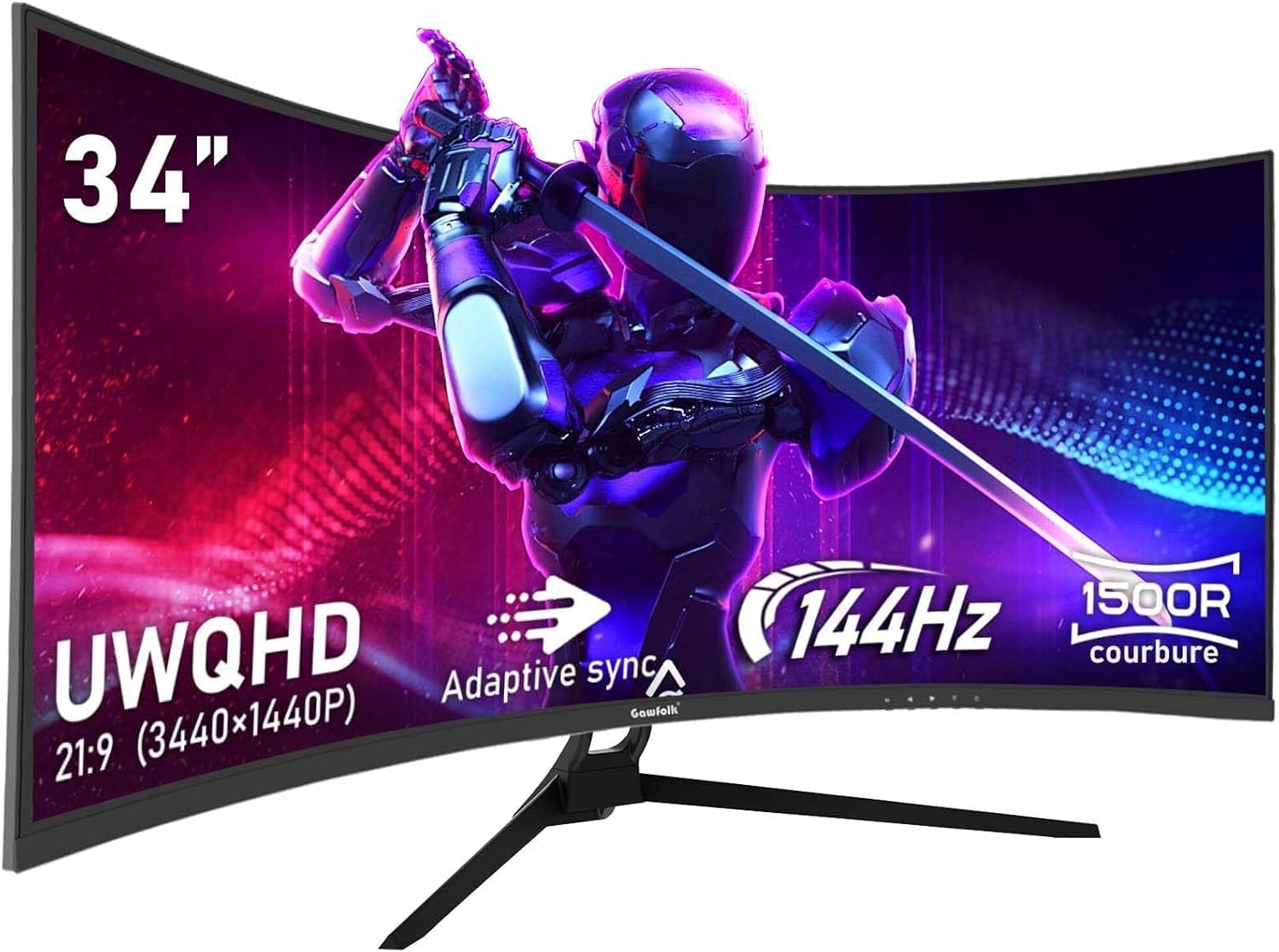
Figure 1: Gawfolk 34-inch UWQHD 144Hz Curved Gaming Monitor.
2. Інформація про безпеку
- Уважно прочитайте всі інструкції перед використанням монітора.
- Не піддавайте монітор впливу дощу або вологи, щоб запобігти небезпеці пожежі або ураження електричним струмом.
- Не відкривайте монітор casing. Усередині немає деталей, які може обслуговувати користувач. Звертайтеся до кваліфікованого персоналу з будь-яким обслуговуванням.
- Розмістіть монітор на стійкій, рівній поверхні, щоб запобігти його падінню.
- Забезпечте належну вентиляцію навколо монітора. Не блокуйте вентиляційні отвори.
- Використовуйте лише адаптер живлення та кабелі, що постачаються з монітором.
- Від’єднайте штекер живлення від розетки, якщо монітор не використовуватиметься протягом тривалого часу.
- Уникайте розміщення монітора поблизу джерел тепла або під прямими сонячними променями.
- Handle the screen with care. Avoid applying pressure or sharp objects to the display panel.
3. Вміст упаковки
Будь ласка, перевірте вміст упаковки після розпакування. Якщо будь-які елементи відсутні або пошкоджені, зверніться до продавця.
- Gawfolk 34-inch UWQHD 144Hz Curved Gaming Monitor (GF340A)
- Підставка для монітора (основа та шия)
- Адаптер живлення та кабель живлення
- Кабель DisplayPort (DP)
- Кабель HDMI
- Посібник користувача (цей документ)
- Гвинти для складання підставки
4. Налаштування
4.1 Збірка підставки
- Обережно вийміть монітор з упаковки, захищаючи екран.
- Прикріпіть шийку підставки до панелі монітора за допомогою наданих гвинтів.
- Attach the stand base to the stand neck, securing it with the thumb screw or screws provided.
- Помістіть зібраний монітор на стійку, рівну поверхню.
Малюнок 2: Задня частина view of the monitor, showing stand attachment area and input ports.
4.2 З'єднувальні кабелі
- Підключення живлення: Connect the power cable to the power adapter, then connect the adapter to the monitor's power input and a wall outlet.
- Підключення відео:
- For optimal performance (144Hz refresh rate), connect the monitor to your computer's graphics card using the supplied DisplayPort (DP) cable.
- Або ж використовуйте Кабель HDMI. Note that HDMI connections support up to 100Hz refresh rate on this monitor.
- When connecting to gaming consoles like PS5 or Xbox, the maximum supported resolution is 1920x1080 at 60Hz.
- Аудіоз'єднання: За потреби підключіть зовнішні динаміки або навушники до 3.5-мм аудіовиходу на моніторі.
4.3 Кріплення VESA
The monitor supports VESA 75x75mm mounting. To mount the monitor on a wall or an articulating arm, remove the stand and attach the VESA-compatible mount (sold separately) to the designated holes on the back of the monitor.
5. Інструкція з експлуатації
5.1 Увімкнення/вимкнення
Натисніть кнопку живлення, яка зазвичай розташована знизу або ззаду монітора, щоб увімкнути або вимкнути монітор. Індикатор живлення світитиметься, коли монітор увімкнено.
5.2 Екранне меню (OSD)
The OSD menu allows you to adjust various monitor settings. Typically, there are buttons or a joystick on the back or bottom of the monitor to navigate the OSD.
- Кнопка меню: Відкриває екранне меню.
- Кнопки навігації: Використовується для переміщення між пунктами меню (Вгору/Вниз, Вліво/Вправо).
- Кнопка вибору/введення: Підтверджує вибір або входить до підменю.
- Кнопка виходу: Вихід з поточного меню або екранного меню.
5.3 Налаштування параметрів дисплея
Common settings you can adjust via the OSD include:
- Яскравість/Контрастність: Налаштуйте загальну яскравість та різницю між світлими та темними ділянками.
- Параметри кольору: Налаштуйте колірну температуру, гаму та окремі рівні RGB.
- Джерело введення: Вручну виберіть між входами DisplayPort та HDMI.
- Частота оновлення: Ensure your computer's display settings are configured to 144Hz (via DP) or 100Hz (via HDMI) for optimal performance. The monitor's default refresh rate is 60Hz.
- Адаптивна синхронізація: Enable this feature in the OSD and your graphics card settings to synchronize the monitor's refresh rate with your GPU's frame rate, preventing screen tearing.
- HDR: Enable High Dynamic Range for enhanced contrast and color depth.
- Режим слабкого синього світла: Activates a filter to reduce blue light emissions, promoting eye comfort.
- Без мерехтіння: The monitor uses DC dimming technology to eliminate screen flickering, reducing eye strain.
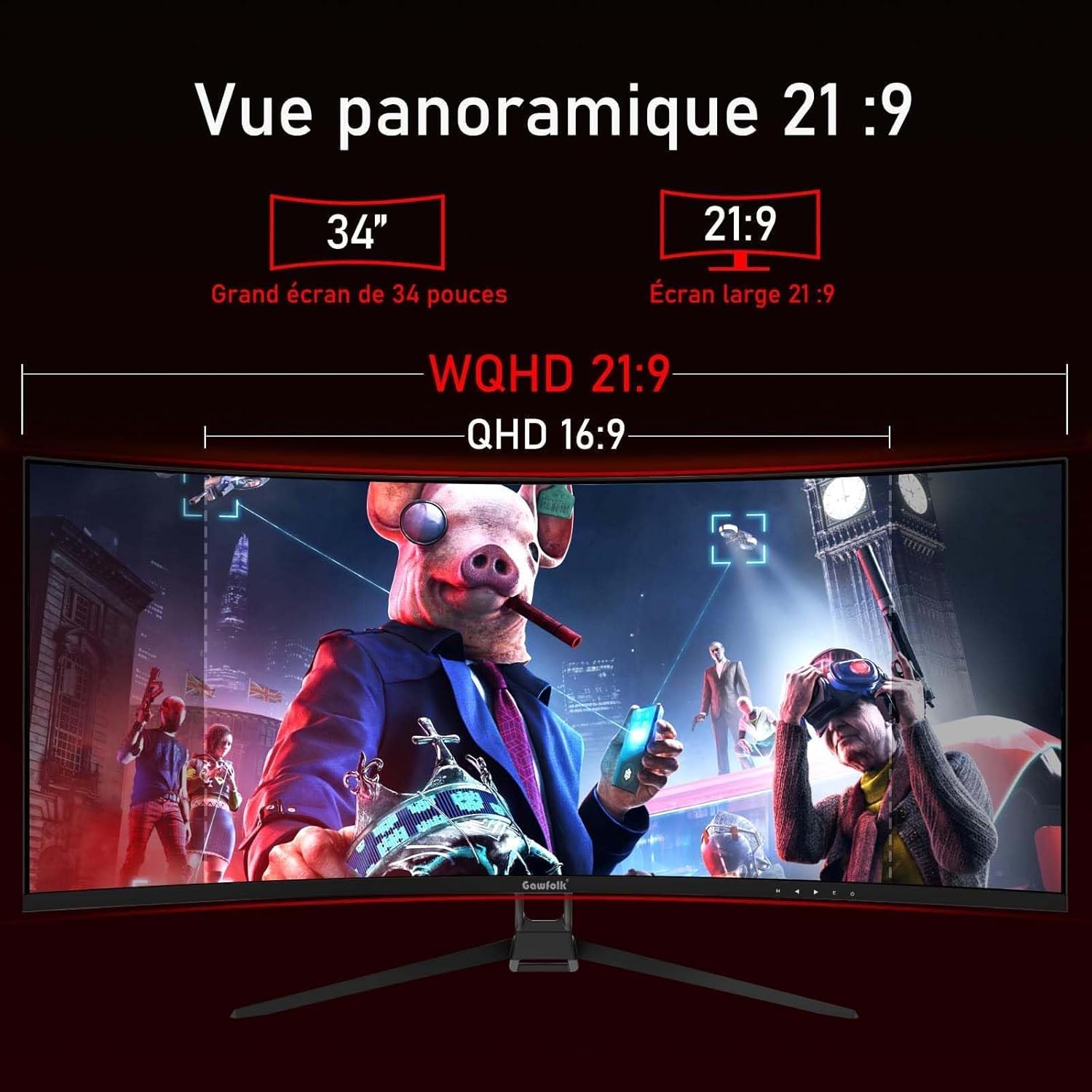
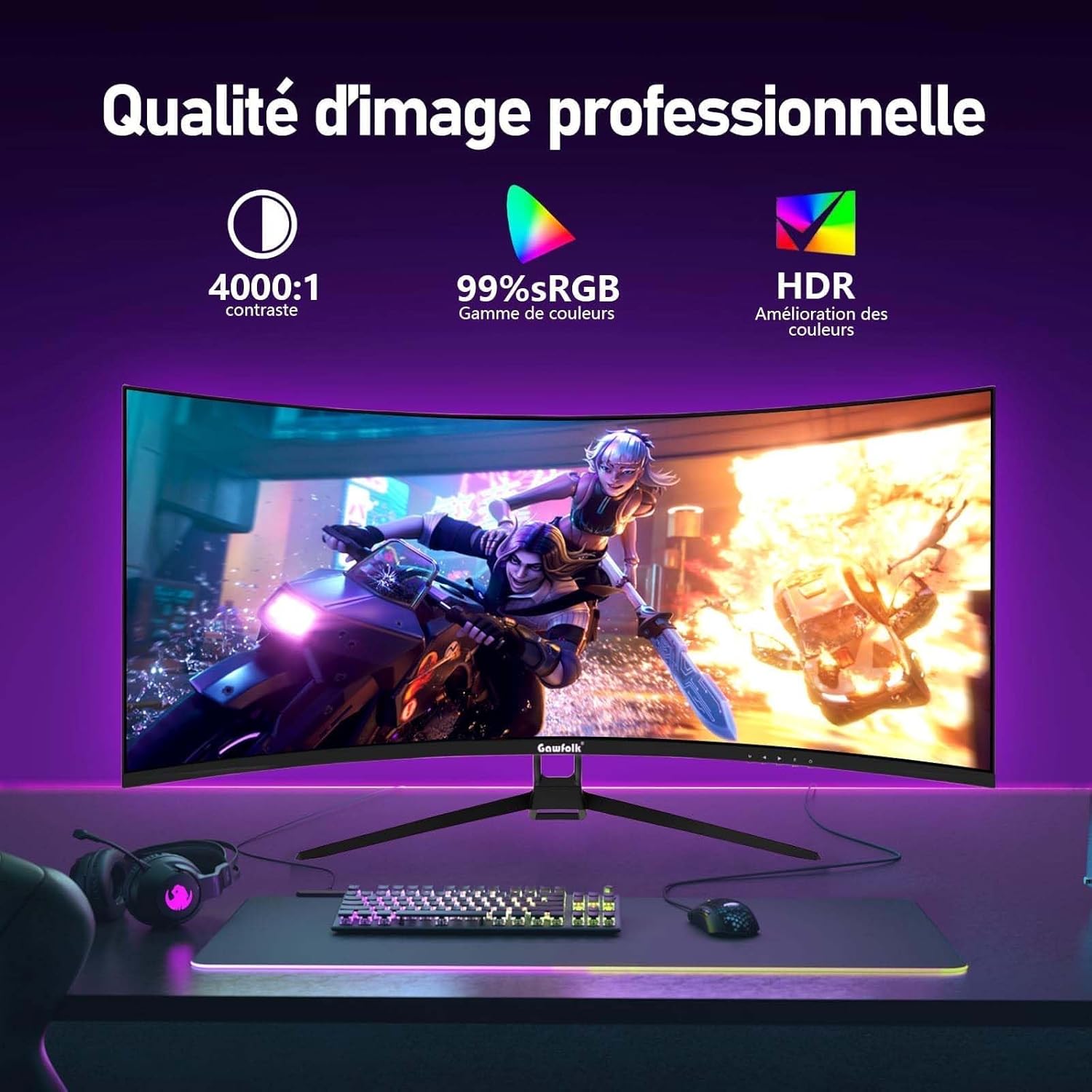
Figure 3: Illustration of 144Hz refresh rate and Adaptive Sync feature.

Figure 4: Visual representation of image quality features like contrast, sRGB, and HDR.
6. Технічне обслуговування
- Очищення екрану:
- Вимкніть монітор і від'єднайте кабель живлення.
- Обережно протріть екран м’якою тканиною без ворсу.
- Для стійких слідів, dampЗлегка протріть тканину водою або м’яким, неабразивним засобом для чищення екранів. Не розпилюйте засіб для чищення безпосередньо на екран.
- Очищення Casing: Використовуйте м’яку суху тканину для протирання монітора casing. Уникайте використання сильних мийних засобів або абразивних засобів для чищення.
- Зберігання: If storing the monitor for an extended period, unplug it and cover it to protect it from dust.
7. Вирішення проблем
| проблема | Можлива причина | Рішення |
|---|---|---|
| На екрані немає зображення | Монітор не увімкнено; відеокабель нещільно прикріплений або відключений; вибрано неправильне джерело вхідного сигналу. | Ensure power cable is connected and monitor is on. Check video cable connections. Select correct input source via OSD. |
| Мерехтіння або спотворення зображення | Video cable issue; refresh rate mismatch; graphics driver outdated. | Check video cable. Ensure refresh rate is set correctly in OS display settings. Update graphics drivers. Enable Adaptive Sync. |
| Incorrect resolution or refresh rate | OS display settings not configured correctly. | Go to your computer's display settings and set the resolution to 3440x1440 and refresh rate to 144Hz (for DP) or 100Hz (for HDMI). |
| Кольори виглядають розмитими або неправильними | Color settings in OSD or OS are incorrect; HDR not enabled. | Adjust color settings in the OSD. Ensure HDR is enabled in both monitor OSD and OS display settings if desired. |
| Немає звуку з навушників/динаміків | Audio cable not connected; volume too low; incorrect audio output selected in OS. | Check audio cable connection. Adjust volume. Select monitor's audio output in your computer's sound settings. |
8. Технічні характеристики
| Особливість | Деталь |
|---|---|
| Номер моделі | GF340A |
| Розмір екрана | 34 дюймів |
| Тип панелі | VA (вертикальне вирівнювання) |
| Кривизна | 1500R |
| роздільна здатність | UWQHD (3440 x 1440 пікселів) |
| Співвідношення сторін | 21:9 (2.35:1) |
| Частота оновлення | 144 Hz (DisplayPort), 100 Hz (HDMI) |
| Час відгуку | 4 мілісекунд |
| Коефіцієнт контрастності | 4000:1 |
| Яскравість | 300 nits (typical) / 350 (from specs) |
| Колірна гамма | 99% sRGB |
| Viewкут нахилу | 178 градусів (горизонтально/вертикально) |
| Особливості | Adaptive Sync (FreeSync Premium), HDR, Low Blue Light, Flicker-Free |
| Підключення | DisplayPort, HDMI (x2), 3.5mm Audio Out |
| Сумісність з кріпленням VESA | 75 х 75 мм |
| Dimensions (P x L x H) | 19P x 80.7L x 46.8H сантиметрів |
| вага | 5.2 кілограма |
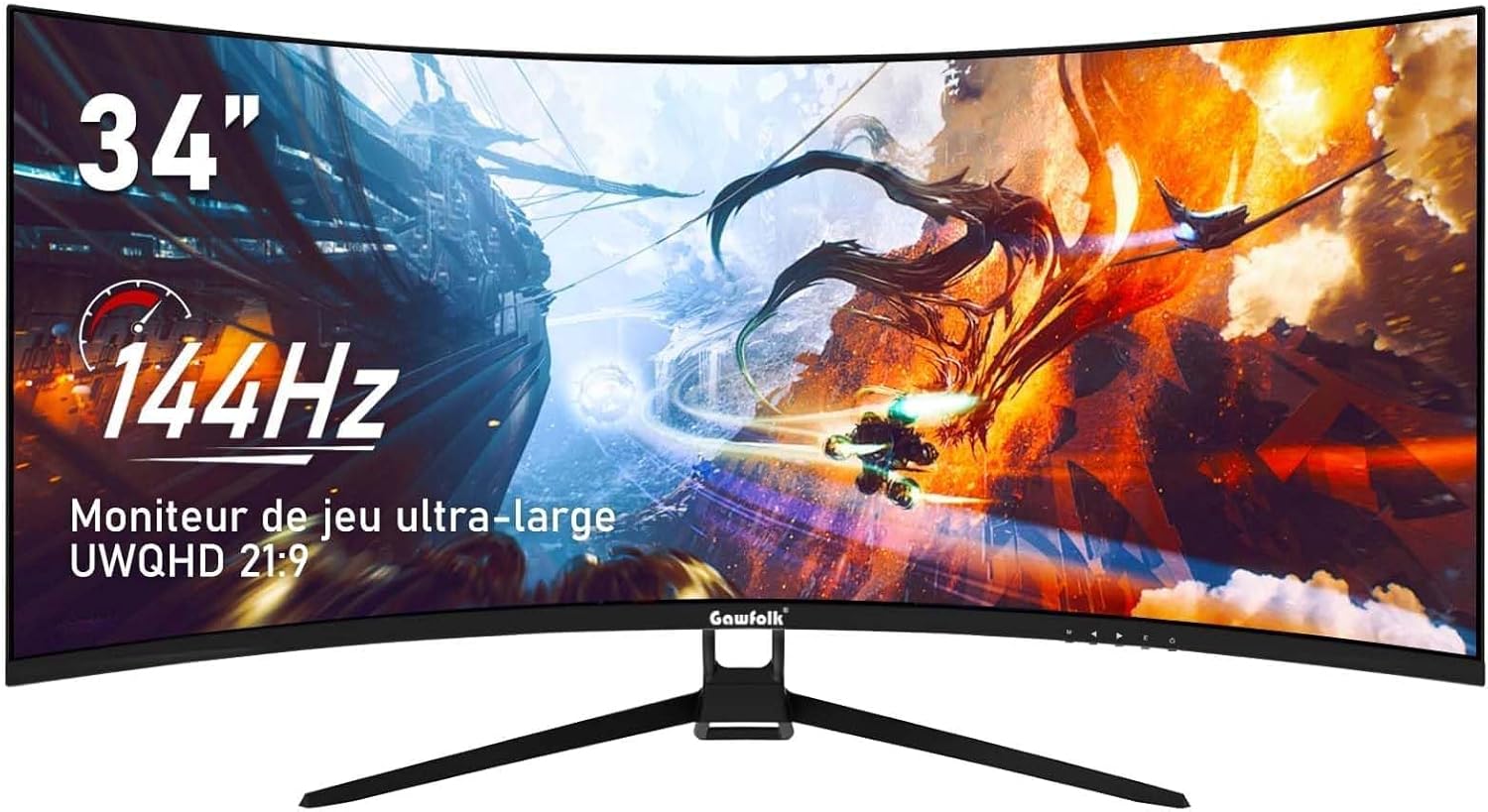
Figure 5: The 21:9 ultrawide aspect ratio provides an expansive panoramic view.
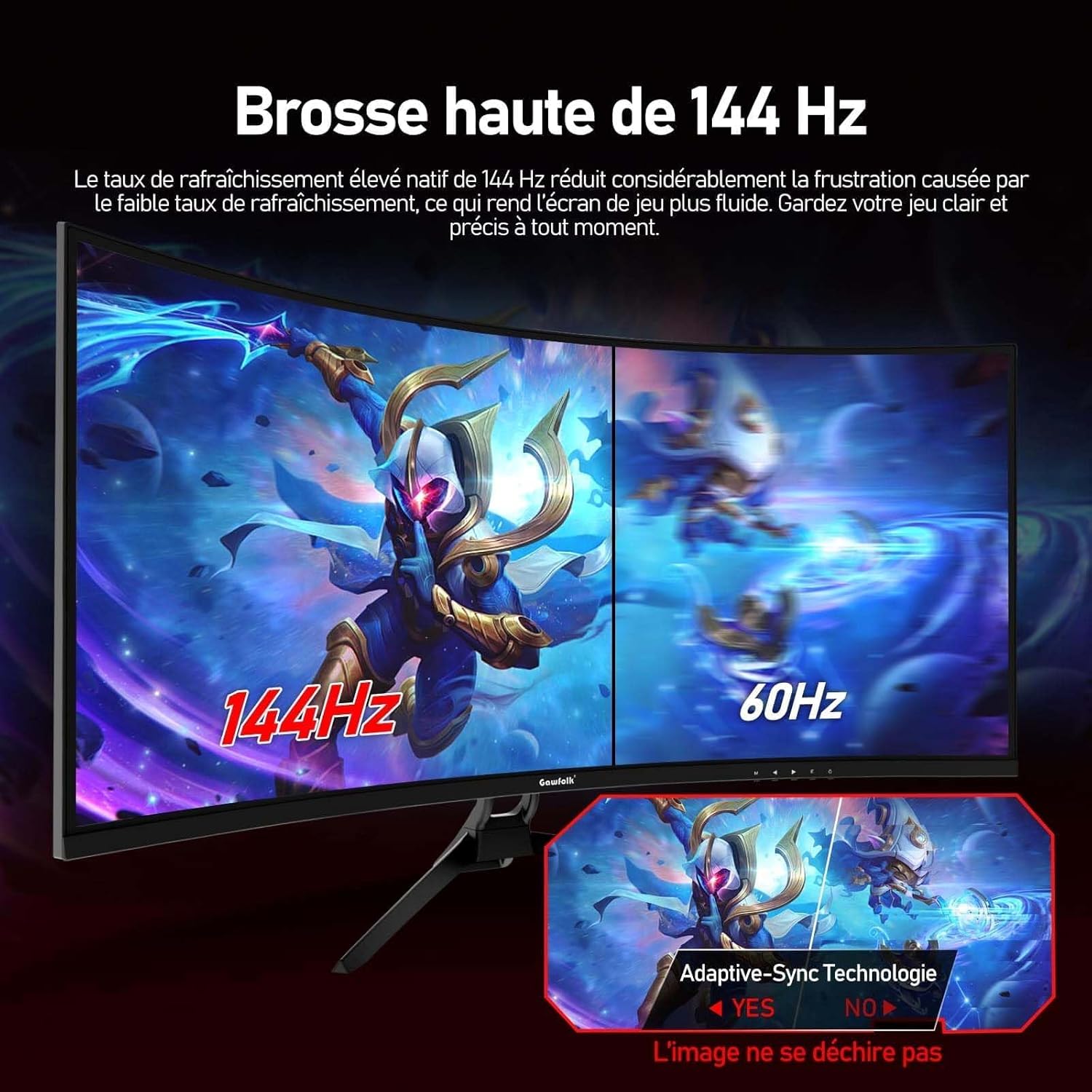
Figure 6: The 1500R curvature and wide 178-degree viewing angles enhance immersion.
9. Гарантія та підтримка
Gawfolk offers a 12-month worry-free warranty service for this monitor. If you have any questions or encounter any issues during the use of your monitor, please do not hesitate to contact our customer support. Refer to your purchase documentation or the official Gawfolk webна сайті для отримання контактної інформації.