
1. Вступ
This manual provides instructions for the NYXI Striker Retro Mechanical Gaming Keyboard (Model: CA01). This keyboard features multi-device connectivity, hot-swappable switches, RGB backlighting, and a customizable display screen. It is compatible with Windows, macOS, and iOS systems.

Image 1.1: The NYXI Striker Retro Mechanical Gaming Keyboard, showcasing its GameCube-inspired design and full layout.
2. Вміст упаковки
Перевірте наявність усіх елементів в упаковці:
- NYXI Striker Retro Mechanical Gaming Keyboard
- Знімач ключів
- USB-кабель (USB-C до USB-A)
- Additional Switches (5x Red, 5x Blue)
- 2.4GHz Wireless Receiver (stored in keyboard compartment)

Image 2.1: All components included with the NYXI Striker Retro Mechanical Gaming Keyboard.
3. Продукт закінчивсяview
The NYXI Striker keyboard features a 97-key layout with several distinct components:
- Клавіатури: Dual-color keycaps for a comfortable typing experience.
- Механічні перемикачі: Hot-swappable switches for customization.
- RGB-підсвічування: Per-key RGB illumination with various effects.
- Екран дисплея: A pixelated dot matrix screen for animations and status.
- Ролик гучності: A dedicated roller for audio adjustment.
- Перемикач підключення: Located on the side/back for switching between wired, 2.4G, and Bluetooth modes.
- Порт USB-C: Для дротового підключення та заряджання.
- 2.4GHz Receiver Compartment: A dedicated slot to store the wireless receiver.
- Регульовані ніжки: Три-сtage tilt stands for ergonomic positioning.

Зображення 3.1: Верх view of the keyboard, showing the full key layout and integrated display screen.

Зображення 3.2: Бічний професіоналfile клавіатури.

Image 3.3: Location of the 2.4GHz wireless receiver compartment.

Image 3.4: Three-level adjustable tilt stand for ergonomic comfort.
4. Налаштування
4.1 Початкове заряджання
Before first use, connect the keyboard to a USB power source using the provided USB-C cable to ensure it is fully charged. The keyboard can be used while charging in wired mode.
4.2 Режими підключення
The NYXI Striker keyboard supports three connection modes: Bluetooth 5.0, 2.4GHz wireless, and USB wired. Use the switch located on the keyboard to select your desired mode.
- Провідний режим USB:
- Set the mode switch on the keyboard to the wired (USB) position.
- Підключіть кінець кабелю USB-C до клавіатури, а кінець USB-A – до комп’ютера.
- Клавіатуру буде автоматично розпізнано вашою операційною системою.
- Бездротовий режим 2.4 ГГц:
- Retrieve the 2.4GHz USB receiver from its compartment on the keyboard.
- Set the mode switch on the keyboard to the 2.4G wireless position.
- Підключіть USB-приймач 2.4 ГГц до вільного порту USB на комп’ютері.
- Клавіатура має підключитися автоматично.
- Режим Bluetooth 5.0:
- Set the mode switch on the keyboard to the Bluetooth position.
- The keyboard supports up to 5 Bluetooth channels. Press Fn + 1/2/3/4/5 to select a Bluetooth channel. The display screen will indicate the selected channel.
- Щоб увійти в режим сполучення, натисніть і утримуйте Fn + 1/2/3/4/5 for 3-5 seconds until the indicator light flashes rapidly or the display screen shows a pairing icon.
- На своєму пристрої (комп’ютері, планшеті, телефоні) перейдіть до налаштувань Bluetooth та знайдіть нові пристрої.
- Select "NYXI Striker" from the list of available devices to pair.
- Once paired, the indicator light will become solid, and the display screen will confirm the connection.

Image 4.1: Compatible operating systems for the keyboard.
5. Інструкція з експлуатації
5.1 Увімкнення/вимкнення живлення
The keyboard powers on automatically when connected via USB or when a wireless mode is selected and the battery has charge. To conserve battery, ensure the keyboard is switched off when not in use for extended periods.
5.2 Перемикання між пристроями/режимами
To switch between connected Bluetooth devices, press Fn + 1/2/3/4/5 to select the desired paired channel. To switch between wired, 2.4G, and Bluetooth modes, use the physical switch on the keyboard.
5.3 Керування RGB-підсвічуванням
The keyboard features 22 RGB lighting modes. Use the following key combinations to control the backlighting:
- Fn + лівий Ctrl: Перемикайтеся між різними ефектами RGB-підсвічування.
- Fn + стрілка вгору/вниз: Відрегулюйте рівні яскравості.
- Fn + стрілка вліво/вправо: Adjust lighting effect speed.

Image 5.1: RGB Hybrid Underglow lighting in action.
5.4 Display Screen Operation
The integrated display screen can show various animations and status indicators. Use the NYXI Driver App for advanced customization of the display screen content.
5.5 Роликів Об'єму
Rotate the dedicated roller on the top right of the keyboard to adjust the system volume. Pressing the roller typically mutes/unmutes audio.
6. Ключові характеристики
The NYXI Striker keyboard is designed with several advanced features to enhance your user experience:
- Підключення до кількох пристроїв: Supports Bluetooth 5.0, 2.4GHz wireless, and USB wired modes. It also features a built-in five-channel mode for seamless switching between multiple devices (Windows, Android, macOS, iOS, iPad systems).
- Hot-Swappable and Gasket Structure: The keyboard supports hot-swappable switches, allowing for easy replacement without soldering. Its gasket structure, constructed with PC+ABS material, provides a soft and elastic typing feel, reducing noise and improving overall acoustics.
- Personalized Aesthetics: Features 22-color RGB backlighting with various glow modes and effects. The display screen supports 4 dynamic matrix display modes, which can be customized further via software.
- NYXI Driver App - Macro Customization: A dedicated software application allows for extensive macro customization, key remapping, and lighting management. This app supports wired, 2.4G, and Bluetooth connections for flexible setup.
- Комфортний дизайн: Integrates a precision volume roller, anti-slip silicone pads for stability, and a three-stage tilt stand for adjustable ergonomic comfort during extended use.

Image 6.1: Gasket structure for enhanced typing experience.

Image 6.2: Hot-swappable PCB for easy switch replacement.
6.1 Using the NYXI Driver App
The NYXI Driver App provides advanced customization options for your keyboard. Download the application from the official NYXI webсайт.
- Налаштування макросів: Create and assign complex macros to keys.
- Налаштування освітлення: Fine-tune RGB effects, colors, and animations.
- Display Screen Customization: Upload custom images or animations to the dot matrix display.

Image 6.3: NYXI Driver App interface for macro customization.
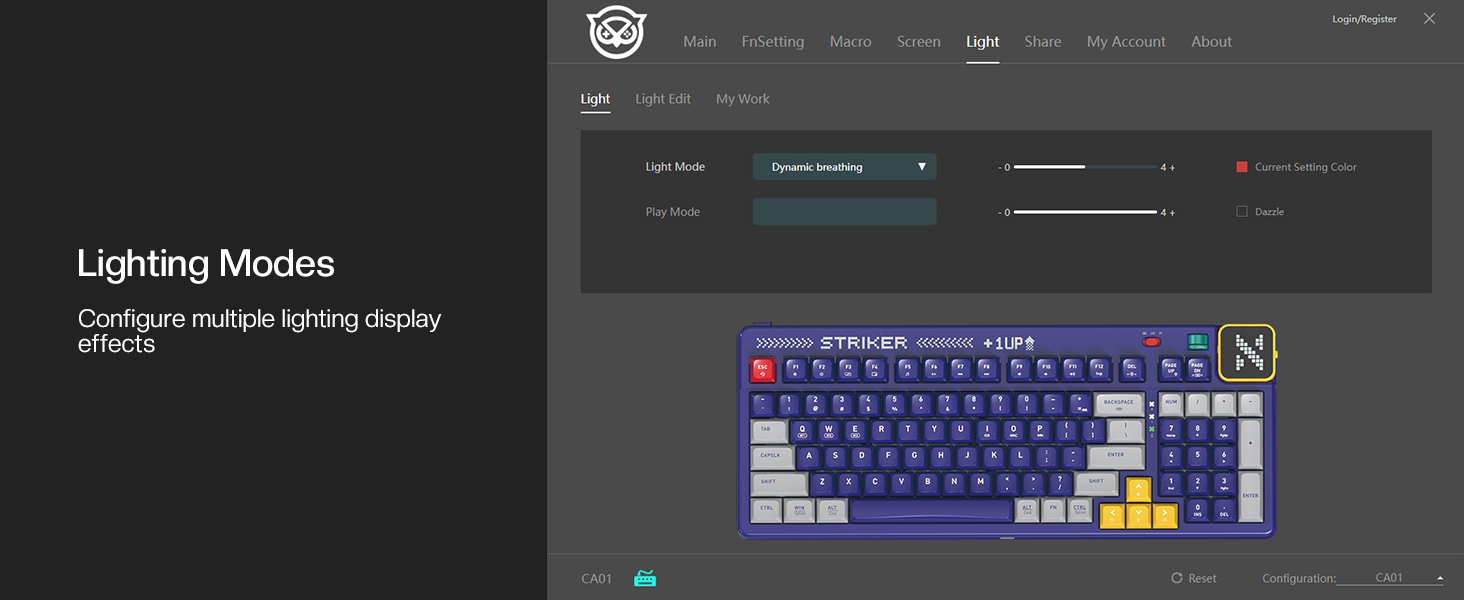
Image 6.4: NYXI Driver App interface for lighting mode configuration.

Image 6.5: NYXI Driver App interface for dot matrix screen customization.
7. Технічне обслуговування
7.1 Очищення
- Використовуйте м’яку, суху тканину для протирання поверхні клавіатури.
- For deeper cleaning, use the provided keycap puller to remove keycaps and clean dust or debris with compressed air.
- Avoid using harsh chemicals or abrasive materials that could damage the keyboard finish or keycap legends.
7.2 Зберігання
Store the keyboard in a cool, dry place away from direct sunlight and extreme temperatures. If storing for an extended period, ensure the keyboard is fully charged and then powered off.
8. Вирішення проблем
- Клавіатура не реагує:
- Ensure the keyboard is powered on and the correct connectivity mode (wired, 2.4G, or Bluetooth) is selected.
- For wireless modes, check battery level. Recharge if necessary.
- For 2.4GHz, ensure the receiver is properly plugged into a USB port.
- For Bluetooth, ensure it is paired correctly and the selected channel (Fn + 1-5) matches the paired device. Try re-pairing.
- Try connecting via USB wired mode to rule out wireless issues.
- RGB lights not working/displaying correctly:
- Ensure RGB is enabled (check the NYXI Driver App if installed).
- Перемикайтеся між режимами освітлення за допомогою Fn + лівий Ctrl.
- Відрегулюйте яскравість за допомогою Fn + стрілка вгору.
- Ключі не реєструються:
- If a specific key is not working, the switch might be faulty. Utilize the hot-swappable feature to replace the switch with one of the spares provided.
- Переконайтеся, що під клавішею або перемикачем немає сміття.
- Connectivity issues (lag, disconnections):
- For wireless modes, ensure the keyboard is within range of the receiver/device and there are no significant obstructions.
- Мінімізуйте перешкоди від інших бездротових пристроїв.
- Ensure the keyboard's battery is sufficiently charged.
If issues persist, please refer to the Warranty & Support section for further assistance.
9. Технічні характеристики
| Особливість | Деталь |
|---|---|
| Номер моделі | CA01 |
| Технологія підключення | Бездротовий зв'язок 2.4G, Bluetooth 5.0, дротовий USB-C |
| Опис клавіатури | Механічний |
| Кількість клавіш | 97 ключі |
| Сумісні пристрої | macOS, Windows 7 or later, iOS |
| Особливості | Backlit (RGB), Customizable Display Keys, Gasket Structure, Hot-Swappable |
| Підтримка кольорів підсвічування клавіатури | RGB (22 режимів) |
| Стиль | NGC Retro |
| Розміри продукту | 15.32 дюймів Д x 6.08 дюйми Ш x 1.3 дюйми В (38.91 x 15.44 x 3.3 см) |
| Вага товару | 3.56 фунта (1.61 кг) |
| Виробник | NYXI |
10. Гарантія та підтримка
10.1 Інформація про гарантію
NYXI products are covered by a limited warranty against defects in materials and workmanship. Please refer to the official NYXI webна сайті або в документації щодо придбання, щоб дізнатися про конкретні гарантійні умови, включаючи тривалість та деталі щодо покриття.
10.2 Підтримка клієнтів
For technical assistance, troubleshooting, or warranty claims, please contact NYXI customer support through their official website. You may need to provide your product model number (CA01) and proof of purchase.
Thank you for choosing the NYXI Striker Retro Mechanical Gaming Keyboard.