
1. Вступ
Thank you for choosing the HOWENS 15.6 Inch Portable Touchscreen Monitor. This device is designed to enhance your productivity and entertainment with its Full HD 1920x1080 IPS display, 10-point multi-touch functionality, and versatile connectivity options. Its compact and lightweight design makes it ideal for various applications, from extending your laptop's display to serving as an industrial control interface.

Зображення 1.1: спереду view of the HOWENS 15.6 Inch Portable Touchscreen Monitor.
2. Інформація про безпеку
Будь ласка, уважно прочитайте всі інструкції з безпеки перед використанням цього виробу. Недотримання цих інструкцій може призвести до ураження електричним струмом, пожежі або пошкодження пристрою.
- Не піддавайте монітор впливу дощу, вологи або екстремальних температур.
- Уникайте розміщення монітора поблизу джерел тепла або під прямими сонячними променями.
- Використовуйте лише адаптер живлення, що постачається разом із пристроєм.
- Do not attempt to disassemble or repair the monitor yourself. Contact qualified service personnel for assistance.
- Тримайте монітор подалі від сильних магнітних полів.
- Забезпечте належну вентиляцію навколо монітора, щоб запобігти перегріванню.
3. Що в коробці
Пакет включає наступні предмети:
- Portable Touchscreen Monitor 15.6 inch
- Кабель HDMI
- USB cable (for touch functionality)
- Адаптер живлення постійного струму
- Дистанційне керування
- Інструкція з експлуатації
4. Продукт закінчивсяview
4.1 Основні характеристики
- FHD 1080P Display: Features a 1920x1080 resolution with a 60Hz refresh rate and IPS panel for 178° wide viewing angles. Brightness of 300 cd/m² and 72% NTSC color gamut ensure vibrant and accurate colors.
- 10-Point Touch Screen: Advanced multi-touch functionality for intuitive interaction. Connect via a Type-A to Type-B USB cable for touch support.
- Широка сумісність: Supports Laptops, PCs, Mini PCs, Raspberry Pi, PS5/4, Xbox, and various industrial devices via HDMI, DVI, and VGA connections.
- Multi-Function Display Modes: Supports expansion, mirror, second-screen-only, horizontal, and vertical display modes.
- Standard VESA Mount: Equipped with a 75x75mm VESA hole for wall or desktop mounting (stand not included).
- Вбудовані два динаміки: Enjoy stereo audio directly from the monitor.
4.2 Port Parameters
The monitor features a variety of ports for diverse connectivity:
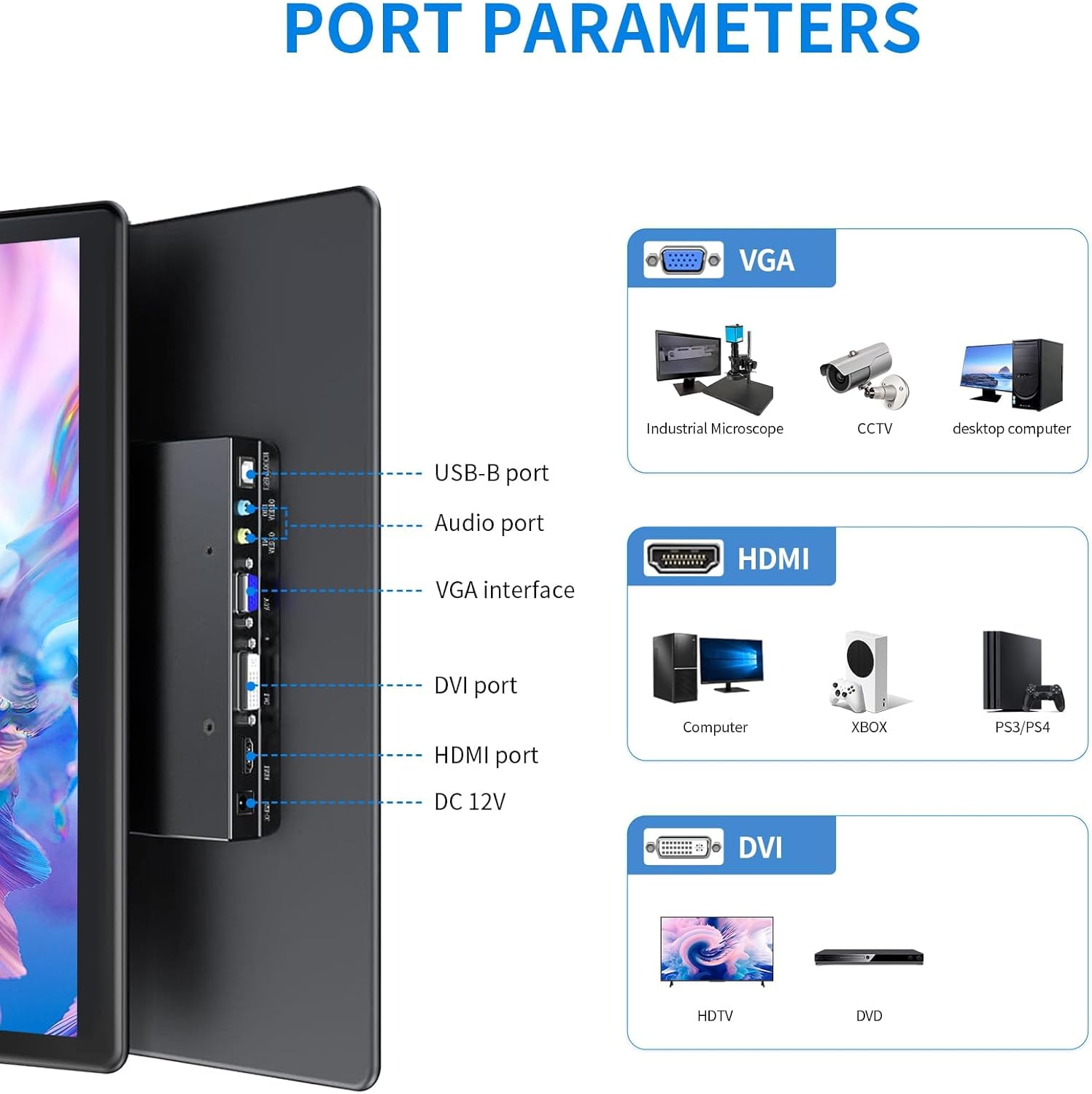
Зображення 4.1: Детальний опис view портів входу/виходу монітора.
- Порт USB-B: For touch functionality connection to a host device.
- Аудіо порт: Для аудіовходу/виходу.
- VGA Interface: For video input from devices like industrial microscopes, CCTV, and desktop computers.
- Порт DVI: For video input from devices such as HDTVs and DVD players.
- Порт HDMI: For high-definition video and audio input from computers, Xbox, PS5/4, and other compatible devices.
- 12 В постійного струму: Порт введення живлення.
4.3 Характеристики дисплея

Image 4.2: Visual representation of key display features.
The monitor's IPS panel provides a 178° wide viewing angle, ensuring consistent image quality from various perspectives. The 1920x1080 resolution delivers sharp and clear visuals, while the 72% NTSC color gamut offers rich and accurate color reproduction.
4.4 Dimensions and VESA Mount

Image 4.3: Product dimensions and VESA mounting details.
The monitor features a standard 75x75mm VESA mounting pattern, allowing for flexible installation on compatible wall mounts or desktop stands (sold separately).
5. Налаштування та підключення
Follow these steps to connect your HOWENS portable touchscreen monitor to your device:
- Connect Video Signal: Use the provided HDMI cable to connect the monitor's HDMI port to your laptop, PC, or gaming console's HDMI output. Alternatively, use a DVI or VGA cable if your device supports those interfaces.
- Connect Touch Functionality (Optional): For touchscreen features, connect the provided USB-A to USB-B cable from your host device's USB-A port to the monitor's USB-B port.
Note: Touch input is not enabled on devices with strict security protocols, such as Nintendo Switch, iPhones, or iPads.
- Підключіть живлення: Plug the DC power adapter into the monitor's DC 12V port and then into a power outlet.
- Увімкнення: Press the power button on the monitor or use the remote control to turn on the device.
Video 5.1: Demonstration of connecting the monitor to a laptop, including HDMI, USB for touch, and power connections, and showcasing touch functionality and remote control use.
5.1 Кріплення VESA
The monitor is compatible with 75x75mm VESA mounts. To mount the monitor, attach a compatible VESA arm or bracket to the four screw holes on the back of the monitor. Ensure the mount can support the weight of the monitor.
6. Експлуатація монітора
6.1 Функціональність сенсорного екрана
Once the USB-A to USB-B cable is connected to a compatible device, the 10-point multi-touch feature will be active. You can use gestures such as tapping, swiping, pinching, and zooming directly on the monitor screen for intuitive control.
6.2 Пульт дистанційного керування
The included remote control allows you to navigate the monitor's On-Screen Display (OSD) menu to adjust settings such as brightness, contrast, color temperature, and input source. Point the remote control towards the infrared receiver on the monitor.
6.3 Режими відображення
The monitor supports various display modes to suit your needs:

Зображення 6.1: Візуальний прикладampменше кількох режимів відображення.
- Розширений режим: Розширює робочий стіл на обидва екрани, забезпечуючи більше робочого простору.
- Дзеркальний режим: Duplicates your primary display onto the portable monitor.
- Режим лише другого екрана: Displays content only on the portable monitor, turning off the primary display.
- Horizontal/Vertical Mode: Adjust the display orientation to landscape or portrait as required. This can usually be configured in your operating system's display settings.
6.4 Аудіо

Image 6.2: Location of built-in dual speakers.
The monitor includes built-in dual speakers for stereo audio output. You can adjust the volume using the remote control or through your connected device's audio settings.
7. Технічне обслуговування
- Очищення екрану: Обережно протріть екран м’якою тканиною без ворсу. Для стійких плям, dampЗлегка промокніть тканину водою або розчином для чищення екранів. Уникайте використання агресивних хімікатів або абразивних матеріалів.
- Очищення Casing: Використовуйте м’яку суху тканину для очищення монітораasing.
- Зберігання: When not in use for extended periods, store the monitor in a cool, dry place, preferably in its original packaging or a protective sleeve.
8. Вирішення проблем
Якщо у вас виникли проблеми з монітором, зверніться до наступних поширених рішень:
- Немає живлення:
- Ensure the DC power adapter is securely connected to the monitor and a working power outlet.
- Перевірте справність розетки, підключивши інший пристрій.
- Немає дисплея/сигналу:
- Check that the HDMI, DVI, or VGA cable is securely connected to both the monitor and the source device.
- Ensure the correct input source is selected on the monitor using the remote control or OSD menu.
- Try connecting the monitor to a different source device to rule out issues with the original source.
- Сенсорний екран не відповідає:
- Confirm the USB-A to USB-B cable is properly connected between the monitor and the host device.
- Restart both the monitor and the host device.
- Ensure your operating system supports touchscreen functionality and that drivers are up to date.
- Remember that some devices (e.g., Switch, iPhones, iPads) do not support touch input with this monitor due to security protocols.
- Погана якість зображення:
- Налаштуйте яскравість, контрастність та колір через екранне меню.
- Для оптимальної чіткості переконайтеся, що роздільна здатність дисплея на вашому пристрої-джерелі встановлена на 1920x1080.
9. Технічні характеристики
| Особливість | Специфікація |
|---|---|
| Бренд | HOWENS |
| Номер моделі | CXTP-BB |
| Розмір екрана | 15.6 дюймів |
| роздільна здатність | FHD 1920 x 1080p |
| Співвідношення сторін | 16:9 |
| Тип дисплея | ЖК |
| Технологія дисплея | IPS |
| Частота оновлення | 60 Гц |
| Яскравість | 300 Кандела |
| Коефіцієнт контрастності | 1000:1 |
| Viewкут нахилу | 178 градусів |
| Колірна гамма | 72% NTSC |
| Технологія підключення | DVI, HDMI, VGA |
| Додаткові функції | Built-In Speakers, Energy Efficient, Eye Care, Portable, Touchscreen |
| Вага товару | 2.33 фунта |
| Тип монтажу | Wall Mount (75x75mm VESA) |
10. Гарантія та підтримка
This HOWENS monitor comes with a Гарантія від виробника 1 рік against defects. For any product issues or technical support, please contact HOWENS customer service. We are committed to resolving any concerns promptly.
For further assistance, please refer to the contact information provided on the HOWENS official webсайт або вашу документацію щодо придбання.