
вступ
This manual provides instructions for the setup, operation, maintenance, and troubleshooting of your Pisichen 17.3 inch Portable Monitor. This monitor features a 1600x900 HD resolution, 800:1 contrast ratio, 250 cd/m² brightness, 16:9 aspect ratio, and a 60Hz refresh rate, designed to provide an extended display for various devices.
The monitor includes multiple interfaces for broad compatibility and a built-in kickstand for convenience. It supports various display modes for enhanced productivity and entertainment.
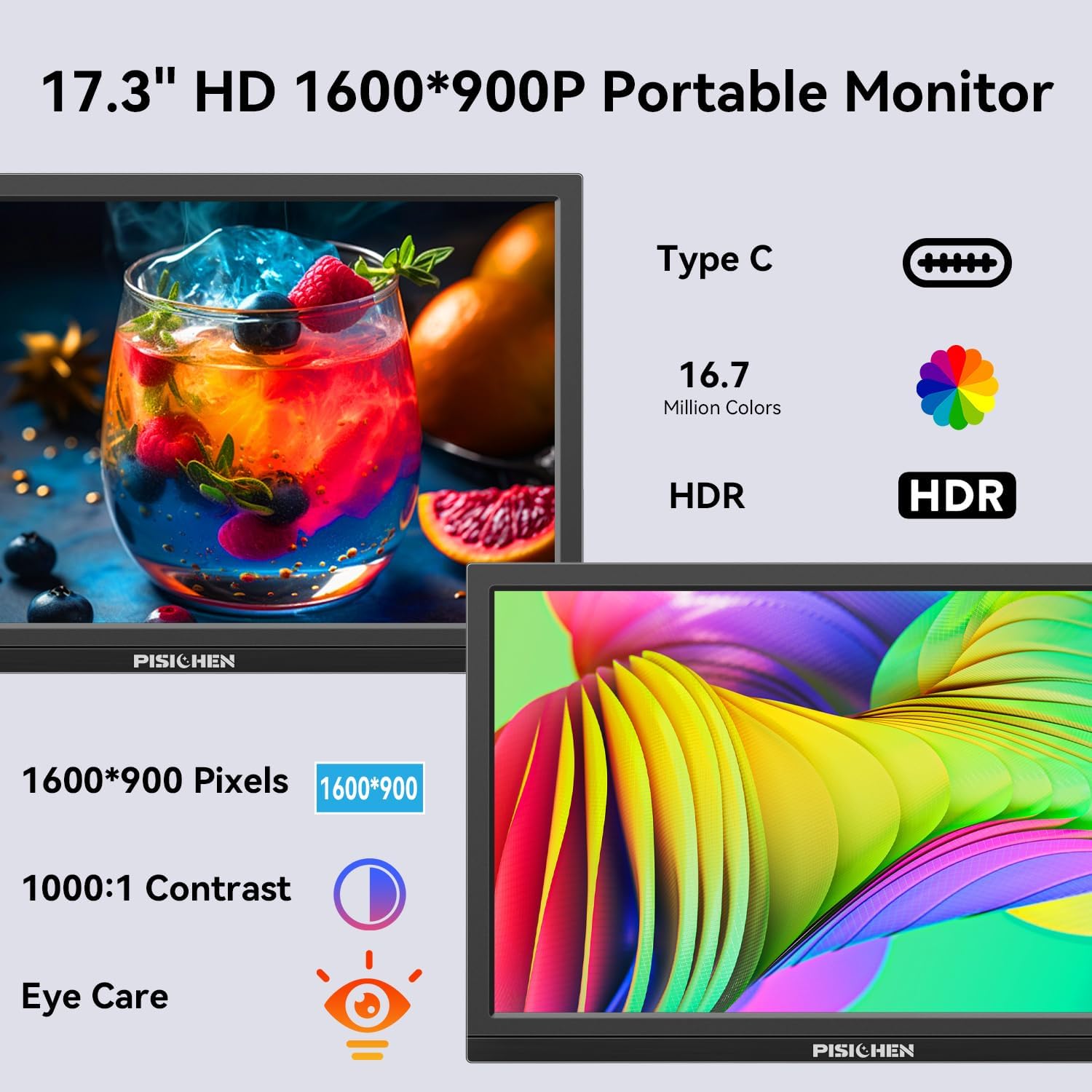
Image: The Pisichen 17.3 inch Portable Monitor highlighting its HD 1600x900 resolution, 1000:1 contrast, and eye care features.
Вміст упаковки
Перевірте наявність усіх елементів в упаковці:
- 17.3-дюймовий портативний монітор
- Адаптер живлення постійного струму
- Кабель HDMI на HDMI
- Кабель USB-C – USB-C
- Посібник користувача (цей документ)

Image: The portable monitor and its accompanying accessories, including cables and power adapter.
Інструкції з налаштування
1. Підключення живлення
Connect the provided DC Power Adapter to the DC Power Port on the monitor and then to a power outlet. Ensure the monitor receives sufficient power for stable operation.
2. Підключення до пристрою
The monitor supports two primary connection methods:
- Підключення USB-C: Use the provided USB-C to USB-C cable. Connect one end to the monitor's USB-C 3.1 port (for signal input) and the other end to a compatible USB-C 3.1 (or higher) port on your laptop, PC, or smartphone. This connection can transmit both video and power.
- Підключення HDMI: Use the provided HDMI to HDMI cable. Connect one end to the monitor's HDMI port and the other end to the HDMI output of your device (laptop, PC, game console). When using HDMI, ensure the monitor is also connected to power via the DC power adapter.

Image: Visual guide for USB-C and HDMI connection methods, showing cable connections and power requirements.
3. Фізичне налаштування
- Вбудована підставка: The monitor features an integrated, foldable kickstand. Gently unfold it from the back of the monitor to position the screen at a desired viewing angle on a flat surface.
- Монтаж VESA: For alternative mounting options, the monitor is equipped with standard 75x75mm VESA holes on the back. This allows for mounting to compatible desktop stands or wall mounts (mounting hardware not included).
Інструкція з експлуатації
1. Monitor Interfaces and Controls
Familiarize yourself with the ports and control buttons located on the side of the monitor:
- Порт живлення постійного струму: Для підключення адаптера живлення.
- Аудіопорт 3.5 мм: Для підключення зовнішніх навушників або динаміків.
- Порт USB C 3.1: For video signal input and power delivery from compatible devices.
- Порт USB C 2.0: Primarily for charging phones or connecting OTG devices.
- Порт HDMI: For video signal input from HDMI-enabled devices.
- Brightness/Up Button: Adjusts screen brightness or navigates up in the OSD menu.
- Кнопка Меню/ОК: Opens the On-Screen Display (OSD) menu or confirms selections.
- Volume/Down Button: Adjusts audio volume or navigates down in the OSD menu.
- Порт OTG: For connecting a keyboard or mouse.

Зображення: Детальне view портів та кнопок керування монітора.
2. Режими відображення
Монітор підтримує різні режими відображення при підключенні до сумісного пристрою:
- Режим дублювання: Mirrors the content of your primary screen.
- Розширений режим: Extends your desktop, providing additional screen space.
- Режим другого екрана: Uses only the portable monitor as the display.
These modes can typically be configured through your device's display settings (e.g., Windows Display Settings, macOS System Preferences).

Зображення: Прample of extending a smartphone's display to the portable monitor via USB-C.
3. Екранне меню (OSD).
Натисніть Меню / OK кнопку для доступу до екранного меню. Використовуйте Яскравість/Вгору і Гучність/зменшення гучності buttons to navigate through options and adjust settings such as brightness, contrast, color temperature, and input source. Press Меню / OK again to confirm selections or exit sub-menus.
4. HDR Mode
The monitor supports HDR (High Dynamic Range) technology for improved color and contrast. This mode can be enabled or disabled through the OSD menu, if supported by your connected device and content.

Image: Visual comparison of SDR and HDR display quality.
5. Low Blue Light Feature
The monitor includes a Low Blue Light feature designed to filter harmful blue light, reducing eye strain during prolonged use. This setting can be adjusted via the OSD menu.

Image: Illustration of the Low Blue Light feature for eye protection.
Технічне обслуговування
1. Очищення монітора
- Завжди вимикайте живлення та від’єднуйте монітор від мережі перед чищенням.
- Злегка протріть м’якою тканиною без ворсу dampводою або неабразивним засобом для чищення екранів.
- Не розпилюйте засіб для чищення безпосередньо на екран. Спочатку нанесіть його на тканину.
- Avoid using harsh chemicals, alcohol, or ammonia-based cleaners, as these can damage the screen surface.
2. Зберігання
Коли монітор не використовується, зберігайте його в прохолодному, сухому місці, подалі від прямих сонячних променів та екстремальних температур. Під час транспортування використовуйте захисний чохол або футляр, щоб запобігти подряпинам та пошкодженням.
Усунення несправностей
Якщо у вас виникли проблеми з монітором, зверніться до наступних поширених проблем та способів їх вирішення:
- Немає сигналу / Чорний екран:
- Ensure all cables (power and video) are securely connected to both the monitor and the source device.
- Переконайтеся, що джерело сигналу увімкнено та виводить сигнал.
- Check the input source setting on the monitor via the OSD menu to ensure it matches your connection (e.g., HDMI, USB-C).
- If using USB-C, confirm your device's USB-C port supports video output (DisplayPort Alternate Mode).
- Screen is Too Dim / Cannot Adjust Brightness:
- Access the OSD menu and navigate to the brightness settings. Ensure the brightness level is increased.
- Some devices may have their own display settings that override or limit monitor brightness. Check your connected device's display settings.
- Ensure the monitor is receiving adequate power. A weak power source can sometimes affect brightness.
- No Audio / Headphone Jack Not Working:
- Check the volume settings on both the monitor (via OSD menu) and your connected device.
- Ensure headphones or speakers are fully plugged into the 3.5mm audio port.
- Verify that the audio output on your source device is set to the portable monitor.
- Test with different headphones or speakers to rule out a faulty audio device.
- Image Distortion / Poor Picture Quality:
- Ensure the display resolution on your source device is set to the monitor's native resolution (1600x900).
- Check for damaged or loose video cables. Try a different cable if available.
- Adjust contrast and color settings in the OSD menu.
Технічні характеристики
| Номер моделі | SLZJ173 |
| Розмір екрана | 17.3 дюймів |
| роздільна здатність | 1600x900 HD |
| Співвідношення сторін | 16:9 |
| Коефіцієнт контрастності | 800:1 |
| Яскравість | 250 кд/м² |
| Частота оновлення | 60 Гц |
| Тип панелі | TN |
| Viewкут нахилу | 170° |
| Колірна гамма | 99% sRGB, 16.7 million colors (8-bit) |
| Підключення | 1x HDMI, 1x USB-C 3.1 (signal input), 1x USB-C 2.0 (phone charging/OTG), 1x 3.5mm Audio Jack, 1x DC Power Port |
| Вбудовані динаміки | так |
| Гора VESA | 75х75 мм |
| Розміри продукту | 0.3 x 12 x 8 дюйми (приблизно) |
| Вага товару | 3.54 фунта |
Гарантія та підтримка
For warranty information or technical support, please contact the manufacturer, Pisichen, or the retailer from whom you purchased the product. Please have your model number (SLZJ173) and purchase details ready when contacting support.