
Z-EDGE U28I4K
Z-EDGE U28I4K 4K Monitor User Manual
28-inch IPS, 144Hz Refresh Rate, Ultra HD 3840x2160 Gaming Monitor
1. Вступ
This user manual provides detailed instructions for the setup, operation, maintenance, and troubleshooting of your Z-EDGE U28I4K 4K Monitor. Please read this manual thoroughly before using the product to ensure proper functionality and to prevent damage.
Особливості продукту:
- Роздільна здатність 4K UHD (3840x2160): Delivers stunningly clear and lifelike images with exceptional detail.
- Частота оновлення 144 Гц та час відгуку 1 мс: Ensures smooth, crisp visuals and reduces motion blur, ideal for gaming.
- Панель IPS: Забезпечує широкий кут огляду 178° viewing angles and consistent, accurate color reproduction.
- Технологія HDR10: Enhances picture quality with deeper blacks and brighter whites.
- Кілька варіантів підключення: Two HDMI inputs and two DisplayPort inputs for versatile device connection.
- Технологія догляду за очима: Features low blue light and flicker-free technology to reduce eye strain.
- Сумісність з кріпленням VESA: Supports 100x100mm VESA mounting for flexible installation.
2. Вміст упаковки
Please check the package contents upon unboxing. If any items are missing or damaged, contact Z-EDGE customer support.
- Z-EDGE U28I4K 4K Monitor
- Підставка для монітора (основа та шия)
- Адаптер живлення та кабель живлення
- Кабель HDMI
- Кабель DisplayPort
- Посібник користувача
- Screws and Screwdriver for stand assembly
3. Налаштування
3.1 Збірка підставки
- Обережно вийміть монітор з упаковки, зберігаючи його на м’якій рівній поверхні в захищеному місці.
- Attach the stand neck to the monitor's rear panel using the provided screws. Ensure it is securely fastened.
- Connect the stand base to the stand neck and tighten the thumb screw or use the provided screwdriver to secure it.
- Gently place the assembled monitor on a stable, flat desk.

3.2 Підключення до пристрою
The Z-EDGE U28I4K monitor supports multiple input types. Choose the appropriate cable for your device.
- Підключення HDMI: Connect one end of the HDMI cable to the HDMI port on your computer/device and the other end to an HDMI input port (HDMI 1 or HDMI 2) on the monitor.
- Підключення DisplayPort: Connect one end of the DisplayPort cable to the DisplayPort on your computer/device and the other end to a DisplayPort input port (DP 1 or DP 2) on the monitor.
- Аудіовихід: Connect external speakers or headphones to the 3.5mm audio output jack on the monitor if desired.

3.3 Підключення живлення
Connect the power adapter to the DC 12V input on the monitor, then plug the power cable into a wall outlet.
Important: Use only the power adapter provided with your monitor.
4. Експлуатація монітора
4.1 Увімкнення/вимкнення живлення
Press the power button located on the back or bottom of the monitor to turn it on or off. The power indicator light will illuminate when the monitor is on.
4.2 Екранне меню (OSD)
The OSD menu allows you to adjust various monitor settings. Navigate the menu using the buttons typically found on the back or bottom right of the monitor.
Загальні налаштування екранного меню:
- Яскравість/Контрастність: Налаштуйте загальну яскравість та коефіцієнт контрастності.
- Параметри кольору: Змінити колірну температуру, гаму та окремі рівні RGB.
- Джерело введення: Manually select between HDMI 1, HDMI 2, DP 1, or DP 2.
- Режим зображення: Виберіть попередньо встановлені режими відображення (наприклад, Стандартний, Гра, Фільм, Текст).
- Response Time/Overdrive: Adjust the pixel response time for faster transitions.
- FreeSync/Адаптивна синхронізація: Enable or disable adaptive synchronization technology.
- Низьке синє світло: Reduce blue light emission to minimize eye strain.
- Без мерехтіння: Ensure the display is free from visible flickering.
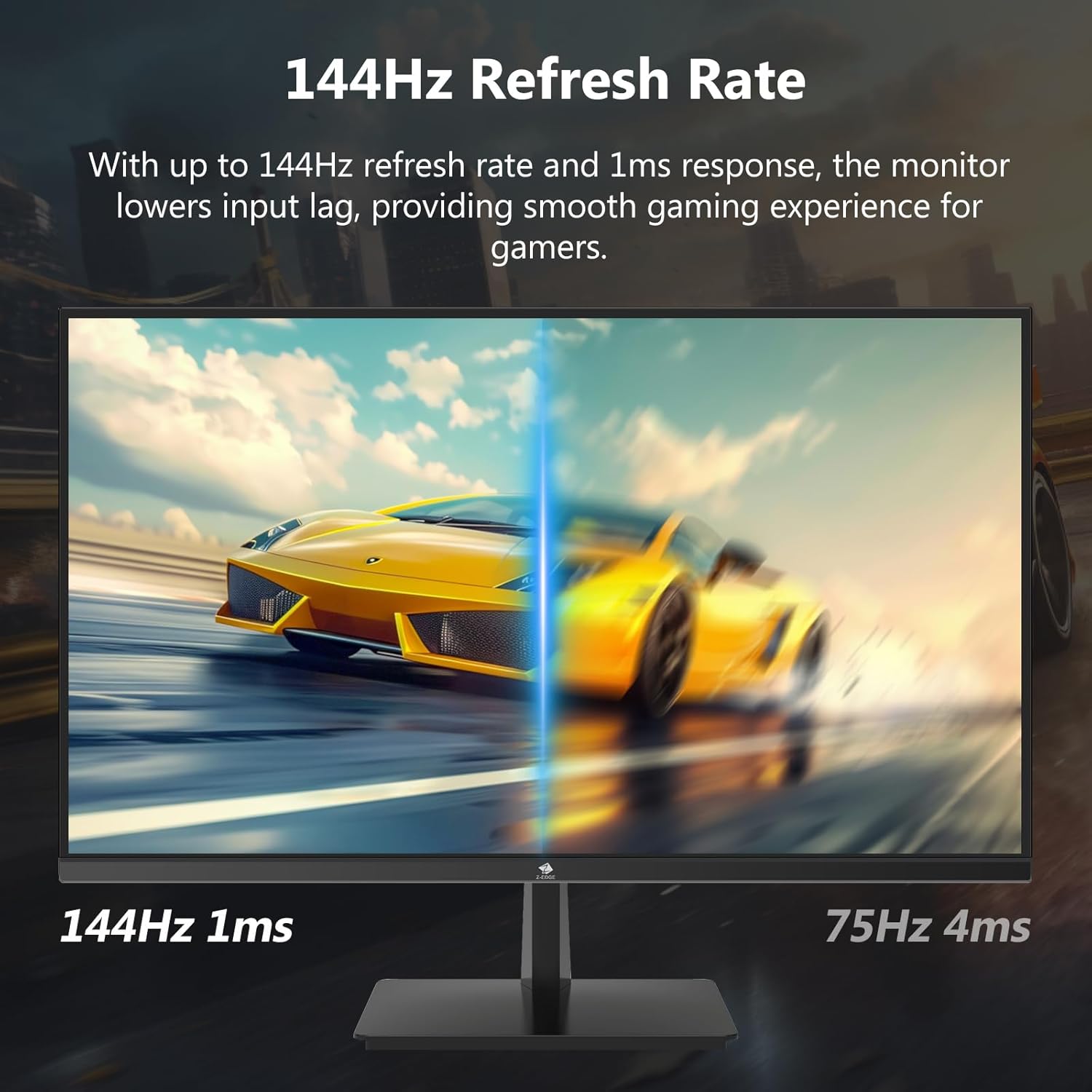

4.3 Частота оновлення та час відгуку
The monitor supports up to a 144Hz refresh rate and 1ms response time for optimal performance in fast-paced applications and gaming.
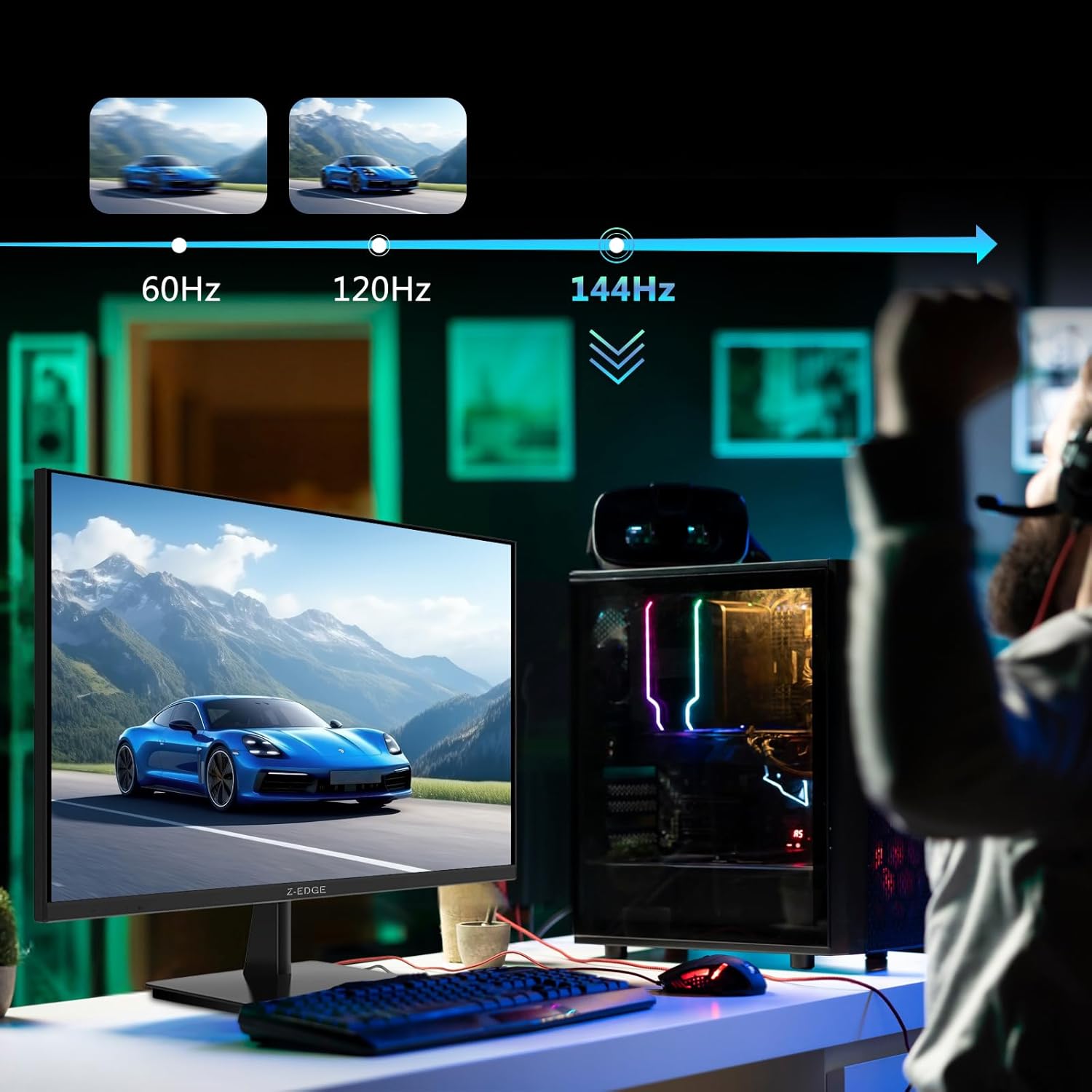

5. Технічне обслуговування
5.1 Очищення монітора
- Завжди відключайте монітор від розетки перед чищенням.
- Злегка протріть м’якою тканиною без ворсу dampводою або неабразивним засобом для чищення екранів.
- Не розпилюйте засіб для чищення безпосередньо на екран.
- Уникайте використання бензолу, розчинника, аміаку або абразивних засобів для чищення, оскільки вони можуть пошкодити поверхню монітора.
5.2 Зберігання
Під час тривалого зберігання монітора переконайтеся, що він вимкнений та від’єднаний від усіх кабелів. Зберігайте його в прохолодному, сухому місці, бажано в оригінальній упаковці, щоб захистити його від пилу та фізичних пошкоджень.
6. Вирішення проблем
| проблема | Можлива причина | Рішення |
|---|---|---|
| Немає живлення | Power cable not connected; Power outlet faulty; Power adapter faulty. | Ensure power cable is securely connected to monitor and outlet. Test outlet with another device. Contact support if adapter is suspected faulty. |
| Немає сигналу | Input cable not connected; Incorrect input source selected; Computer/device not outputting signal. | Check HDMI/DisplayPort cable connections. Select correct input source via OSD menu. Restart computer/device. |
| Мерехтіння екрана | Loose cable connection; Refresh rate mismatch; DCR (Dynamic Contrast Ratio) enabled. | Ensure cables are firmly connected. Adjust refresh rate in display settings. Disable DCR in OSD menu. |
| Poor Image Quality (Blurry/Distorted) | Неправильна роздільна здатність; якість кабелю; проблеми з драйвером графіки. | Set display resolution to 3840x2160. Try a different high-quality cable. Update graphics drivers. |
| No Audio from Monitor | Volume too low; Incorrect audio output selected on computer; External speakers not connected/powered. | Increase monitor volume via OSD. Select monitor as audio output device in OS settings. Ensure external speakers are connected and powered. |
If the problem persists after trying these solutions, please contact Z-EDGE customer support.
7. Технічні характеристики
| Особливість | Деталь |
|---|---|
| Номер моделі | U28I4K |
| Розмір екрана | 28 дюймів |
| Тип панелі | IPS |
| роздільна здатність | 3840x2160 (4K UHD) |
| Частота оновлення | 144 Гц |
| Час відгуку | 1 мс (MPRT) |
| Яскравість | 300 кд/м² |
| Коефіцієнт контрастності | 1000:1 |
| Підтримка кольорів | 16.7 мільйонів кольорів (8 біт) |
| Viewкут нахилу | 178° (Г/В) |
| Підтримка HDR | HDR10 |
| Підключення | 2x HDMI 2.1, 2x DisplayPort 1.4, 1x аудіовихід (3.5 мм) |
| Гора VESA | 100х100 мм |
| Розміри (з підставкою) | 19 х 64 х 46 см |
| Вага (з підставкою) | 5.96 кг |
| Вхідна потужність | 12 В постійного струму |
8. Гарантія та підтримка
8.1 Інформація про гарантію
Z-EDGE products typically come with a limited manufacturer's warranty. Please refer to the warranty card included in your product packaging or visit the official Z-EDGE webДетальні умови гарантії див. на сайті. Зберігайте чек про покупку як підтвердження покупки для гарантійних претензій.
8.2 Підтримка клієнтів
For technical assistance, troubleshooting, or warranty inquiries, please contact Z-EDGE customer support:
- Webсайт: www.z-edge.com (Check for support contact details, FAQs, and driver downloads)
- Електронна пошта: Зверніться до посадовця webсайт, щоб знайти найактуальнішу адресу електронної пошти служби підтримки.
- телефон: Зверніться до посадовця webсайт, щоб знайти найактуальніший номер телефону служби підтримки.
When contacting support, please have your monitor's model number (U28I4K) and serial number ready.
Ask a question about this manual
Ask about setup, troubleshooting, compatibility, parts, safety, or missing instructions. Manuals+ will review the question and use this page’s manual context to help answer it.