
вступ
This manual provides detailed instructions for the setup, operation, and maintenance of your Prechen 10.1 inch Portable Touchscreen Monitor, Model HD-101. Please read this manual thoroughly before using the device to ensure proper functionality and to prevent damage.
Особливості продукту
- Portable Touchscreen: This 10.1-inch monitor is compact and lightweight, designed for portability. The touchscreen functionality allows for intuitive navigation and interaction, enhancing productivity on the go.
- High-Resolution IPS Display: Features a 1920x1200 resolution with a 16:10 aspect ratio, delivering clear and vibrant visuals. IPS technology provides wide viewing angles and accurate color reproduction, suitable for various applications.
- Універсальний підключення: Equipped with HDMI and USB-C ports, offering flexible connection options. It can be easily connected to Windows PCs, laptops, and gaming consoles like Xbox. Note: USB-C is for touch functionality and power.
- Інтегровані динаміки: Built-in speakers provide clear and dynamic audio, eliminating the need for external speakers during media consumption, gaming, or virtual meetings.
- Сумісність з кріпленням VESA: The monitor supports VESA mounting standards, allowing for attachment to compatible stands or arms for customized workspace setups and comfortable viewкути.
Налаштування
Вміст упаковки
Перевірте наявність усіх елементів в упаковці:
- Prechen 10.1 inch Portable Touchscreen Monitor
- Кабель HDMI
- Кабель USB-C – USB-C
- USB-A to USB-C Cable (for power/touch)
- Адаптер живлення
- Посібник користувача (цей документ)
Підключення монітора
- Підключення живлення: Connect the provided power adapter to the DC Power Port on the monitor and plug it into a power outlet. Alternatively, if your device supports power delivery, connect a USB-C to USB-C cable to the USB-C (Power & Touch) port for both power and signal.
- Підключення відео:
- HDMI: Connect one end of the HDMI cable to the HDMI port on the monitor and the other end to the HDMI output of your computer or device.
- USB-C (DisplayPort Alternate Mode): If your device supports DisplayPort Alternate Mode over USB-C, connect a USB-C to USB-C cable to the USB-C (Power & Touch) port on the monitor and your device. This single cable can provide video, power, and touch functionality.
- Сенсорні функції: For touch functionality, ensure the USB-C (Power & Touch) port is connected to your device. If using HDMI for video, you will also need to connect a USB-A to USB-C cable from your device's USB-A port to the monitor's USB-C (Power & Touch) port.
- Аудіовихід: If you wish to use external headphones or speakers, connect them to the 3.5mm Audio Port on the monitor.
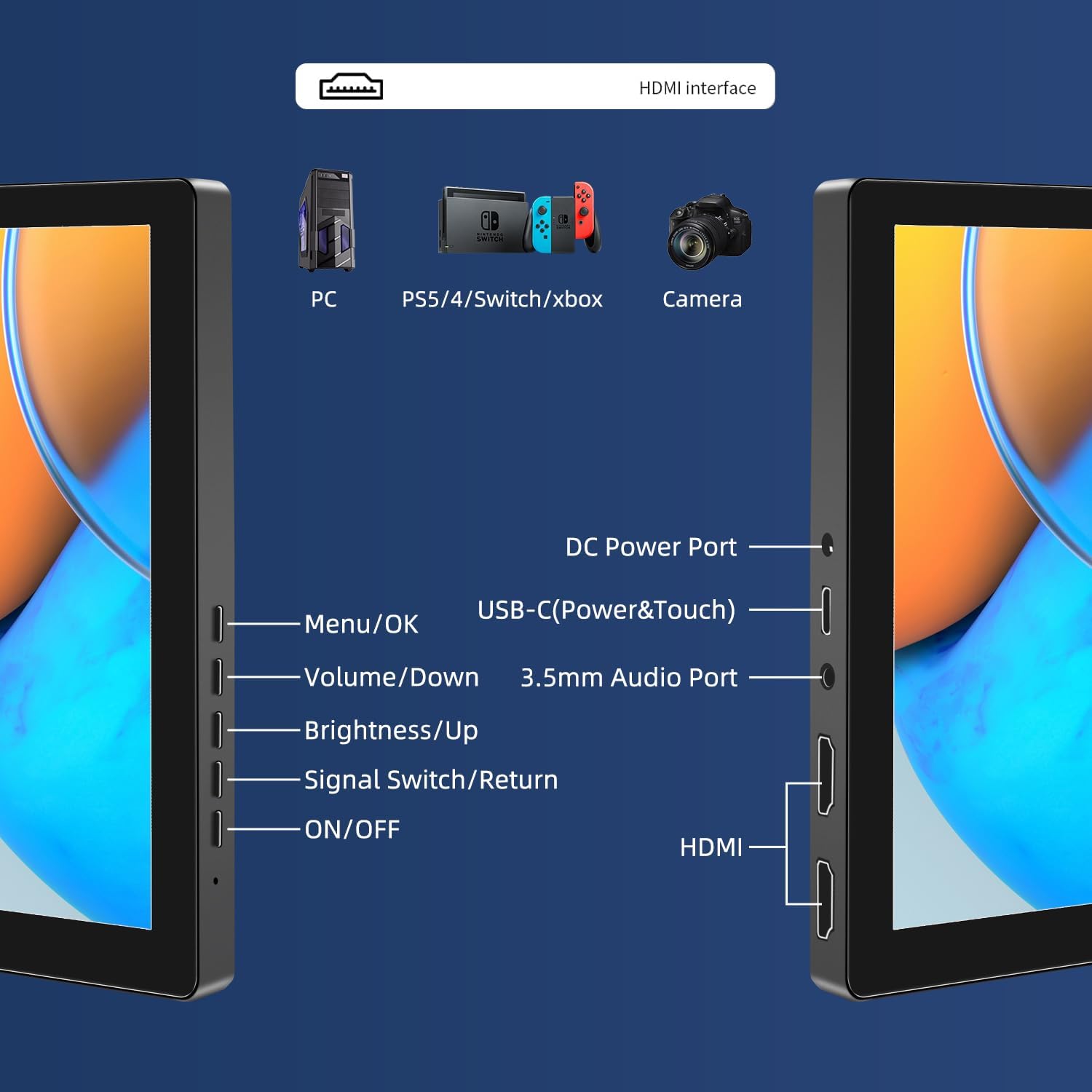
Зображення: Оверview of the monitor's ports including DC Power, USB-C (Power & Touch), 3.5mm Audio, HDMI, and control buttons.
Інструкція з експлуатації
Увімкнення/вимкнення
- Щоб увімкнути монітор, натисніть кнопку УВІМК./ВИМК кнопку.
- Щоб вимкнути живлення, натисніть і утримуйте кнопку УВІМК./ВИМК кнопку протягом кількох секунд, поки екран не вимкнеться.
Використання екранного меню
Екранне меню дозволяє налаштовувати різні параметри дисплея.
- Натисніть Меню / OK кнопку, щоб відкрити екранне меню.
- Використовуйте Гучність/зменшення гучності і Яскравість/Вгору кнопки для навігації між пунктами меню.
- Прес Меню / OK щоб вибрати опцію або підтвердити налаштування.
- Натисніть Signal Switch/Return кнопку, щоб повернутися до попереднього меню або вийти з екранного меню.
Adjusting Display Modes
The monitor supports multiple display modes when connected to a computer:
- Режим дублювання: Displays the same content on both your primary screen and the portable monitor.
- Розширений режим: Розширює робочий стіл на обидва екрани, забезпечуючи більше робочого простору.
- Режим другого екрана: Uses only the portable monitor as the display.
These modes are typically configured through your operating system's display settings (e.g., Windows Display Settings, macOS System Preferences).
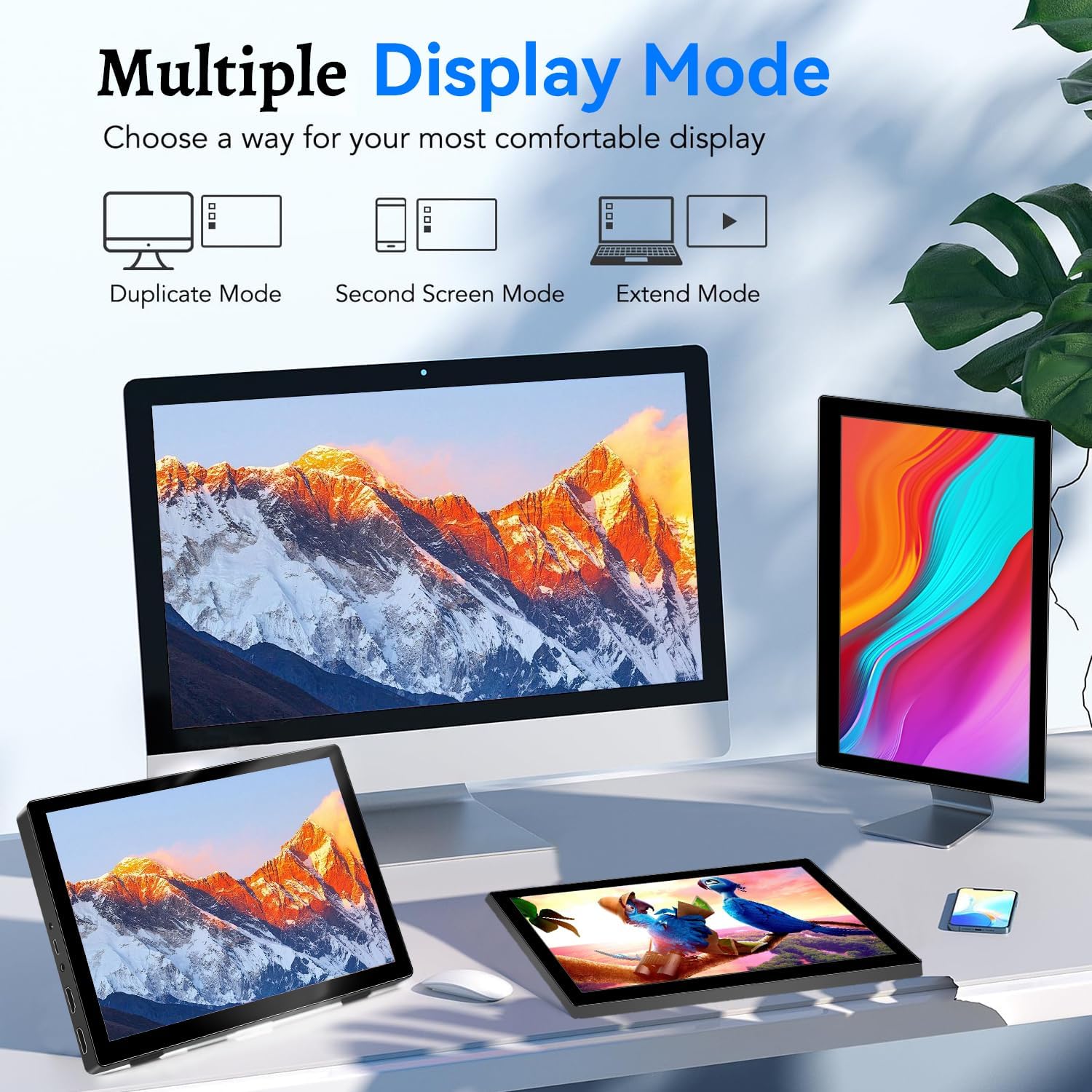
Image: Visual representation of Duplicate, Second Screen, and Extend display modes.
Using Touchscreen Functionality
The monitor supports 10-point touchscreen technology. Ensure the USB-C (Power & Touch) port is correctly connected to your device for touch input to function.

Зображення: Прamples of 10-point touchscreen gestures for interaction.
Технічне обслуговування
- Очищення екрану: Злегка протріть м’якою тканиною без ворсу dampводою або неабразивним засобом для чищення екранів. Не розпилюйте засіб для чищення безпосередньо на екран.
- Очищення Casing: Протріть монітор casinм’якою сухою тканиною. Уникайте використання сильних мийних засобів або розчинників.
- Зберігання: Коли монітор не використовується, зберігайте його в прохолодному, сухому місці, подалі від прямих сонячних променів та екстремальних температур.
- Обробка: Уникайте падіння та сильних ударів монітора. Не ставте важкі предмети на монітор.
Усунення несправностей
| проблема | Можлива причина | Рішення |
|---|---|---|
| Немає дисплея/чорний екран |
|
|
| Сенсорний екран не реагує |
|
|
| Немає звуку з динаміків |
|
|
| Image quality issues (blurry, distorted) |
|
|
Технічні характеристики
| Особливість | Деталь |
|---|---|
| Бренд | Пречен |
| Номер моделі | HD-101 |
| Розмір екрана | 10.1 дюймів |
| роздільна здатність | 1920 x 1200 (UXGA Wide) |
| Співвідношення сторін | 16:10 |
| Тип панелі | IPS |
| Частота оновлення | 60 Гц |
| Час відгуку | 1 мс |
| Підключення | 1x HDMI, 1x USB-C (Power & Touch), 1x 3.5mm Audio Jack, 1x DC Power Port |
| Розміри (Д x Ш x В) | 21.8 х 15.8 х 1.4 см |
| вага | 990 грами |
| Виробник | Shenzhen Kenowa Electronics Co., LTD |
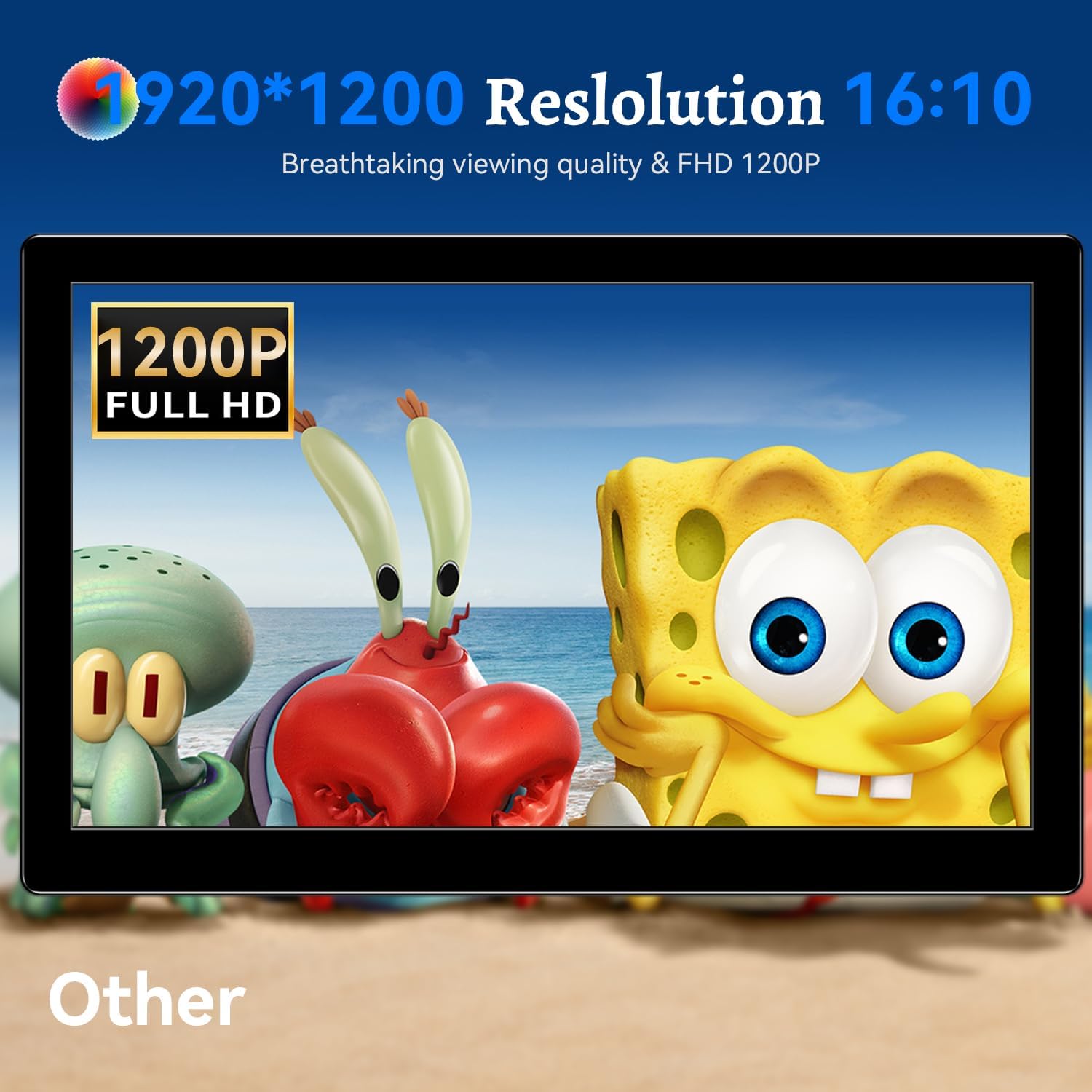
Зображення: Моніторна виставкаasing its 1920x1200 Full HD resolution.

Image: The monitor's IPS panel offering wide viewing angles and rich colors.
Гарантія та підтримка
For warranty information and technical support, please refer to the warranty card included with your product or contact Prechen customer service through their official website. Please have your model number (HD-101) and purchase details ready when contacting support.