
вступ
This manual provides detailed instructions for the OWC Gemini Thunderbolt (USB-C) Docking Station and External RAID Storage Solution. It covers setup, operation, maintenance, troubleshooting, and technical specifications to ensure optimal performance and longevity of your device.
Інформація про безпеку
- Перед використанням пристрою уважно прочитайте всі інструкції.
- Не піддавайте пристрій дії вологи або екстремальних температур.
- Використовуйте лише адаптер живлення, що постачається разом із пристроєм.
- Не намагайтеся самостійно відкривати або ремонтувати пристрій. Звертайтеся до кваліфікованого персоналу для проведення будь-яких робіт з обслуговування.
- Забезпечте належну вентиляцію навколо пристрою, щоб запобігти перегріванню.
Вміст упаковки
Перевірте наявність усіх предметів у вашій упаковці:
- OWC Gemini Thunderbolt (USB-C) Docking Station
- Адаптер живлення
- Thunderbolt (USB-C) Cable
- Посібник користувача (цей документ)
- Drives (pre-installed for 32TB model)
Продукт закінченийview
The OWC Gemini is a versatile docking station and external storage solution designed for high-performance data management and expanded connectivity.

Зображення: спереду view of the OWC Gemini Thunderbolt Docking Station, showcasing its sleek black design and OWC branding.
Ключові характеристики
- Dual Drive Bays: Supports 2.5-inch and 3.5-inch SATA drives for flexible storage configurations.
- Hardware RAID: Offers RAID 0, RAID 1, SPAN, and JBOD modes for optimized performance or data redundancy.
- Thunderbolt (USB-C) Connectivity: Two Thunderbolt 3 (USB-C) ports for host connection, daisy-chaining, and power delivery (up to 27W).
- Розширені можливості підключення: Includes two USB 3.2 Gen 2 Type-A ports, one HDMI port, one 2.5 Gigabit Ethernet port, and one SD 4.0/UHS-II media slot.
- High-Resolution Display Support: HDMI 2.1 supports up to 8K @ 120Hz, and Thunderbolt 3 supports up to 8K @ 60Hz or 4K @ 120Hz.
Макет порту
The OWC Gemini provides a comprehensive set of ports for various connectivity needs.

Зображення: Задня частина view of the OWC Gemini Docking Station, highlighting the 7 ports of connectivity including Thunderbolt, USB, HDMI, and Ethernet.
- Thunderbolt 3 (USB-C) Host Port: Підключається до вашого комп'ютера.
- Thunderbolt 3 (USB-C) Downstream Port: For daisy-chaining, additional displays, or charging USB-C devices.
- Порти USB 3.2 Gen 2 типу A (x2): Для підключення периферійних USB-пристроїв.
- Порт HDMI 2.1: Для підключення зовнішнього дисплея.
- Порт 2.5 Gigabit Ethernet: For high-speed network connectivity.
- SD 4.0/UHS-II Media Slot: Located on the front panel for convenient access.
- Вхідна потужність 12 В постійного струму: Підключається до адаптера живлення.

Image: Close-up of the front panel of the OWC Gemini, showing the easily accessible SD card slot.
Налаштування
1. Drive Installation (if applicable)
For models without pre-installed drives, follow these steps to install 2.5-inch or 3.5-inch SATA drives.

Image: The OWC Gemini unit illustrating its two flexible drive bays, compatible with both 2.5-inch and 3.5-inch drives.
- Ensure the device is powered off and disconnected from your computer.
- Open the drive bay door(s) according to the product's physical design.
- Insert your 2.5-inch or 3.5-inch SATA drives into the bays, ensuring they are securely seated.
- Close the drive bay door(s).
2. Конфігурація RAID
The OWC Gemini supports hardware RAID. Refer to the specific RAID configuration utility or physical switches on the device (if present) to set your desired RAID level (RAID 0, RAID 1, SPAN, or JBOD).
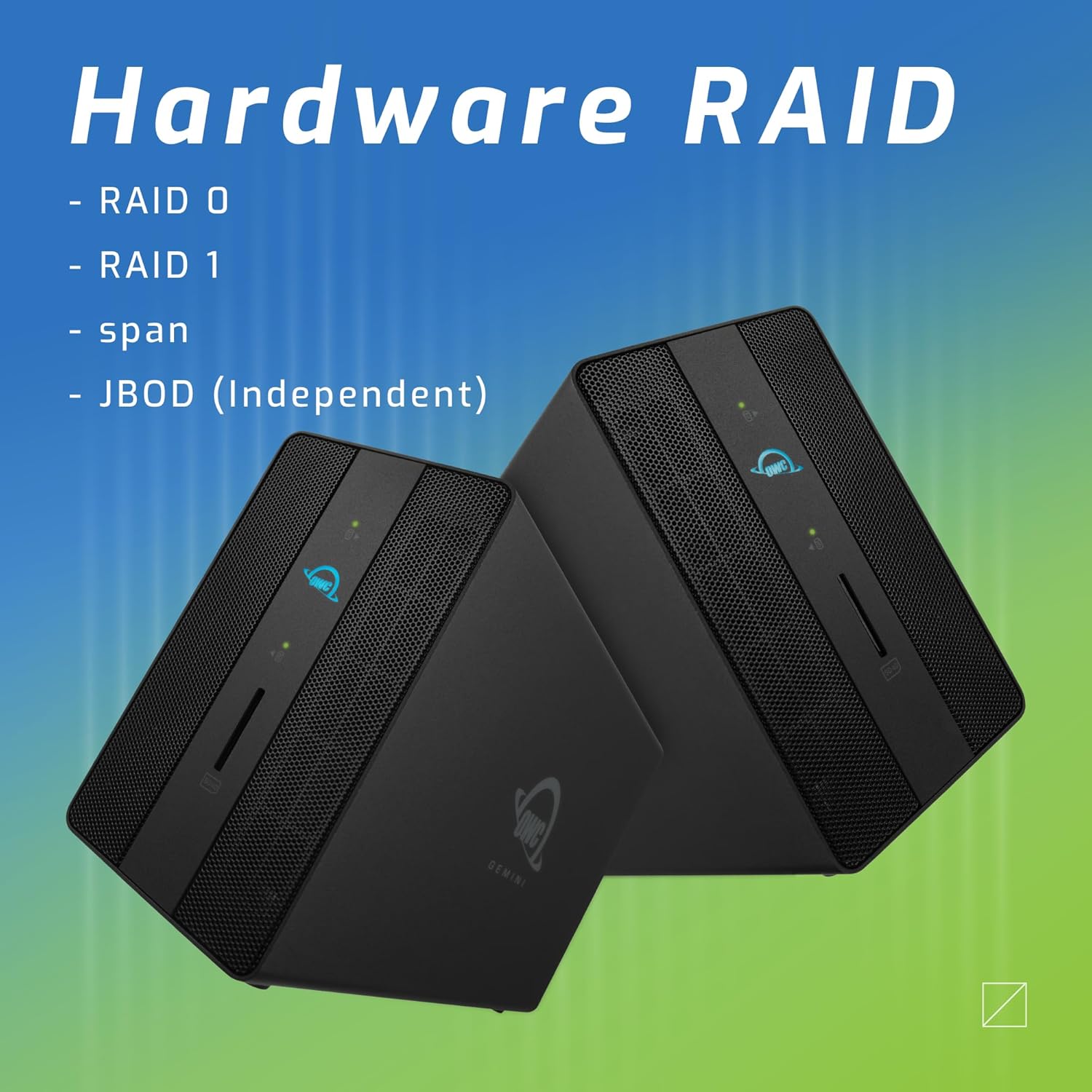
Image: Two OWC Gemini units, emphasizing the hardware RAID capabilities for configurations like RAID 0, RAID 1, SPAN, and JBOD.
RAID Levels Explained:
- RAID 0 (чергування): Combines drives for maximum speed and capacity, but offers no data redundancy.
- RAID 1 (дзеркалювання): Duplicates data across drives for redundancy, sacrificing half the total capacity for data protection.
- SPAN (Concatenation): Combines drives into a single large volume without striping or mirroring.
- JBOD (Just a Bunch Of Disks): Treats each drive as an independent volume.
3. Підключення до комп’ютера
- Connect the power adapter to the DC 12V power input on the OWC Gemini and then to a power outlet.
- Connect one end of the Thunderbolt (USB-C) cable to the host port on the OWC Gemini.
- Connect the other end of the Thunderbolt (USB-C) cable to a Thunderbolt (USB-C) port on your computer.
- Пристрій має ввімкнутися автоматично.
4. Initializing Drives
After connecting, your operating system may prompt you to initialize and format the new drives. Follow the on-screen instructions. For macOS, use Disk Utility. For Windows, use Disk Management.
Інструкція з експлуатації
Передача даних
Once the drives are initialized and formatted, they will appear as accessible volumes on your computer. You can drag and drop files to and from these volumes as you would with any other storage device.
Використання портів USB
Connect USB peripherals such as external drives, keyboards, or mice to the two USB 3.2 Gen 2 Type-A ports. These ports support data transfer speeds up to 10 Gb/s.
Підключення зовнішнього дисплея
Use the HDMI 2.1 port to connect an external monitor. The Gemini supports resolutions up to 8K @ 120Hz via HDMI.
Підключення до мережі
Connect an Ethernet cable from your network router or switch to the 2.5 Gigabit Ethernet port on the Gemini for high-speed wired network access.
Using the SD Card Slot
Insert an SD 4.0/UHS-II compatible SD card into the front-facing slot for quick data transfer from cameras or other devices.
Daisy-Chaining and Power Delivery

Image: A close-up of the OWC Gemini's Thunderbolt ports, illustrating their use for daisy-chaining, connecting additional displays, and charging USB-C devices.
The second Thunderbolt 3 (USB-C) port allows you to:
- Ромашка additional Thunderbolt devices.
- Підключіть additional display (up to 8K @ 60Hz or 4K @ 120Hz).
- Charge USB-C devices with up to 27 watts of power.
Технічне обслуговування
- Прибирання: Використовуйте м’яку суху тканину для очищення зовнішньої частини пристрою. Не використовуйте рідкі засоби для чищення або аерозолі.
- Вентиляція: Переконайтеся, що вентиляційні решітки не засмічені, щоб запобігти перегріву.
- Оновлення прошивки: Periodically check the OWC webсайт для оновлень прошивки, щоб забезпечити оптимальну продуктивність та сумісність.
- Безпечний викид: Always safely eject the OWC Gemini from your operating system before disconnecting it or powering it off to prevent data corruption.
Усунення несправностей
Пристрій не розпізнано
- Ensure all cables are securely connected, especially the Thunderbolt cable to both the Gemini and your computer.
- Verify the power adapter is correctly connected and the device is receiving power.
- Try connecting the Gemini to a different Thunderbolt port on your computer.
- Перезавантажте комп'ютер.
- Check your operating system's Disk Utility (macOS) or Disk Management (Windows) to see if the drives are detected but uninitialized or unformatted.
Низька швидкість передачі даних
- Ensure you are using a Thunderbolt 3 compatible cable and port.
- Check the RAID configuration. RAID 1 (mirroring) will have slower write speeds than RAID 0 (striping).
- Close any unnecessary applications that might be consuming system resources.
- Переконайтеся, що драйвери вашого комп'ютера оновлені.
Проблеми з відображенням
- Verify the HDMI cable is securely connected to both the Gemini and your monitor.
- Check your display settings in your operating system.
- Ensure your monitor supports the resolution and refresh rate you are attempting to use.
- Спробуйте інший кабель HDMI або монітор, якщо він є.
Проблеми з підключенням до мережі
- Ensure the Ethernet cable is securely connected to both the Gemini and your network device.
- Перевірте мережеві налаштування вашого комп’ютера.
- Перезавантажте маршрутизатор/модем.
Технічні характеристики
| Особливість | Деталь |
|---|---|
| Бренд | OWC |
| Номер моделі | OWCTB3GM000H32 |
| Ємність зберігання | 32.0TB (as configured) |
| Привідні відсіки | 2 (supports 2.5" and 3.5" SATA drives) |
| Рівні RAID | SPAN, RAID 0, RAID 1, JBOD (Hardware RAID) |
| Host Interface | Thunderbolt 3 (USB-C) |
| Швидкість передачі даних | Up to 40 Gb/s (Thunderbolt 3), Up to 10 Gb/s (USB 3.2 Gen 2) |
| Порти | (1) Thunderbolt 3 (USB-C) Host, (1) Thunderbolt 3 (USB-C) Downstream, (2) USB 3.2 Gen 2 Type-A, (1) HDMI 2.1, (1) 2.5 Gigabit Ethernet, (1) SD 4.0/UHS-II |
| Підтримка дисплея | HDMI 2.1: Up to 8K @ 120Hz; Thunderbolt 3: Up to 8K @ 60Hz or 4K @ 120Hz |
| Електропостачання | До 27 Вт через Thunderbolt 3 |
| Сумісні пристрої | Desktop, Laptop, Tablet (with Thunderbolt/USB-C port) |
| Колір | чорний |
| вага | 9.35 фунта (прибл.) |
| UPC | 810100983697 |
Гарантія та підтримка
Інформація про гарантію
OWC products are covered by a limited warranty. Please refer to the official OWC website or your purchase documentation for specific warranty terms and conditions. Keep your proof of purchase for warranty claims.
Технічна підтримка
For technical assistance, troubleshooting, or further inquiries, please visit the official OWC support webсайту або зв’яжіться з їхньою службою обслуговування клієнтів.


