
вступ
Thank you for choosing the Verilux Wireless Mouse M103. This manual provides detailed instructions for setting up, operating, and maintaining your new mouse. Please read this manual carefully before use to ensure optimal performance and longevity of your device.
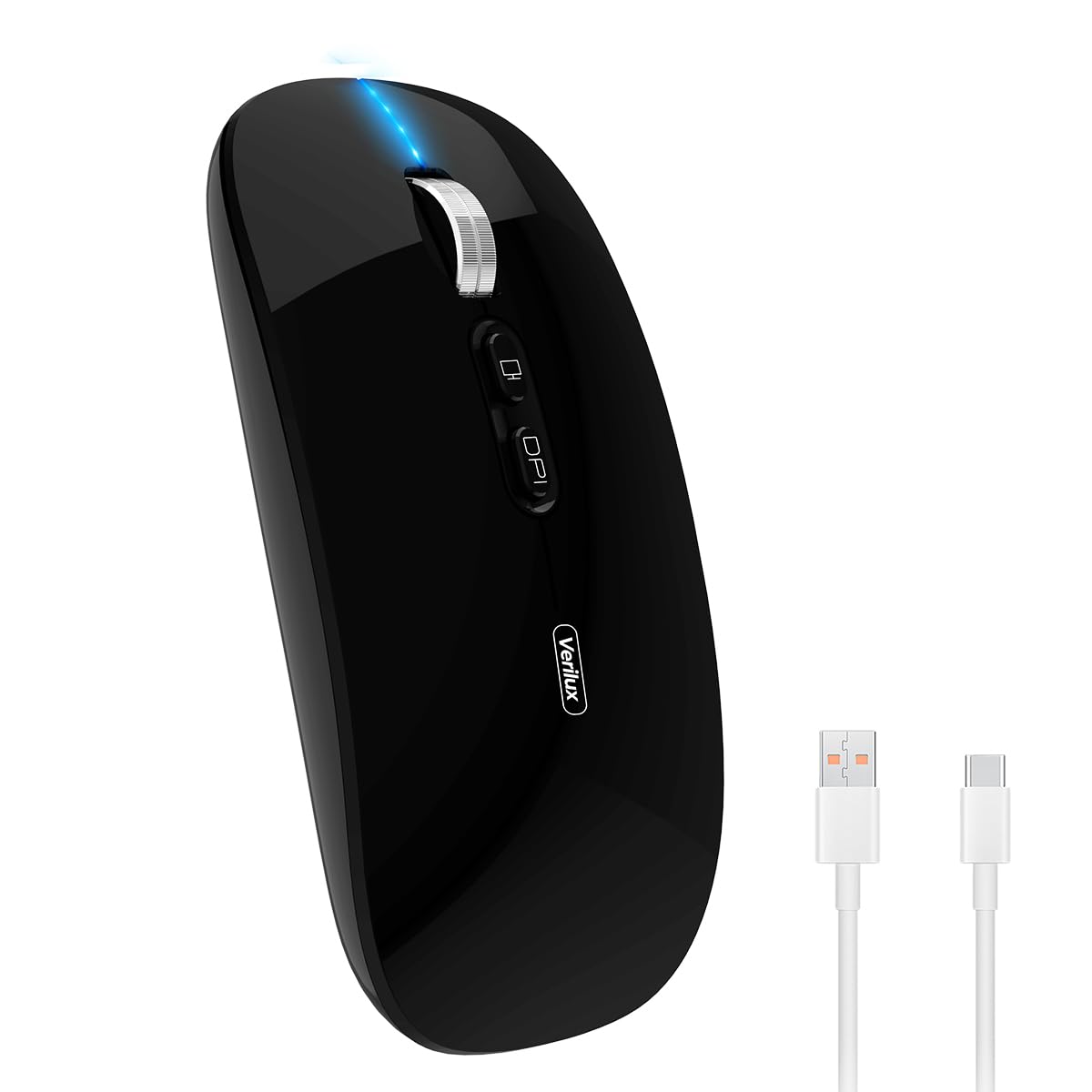
Image: Verilux Wireless Mouse M103 in black.
Продукт закінченийview
The Verilux M103 is a versatile wireless mouse offering dual-mode connectivity (2.4G USB and Bluetooth 5.1), a rechargeable battery, and an ergonomic, silent design. It is compatible with a wide range of devices and operating systems.

Image: The Verilux M103 mouse demonstrating its dual Bluetooth connectivity with a laptop and tablet.
Ключові характеристики:
- Дворежимне підключення: Seamlessly switch between 2.4G USB and Bluetooth 5.1.
- Акумуляторна батарея: Built-in 500mAh battery with 4-level power indicator.
- Ergonomic & Silent Design: Comfortable grip with silent clicks for a quiet working environment.
- Універсальна сумісність: Supports Android, Windows, MacOS, iOS 12 and above, PC, laptops, and tablets.
- Регульований DPI: Customize mouse sensitivity for precise control.
Налаштування
1. 2.4G Mode Setup:
- Locate the USB receiver stored in the mouse's bottom compartment.
- Plug the USB receiver into an available USB port on your device (laptop, PC).
- Turn on the mouse using the On/Off switch located on the bottom.
- Миша має автоматично підключитися до вашого пристрою.
Video: Demonstrates unboxing, identifying the USB receiver, and connecting the mouse via 2.4G USB to a laptop.
2. Bluetooth Mode Setup:
The mouse supports two Bluetooth channels: Bluetooth 3.0 and Bluetooth 5.1.
- Увімкніть мишу за допомогою перемикача ввімк./вимк. знизу.
- Switch the mode selector on the bottom of the mouse to either BT3.0 (center blue light) or BT5.1 (right blue light).
- Activate Bluetooth on your device (laptop, PC, iPad, phone).
- шукати available Bluetooth devices and select 'BT5.1 Mouse' to connect.
- If the indicator light blinks and the connection is unsuccessful, restart both your device and the mouse, then try again.
Інструкція з експлуатації
Mouse Buttons:
- Клацніть лівою кнопкою миші: Стандартний вибір.
- Клацніть правою кнопкою миші: Контекстне меню.
- Scroll Wheel (Middle Button/Roller): Scroll up/down, click for middle-click functions.
- Кнопка DPI: Налаштовує чутливість миші (DPI).
- One-Click Desktop Button: Швидко згортає всі відкриті вікна, щоб відобразити робочий стіл.

Image: Close-up of the Verilux M103 mouse, highlighting the scroll wheel, DPI button, and one-click desktop button.
Регулювання DPI:
Press the DPI button (located behind the scroll wheel) to cycle through different sensitivity levels (e.g., 800, 1200, 1600 DPI). Choose the setting that best suits your preference and task.
Зарядка та акумулятор
The Verilux M103 mouse features a built-in 500mAh rechargeable battery. It is equipped with 4-level power indicator lights to show the remaining battery life.
Інструкції щодо зарядки:
- Connect the mouse to a power source using the provided USB-C charging cable. The charging port is located at the front of the mouse.
- A flashing light on the mouse indicates normal charging.
- Charge the mouse using a 5V 1A, 5V 2A, or an adapter with no more than 10W of power. It can also be charged by connecting it to a computer's USB port.
- Мишу можна використовувати під час заряджання.
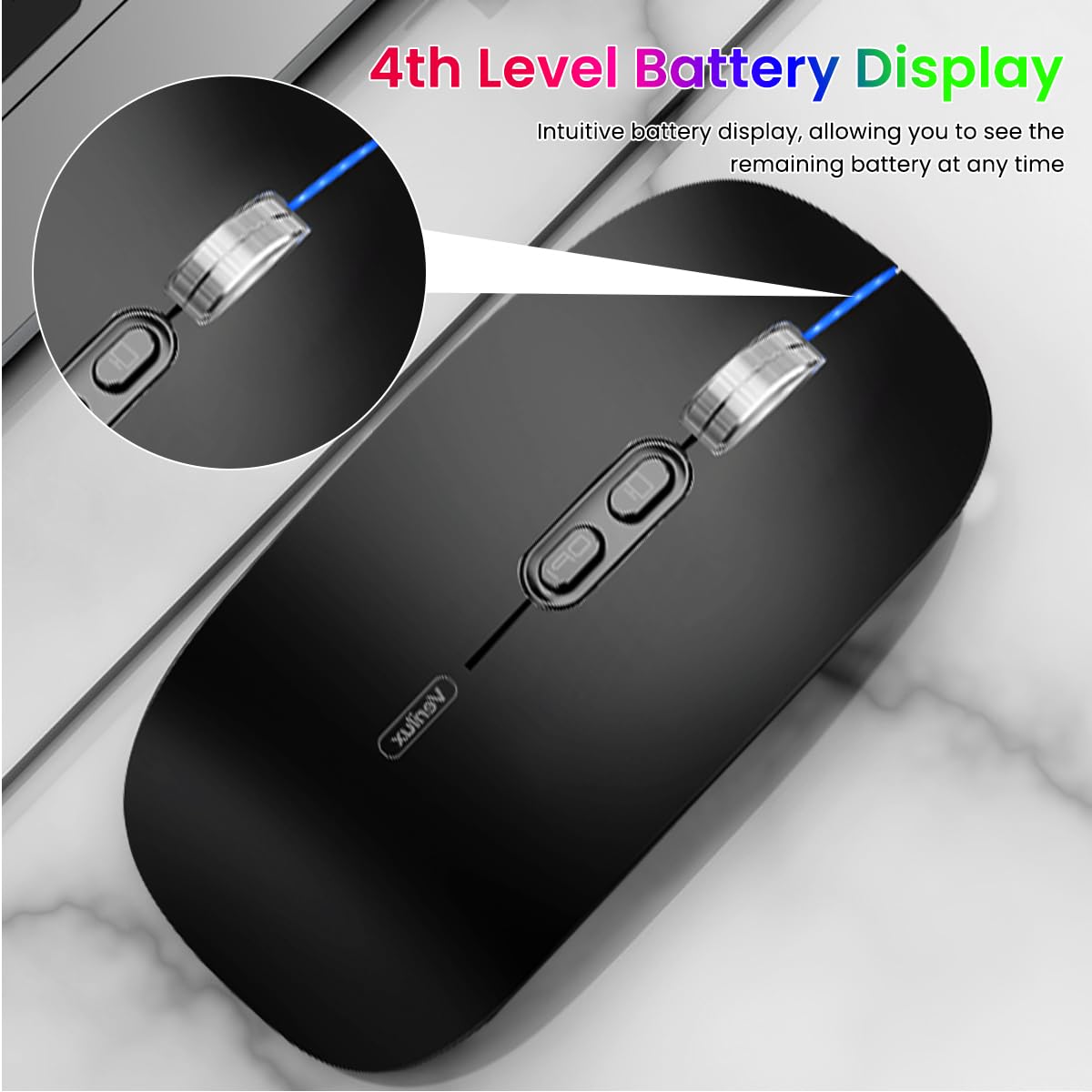
Image: The Verilux M103 mouse displaying its 4-level battery indicator lights.

Image: The Verilux M103 mouse connected to a laptop for charging via its USB-C port.
Сумісність
The Verilux M103 Wireless Mouse offers broad compatibility with various devices and operating systems:
- Операційні системи: Android, Windows (7, XP, 8, 10), MacOS, iOS 12 and above, Linux.
- Пристрої: Laptops, Personal Computers, Tablets, iPads, MacBooks.

Image: The Verilux M103 mouse shown with a laptop, desktop monitor, iPad, and smartphone, illustrating its wide compatibility.
Технічне обслуговування
To ensure the longevity and optimal performance of your Verilux Wireless Mouse M103, follow these maintenance guidelines:
- Прибирання: Використовуйте м’яку суху тканину для очищення миші. Для стійкого бруду злегкаampПротріть тканину водою або м’яким миючим розчином. Уникайте агресивних хімікатів або абразивних матеріалів.
- Зберігання: When not in use, especially during travel, store the USB receiver in its designated compartment at the bottom of the mouse to prevent loss.
- Догляд за акумулятором: Avoid fully discharging the battery frequently. Charge the mouse when the power indicator shows low battery. Do not expose the mouse to extreme temperatures.
- Умови навколишнього середовища: Keep the mouse away from excessive dust, moisture, and direct sunlight.
Усунення несправностей
If you encounter issues with your Verilux Wireless Mouse M103, please refer to the following common solutions:
| проблема | Рішення |
|---|---|
| Mouse not connecting (2.4G Mode) |
|
| Mouse not connecting (Bluetooth Mode) |
|
| Mouse cursor lagging or erratic movement |
|
| Миша не заряджається |
|
Технічні характеристики
| Особливість | Деталь |
|---|---|
| Бренд | Verilux |
| Номер моделі | M103 (AZEM4-0K5FZ5C) |
| Технологія підключення | Bluetooth (3.0 & 5.1), 2.4G Wireless |
| Технологія виявлення руху | Оптичний |
| Налаштування DPI | До 1600 DPI (регульована) |
| Акумулятор | Перезаряджається на 500 мАг |
| Джерело живлення | Живлення від батареї (зарядка через USB-C) |
| кнопки | 4 (Left, Right, Scroll Wheel/Middle, DPI, One-Click Desktop) |
| Орієнтація руки | Амбідекстр |
| Вага товару | 119 грамів |
| Розміри предмета (Д x Ш) | 12 Д x 7 Ш сантиметрів |
| Колір | Black (Standard Black variant) |
Гарантія та підтримка
For warranty information and customer support, please refer to the documentation included with your product packaging or visit the official Verilux webсайт. Ви також можете звернутися безпосередньо до продавця за допомогою.
Виробник: Verilux, Yiwu Kaiming Industrial Co., Ltd.
Імпортер/Пакувальник: Verilux
Для отримання додаткової інформації ви можете відвідати Verilux Store on Amazon.