
Брелок M6-A1
Keychron M6 Wireless Optical Mouse User Manual
Model: M6-A1
1. Вступ
This manual provides comprehensive instructions for the Keychron M6 Wireless Optical Mouse. It covers setup, operation, maintenance, and troubleshooting to ensure optimal performance and longevity of your device. The Keychron M6 is a high-performance wireless mouse designed for productivity and gaming, featuring multiple connectivity options, a precise sensor, and customizable buttons.

Figure 1: Keychron M6 Wireless Optical Mouse (Black)
This image shows the Keychron M6 wireless optical mouse in black, highlighting its ergonomic design and sleek appearance. A separate component, likely a wireless receiver, is also visible to the right.
2. Ключові характеристики
- Універсальний підключення: Supports 2.4 GHz wireless, Bluetooth 5.1, and wired USB connections.
- Високий коефіцієнт опитування: Up to 4000 Hz polling rate for ultra-low latency response.
- Precise Sensor: Equipped with PixArt 3395 sensor, offering up to 26,000 DPI and 650 IPS.
- Легкий дизайн: Важить приблизно 78 г для комфортного тривалого використання.
- Програмовані кнопки: Over ten customizable buttons and an infinite scroll wheel.
- Налаштування програмного забезпечення: Keychron Engine software for macOS/Windows allows personalization of keys, shortcuts, macros, LOD, polling rate, and DPI settings.

Figure 2: Key Features of Keychron M6 Mouse
This image visually highlights the key features of the Keychron M6 mouse, including its infinite scroll wheel, 4000 Hz polling rate, up to 26000 DPI, and 78g lightweight design.
3. Вміст упаковки
Перевірте наявність усіх елементів в упаковці:
- 1x Keychron M6 Wireless Optical Mouse
- 1 кабель Type-C – Type-C
- 1x перехідник типу A на тип C
- 1x бездротовий приймач 4K

Figure 3: Standard Version (4K) Package Contents
This image illustrates the contents included with the Keychron M6 mouse, showing the mouse itself, a USB-C cable, a USB-A to USB-C adapter, and the 4K wireless receiver.
4. Посібник із налаштування
4.1 Заряджання миші
The Keychron M6 mouse comes with a built-in 800 mAh battery. Before first use, it is recommended to fully charge the mouse.
- Connect the provided Type-C cable to the mouse's charging port.
- Підключіть інший кінець кабелю до джерела живлення USB (наприклад, USB-порту комп'ютера, настінного USB-адаптера).
- The charging indicator light will show the charging status. A full charge can provide up to 80 hours of use.

Figure 4: Mouse Dimensions and Battery Life
This image provides the physical dimensions of the Keychron M6 mouse and highlights its 800 mAh battery, which offers up to 80 hours of usage. It also shows the Huano 80M Micro Switch and DPI/Report Rate adjustment buttons.
4.2 Підключення миші
The Keychron M6 supports three connection modes: 2.4 GHz wireless, Bluetooth 5.1, and wired USB.
Бездротове з'єднання 4.2.1 2.4 ГГц
- Locate the 4K wireless receiver included in the package.
- Підключіть бездротовий приймач 4K до вільного USB-порту на вашому комп'ютері.
- On the bottom of the mouse, slide the switch to the "2.4G" position.
- Миша повинна автоматично підключитися до приймача.

Рисунок 5: Варіанти підключення
This image illustrates the stable and ultra-low latency response of the Keychron M6 mouse, showcasing its 2.4GHz, Bluetooth 5.1, and USB Wired connectivity options.
4.2.2 З’єднання Bluetooth 5.1
- On the bottom of the mouse, slide the switch to the "B" (Bluetooth) position.
- Миша перейде в режим сполучення (індикатор може блимати).
- На комп’ютері або пристрої відкрийте налаштування Bluetooth і знайдіть нові пристрої.
- Select "Keychron M6" from the list of available devices to pair.
4.2.3 Дротове USB-з’єднання
- Connect the provided Type-C cable to the mouse's port.
- Connect the other end of the cable (using the Type-A adapter if necessary) to a USB port on your computer.
- The mouse will function immediately in wired mode.
5. Інструкція з експлуатації
5.1 Налаштування DPI
The Keychron M6 mouse allows for on-the-fly DPI adjustment without software.
- Locate the DPI button on the bottom of the mouse.
- Press the DPI button to cycle through different DPI levels. The indicator light may change color to indicate the current DPI setting.
- Fine-tune DPI settings using the Keychron Engine software for more precise control.

Figure 6: DPI and Report Rate Adjustment Buttons
This close-up image shows the buttons on the underside of the Keychron M6 mouse, specifically highlighting the DPI adjustment button and the G/OFF/B switch for connectivity modes, along with the Report Rate button.
5.2 Налаштування частоти опитування
The polling rate can be adjusted to optimize responsiveness for different uses.
- Locate the Report Rate button on the bottom of the mouse.
- Press the Report Rate button to cycle through available polling rates (e.g., 125 Hz, 500 Hz, 1000 Hz, 2000 Hz, 4000 Hz).
- Refer to the table below for indicator light meanings.

Figure 7: M6 (4000 Hz) Polling Rate and Indicator Guide
This image displays a table detailing the polling rates (Hz) and corresponding report rate light indicators (White, Blue, Red, Blue + Red, White + Red) for the Keychron M6 mouse, along with the available connection modes for each rate.
5.3 Customizing Buttons and Macros (Keychron Engine Software)
For advanced customization, download and install the Keychron Engine software from the official Keychron webсайт.
- The software allows you to remap buttons, create custom shortcuts, and set up complex macros.
- Adjust Lift-Off Distance (LOD) and other sensor parameters.
- Керування кількома професіоналамиfileдля різних програм або ігор.
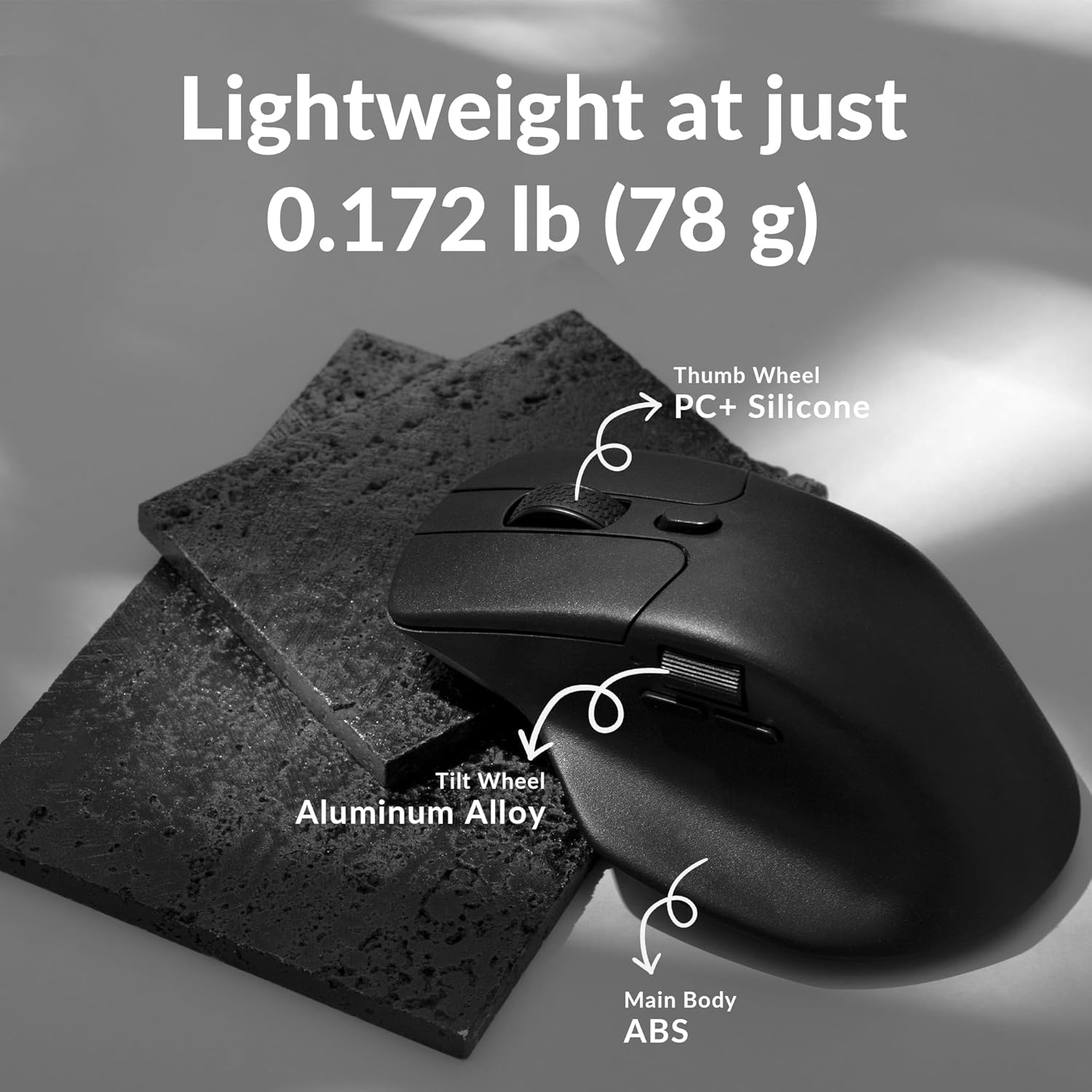
Figure 8: Keychron Engine Software for Customization
This image shows the user interface of the Keychron Engine software, demonstrating how users can customize buttons and settings for the Keychron M6 mouse on macOS and Windows operating systems.
6. Технічне обслуговування
Proper maintenance ensures the longevity and optimal performance of your Keychron M6 mouse.
- Прибирання: Використовуйте м’яку суху тканину для протирання поверхні миші. Для стійкого бруду злегкаampПротріть тканину водою або м’яким миючим розчином. Уникайте агресивних хімікатів.
- Догляд за датчиком: Тримайте оптичний датчик на нижній частині миші чистим та без пилу чи сміття. За потреби використовуйте ватний тампон або стиснене повітря.
- Зберігання: Якщо миша не використовується протягом тривалого часу, зберігайте її в прохолодному, сухому місці, подалі від прямих сонячних променів та екстремальних температур.
- Термін служби батареї: To preserve battery health, avoid fully discharging the battery frequently. Charge the mouse when the battery indicator is low.
7. Вирішення проблем
| проблема | Можлива причина | Рішення |
|---|---|---|
| Миша не реагує (бездротова) | Low battery; Receiver not plugged in; Incorrect mode selected; Interference. | Charge the mouse; Ensure 4K receiver is securely plugged in; Switch to 2.4G or Bluetooth mode; Move closer to receiver or reduce interference sources. |
| Миша не реагує (дротова) | Cable not connected properly; Faulty USB port. | Ensure USB-C cable is securely connected to both mouse and computer; Try a different USB port. |
| Lag or erratic movement | Dirty sensor; Surface issues; Low battery; Wireless interference. | Clean the optical sensor; Use on a clean, non-reflective mouse pad; Charge the mouse; Minimize other wireless devices nearby. |
| Кнопки не працюють належним чином | Software settings; Driver issues. | Check Keychron Engine software settings for button assignments; Reinstall mouse drivers if necessary. |
| Не вдається підключитися через Bluetooth | Mouse not in pairing mode; Bluetooth on device is off; Already paired to another device. | Ensure mouse is in Bluetooth pairing mode; Enable Bluetooth on your device; Unpair from other devices or reset Bluetooth connection. |
8. Технічні характеристики
| Особливість | Деталь |
|---|---|
| Номер моделі | M6-A1 |
| Підключення | Бездротовий зв'язок 2.4 ГГц, Bluetooth 5.1, дротовий USB |
| датчик | Оптичний сенсор PixArt 3395 |
| Діапазон DPI | До 26,000 DPI |
| IPS | IPS 650 |
| Швидкість опитування | До 4000 Гц |
| вага | Приблизно 78 г (2.75 унції) |
| Акумулятор | 800 mAh (Up to 80 hours) |
| Розміри | 4.82 x 2.97 x 1.97 дюйма (122.5 x 75.4 x 50 мм) |
| Сумісність операційної системи | Windows, macOS, Linux |
9. Гарантія та підтримка
Keychron products typically come with a limited warranty. Please refer to the official Keychron webна сайті або в документації щодо придбання, щоб дізнатися про конкретні гарантійні умови.
For technical support, driver downloads, or further assistance, please visit the official Keychron support page:
You can also find the official user guide PDF here: Keychron M6 User Guide (PDF)