
1. Вступ
This manual provides detailed instructions for the installation, configuration, operation, and maintenance of your ZTE ZXHN H188A VDSL Router. Please read this manual thoroughly before using the device to ensure proper setup and optimal performance. Keep this manual for future reference.
2. Продукт закінчивсяview
The ZTE ZXHN H188A is a high-performance VDSL2 router designed to provide high-speed internet access and robust wireless connectivity. It features dual-band Wi-Fi (2.4 GHz and 5 GHz) with speeds up to 1200 Mbps, multiple Gigabit Ethernet ports, and a USB 2.0 port for enhanced functionality. The device supports Quality of Service (QoS) to prioritize network traffic.
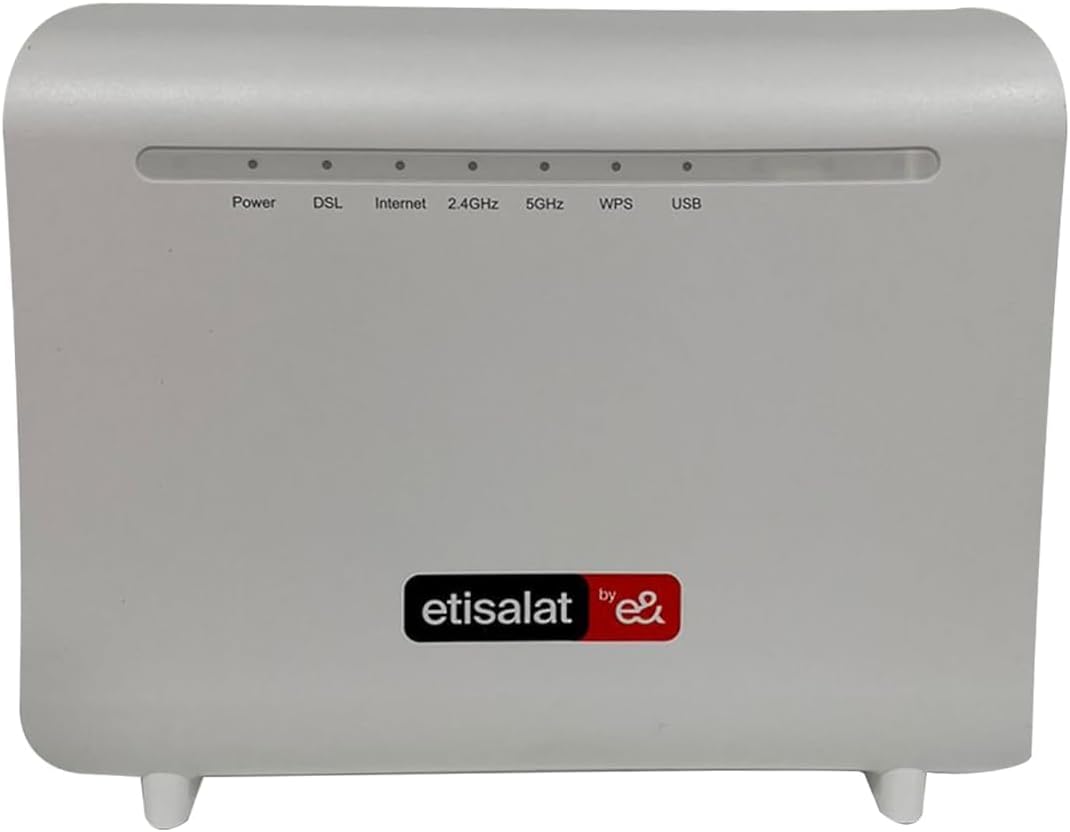
малюнок 1: Front panel of the ZTE ZXHN H188A VDSL Router. Visible indicators include Power, DSL, Internet, 2.4GHz Wi-Fi, 5GHz Wi-Fi, WPS, and USB. The lower front features the 'etisalat by e&' logo.
2.1 Світлові індикатори
- Потужність: Вказує на стан живлення пристрою.
- DSL: Indicates the status of the VDSL/ADSL line connection.
- Інтернет: Показує стан інтернет-з’єднання.
- 2.4 ГГц: Indicates the status of the 2.4 GHz Wi-Fi network.
- 5 ГГц: Indicates the status of the 5 GHz Wi-Fi network.
- WPS: Indicates the status of the Wi-Fi Protected Setup function.
- USB: Indicates the status of the USB port.
3. Налаштування
Follow these steps to set up your ZTE ZXHN H188A VDSL Router:
- Розпакуйте маршрутизатор: Обережно вийміть роутер та всі аксесуари з упаковки.
- Connect to the DSL Line: Connect one end of the RJ-11 phone cable to the DSL port on the router and the other end to your wall's DSL socket or splitter.
- Підключення до живлення: Connect the power adapter to the router's power input and then plug it into an electrical outlet. Press the On/Off button if the router does not power on automatically.
- Підключення до комп'ютера (необов'язково): For initial configuration or a wired connection, connect an Ethernet cable from one of the LAN ports (RJ-45) on the router to the Ethernet port on your computer.
- Зачекайте ініціалізації: Allow a few minutes for the router to power on and establish a DSL connection. The Power, DSL, and Internet indicator lights should become stable.
- Доступ до Web Інтерфейс: Відкрийте a web browser on your connected computer and enter the default IP address (commonly
192.168.1.1or192.168.0.1) into the address bar. You will be prompted for a username and password (refer to the label on the bottom of your router for default credentials, or common defaults likeadmin/adminoruser/user). - Початкова конфігурація: Follow the on-screen wizard to configure your internet connection settings (VDSL/ADSL parameters provided by your Internet Service Provider) and Wi-Fi network name (SSID) and password.
4. Інструкція з експлуатації
4.1 Підключення до Wi-Fi
To connect your wireless devices to the router:
- Enable Wi-Fi on your device (smartphone, laptop, tablet).
- шукати available wireless networks.
- Select your router's Wi-Fi network name (SSID), which you configured during setup.
- Enter the Wi-Fi password (security key) when prompted.
4.2 Використання WPS (захищене налаштування Wi-Fi)
For devices that support WPS, you can connect without entering the password:
- Press the WPS button on your router (as indicated in the product description).
- Within two minutes, activate the WPS function on your wireless device. The devices will automatically connect.
4.3 Accessing the Router's Web Інтерфейс
To manage advanced settings, such as port forwarding, parental controls, or firmware updates, access the router's web interface using the IP address and credentials established during setup.
5. Технічне обслуговування
Регулярне технічне обслуговування допомагає забезпечити довговічність та оптимальну продуктивність вашого маршрутизатора:
- Keep it Ventilated: Переконайтеся, що роутер розташований у добре провітрюваному місці, подалі від прямих сонячних променів та джерел тепла, щоб запобігти перегріву.
- Чистити регулярно: Gently clean the exterior of the router with a soft, dry cloth. Do not use liquid cleaners or aerosols.
- Оновлення прошивки: Періодично перевіряйте дані виробника website for firmware updates. Firmware updates can improve performance, add new features, and fix security vulnerabilities. Follow the instructions provided by the manufacturer carefully when performing updates.
- Перезапуск маршрутизатора: If you experience connectivity issues, a simple restart can often resolve them. Disconnect the power adapter, wait 10-15 seconds, and then reconnect it.
6. Вирішення проблем
У цьому розділі розглядаються поширені проблеми, з якими ви можете зіткнутися:
- Немає живлення:
- Ensure the power adapter is securely connected to the router and the electrical outlet.
- Перевірте, чи справна розетка.
- Verify the On/Off button is pressed.
- No DSL/Internet Connection:
- Check the DSL cable connection to the router and the wall socket.
- Ensure the DSL and Internet indicator lights are stable. If they are blinking or off, there might be an issue with your DSL line or ISP service. Contact your Internet Service Provider.
- Перевірте налаштування інтернет-з’єднання в налаштуваннях роутера web інтерфейс.
- Не вдається підключитися до Wi-Fi:
- Ensure the 2.4GHz and 5GHz Wi-Fi indicator lights are on.
- Переконайтеся, що ви вибрали правильну назву мережі Wi-Fi (SSID) та ввели правильний пароль.
- Підійдіть ближче до маршрутизатора, щоб покращити потужність сигналу.
- Try restarting both the router and your wireless device.
- Повільна швидкість Інтернету:
- Перезапустіть роутер.
- Переконайтеся, що жодні інші пристрої не використовують пропускну здатність надмірно.
- Перевірте наявність перешкод від інших електронних пристроїв.
- Contact your Internet Service Provider to check your line speed.
- Скидання роутера: If all else fails, you can perform a factory reset. Locate the Reset button (often a small pinhole) on the router. With the router powered on, use a paperclip or similar pointed object to press and hold the Reset button for approximately 5-10 seconds until the indicator lights flash. The router will restart with factory default settings, requiring re-configuration.
7. Технічні характеристики
| Модель | H188A |
| Інтерфейс | 1 x RJ-11 VDSL2 / ADSL2+ Port 1 x RJ-45 WAN / LAN 10/100/1000 Mbps Port 3 x RJ-45 LAN 10/100/1000 Mbps Ports 1 порт USB 2.0 |
| кнопки | On/Off, WPS, Reset, Wi-Fi Radio |
| Швидкість передачі даних | Up to 1200 Mbps (Wireless) |
| Бездротові стандарти | IEEE 802.11n, IEEE 802.11b (Supports 802.11ac for 1200Mbps) |
| Бездротова безпека | WEP / WPA / WPA2 |
| Частота | 2.4 ГГц та 5 ГГц (дводіапазонний) |
| Розміри (Ш x Г x В) | 220 x 80 mm (Height not specified, typically includes depth) |
| Особливість | QoS (Якість обслуговування) |
| Операційна система | RouterOS |
8. Гарантія та підтримка
As this product is listed under a 'Generic' brand, specific warranty terms and support channels may vary. Please refer to the documentation provided at the time of purchase or contact your retailer for detailed warranty information and technical support. Keep your proof of purchase for any warranty claims.