
ISTOVO 00371819A2
ISTOVO TS18 Car Navigation System User Manual
Model: 00371819A2 | Brand: ISTOVO
1. Продукт закінчивсяview
The ISTOVO TS18 is an intelligent car navigation system designed to enhance your driving experience with advanced features and seamless connectivity. This unit integrates a 10.33-inch display, a powerful 8-core processor, and runs on Android 11.0, offering a comprehensive infotainment solution for your vehicle.

Зображення: спереду view of the ISTOVO TS18 car navigation system, displaying its sleek design and large screen when powered off.
2. Ключові характеристики
- Операційна система: Android 11.0
- Процесор: 9863 8-Core Processor
- Пам'ять і зберігання: 4 ГБ оперативної пам'яті + 64 ГБ вбудованої пам'яті
- Підключення: Full 4G Network Connection, Bluetooth 5.0, USB
- Аудіо: 48-Segment Audio Processing, AM+FM+RDS Radio
- Роздільна здатність дисплея: 1280 х 720
- Підтримка камери заднього виду: AHD/720P
- Інтеграція: Supports CARPLAY and Android Auto
- Особливості: Text-to-Speech, Integration with third-party apps
3. Технічні характеристики
| Особливість | Специфікація |
|---|---|
| Виробник | ISTOVO |
| Номер моделі | 00371819A2 |
| Розміри продукту | 25 х 15 х 5 см |
| Тип монтажу | Кріплення для приладової панелі |
| Технологія підключення | USB |
| Тип карти | вул |
| Режим аудіовиходу | Стерео |
4. Налаштування
4.1 Розпакування та початковий огляд
- Обережно відкрийте упаковку продукту.
- Remove the ISTOVO TS18 host unit and all accessories.
- Inspect all components for any signs of damage during transit. If any damage is found, contact customer support immediately.
- Verify that all listed components are present: 1 x Host unit, necessary cables (not explicitly listed but implied by installation).
4.2 Встановлення
Installation typically involves connecting the unit to your vehicle's power supply, audio system, and other relevant inputs. Professional installation is recommended for optimal performance and safety.

Зображення: Задня частина view of the ISTOVO TS18 unit, highlighting the various connection ports for power, antenna, GPS, and other peripherals.
- Підключення живлення: Connect the main power harness to the corresponding port on the back of the unit. Ensure correct polarity.
- Підключення антени: Connect the GPS antenna to the dedicated GPS port and the radio antenna to the ANT port.
- USB/Auxiliary Connections: Connect any USB devices or auxiliary inputs as required.
- Камера заднього виду: If installing a reverse camera, connect its video output to the AHD/720P input port.
- Монтаж: Securely mount the unit in your vehicle's dashboard using appropriate mounting hardware.
5. Інструкція з експлуатації
5.1 Базова навігація та головний екран
Upon powering on, the device will display the home screen with various application icons.

Image: The home screen of the ISTOVO TS18, displaying a grid of common application icons for quick access.
- Інтерфейс сенсорного екрану: Navigate the system by tapping on icons and swiping across the screen.
- Кнопка "Додому: Tap the home icon (usually a house symbol) to return to the main home screen from any application.
- Кнопка Назад: Use the back arrow to return to the previous screen or menu.
- Останні програми: Access recently used applications through the multi-tasking button (often three horizontal lines or squares).
5.2 Підключення до мережі
To utilize online features such as navigation maps, app downloads, or streaming, the device requires an internet connection.

Image: The navigation screen displaying a prompt to connect to the internet to download map data, indicating the need for network access.
- Wi-Fi підключення: Go to Settings > Network & Internet > Wi-Fi. Select your desired Wi-Fi network and enter the password.
- Підключення 4G: Ensure your SIM card is correctly inserted (if applicable) and mobile data is enabled in Settings > Network & Internet > Mobile network.
5.3 Використання програм
The system comes pre-installed with various applications and supports downloading more from the app market.
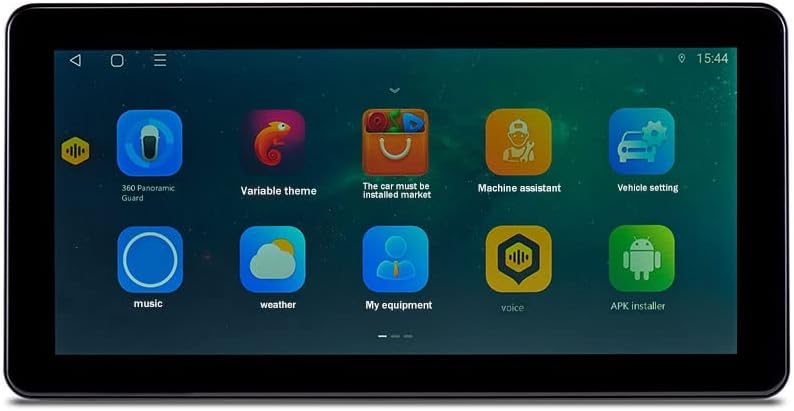
Image: A screen capture of the ISTOVO TS18 showing additional application icons, including utilities and customization options.
- Navigation Apps: Tap on the navigation app icon (e.g., Amap) to start route planning.
- Відтворення мультимедіа: Use the 'Music' or 'Video' apps to play audio or video files from connected storage or streaming services.
- Bluetooth: Pair your smartphone via Bluetooth for hands-free calling and audio streaming. Go to Settings > Connected devices > Bluetooth.
НІКОЛИ розширені налаштування
Access the system settings to customize various aspects of the device's operation.

Image: The screen displaying icons for advanced system tools and utilities, such as GPS testing and digital sound processing.
- Налаштування звуку: Adjust equalizer, balance, and other audio parameters in the sound settings.
- Налаштування дисплею: Modify brightness, wallpaper, and screen timeout.
- Оновлення системи: Check for and install system software updates to ensure optimal performance and access to new features.
6. Технічне обслуговування
- Прибирання: Використовуйте м’яку суху тканину для очищення екрана та зовнішньої поверхні. Уникайте абразивних засобів для чищення або розчинників.
- Оновлення програмного забезпечення: Regularly check for and install system updates to ensure the device runs smoothly and securely.
- Резервне копіювання даних: Periodically back up important data or settings if the device allows for it.
- температура: Avoid exposing the device to extreme temperatures, which can affect its performance and lifespan.
7. Вирішення проблем
| проблема | Можлива причина | Рішення |
|---|---|---|
| Пристрій не включається | Немає живлення; неправильне підключення; перегорів запобіжник | Check vehicle's power supply; Verify wiring connections; Inspect and replace fuse if necessary. |
| Немає сигналу GPS | GPS antenna not connected; Antenna obstructed; Poor satellite reception | Ensure GPS antenna is securely connected; Relocate antenna to a clear view of the sky; Move to an open area. |
| Bluetooth не підключається | Bluetooth off; Device not in pairing mode; Interference | Ensure Bluetooth is enabled on both devices; Put the unit in pairing mode; Try pairing in a different location. |
| Екран не відповідає | Software glitch; System freeze | Perform a soft reset (refer to device manual for specific steps); If issue persists, contact support. |
8. Гарантія та підтримка
For warranty information, please refer to the documentation provided with your purchase or contact the seller directly. ISTOVO provides customer support for technical assistance and inquiries.
- Виробник: ISTOVO
- ASIN: B0CK7973FZ
- Перша доступна дата: 18 жовтня 2023 р
For further assistance, please visit the official ISTOVO support webсайту або зв’яжіться з їхньою службою обслуговування клієнтів.
Ask a question about this manual
Ask about setup, troubleshooting, compatibility, parts, safety, or missing instructions. Manuals+ will review the question and use this page’s manual context to help answer it.