
1. Вступ
This manual provides detailed instructions for the setup, operation, and maintenance of your INPHIC M6Pro Wireless Tri-Mode Ergonomic Mouse. Please read this manual thoroughly before using the product to ensure proper functionality and longevity.
2. Продукт закінчивсяview
The INPHIC M6Pro is a versatile wireless mouse designed for comfort and efficiency. It features multiple connectivity options, customizable performance, and smart features to enhance your computing experience.
Ключові характеристики:
- Подвійне підключення: Supports both 2.4G wireless and Bluetooth 5.0 connections for flexible device pairing.
- Ергономічний дизайн: Right-handed design with a 39mm height, wide thumb rest, and non-slip grips for enhanced comfort and stability during extended use.
- Customizable Performance: Offers 5-speed DPI adjustment ranging from 800 to 2400 DPI, allowing you to tailor cursor sensitivity. Features silent click buttons for quiet operation.
- Розумні функції: Includes RGB lighting effects, a stepped battery indicator, and optimized three-dimensional side buttons designed to prevent accidental clicks.
- Енергоефективність: Equipped with a 500mAh rechargeable battery and a convenient Type-C charging port for prolonged use.
3. Вміст упаковки
- INPHIC M6Pro Wireless Mouse
- USB-приймач (зберігається в миші)
- Зарядний кабель USB-C
- Посібник користувача
4. Налаштування
4.1 Заряджання миші
Before first use, fully charge the mouse. Connect the provided USB-C charging cable to the Type-C port on the front of the mouse and to a USB power source.

Image: The INPHIC M6Pro mouse being charged via its Type-C port. The battery indicator lights are visible, showing charging status.
The battery indicator lights will flash in a cycle while charging. Once fully charged, all battery indicator lights will remain steadily lit.
Video: Demonstrates the mouse charging process, showing the battery indicator lights flashing during charging and remaining solid when fully charged.
4.2 Бездротове з'єднання 2.4G
- Знайдіть USB-приймач, що зберігається у відсіку внизу миші.
- Підключіть USB-приймач у вільний USB-порт на комп’ютері.
- Turn on the mouse using the ON/OFF switch located at the bottom.
- Ensure the mode switch at the bottom is set to the '2.4G' position (red light will be on). The mouse should automatically connect to your device.
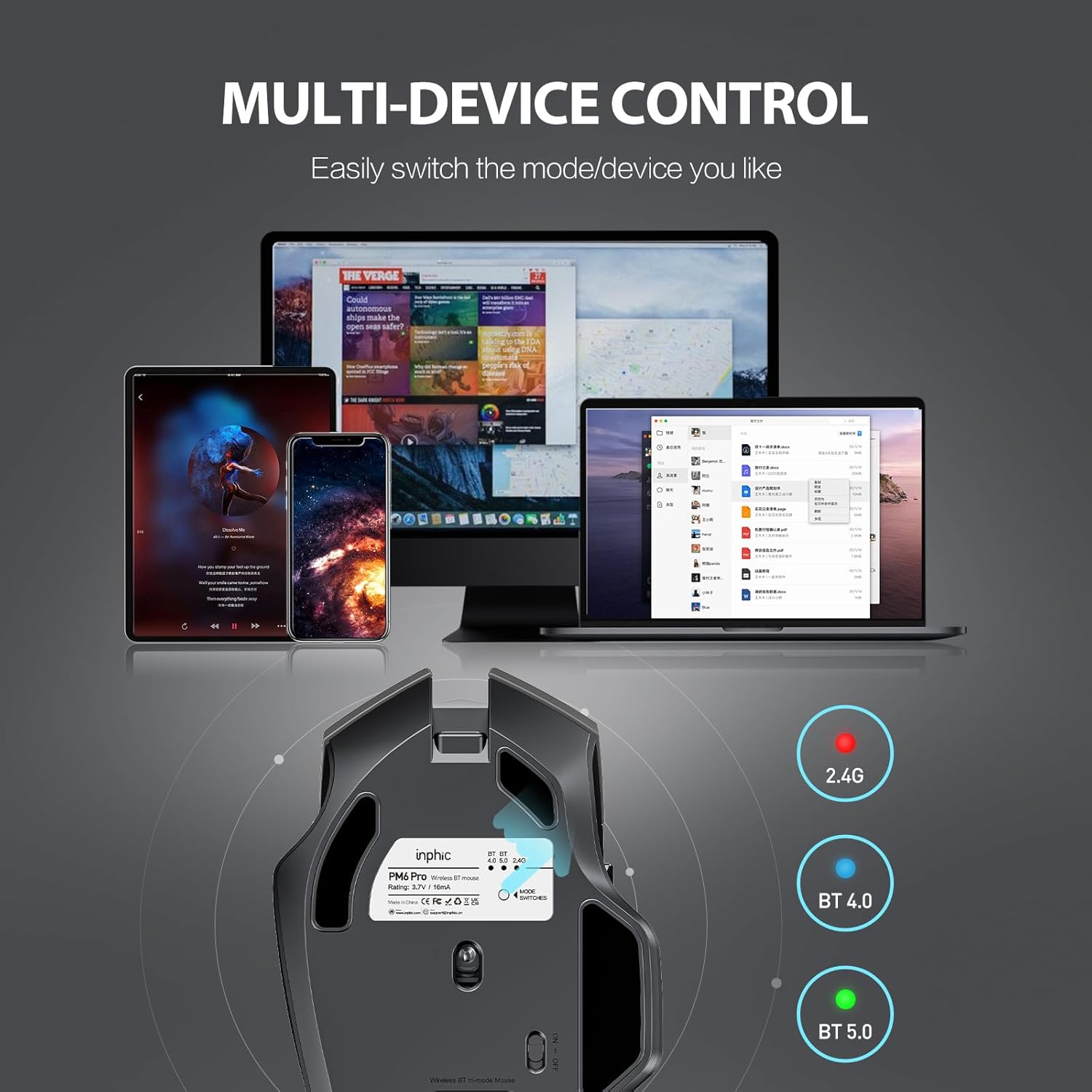
Image: The underside of the mouse, highlighting the USB receiver storage and the mode switch for 2.4G, BT 4.0, and BT 5.0 connections.
4.3 Bluetooth Connection (BT 5.0 / BT 4.0)
- Turn on the mouse using the ON/OFF switch at the bottom.
- Short-press the 'MODE SWITCHES' button at the bottom to cycle through connection modes until the desired Bluetooth indicator (BT 5.0 or BT 4.0) lights up.
- For pairing, long-press the 'MODE SWITCHES' button until the selected Bluetooth indicator light flashes rapidly. This indicates the mouse is in pairing mode.
- On your device (computer, tablet, etc.), go to Bluetooth settings and search for new devices. Select 'INPHIC M6Pro' (or similar name) to pair.
Video: Demonstrates how to switch between 2.4G and Bluetooth modes (BT 4.0, BT 5.0) and enter pairing mode by pressing the mode switch button on the mouse's underside.
5. Інструкція з експлуатації
5.1 Налаштування DPI
The mouse features a DPI switch button located behind the scroll wheel. Press this button to cycle through 5 DPI settings (800, 1200, 1600, 2000, 2400 DPI) to adjust cursor sensitivity to your preference.

Image: A diagram illustrating the location of the DPI switch button and other buttons on the mouse.
5.2 Функції кнопок
The INPHIC M6Pro mouse is equipped with 6 buttons:
- Ліва клавіша: Стандартна функція клацання лівою кнопкою миші.
- Права клавіша: Стандартна функція клацання правою кнопкою миші.
- Колесо прокрутки: Прокручує вгору/вниз і діє як кнопка середнього клацання.
- Перемикач DPI: Налаштовує чутливість курсора (DPI).
- Кнопка вперед: Переміщується вперед web браузери або file дослідники.
- Кнопка "Назад": Переміщується назад web браузери або file дослідники.

Зображення: Детальне view of the mouse's underside, showing the power switch, LED indicator, and USB receiver slot.
5.3 Ergonomic Design and Silent Operation
The mouse features a curved, skin-like material design for a comfortable grip, reducing hand strain during prolonged use. The widened thumb rest further enhances comfort and control.
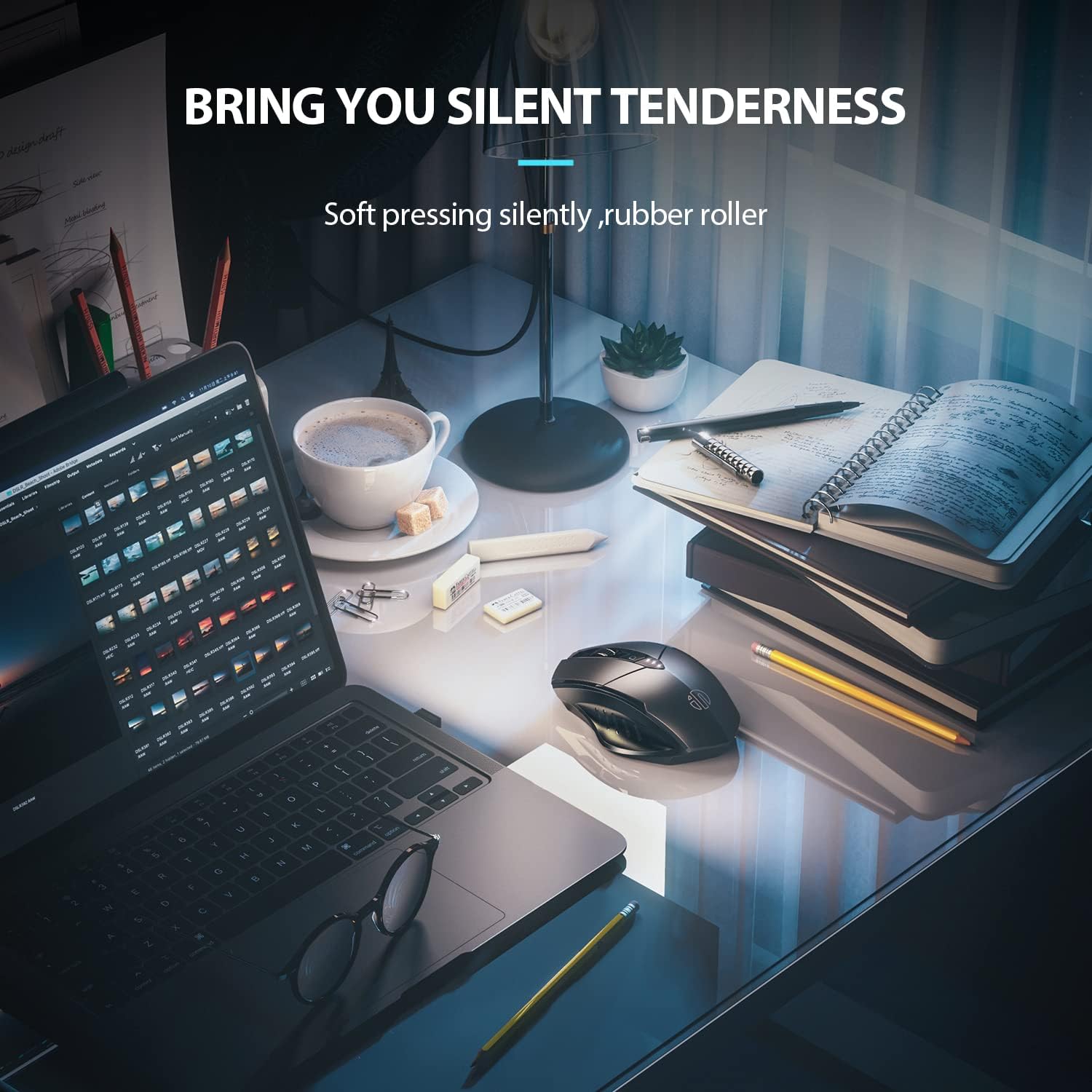
Image: The ergonomic shape of the mouse, designed for a comfortable user experience.

Image: A close-up showing the widened thumb rest for a more comfortable grip.
The left and right click buttons are designed for silent operation, allowing you to work without disturbing others.

Image: Illustrates the silent click feature of the mouse, ideal for quiet environments.
6. Технічне обслуговування
To ensure the longevity and optimal performance of your INPHIC M6Pro mouse, follow these maintenance guidelines:
- Прибирання: Use a soft, dry cloth to wipe the mouse. For stubborn dirt, slightly dampПротріть тканину водою або м’яким миючим розчином. Уникайте агресивних хімікатів або абразивних матеріалів.
- Зберігання: Якщо миша не використовується протягом тривалого часу, вимикайте її, щоб заощадити час роботи батареї. Зберігайте її в прохолодному, сухому місці, подалі від прямих сонячних променів та екстремальних температур.
- Догляд за акумулятором: Уникайте частого повного розряджання акумулятора. Заряджайте мишу, коли індикатор акумулятора показує низький заряд.
- USB-приймач: Keep the USB receiver in its designated storage slot at the bottom of the mouse when traveling to prevent loss.
7. Вирішення проблем
If you encounter issues with your INPHIC M6Pro mouse, refer to the following common solutions:
| проблема | Можлива причина | Рішення |
|---|---|---|
| Миша не реагує (2.4G) | USB receiver not properly connected or mouse is off. | Ensure the USB receiver is securely plugged into a USB port. Turn on the mouse and ensure the mode switch is set to 2.4G. Try a different USB port. |
| Миша не реагує (Bluetooth) | Not paired, out of range, or incorrect Bluetooth mode selected. | Ensure the mouse is in the correct Bluetooth mode (BT 5.0 or BT 4.0) and in pairing mode (flashing light). Re-pair the mouse with your device. Ensure the mouse is within 10 meters of your device. |
| Рух курсора нерівномірний або повільний | Low battery, incorrect DPI setting, or dirty sensor. | Charge the mouse. Adjust the DPI setting using the DPI button. Clean the optical sensor at the bottom of the mouse with a soft cloth. |
| Buttons not clicking or unresponsive | Низький заряд батареї або проблеми з підключенням. | Charge the mouse. Re-establish the connection (2.4G or Bluetooth). |
| Акумулятор не заряджається | Несправний кабель або джерело живлення. | Try a different USB-C cable and a different USB power source. Ensure the cable is properly connected to the mouse's Type-C port. |
8. Технічні характеристики
| Особливість | Деталь |
|---|---|
| Номер моделі | M6Pro |
| Технологія підключення | Бездротовий зв'язок 2.4G, Bluetooth 5.0, Bluetooth 4.0 (трирежимний) |
| Технологія виявлення руху | Оптичний |
| Налаштування DPI | 800, 1200, 1600, 2000, 2400 |
| кнопки | 6 (Вліво, Вправо, Коліщатко прокручування, Перемикач DPI, Вперед, Назад) |
| Тип батареї | Літій-полімерний акумулятор (500 мАг) |
| Порт зарядки | Тип-C |
| Розміри продукту | 4.65 x 1.57 x 0.04 дюймів |
| Вага товару | 3.35 унції |
| Сумісні операційні системи | Windows Vista/7 and above, Mac OS X 10.10 and above, iOS 13 and above, Android 5.0 and above, Linux kernel 2.6+, Chrome OS |
9. Гарантія та підтримка
INPHIC products are designed for reliability and performance. For warranty information or technical support, please refer to the contact details provided with your product packaging or visit the official INPHIC webсайт. Зберігайте чек про покупку як підтвердження покупки для гарантійних претензій.


