
1. Вступ
Welcome to the user manual for your new ZZB ZB10 10.1-inch Android 14 Tablet PC. This guide provides essential information for setting up, operating, maintaining, and troubleshooting your device. Please read this manual thoroughly to ensure optimal performance and longevity of your tablet.

Малюнок 1: Спереду view of the ZZB ZB10 Tablet.
2. Що в коробці
Upon opening your ZZB ZB10 Tablet PC package, please verify that all the following items are included:
- ZZB ZB10 10.1-inch Android 14 Tablet PC
- Кабель Type-C
- Посібник користувача (цей документ)

Figure 2: The ZZB ZB10 Tablet and its packaging.
3. Продукт закінчивсяview
Familiarize yourself with the physical components of your ZZB ZB10 Tablet.
3.1 Фізичні компоненти
- Дисплей: 10.1-inch IPS screen.
- Фронтальна камера: Розташований над екраном.
- Задня камера: Розташований на задній панелі.
- Кнопка живлення: Зазвичай на бічному або верхньому краю.
- Кнопки гучності: Налаштуйте рівні звуку.
- Порт USB Type-C: Для зарядки та передачі даних.
- Слот для карт MicroSD: Для розширюваного сховища.

Малюнок 3: Задня частина view of the ZZB ZB10 Tablet, highlighting the camera and model information.
4. Налаштування
4.1 Заряджання планшета
Before first use, fully charge your tablet. Connect the provided Type-C cable to the tablet's charging port and the other end to a compatible USB power adapter (not included) or a computer's USB port. The battery indicator on the screen will show charging status.
4.2 Увімкнення/вимкнення живлення
- Щоб увімкнути: Натисніть і утримуйте кнопку живлення, поки екран не загориться.
- Щоб вимкнути: Press and hold the Power button until a menu appears, then select 'Power off'.
- Щоб перезапустити: Press and hold the Power button until a menu appears, then select 'Restart'.
4.3 Початкове налаштування
Після першого ввімкнення планшет проведе вас через процес початкового налаштування. Зазвичай це включає:
- Вибір мови.
- Підключення до мережі Wi-Fi.
- Setting up your Google account (or skipping for later).
- Reviewознайомлення та прийняття умов.
5. Інструкція з експлуатації
5.1 Основна навігація
The ZZB ZB10 Tablet runs on Android 14, offering an intuitive touch interface.
- Торкніться: Виберіть елемент або відкрийте програму.
- Проведіть пальцем: Навігація між екранами або прокручування вмісту.
- Масштабування за допомогою розведення пальців: Збільшити або зменшити вміст на екрані.
- Тривале натискання: Доступ до контекстних меню або переміщення значків.
5.2 Підключення до Wi-Fi
- Перейти до Налаштування > Мережа та Інтернет > Wi-Fi.
- Увімкнути/вимкнути Wi-Fi On.
- Виберіть потрібну мережу зі списку.
- Введіть пароль, якщо буде запропоновано, а потім натисніть Підключитися.
5.3 Створення пари Bluetooth
- Перейти до Налаштування > Підключені пристрої > Bluetooth.
- Увімкнути Bluetooth On.
- Переконайтеся, що пристрій, який ви хочете сполучити, перебуває в режимі сполучення.
- Select the device from the 'Available devices' list and follow on-screen prompts.
5.4 Використання камери
Планшет оснащений 2-мегапіксельною фронтальною камерою та 8-мегапіксельною задньою камерою.
- Відкрийте Камера додаток
- Торкніться кнопки затвора, щоб зробити фото.
- Перемикайтеся між передньою та задньою камерами за допомогою значка камери.
- Виберіть режим відеозйомки для запису відео.

Figure 4: Using the tablet's camera for photos or video calls.
5.5 Керування сховищем
The tablet comes with 32GB of internal storage and supports up to 1TB expandable storage via a MicroSD card.
- To insert a MicroSD card, locate the card slot on the side of the tablet.
- Обережно вставте карту MicroSD, доки вона не зафіксується на місці.
- You can manage storage in Налаштування > Зберігання.

Figure 5: The tablet supports extended storage up to 1TB.
5.6 Reading Mode
The tablet features a reading mode designed to reduce eye strain by adjusting screen colors and brightness. This mode can typically be activated from the quick settings panel (swipe down from the top of the screen) or within the display settings.
6. Технічне обслуговування
6.1 Очищення
Use a soft, lint-free cloth to clean the screen and body of the tablet. Avoid using harsh chemicals or abrasive materials, which can damage the device.
6.2 Догляд за акумулятором
- Уникайте впливу екстремальних температур на планшет.
- Не допускайте частого повного розряду акумулятора.
- Використовуйте для заряджання лише кабель Type-C, що постачається в комплекті.
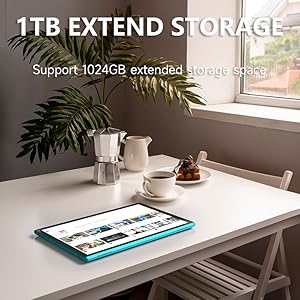
Figure 6: The tablet features a 6000mAh battery for extended use.
6.3 Оновлення програмного забезпечення
Періодично перевіряйте наявність оновлень системи, щоб переконатися, що ваш планшет має найновіші функції та виправлення безпеки. Перейдіть до Налаштування > система > Оновлення системи.
7. Вирішення проблем
Якщо у вас виникли проблеми з планшетом, зверніться до наступних поширених рішень:
| проблема | Можливе рішення |
|---|---|
| Планшет не вмикається | Ensure the battery is charged. Connect to a power source for at least 30 minutes. |
| Екран не реагує | Restart the tablet by holding the power button for 10-15 seconds. |
| Проблеми з підключенням Wi-Fi | Restart your Wi-Fi router. Forget the network in tablet settings and reconnect. |
| Програми зависають або аварійно завершують роботу | Clear the app's cache (Settings > Apps > [App Name] > Storage > Clear cache). If the problem persists, uninstall and reinstall the app. |
| Повільна продуктивність | Закрийте непотрібні фонові програми. Очистіть кеш і тимчасові files. Consider a factory reset if issues persist (backup data first). |
8. Технічні характеристики
Key technical specifications for the ZZB ZB10 Tablet PC:
- модель: ZB10
- Операційна система: Android 14
- Дисплей: 10.1-inch IPS, 1280 x 800 pixels
- Оперативна пам'ять: 6GB (including 4GB virtual memory)
- Внутрішня пам'ять: 32 ГБ ПЗУ
- Розширюване сховище: До 1 ТБ через карту MicroSD
- Задня камера: 8 Мп
- Фронтальна камера: 2 Мп
- Бездротове підключення: Wi-Fi 802.11ac, Bluetooth
- Батарея: 6000mAh, up to 12 hours average life
- Розміри: 12 x 7 x 0.3 дюймів
- вага: 1 фунт
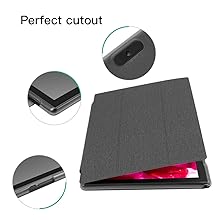
Figure 7: The tablet's 10.1-inch IPS display.
9. Гарантія та підтримка
For warranty information and customer support, please refer to the documentation provided with your purchase or visit the official ZZB webсайт. Зберігайте чек про покупку для гарантійних претензій.