
1. Вступ
The Intelbras GX 3000 is a multifunction wireless mesh router designed to provide high-speed internet connectivity via 5G/4G networks and Wi-Fi 6. This device integrates advanced Qualcomm technology for both its 5G modem and Wi-Fi 6 solution, ensuring high performance and reliability. It supports up to 128 devices simultaneously on the Wi-Fi network and offers wired connectivity options. The GX 3000 is suitable for various environments, from home to office, providing robust network performance.
This manual provides instructions for setting up, operating, and maintaining your Intelbras GX 3000 router. Please read it carefully before use.
2. Package Contents & Device Overview
2.1. Вміст упаковки
- Intelbras GX 3000 Wireless Mesh Router
- Адаптер живлення
- Мережевий кабель
- Короткий посібник (не входить до цього посібника)
2.2. Пристрій закінчивсяview
Малюнок 1: Спереду View of the GX 3000 Router
This image displays the front of the Intelbras GX 3000 router, showing its sleek white design and LED indicators for 5G, 4G, call status, Wi-Fi, and WPS button.

Figure 2: GX 3000 Router with Highlighted Indicators and Ports
This image provides a closer look at the router, emphasizing the LED indicators on the front (5G, 4G, Call, Wi-Fi, WPS) and the various ports located on the rear panel, including LAN, WAN, and TEL ports.
2.2.1. Порти задньої панелі

Figure 3: Rear Panel of the GX 3000 Router
This image shows the rear panel of the router, clearly displaying the LAN, WAN, and TEL ports for wired connections.
- Локальні порти: For connecting wired devices such as computers, smart TVs, or gaming consoles.
- WAN порт: For connecting to an external modem or internet source (if not using 5G/4G).
- Порт TEL: For voice services (if supported by your service provider).
- Споживана потужність: Підключається до адаптера живлення, що входить до комплекту.
2.2.2. Bottom Panel Features

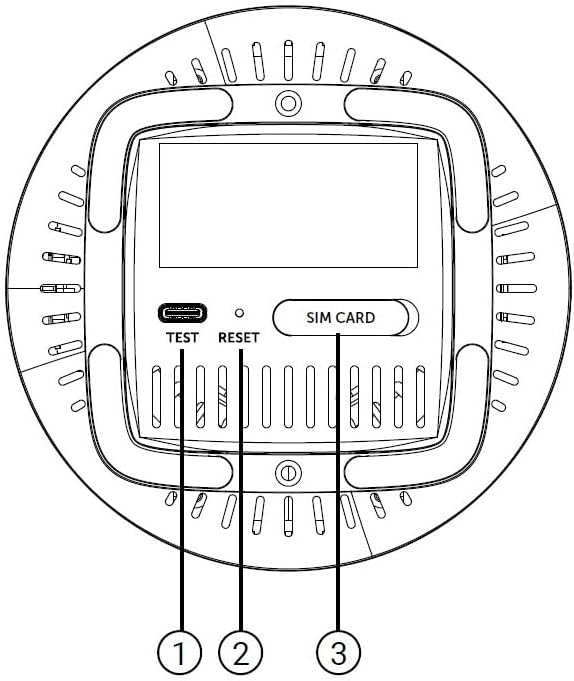
Figure 4: Bottom Panel Features of the GX 3000 Router
This diagram illustrates the bottom panel of the router, highlighting the TEST port, RESET button, and SIM CARD slot.
- TEST Port: Для діагностичних цілей.
- Кнопка скидання: Used to restore factory default settings. Press and hold for 10 seconds while the device is powered on.
- SIM CARD Slot: Insert your 5G/4G SIM card here for mobile broadband connectivity.
3. Налаштування
3.1. Початкове розміщення
Place the router in a central location within your desired coverage area, away from obstructions, metal objects, and other electronic devices that may cause interference. Ensure good ventilation around the device.
3.2. Встановлення SIM-картки
- Переконайтеся, що маршрутизатор вимкнено.
- Locate the SIM CARD slot on the bottom panel of the router (refer to Figure 4).
- Insert your activated 5G/4G SIM card into the slot with the gold contacts facing down and the notched corner oriented correctly. Push until it clicks into place.
- Щоб вийняти, обережно знову натисніть на SIM-картку, доки вона не вискочить.
3.3. Підключення живлення
- Connect one end of the power adapter to the Power Input port on the rear of the router.
- Підключіть інший кінець адаптера живлення до стандартної електричної розетки.
- The router will power on automatically. Wait for the LED indicators to stabilize.
3.4. Дротові з'єднання (необов'язково)
If you wish to connect devices via Ethernet:
- Connect one end of the provided network cable to a LAN port on the rear of the router.
- Connect the other end of the network cable to the Ethernet port of your computer, smart TV, or other wired device.
3.5. Початкове підключення до Wi-Fi
The default Wi-Fi network name (SSID) and password are usually printed on a label on the bottom of the router. Follow these steps to connect:
- On your wireless device (smartphone, laptop, tablet), open the Wi-Fi settings.
- Scan for available networks and select the SSID corresponding to your GX 3000 router.
- Введіть пароль Wi-Fi за замовчуванням, коли буде запропоновано.
- Once connected, you can access the router's web interface to customize settings.
4. Інструкція з експлуатації
4.1. Світлодіодні індикатори
Світлодіоди на передній панелі надають інформацію про стан:
- 5G LED: Показує стан мережі 5G.
- 4G LED: Показує стан мережі 4G.
- Світлодіодний індикатор виклику: Indicates voice service status.
- Світлодіод Wi-Fi: Показує активність мережі Wi-Fi.
- Світлодіод WPS: Показує стан функції WPS.
Refer to the full user manual (if provided separately) for detailed LED behavior (e.g., solid, blinking, color) and their meanings.
4.2. Доступ до Web Інтерфейс управління
To configure advanced settings, manage your network, or change Wi-Fi credentials, access the router's web інтерфейс:
- Ensure your device is connected to the GX 3000's Wi-Fi network or via an Ethernet cable.
- Відкрийте a web браузер (наприклад, Chrome, Firefox, Edge).
- В адресному рядку введіть IP-адресу маршрутизатора за замовчуванням (зазвичай
192.168.1.1or192.168.0.1) and press Enter. This information is usually on the label on the bottom of the router. - Enter the default username and password (also found on the router label).
- You will now be in the router's management interface, where you can customize settings such as Wi-Fi name, password, security protocols, and more.
4.3. Wi-Fi Protected Setup (WPS)
WPS allows you to connect Wi-Fi devices without entering the password manually:
- Press the WPS button on the front of the GX 3000 router (refer to Figure 1). The WPS LED will start blinking.
- Within two minutes, press the WPS button on your client device (e.g., Wi-Fi adapter, printer).
- Пристрої автоматично підключаться.
Note: WPS is a convenient feature but may be less secure than manual password entry.
4.4. Mesh Network Expansion
The GX 3000 supports mesh networking to expand Wi-Fi coverage. You can add other compatible Intelbras Qi5 line products to create a seamless mesh network. Each additional Wi-Fi 6 router can extend coverage by up to 300 m². It is recommended to use up to 6 routers in the same mesh network for optimal performance.
Refer to the specific instructions provided with additional mesh units for pairing and configuration.
5. Технічне обслуговування
5.1. Очищення пристрою
- Перед чищенням переконайтеся, що роутер вимкнено та від’єднано від мережі.
- Використовуйте м’яку суху тканину, щоб протерти зовнішню поверхню пристрою.
- Do not use liquid cleaners, aerosols, or solvents, as they may damage the casing або внутрішні компоненти.
- Тримайте вентиляційні отвори чистими від пилу та сміття.
5.2. Оновлення мікропрограми
Periodically check the Intelbras official website for firmware updates. Firmware updates can improve performance, add new features, and enhance security. Follow the instructions provided with the firmware update package carefully.
5.3. Скидання до заводських налаштувань
If you encounter persistent issues or forget your login credentials, you can reset the router to its factory default settings:
- With the router powered on, locate the RESET button on the bottom panel (refer to Figure 4).
- Використовуючи скріпку або подібний гострий предмет, натисніть і утримуйте кнопку RESET приблизно 10 секунд.
- Release the button. The router will restart with all settings restored to their original factory defaults.
- You will need to reconfigure your Wi-Fi settings and any other custom configurations after a factory reset.
6. Вирішення проблем
| проблема | Можлива причина | Рішення |
|---|---|---|
| No power / Router not turning on | Адаптер живлення не підключений або несправний; розетка не працює. |
|
| No internet connection (5G/4G) | SIM card not inserted correctly; SIM card not activated; No 5G/4G signal; Service provider issue. |
|
| Неможливо підключитися до Wi-Fi | Incorrect Wi-Fi password; Wi-Fi disabled; Device too far from router. |
|
| Повільна швидкість інтернету | Network congestion; Poor signal strength; Interference; Outdated firmware. |
|
| Забув web пароль інтерфейсу | Password forgotten or changed. |
|
7. Технічні характеристики
| Особливість | Деталь |
|---|---|
| Бренд | Intelbras |
| Модель | GX 3000 |
| Технологія підключення | 5G, 4G, Wi-Fi 6 (802.11a/b/g/n/ac/ax) |
| Клас діапазону частот | Дводіапазонний |
| Стандарт бездротового зв'язку | 802.11а |
| Швидкість передачі даних | До 900 мегабіт за секунду |
| Пропускна здатність порту локальної мережі | 1000 Мбіт/с (гігабітний Ethernet) |
| Тип антени | внутрішній |
| Сумісні пристрої | Computer, Notebook, Tablet, Smart TV |
| Особливості | Remote Access, Mesh Wi-Fi capability |
| Колір | Білий |
| Вага товару | 1000 грамів |
| Включені компоненти | Power supply, Network cable |
| Anatel Homologation Number | 13571-22-00180 |
8. Гарантія та підтримка
8.1. Інформація про гарантію
Intelbras products are covered by a limited warranty. For specific warranty terms and conditions, please refer to the warranty card included with your product or visit the official Intelbras webсайт. Зберігайте чек про покупку для гарантійних претензій.
8.2. Технічна підтримка
If you require technical assistance or have questions not covered in this manual, please contact Intelbras customer support. You can find contact information (phone numbers, email, support portal) on the official Intelbras webсайт:
Офіційний користувач Intelbras Webсайт: www.intelbras.com.br
When contacting support, please have your product model (GX 3000) and serial number ready.