
вступ
This manual provides comprehensive instructions for the setup, operation, and maintenance of your XtremeMac Bluetooth Wireless Keyboard and Mouse. Please read this manual thoroughly before using the product to ensure optimal performance and longevity.
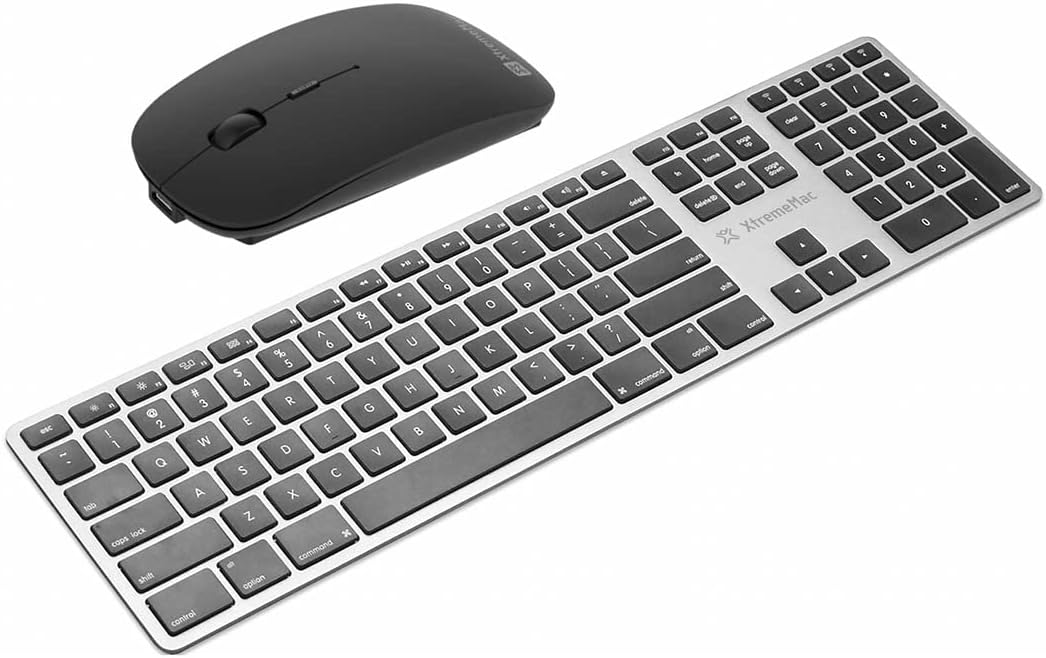
Накладні витрати view of the XtremeMac Bluetooth wireless keyboard and mouse. The keyboard is silver with black keys, featuring a full layout including a numeric keypad. The mouse is black and has a sleek, ergonomic design.
Вміст упаковки
Перевірте наявність усіх елементів в упаковці:
- XtremeMac Bluetooth Wireless Keyboard
- XtremeMac Bluetooth Wireless Mouse
Інструкції з налаштування
1. Увімкнення
Клавіатура: Locate the power switch, usually on the top edge or underside of the keyboard. Slide it to the "ON" position. An indicator light may briefly illuminate.
миша: Locate the power switch on the underside of the mouse. Slide it to the "ON" position. An optical sensor light may activate.
2. Підключення Bluetooth
Ensure your Mac's Bluetooth is enabled. Navigate to Налаштування системи (або Системні налаштування на старіших версіях macOS) > Bluetooth.
Сполучення клавіатури:
- With the keyboard powered on, press and hold the Bluetooth pairing button (often located on the underside or top edge, sometimes combined with a function key) until the indicator light begins to flash, indicating it is in pairing mode.
- On your Mac, look for "XtremeMac Keyboard" or a similar name in the list of nearby Bluetooth devices.
- Click "Connect" or "Pair." Follow any on-screen prompts, such as typing a code on the keyboard and pressing Enter.
- Once connected, the indicator light on the keyboard will stop flashing and remain solid or turn off.
Сполучення миші:
- With the mouse powered on, press and hold the Bluetooth pairing button (usually on the underside) until the indicator light begins to flash.
- On your Mac, look for "XtremeMac Mouse" or a similar name in the list of nearby Bluetooth devices.
- Click "Connect" or "Pair."
- Once connected, the indicator light on the mouse will stop flashing and remain solid or turn off.
Примітка: The XtremeMac keyboard and mouse are designed for use with Mac OS. Compatibility with other operating systems may vary.
Інструкція з експлуатації
Використання клавіатури
- Стандартний набор тексту: Use the keys as you would a standard keyboard.
- Функціональні клавіші: The top row of keys typically includes media controls and system functions. These may require pressing the "Fn" key simultaneously for their secondary function, depending on your Mac's settings.
- Mac-Specific Keys: Utilize the Command (⌘) and Option (⌥) keys for macOS shortcuts.
- Цифрова клавіатура: Спеціальна цифрова клавіатура дозволяє ефективно вводити дані.
Використання миші
- Клацніть лівою кнопкою миші: Первинна дія, вибір.
- Клацніть правою кнопкою миші: Контекстне меню.
- Колесо прокрутки: Прогортайте документи та web сторінки.
- Оптичне відстеження: The mouse uses optical technology for precise cursor movement on most surfaces.
Технічне обслуговування
- Прибирання: Злегка протріть м’якою тканиною без ворсу dampened with water or a mild cleaning solution to clean the surfaces of the keyboard and mouse. Avoid excessive moisture.
- Заміна батареї: If the devices become unresponsive or the indicator lights dim, it may be time to replace the batteries. Refer to the battery compartment on the underside of each device for battery type and replacement instructions.
- Зберігання: When not in use for extended periods, turn off both devices to conserve battery life. Store them in a cool, dry place.
Усунення несправностей
Device Not Connecting or Unresponsive
- Перевірте живлення: Ensure both the keyboard and mouse are powered on and have sufficient battery charge. Replace batteries if necessary.
- Відновлення пари пристроїв: Go to your Mac's Bluetooth settings, remove the XtremeMac keyboard and mouse from the list of devices, and then repeat the pairing process as described in the "Setup Instructions" section.
- Bluetooth on Mac: Verify that Bluetooth is enabled on your Mac and that it is not in Airplane Mode.
- Перезавантажте пристрої: Turn off and then turn on both the keyboard, mouse, and your Mac.
- Перешкоди: Move the devices closer to your Mac and away from other wireless devices that might cause interference (e.g., Wi-Fi routers, cordless phones).
Cursor Jumps or Lagging (Mouse)
- Поверхня: Переконайтеся, що миша використовується на чистій, неблискучій та непрозорій поверхні.
- Батарея: Замініть батарейки миші.
- Оптичний датчик: Check the optical sensor on the underside of the mouse for any obstructions or dirt.
Технічні характеристики
| Бренд: | Xtrememac |
| Номер моделі: | XWH-BBT-13 |
| Технологія підключення: | Bluetooth |
| Сумісні пристрої: | Laptop, Personal Computer (Mac OS) |
| Mouse Tracking Technology: | Оптичний |
| Приблизні розміри (упаковка): | 54.5 х 14.4 х 3.4 см |
| Приблизна вага (упаковка): | 690 г |
Гарантія та підтримка
XtremeMac products are covered by a limited warranty. For detailed warranty information, product registration, or technical support, please visit the official XtremeMac webсайт або зверніться до служби підтримки клієнтів. Зберігайте чек про покупку для гарантійних випадків.
Виробник: XTREMEMAC