
1. Вступ
This manual provides detailed instructions for the HPRT N80 Barcode Scanner. It covers the scanner's features, setup, operation, maintenance, and troubleshooting. Please read this manual carefully before using the product to ensure proper and safe operation.

Image: HPRT N80 Barcode Scanner, USB cable, and included instruction manual.
2. Особливості продукту
- 1D & 2D Scanning: Supports a wide range of 1D and 2D codes including UPC, UCC/EAN-128, ISBN/ISSN, Code 39, Code 128, Interleaved 2 of 5, QR Code, Data Matrix, and Postal Codes.
- Screen and Paper Scanning: Capable of scanning barcodes from both printed labels and digital screens.
- Широка сумісність: Works with Windows, iOS, Android, Linux, and Mac OS. Connects to PCs, laptops, and iPads. (Note: Mac OS requires a USB wired connection).
- Fast and Precise Scan: Utilizes a superior CMOS sensor and image scanning technology for quick decoding. Achieves recognition precision up to 4 mil.
- Кілька режимів сканування: Offers manual trigger mode, continuous scan mode, and auto-sensing mode.
- Ергономічний дизайн: Features a comfortable grip and durable ABS plastic construction, designed to withstand drops from up to 3.93ft.

Image: The HPRT N80 barcode scanner demonstrating its ability to decode a wide range of 1D and 2D barcode formats, including QR codes, Data Matrix, and Aztec Code.

Image: Illustration showing the HPRT N80 barcode scanner's capability to read damaged, blurred, and stained barcodes effectively.

Image: The HPRT N80 barcode scanner being applied in various environments, including a supermarket, hospital, warehouse, and library.
3. Налаштування та підключення
The HPRT N80 Barcode Scanner is designed for plug-and-play functionality, requiring no driver installation for most operating systems.
3.1 Дротове USB-з’єднання
- Підключіть USB-кабель до порту сканера.
- Plug the USB connector into an available USB port on your computer or device.
- The scanner will be automatically recognized by your system. No additional drivers are typically needed.
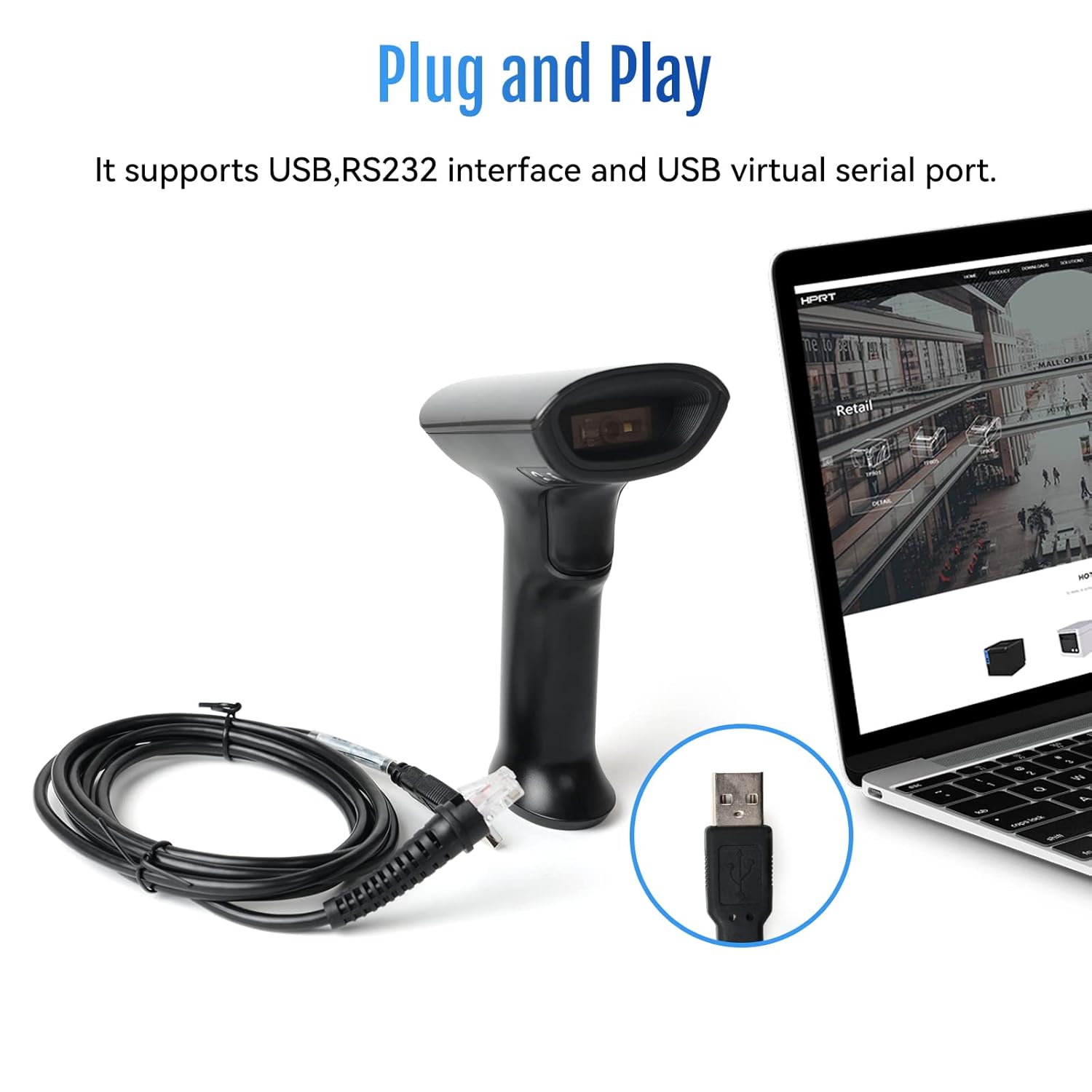
Image: The HPRT N80 barcode scanner with its USB cable, illustrating the plug-and-play connection to a laptop.

Image: A close-up of the HPRT N80 barcode scanner being connected to a laptop, demonstrating the plug-and-play functionality.
4. Операція
The HPRT N80 Barcode Scanner offers various modes for efficient scanning.
4.1 Сканування штрих-кодів
- Тримайте сканер вікном сканування, спрямованим до штрих-коду.
- Press the trigger button to activate the scan beam.
- Ensure the scan beam covers the entire barcode. A successful scan is usually indicated by an audible beep and/or a visual indicator.
- The decoded data will appear on your connected device.
4.2 Режими сканування
- Ручний режим запуску: Press the trigger for each scan.
- Режим безперервного сканування: The scanner continuously emits a scan beam, scanning any barcode it detects.
- Режим автоматичного визначення: The scanner activates the scan beam automatically when a barcode is presented within its field of view.

Image: The HPRT N80 barcode scanner performing a fast scan of both 1D and QR codes displayed on a smartphone screen.

Image: The HPRT N80 barcode scanner accurately scanning a barcode even in a dark environment, highlighting its low-light performance.
4.3 Оперативне відео
Video: Demonstrates the HPRT N80 barcode scanner's fast scanning capabilities for both 1D and 2D barcodes on paper and screens, highlighting its plug-and-play setup and ergonomic design.
5. Технічне обслуговування
To ensure the longevity and optimal performance of your HPRT N80 Barcode Scanner, follow these maintenance guidelines:
- Прибирання: Використовуйте м’яку суху тканину для очищення зовнішньої поверхні сканера. Для вікна сканування використовуйте тканину без ворсу, злегка промокнутуampОчистіть м’яким неабразивним засобом для чищення. Уникайте агресивних хімікатів або абразивних матеріалів.
- Зберігання: Зберігайте сканер у прохолодному, сухому місці, подалі від прямих сонячних променів та екстремальних температур.
- Обробка: While the scanner is designed to be durable, avoid unnecessary drops or impacts.
- Догляд за кабелем: Do not bend or twist the USB cable excessively. Always grasp the plug, not the cable, when disconnecting.
6. Вирішення проблем
If you encounter issues with your HPRT N80 Barcode Scanner, please refer to the following common troubleshooting steps:
- Сканер не відповідає:
- Переконайтеся, що USB-кабель надійно підключено як до сканера, так і до хост-пристрою.
- Try plugging the scanner into a different USB port.
- Перезавантажте комп’ютер або головний пристрій.
- Не вдається сканувати штрих-коди:
- Verify that the barcode is not excessively damaged, blurred, or stained.
- Переконайтеся, що вікно сканування чисте та не має перешкод.
- Check if the scanner is in the correct scanning mode (e.g., manual trigger, continuous, auto-sensing).
- Забезпечте достатнє освітлення для штрих-коду.
- Неправильний вихід даних:
- Confirm that the correct keyboard layout or input method is selected on your host device.
- Refer to the full product manual (if available) for advanced configuration barcodes to reset settings or adjust data formatting.
If the problem persists, please contact HPRT customer support.
7. Технічні характеристики
| Особливість | Деталь |
|---|---|
| Бренд | HPRT |
| Модель | N80 |
| Технологія підключення | USB кабель |
| Джерело живлення | Працює від батареї |
| Сумісні пристрої | Laptop (Windows, iOS, Android, Linux, Mac OS) |
| Можливість сканування | 1D & 2D (UPC, EAN, QR, Data Matrix, etc.) |
| Довговічність | Withstands drops from up to 3.93ft |
8. Гарантія та підтримка
For warranty information or technical support, please contact HPRT customer service.
- Електронна адреса служби підтримки клієнтів: pravin.m@hprt.com
- Офіційний Webсайт: https://www.hprt.com

Image: HPRT customer service contact details, including email and official webсайт.