
1. Продукт закінчивсяview
The GIGABYTE G24F 2 is a 23.8-inch gaming monitor designed for an immersive visual experience. It features a Super Speed IPS panel, Full HD (1920 x 1080) resolution, and a high refresh rate for smooth gameplay.

Малюнок 1.1: Спереду view of the GIGABYTE G24F 2 gaming monitor.
Ключові характеристики:
- Розмір панелі: 23.8-inch SS IPS display
- роздільна здатність: 1920 x 1080 (FHD)
- Час відгуку: 1 мс MPRT
- Частота оновлення: 165Hz (Overclockable to 180Hz)
- Насиченість кольору: 95% DCI-P3, 125% sRGB
- Яскравість: 300 кд / м2 (TYP)
- Коефіцієнт контрастності: 1100:1
- Підключення: 2 x HDMI 2.0, 1 x DisplayPort 1.2 (HDR capable), 2 x USB 3.2 Gen 1 Downstream, 1 x USB 3.2 Gen 1 Upstream, 1 x Earphone Jack
- Особливості: OSD Sidekick, Aim Stabilizer, Black Equalizer, Dashboard, Crosshair, Timer, Counter, Auto-Update, Smart OD, HDR Ready, Flicker-free, Kensington lock
2. Інформація про безпеку
Будь ласка, уважно прочитайте всі інструкції перед використанням монітора. Зберігайте цей посібник для подальшого використання.
- Не піддавайте монітор впливу дощу або вологи, щоб уникнути небезпеки пожежі чи ураження електричним струмом.
- Не відкривайте монітор casing. Усередині немає деталей, які може обслуговувати користувач. Звертайтеся до кваліфікованого персоналу з будь-яким обслуговуванням.
- Розмістіть монітор на стійкій, рівній поверхні, щоб запобігти його падінню.
- Забезпечте належну вентиляцію навколо монітора. Не блокуйте вентиляційні отвори.
- Використовуйте лише адаптер живлення та кабелі, надані виробником.
- Від’єднуйте монітор від розетки під час грози або якщо він не використовується протягом тривалого часу.
- Clean the screen with a soft, lint-free cloth. Avoid using liquid cleaners directly on the screen.
3. Вміст упаковки
Перевірте наявність усіх предметів у вашій упаковці:
- GIGABYTE G24F 2 Monitor
- Підставка для монітора (основа та шия)
- Кабель живлення
- Кабель HDMI
- USB Cable (Upstream)
- Короткий посібник (QSG)
- Гарантійний талон

Малюнок 3.1: Задня частина view of the monitor, illustrating the stand attachment area.
4. Налаштування
4.1 Збірка підставки
- Обережно вийміть компоненти монітора та підставки з упаковки.
- Прикріпіть шийку підставки до панелі монітора. Переконайтеся, що вона надійно зафіксована на місці або закріплена гвинтами, якщо вони є в комплекті.
- Прикріпіть основу підставки до шийки підставки. Затягніть гвинт або гвинти з накатною головкою внизу основи.
- Помістіть зібраний монітор на стійку, рівну поверхню.
4.2 Підключення монітора
Connect the monitor to your computer and other devices using the appropriate cables.

Рисунок 4.1: Порти підключення монітора.
- Підключення живлення: Підключіть кабель живлення до входу живлення монітора, а потім до розетки.
- Підключення відео:
- For optimal performance, use the DisplayPort 1.2 cable to connect to your computer's graphics card.
- Alternatively, use one of the two HDMI 2.0 ports.
- USB Upstream Connection: Connect the provided USB 3.2 Gen 1 Upstream cable from your computer to the monitor's upstream USB port to enable the monitor's downstream USB ports.
- USB Downstream Connections: Connect USB devices (e.g., keyboard, mouse) to the monitor's two USB 3.2 Gen 1 Downstream ports.
- Аудіовихід: Connect headphones or external speakers to the Earphone Jack.
5. Експлуатація монітора
5.1 Увімкнення/вимкнення живлення
Press the power button, usually located on the bottom or rear of the monitor, to turn the monitor on or off. The power indicator light will show the monitor's status.
5.2 Екранне меню (OSD)
The OSD menu allows you to adjust various monitor settings. Navigate the OSD using the joystick or buttons typically found on the rear of the monitor.

Figure 5.1: OSD Sidekick software for convenient monitor control.
For advanced control, install the OSD Sidekick software on your PC. This utility allows you to adjust monitor settings directly from your desktop.
5.3 Ігрові функції
The GIGABYTE G24F 2 includes several features to enhance your gaming experience:
- Aim Stabilizer: Reduces motion blur and improves visual clarity in fast-paced games.
- Чорний еквалайзер: Enhances visibility in dark areas of the game without overexposing bright areas.

Figure 5.2: Black Equalizer in action.
- Приладова панель: Displays real-time hardware information (e.g., CPU/GPU temperature, usage) directly on the screen.

Figure 5.3: Dashboard displaying system metrics.
- Перехрестя: Provides a customizable on-screen crosshair to assist with aiming.

Figure 5.4: On-screen Crosshair.
- Timer/Counter: On-screen timers and counters for in-game tracking.
- Smart OD: Optimizes overdrive settings for the best response time.
- Автоматичне оновлення: Ensures the monitor's firmware and OSD Sidekick software are up-to-date.
5.4 Налаштування дисплея
- Частота оновлення: The monitor supports up to 165Hz, with an overclock option to 180Hz, for fluid motion.
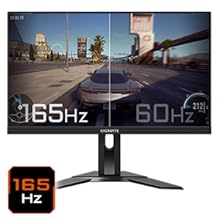
Figure 5.5: Visual comparison of 165Hz vs. 60Hz refresh rate.
- Час відгуку: Enjoy a 1ms MPRT (Moving Picture Response Time) for minimal ghosting.
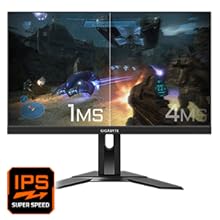
Figure 5.6: Visual comparison of 1ms vs. 4ms response time.
- Колірна гамма: The monitor covers 95% DCI-P3 and 125% sRGB for vibrant and accurate colors.
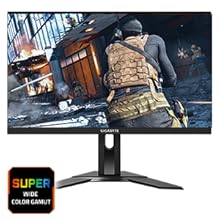
Figure 5.7: Wide color gamut for rich visuals.
- Низьке синє світло: Reduces blue light emissions to protect your eyes during extended use.
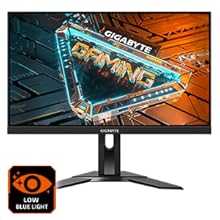
Figure 5.8: Low Blue Light feature for reduced eye strain.
- Без мерехтіння: Усуває мерехтіння екрана для більш комфортної роботи viewнабутий досвід.

Figure 5.9: Flicker-Free technology for comfortable viewінж.
5.5 Відео з характеристиками продукту
Відео 5.1: Оверview of the GIGABYTE G24F 2 monitor's features and specifications.
6. Технічне обслуговування
Правильне обслуговування забезпечує довговічність вашого монітора.
- Очищення екрану: Обережно протріть екран м’якою, сухою тканиною без ворсу. Для стійких плям злегка протрітьampпротріть тканину водою або спеціалізованим засобом для чищення екранів (наносьте на тканину, а не безпосередньо на екран).
- Очищення Casing: Використовуйте м’яку суху тканину для протирання монітора casing. Уникайте абразивних засобів для чищення.
- Вентиляція: Переконайтеся, що вентиляційні отвори на моніторі чисті від пилу та перешкод.
- Вимкнення живлення: Turn off and unplug the monitor when not in use for extended periods.
7. Вирішення проблем
Якщо у вас виникли проблеми з монітором, зверніться до наступної таблиці, щоб знайти поширені проблеми та способи їх вирішення.
| проблема | Можлива причина | Рішення |
|---|---|---|
| На екрані немає зображення | Power cable not connected; Video cable not connected; Incorrect input source selected | Перевірте підключення кабелів живлення та відео; виберіть правильне джерело вхідного сигналу через екранне меню. |
| Зображення розмите або спотворене | Неправильна роздільна здатність; нещільно прикріплений відеокабель | Встановіть роздільну здатність дисплея на 1920x1080; переконайтеся, що відеокабель надійно підключено. |
| Немає звуку з навушників/динаміків | Audio cable not connected; Volume too low; Incorrect audio output selected on PC | Check audio cable connection; Adjust volume; Select monitor as audio output on PC. |
| Не працюють порти USB | USB upstream cable not connected | Connect the USB 3.2 Gen 1 Upstream cable from the monitor to your PC. |
| Мерехтіння екрана | Refresh rate issue; Faulty cable | Ensure refresh rate is set correctly; Try a different video cable. |
8. Технічні характеристики
Detailed technical specifications for the GIGABYTE G24F 2 monitor.

Рисунок 8.1: Розміри монітора.
| Особливість | Деталь |
|---|---|
| Бренд | GIGABYTE |
| Назва моделі | G24F 2 |
| Номер моделі | 9DG24F2-00-1ABIN |
| Розмір екрана | 23.8 дюймів |
| роздільна здатність | 1920 x 1080 пікселів (FHD 1080p) |
| Співвідношення сторін | 16:9 |
| Тип дисплея | LCD (SS IPS Panel) |
| Частота оновлення | 165 Hz (180Hz OC) |
| Час відгуку | 1 Milliseconds (MPRT) |
| Яскравість | 300 candela_per_square_meter (TYP) |
| Коефіцієнт контрастності | 1100:1 |
| Насиченість кольору | 95% DCI-P3, 125% sRGB |
| Viewкут нахилу | 178 градусів |
| Підключення | 2 x HDMI 2.0, 1 x DisplayPort 1.2, 2 x USB 3.2 Gen 1 Downstream, 1 x USB 3.2 Gen 1 Upstream, 1 x Earphone Jack |
| Адаптивна синхронізація | FreeSync Premium |
| Споживана потужність | 17.5 Вт |
| Вага товару | 3.2 кілограма |
| Розміри предмета (Д x Ш x В) | 5.3 Г x 54.1 Ш x 32.6 В сантиметрів |
| Тип монтажу | Настінне кріплення |
| Особливості продукту | Flicker-Free, Height Adjustment, High Dynamic Range, Tilt Adjustment |
9. Гарантія та підтримка
The GIGABYTE G24F 2 monitor comes with a Гарантія 3 рік від виробника.
For technical support, warranty claims, or further inquiries, please contact GIGABYTE customer service:
- Виробник: GIGABYTE Technology (India) Pvt Ltd
- Адреса: B-808, Naman Midtown, Elphinstone Road, Mumbai – 400013 – INDIA
- телефон: +91-22-40633222
Будь ласка, збережіть чек про покупку для гарантійного обслуговування.