
1. Вступ
Thank you for choosing the Cherry KW 9100 Slim Wireless Rechargeable Keyboard. This extra-slim, low-profile keyboard is designed for Mac computers, offering versatile connectivity options and a comfortable typing experience. This manual provides essential information for setting up, operating, maintaining, and troubleshooting your new keyboard.
The keyboard features dual wireless connectivity (Bluetooth and 2.4 GHz wireless USB receiver), allowing you to easily switch between devices. It incorporates high-quality CHERRY SC scissor technology for quiet and precise keystrokes, and includes AES-128 encryption for secure data transmission. The integrated rechargeable battery provides weeks of use on a single charge, and the keyboard can be charged while in use via the included USB-A to USB-C cable.

Image 1.1: The Cherry KW 9100 Slim Wireless Rechargeable Keyboard, showcasinйого повне макетування та тонкий професійнийfile.
2. Інформація про безпеку
- Do not expose the keyboard to liquids, excessive moisture, or extreme temperatures.
- Уникайте падіння або сильних ударів клавіатури.
- Тримайте клавіатуру подалі від сильних магнітних полів.
- Не намагайтеся розбирати або модифікувати клавіатуру. Це призведе до анулювання гарантії.
- Use only the provided USB-A to USB-C cable for charging.
3. Вміст упаковки
Перевірте наявність усіх предметів у вашій упаковці:
- Cherry KW 9100 Slim Wireless Rechargeable Keyboard
- Кабель USB-A – USB-C
- 2.4 GHz Wireless USB Receiver
- Magnetic Strip (for angle adjustment)
- Посібник користувача (цей документ)
4. Налаштування
4.1. Заряджання клавіатури
Before first use, or when the battery indicator shows low power, connect the keyboard to a USB power source (e.g., computer USB port, USB wall adapter) using the provided USB-A to USB-C cable. The keyboard can be used while charging.
4.2. Connecting via 2.4 GHz Wireless USB Receiver
- Locate the 2.4 GHz wireless USB receiver.
- Insert the USB receiver into an available USB-A port on your Mac computer.
- On the keyboard, slide the connectivity switch (located on the side) to the 'RF' position.
- Клавіатура має автоматично підключитися до комп'ютера.
4.3. Підключення через Bluetooth
Ensure your Mac computer has Bluetooth 4.0 or higher.
- On the keyboard, slide the connectivity switch (located on the side) to the 'BT' position.
- На своєму Mac, перейдіть до Налаштування системи (або Системні налаштування) > Bluetooth.
- Переконайтеся, що Bluetooth увімкнено.
- The keyboard should appear in the list of discoverable devices (e.g., "CHERRY KW 9100"). Select it to pair.
- Дотримуйтеся будь-яких підказок на екрані, щоб завершити процес створення пари.

Зображення 4.1: Збоку view of the keyboard, highlighting the RF/BT connectivity switch and the USB-C charging port.
4.4. Adjusting Keyboard Angle
The keyboard includes a removable magnetic strip that can be attached to the underside to adjust the typing angle for improved ergonomics. Simply attach the strip to the designated area on the bottom of the keyboard.
5. Робота з клавіатурою
5.1. Switching Between Connectivity Modes
Use the slide switch on the side of the keyboard to toggle between 'RF' (2.4 GHz wireless) and 'BT' (Bluetooth) modes. This allows you to seamlessly switch between two connected devices, for example, a laptop via Bluetooth and a desktop PC via the USB receiver.
5.2. Key Functions and Mac Layout
The keyboard features a Mac-specific layout, including Command, Option, and Control keys. The function keys (F1-F15) provide quick access to various system functions such as brightness, media control, and volume. Some function keys may require pressing the 'Fn' key simultaneously depending on your Mac's system settings.
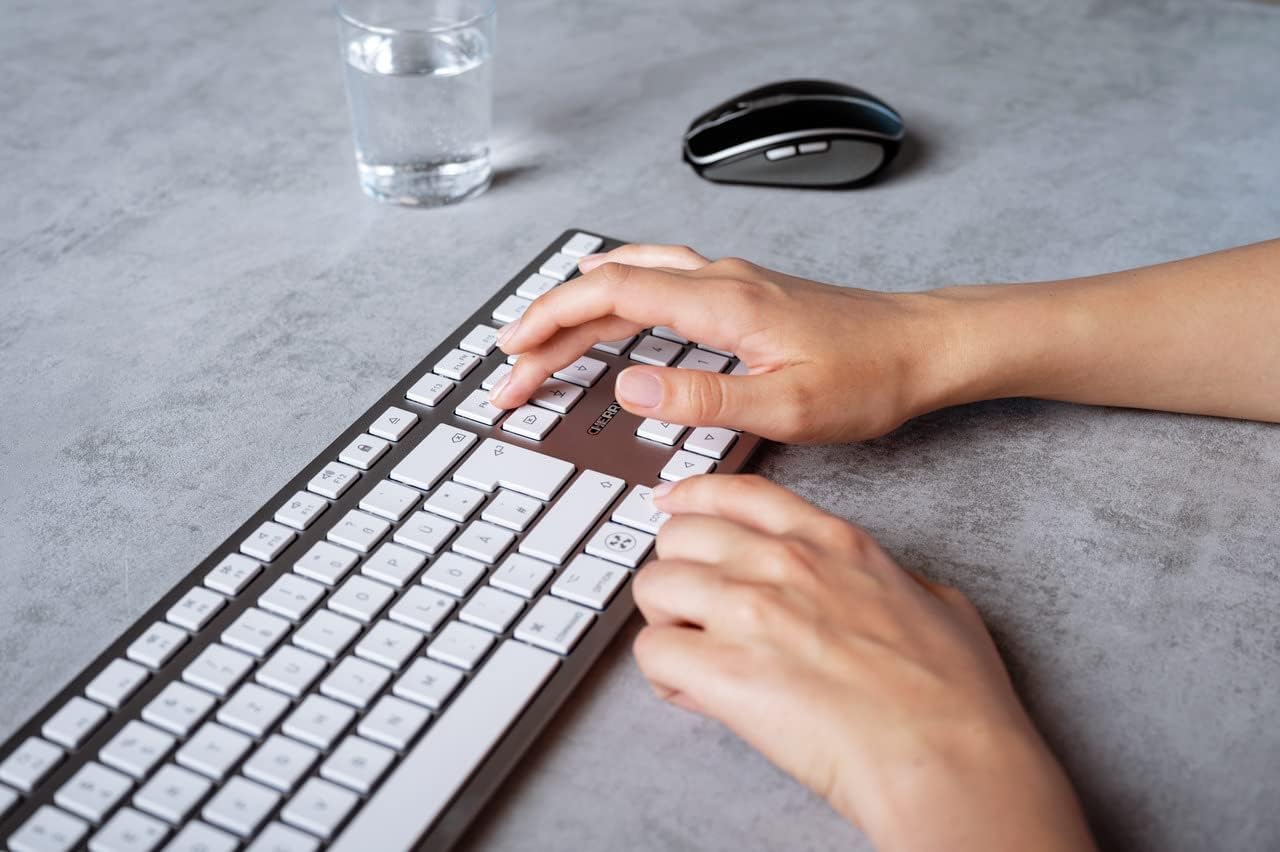
Image 5.1: A user typing on the Cherry KW 9100 keyboard, demonstrating its ergonomic design and key spacing.
5.3. Управління живленням
To conserve battery life, the keyboard will enter a sleep mode after a period of inactivity. To wake it up, simply press any key. The keyboard will reconnect automatically to the last active device.
6. Технічне обслуговування
6.1. прибирання
To clean the keyboard, gently wipe the surface with a soft, lint-free cloth. For stubborn dirt, slightly dampen the cloth with water or a mild, non-abrasive cleaning solution. Ensure no liquid enters the keyboard. Do not use harsh chemicals or abrasive materials.
6.2. Зберігання
When not in use for extended periods, store the keyboard in a dry, cool place. It is recommended to fully charge the battery before long-term storage.
7. Вирішення проблем
| проблема | Можлива причина | Рішення |
|---|---|---|
| Клавіатура не підключається через частоту 2.4 ГГц. | USB receiver not properly inserted; keyboard switch in 'BT' mode; low battery. | Ensure receiver is fully inserted. Slide keyboard switch to 'RF'. Charge the keyboard. Try a different USB port. |
| Клавіатура не підключається через Bluetooth. | Keyboard switch in 'RF' mode; Bluetooth off on Mac; low battery; pairing issue. | Slide keyboard switch to 'BT'. Ensure Bluetooth is enabled on your Mac. Charge the keyboard. Remove and re-pair the keyboard in Mac's Bluetooth settings. |
| Клавіші не реагують або реагують із затримкою. | Low battery; interference; keyboard in sleep mode. | Charge the keyboard. Move closer to the receiver/Mac. Press any key to wake the keyboard. |
| Функціональні клавіші (F1-F15) не працюють належним чином. | System settings; 'Fn' key usage. | Check your Mac's Keyboard settings (System Settings > Keyboard) for function key behavior. Try pressing the 'Fn' key simultaneously with the desired function key. |
| Акумулятор швидко розряджається. | Frequent use; keyboard not entering sleep mode. | Ensure the keyboard is allowed to enter sleep mode when idle. Fully charge the keyboard. |
8. Технічні характеристики
| Особливість | Деталь |
|---|---|
| Номер моделі | JK-9110US-1 |
| Бренд | вишня |
| Технологія підключення | Bluetooth, USB-A (for receiver), USB-C (for charging) |
| Сумісні пристрої | Mac computers with Bluetooth 4.0 or higher and USB-A connections |
| Опис клавіатури | Низькопрофесійнийfile, extra-slim, wireless, scissor-switch keyboard with adjustable angle and rechargeable battery |
| Особливість | Magnetic (for angle adjustment), Travel |
| Колір | Срібло |
| матеріал | Метал, пластик |
| Розміри продукту | 17.32 x 5.12 x 0.59 дюйми (44 x 13 x 1.5 см) |
| Вага товару | 1.94 фунта (0.88 кг) |
| Виробник | ВИШНЯ |
9. Гарантія та підтримка
Your Cherry KW 9100 Slim Wireless Rechargeable Keyboard is covered by a manufacturer's warranty. For detailed warranty information, technical support, or service inquiries, please visit the official Cherry webсайт або зверніться безпосередньо до служби підтримки клієнтів. Зберігайте підтвердження покупки для гарантійних випадків.
Інтернет-підтримка: www.cherry.de


