
Rii K18S IT
Rii Mini i18S Wireless + Bluetooth Keyboard
Посібник користувача
1. Вступ
The Rii Mini i18S is a compact, versatile keyboard featuring both 2.4G wireless and Bluetooth connectivity. It integrates a large touchpad and LED backlighting, making it suitable for a wide range of devices including Smart TVs, TV Boxes, Tablets, Smartphones, Consoles, and PCs. This manual provides detailed instructions for setup, operation, maintenance, and troubleshooting to ensure optimal use of your device.

Figure 1: Rii Mini i18S keyboard demonstrating its dual wireless and Bluetooth connectivity.
2. Вміст упаковки
Будь ласка, перевірте упаковку на наявність наступних предметів:
- Rii Mini i18S Wireless + Bluetooth Keyboard
- USB RF 2.4 GHz Receiver
- USB-кабель для зарядки
- USB кабель-подовжувач
- Посібник користувача (цей документ)
3. Продукт закінчивсяview
The Rii Mini i18S features a QWERTY layout keyboard. It has a large multi-touch touchpad, and dedicated multimedia keys. It is designed for comfortable and efficient input across various platforms.
3.1 Основні характеристики
- Подвійне підключення: 2.4G Wireless and Bluetooth 4.0.
- Велика сенсорна панель: High sensitivity with multi-touch gestures.
- Світлодіодне підсвічування: Two selectable colors (blue, green) for use in low-light conditions.
- Акумуляторна батарея: Built-in lithium polymer battery.
- Елементи керування мультимедіа: Спеціальні клавіші для відтворення медіафайлів.
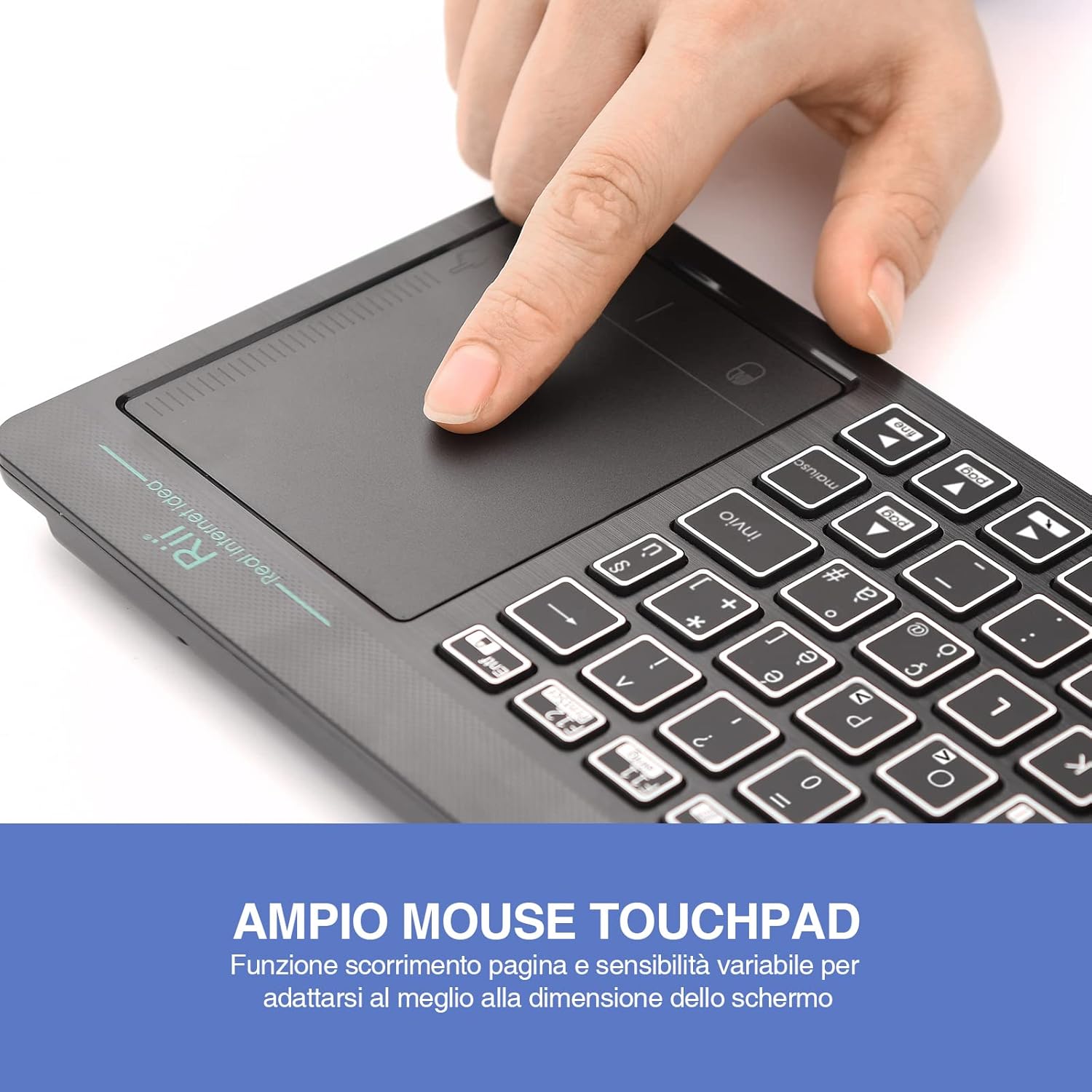
Figure 2: The large, sensitive touchpad of the Rii Mini i18S, supporting multi-touch gestures.

Figure 3: The Rii Mini i18S keyboard showcasing its two-color LED backlighting (blue and green).
4. Налаштування
4.1 Заряджання клавіатури
Before initial use, fully charge the keyboard. Connect the provided USB charging cable to the keyboard's microUSB port and the other end to a USB power source (e.g., computer USB port, USB wall adapter).
- The charging indicator LED will illuminate during charging.
- The LED will turn off or change color when fully charged.
- Ємність акумулятора: 400 мАг.
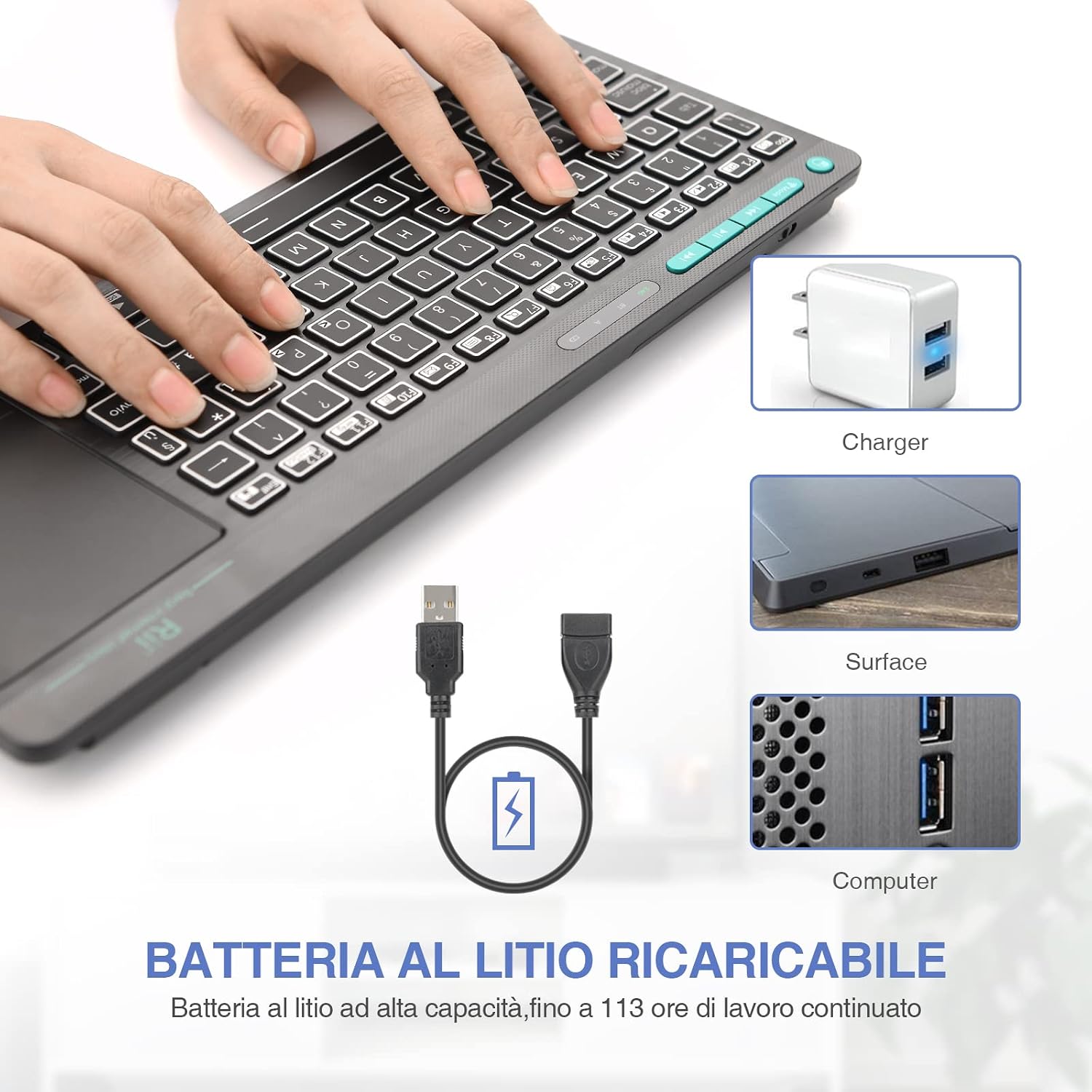
Figure 4: The Rii Mini i18S keyboard being charged using the included USB cable, connected to a power source.
4.2 Бездротове з'єднання 2.4G
For 2.4G wireless connection, use the included USB receiver.
- Locate the USB receiver in the back compartment of the keyboard.
- Insert the USB receiver into an available USB port on your device (Smart TV, PC, TV Box, etc.).
- Натисніть РЕЖИМ button on the keyboard until the 2.4G indicator LED is active.
- The keyboard should automatically connect to your device. If not, try pressing Fn + RF для повторного з'єднання.

Figure 5: The USB wireless receiver stored securely in the back compartment of the Rii Mini i18S keyboard.
4.3 Підключення Bluetooth
For Bluetooth connection, ensure your device has Bluetooth enabled.
- Натисніть РЕЖИМ button on the keyboard until the BT indicator LED is active.
- На своєму пристрої перейдіть до налаштувань Bluetooth та знайдіть нові пристрої.
- Select "Rii Mini i18S" from the list of available devices to pair.
- Дотримуйтеся будь-яких підказок на екрані, щоб завершити процес створення пари.
The dual connection technology allows you to manage up to two devices simultaneously: one via Bluetooth and one via 2.4G wireless.

Figure 6: The Rii Mini i18S keyboard demonstrating its dual mode connectivity, shown here connected to a tablet.
5. Інструкція з експлуатації
5.1 Основні функції клавіатури
The keyboard features a standard QWERTY layout. All keys function as labeled. Use the Fn key in combination with other keys for special functions (e.g., multimedia controls).
- CAPS LOCK: Press to toggle uppercase/lowercase. An indicator LED will show its status.
5.2 Функції сенсорної панелі
The integrated touchpad supports various gestures:
- Натискання одним пальцем: Клацніть лівою кнопкою миші.
- Дотик двома пальцями: Клацніть правою кнопкою миші.
- Прокручування двома пальцями: Drag two fingers up or down to scroll pages.
- Перетягування одним пальцем: Перемістіть курсор.
- Ліва кнопка миші: A physical left mouse button is also available on the top-left side of the keyboard for convenience.
5.3 Контроль підсвічування
The keyboard features LED backlighting with two selectable colors.
- Натисніть light bulb icon key to cycle through backlight colors (blue, green) or turn it off.
5.4 мультимедійних клавіш
Використовуйте Fn key in conjunction with the F1-F12 keys (or other labeled keys) to access multimedia functions such as volume control, play/pause, and track skipping.
6. Технічне обслуговування
6.1 Очищення
Для очищення клавіатури використовуйте м’яку суху тканину. Для стійкого бруду злегкаampПротріть тканину водою або м’яким миючим розчином. Уникайте використання агресивних хімікатів або абразивних матеріалів.
6.2 Догляд за акумулятором
- Уникайте впливу на клавіатуру екстремальних температур.
- Регулярно заряджайте клавіатуру, навіть якщо вона використовується нечасто, щоб підтримувати справність акумулятора.
- The keyboard features a programmable standby mode (3 minutes or 2 hours) to conserve battery life.
7. Вирішення проблем
7.1 Клавіатура не реагує
- Перевірте батарею: Ensure the keyboard is charged. Connect it to a power source.
- Перевірити підключення:
- For 2.4G Wireless: Ensure the USB receiver is properly inserted and the keyboard is in 2.4G mode. Try a different USB port.
- For Bluetooth: Ensure Bluetooth is enabled on your device and the keyboard is in Bluetooth mode. Re-pair the device if necessary.
- Перезапуск: Turn the keyboard off and on again. Restart your connected device.
7.2 Touchpad Not Working Correctly
- Очищення сенсорної панелі: Ensure the touchpad surface is clean and free of debris.
- Чутливість: Adjust touchpad sensitivity if available in your device's settings.
7.3 Підсвічування не працює
- Перевірте батарею: Low battery might disable backlighting. Charge the keyboard.
- Перемкнути: Press the light bulb icon key to ensure it's not turned off.
8. Технічні характеристики
| Модель | K18S IT |
| Підключення | 2.4 GHz RF Wireless, Bluetooth 4.0 |
| Робочий діапазон | Up to 10 meters (2.4 GHz RF), Up to 8 meters (Bluetooth) |
| Розкладка клавіатури | QWERTY (Italian layout) |
| Touchpad Resolution | До 1000 DPI |
| Кольори підсвічування | Blue, Green (selectable) |
| Тип батареї | Акумуляторна літієва полімерна |
| Ємність акумулятора | 400 мАг |
| Порт зарядки | MicroUSB (5V 350mA) |
| Розміри (Д x Ш x В) | 31.7 х 12.3 х 1.8 см |
| вага | 340г |
| Сумісна ОС | Windows (XP/Vista/7/8/10/11), Mac OS, Linux (Ubuntu 11.04+), Android (2.3+), iOS, Raspbian, PlayStation (PS3/PS4/PS5), Xbox (360/One/S/X), Fire TV |
| Сертифікати | CE, RoHS, FCC |
9. Гарантія та підтримка
Rii products are designed for reliability and performance. For warranty information and technical support, please refer to the official Rii webсайт або зверніться до місцевого дистриб'ютора. Зберігайте чек про покупку для гарантійних претензій.
Офіційний webсайт: www.riitek.com
Ask a question about this manual
Ask about setup, troubleshooting, compatibility, parts, safety, or missing instructions. Manuals+ will review the question and use this page’s manual context to help answer it.