
1. Вступ
This manual provides essential information for the proper installation, configuration, and operation of your Teltonika RUT951 4G LTE Router. The RUT951 is a robust industrial cellular router designed for professional applications, offering reliable internet connectivity via 4G LTE, Wi-Fi, and Ethernet. It features dual-SIM support for network redundancy and is powered by RutOS, providing advanced customization and security features.
2. Продукт закінчивсяview
2.1 Основні характеристики
- Dual-SIM 4G LTE cellular connectivity for reliable network access.
- Integrated Wi-Fi (802.11b/g/n) for local wireless networking.
- Four Ethernet interfaces (3x LAN, 1x WAN) for wired connections.
- Powered by RutOS for advanced customization, automation, and security.
- Robust design suitable for various IoT and industrial scenarios.
2.2 Вміст упаковки
The standard package for the Teltonika RUT951 router typically includes:
- Teltonika RUT951 Router Unit
- Адаптер живлення
- 2 x Mobile Antennas (SMA)
- 2 x Wi-Fi Antennas (RP-SMA)
- Кабель Ethernet
- Короткий посібник
2.3 Router Layout
Familiarize yourself with the router's ports, indicators, and slots.
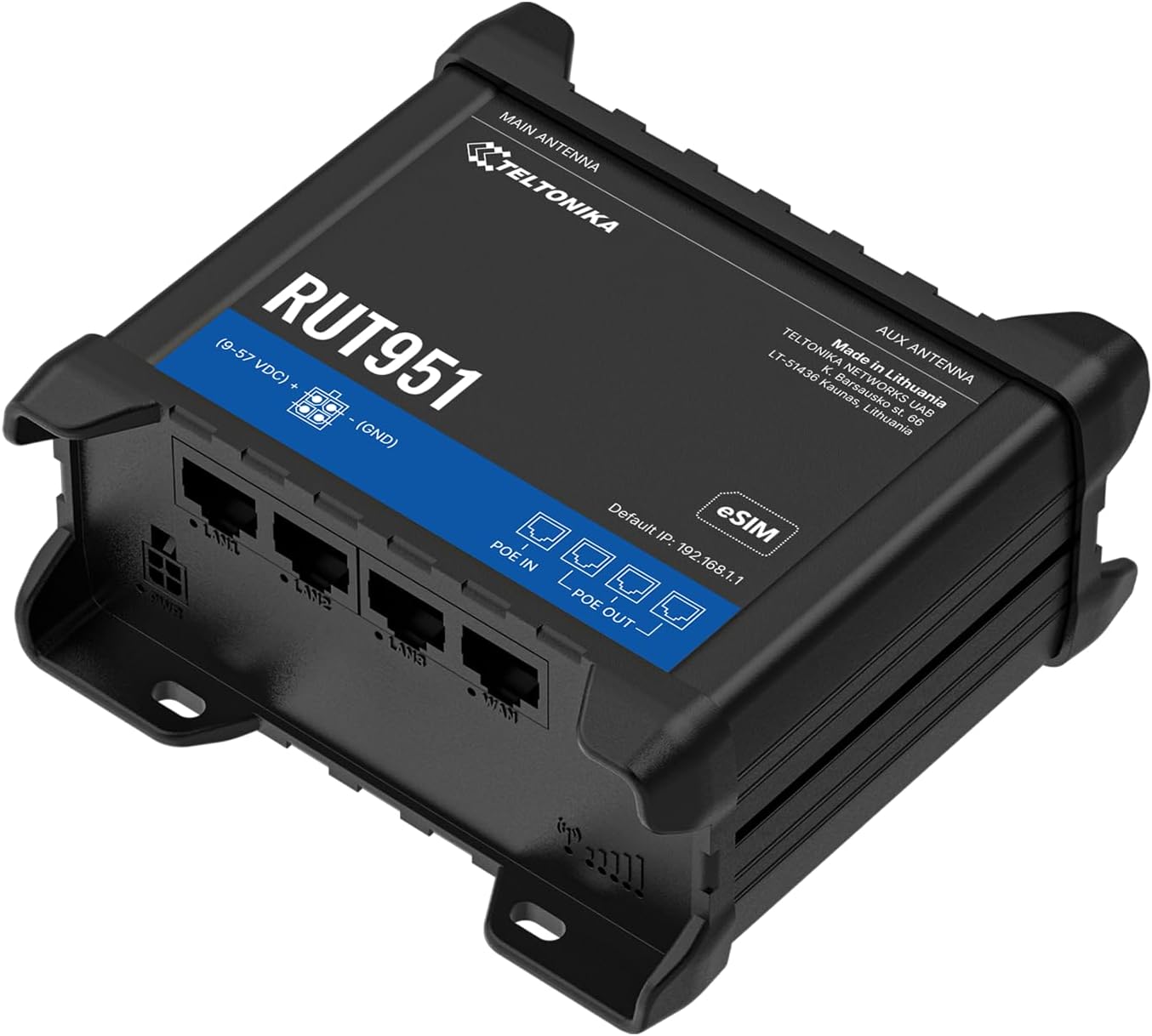
малюнок 1: Фронт view of the Teltonika RUT951 router, showing the model name and general design.

малюнок 2: Detailed diagram illustrating the various ports and indicators on the Teltonika RUT951 router, including mobile and Wi-Fi antenna connectors, SIM slots, Ethernet ports, power socket, and LED indicators.
- Mobile AUX Antenna Connector (SMA female): For secondary mobile antenna.
- Mobile MAIN Antenna Connector (SMA female): For primary mobile antenna.
- SIM1 / SIM2 Slots: For inserting cellular SIM cards.
- Кнопка скидання: To restore factory settings or reboot.
- Wi-Fi Antenna Connectors (RP-SMA female): For Wi-Fi antennas.
- Розетка: Для підключення адаптера живлення.
- Порти LAN Ethernet: Для підключення пристроїв локальної мережі.
- Порт WAN Ethernet: For connecting to an external network (e.g., fiber modem).
- Mobile Signal Strength LEDs: Вказує на силу стільникового сигналу.
- Mobile Connection Status LED: Indicates cellular connection status.
- Світлодіоди локальної мережі: Indicate activity on LAN ports.
- Світлодіод WAN: Показує активність на WAN-порті.
3. Інструкції з налаштування
3.1 Встановлення SIM -карти
- Locate the SIM card slots (SIM1 and SIM2) on the top panel of the router.
- Using a SIM ejector tool or a paperclip, gently press the small button next to the SIM slot to open it.
- Insert your activated Mini-SIM card(s) into the slot(s) with the gold contacts facing down and the notched corner oriented correctly.
- Push the SIM tray back into the router until it clicks into place.

малюнок 3: Топ view of the RUT951, highlighting the SIM card slots and antenna connectors.
3.2 Підключення антени
- Screw the two mobile antennas onto the SMA connectors labeled 'MOBILE' (MAIN and AUX) on the top panel.
- Screw the two Wi-Fi antennas onto the RP-SMA connectors labeled 'WIFI' on the top panel.
- Ensure all antennas are securely tightened for optimal signal reception.
3.3 Підключення живлення
- Connect the provided power adapter to the power socket on the router.
- Підключіть інший кінець адаптера живлення до відповідної розетки.
- The router will power on automatically. Observe the power LED indicator.

малюнок 4: Дно view of the RUT951, showing the Ethernet ports and power input.
3.4 Підключення Ethernet
To connect a device directly to the router:
- Connect one end of an Ethernet cable to any of the LAN ports (LAN1, LAN2, LAN3) on the router.
- Connect the other end of the Ethernet cable to your computer or network device.
- If you are using the router as a WAN gateway, connect your external modem (e.g., fiber modem) to the WAN port.
4. Інструкція з експлуатації
4.1 Початковий доступ до WebUI
- Ensure your computer is connected to the router via Ethernet or Wi-Fi. The default Wi-Fi SSID and password can be found on the router's label.
- Відкрийте a web браузер і введіть IP-адресу за замовчуванням: 192.168.1.1
- You will be prompted for login credentials. The default username is адмін. The default password is also адмін (or as specified on the router's label).
- Upon first login, you will be guided through a setup wizard to change the default password and configure basic settings.
4.2 Конфігурація мережі
After initial login, you can configure various network settings through the WebІнтерфейс користувача:
- Налаштування WAN: Configure your cellular (4G LTE) connection, including APN settings, or set up the Ethernet WAN port.
- Налаштування локальної мережі: Manage the local network IP address range and DHCP server.
- Налаштування Wi-Fi: Change Wi-Fi SSID, password, security protocols, and channel settings.
- Подвійна SIM-карта: Configure failover or load balancing between the two SIM cards for continuous connectivity.
- VPN: Set up various VPN protocols for secure remote access.
5. Технічне обслуговування
5.1 оновлень мікропрограми
Regularly updating the router's firmware is crucial for security, performance, and new features. Firmware updates can be performed via the WebUI under the 'System' or 'Firmware' section. Always download firmware from the official Teltonika Networks webсайт.
5.2 Скидання до заводських налаштувань
Якщо у вас виникають постійні проблеми або ви забули свої облікові дані для входу, ви можете виконати скидання налаштувань до заводських:
- With the router powered on, locate the RESET button (refer to Figure 2).
- Press and hold the RESET button for approximately 10 seconds until all LEDs flash.
- Відпустіть кнопку. Роутер перезавантажиться із заводськими налаштуваннями.
6. Вирішення проблем
- Немає підключення до Інтернету:
- Перевірте вставку та активацію SIM-картки.
- Перевірте налаштування APN у WebUI.
- Ensure mobile antennas are securely connected.
- Check cellular signal strength LEDs.
- Не працює Wi-Fi:
- Переконайтеся, що Wi-Fi увімкнено в WebUI.
- Check Wi-Fi antenna connections.
- Перевірте SSID та пароль Wi-Fi.
- Немає доступу WebІнтерфейс користувача:
- Ensure your device is connected to the router (Ethernet or Wi-Fi).
- Перевірте IP-налаштування вашого комп’ютера (має бути налаштовано автоматичне отримання IP-адреси).
- Спробуйте очистити кеш браузера або скористатися іншим браузером.
- Perform a factory reset if you suspect incorrect IP configuration or forgotten password.
7. Технічні характеристики
| Особливість | Специфікація |
|---|---|
| Бренд | Тельтоніка |
| Назва моделі | 951 рублів |
| Технологія підключення | Wi-Fi, 4G LTE, 3G, 2G |
| Стандарт бездротового зв'язку | 802.11b, 802.11g, 802.11n |
| Клас діапазону частот | Дводіапазонний |
| Кількість портів | 4 (3x LAN, 1x WAN) |
| Пропускна здатність порту локальної мережі | 100 Мбіт/с |
| Швидкість передачі даних | 150 Megabits Per Second (Max Upstream) |
| Операційна система | RutOS |
| Вага товару | 287 грамів |
| томtage | 30 вольт |
| Протокол безпеки | WPS (and others via RutOS) |
| Покриття | Dual SIM network redundancy |
8. Інформація про безпеку
- Використовуйте лише адаптер живлення, що постачається разом із пристроєм.
- Не піддавайте пристрій впливу води, вологи або екстремальних температур.
- Уникайте розміщення пристрою поблизу джерел тепла або під прямими сонячними променями.
- Забезпечте належну вентиляцію, щоб запобігти перегріву.
- Do not attempt to open or modify the device. This will void the warranty.
- Dispose of the device and its accessories responsibly according to local regulations.
9. Гарантія та підтримка
The Teltonika RUT951 router comes with a standard manufacturer's warranty. For detailed warranty terms and conditions, please refer to the documentation included with your product or visit the official Teltonika Networks website. For technical support, firmware downloads, and additional resources, please visit the Teltonika Networks support portal or contact your vendor.